Want to convert audio to MP3? Want to edit video to audio track and then convert to regular audio formats? Aiseesoft Audio Converter for Windows is powerful at the area. It can convert video to MP3, WAV, WMA, AAC, AC3, M4A, etc. And convert almost all audio to MP3, M4A, AAC, etc To convert video files to audio format and audio to MP3 with all in one Aiseesoft Audio Converter for Windows, you can just following the steps below:
1 Add Movie
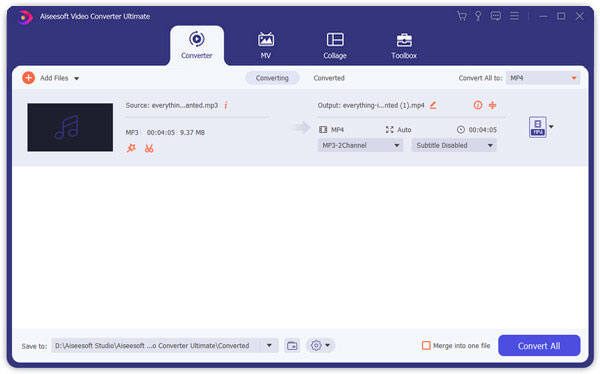
Click the "Add Files" button to browse your computer hard disc and add the video files you want to convert to the program.
2Output Settings
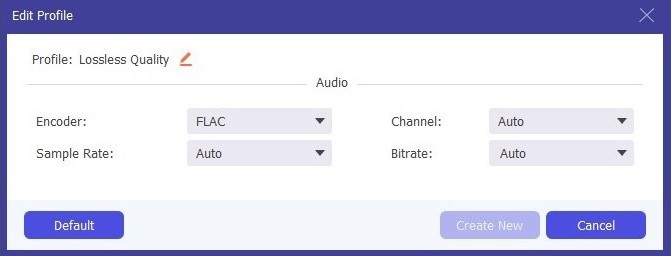
After you add video files, you can select an output format for each video file and specify a directory on your computer to save the output files. If you want to merge all added video files into one file, you can check the "Merge into one file" option. If you don't want to use the default video and audio encoding settings, just click the Settings button to set these settings.
3Start Conversion
Click the "Convert All" button to start conversion and then you can just go out for a walk or take a nap, and the conversion may have been finished when you come back.
Tip: Edit Movie (Optional)
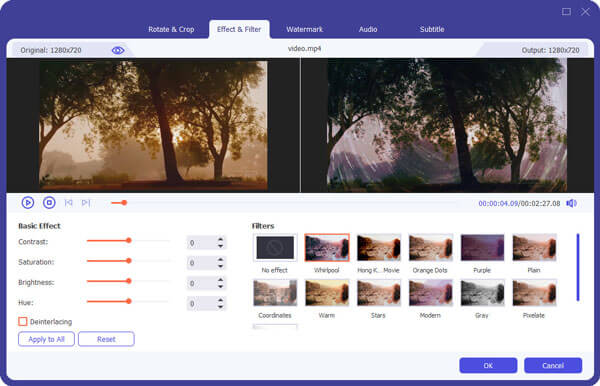
Aiseesoft Audio Converter for Windows allows you to edit your video files before converting them by clicking the edit or clip icon.

How do I convert audio files to MP3?
With the help of Aiseesoft Video Converter Ultimate, you can convert any audio files to MP3. Just import the audio into the program, and select MP3 as the output format. Then click Convert All button to start converting audio files to MP3.
Can I convert M4A to MP3?
Yes. You can convert M4A to MP3 with a powerful converter like Aiseesoft Video Converter Ultimate. Click Add Files button to import the M4A files. Click the Format icon and select MP3 as the output format. Then click Convert All button to start converting M4A to MP3.
What is the best audio quality?
A lossless file format should be the best audio format for sound quality. There are lossless audio formats like FLAC, WAV, or AIFF. They are considered "hi-res" because they are better or equal to CD quality.

June 18, 2020 14:30 / Updated by Jenny Ryan to Convert Audio
 How to Convert Common Videos to HD Quality (4K, 1080p and 720p)
You can easily get your video with high quality after converting it to 4K or 1080p HD video. Read this article and get the way.
 Free Burn Movies to DVD on Mac and Windows
Here we introduce five free DVD burning software: DVD Flick, DVD Styler, DivXtoDVD Perl Script, ImgBurn and Q DVD-Author. All of them can burn m4v, wmv, flv, etc. video to dvd free.
 How to Play DVD on Windows 7/8/8.1/10
Want to find a reliable Windows DVD Player for Windows 10/8.1/8/7? Read this article and find the best DVD Player for Windows.
 Leave your comment and join our discussion
