AVCHD stands for Advanced Video Codec High Definition from the HD camcorder like Sony, Panasonic, Canon, etc. You can find various AVCHD videos with the extension of MTS or M2TS on your camcorder or computer.
However, when you want to play the AVCHD files on your Windows computer via Windows Media Player, they fail to be accepted.
For playing AVCHD files on Windows computer, you need to convert AVCD to WMV definitely.
That's what we shall uncover, 2 ways to convert AVCHD to WMV on computer.

Aiseesoft AVCHD Video Converter owns the professional ability of converting AVCHD video to all popular video formats (WMV, MOV, MP4, AVI, etc.) and extracting AAC, AC3, MP3, M4V, MP2, OGG, WAV, WMA, and more audio from videos.
Downloads
Aiseesoft AVCHD Video Converter
 100% Secure. No Ads.
100% Secure. No Ads.
Now, let's see how to convert AVCHD to WMV with this converter.
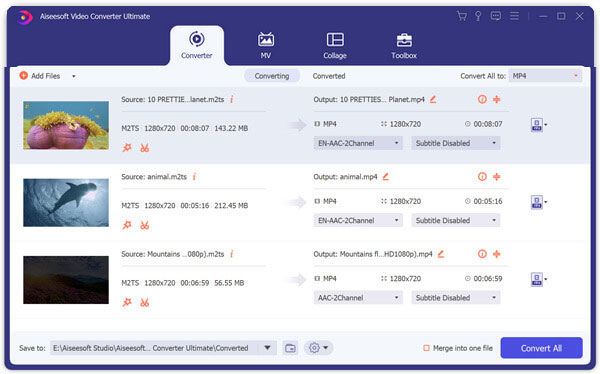
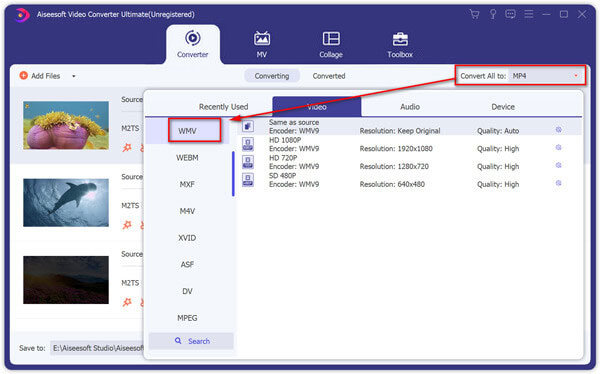
Furthermore, if you want you can change the destination folder for output file: click the profile settings icon next to the WMV output, then you can set the video parameters including Encoder, Resolution, Frame Rate, Video Bitrate to customize output videos.
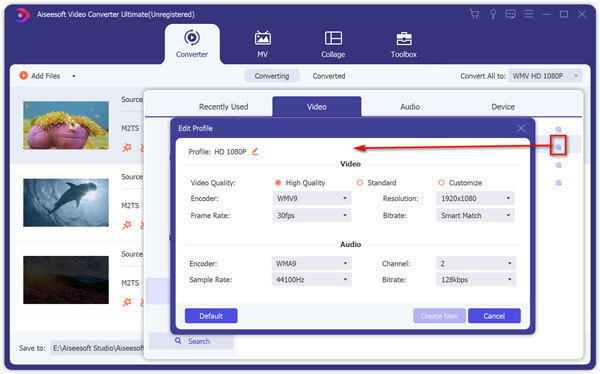
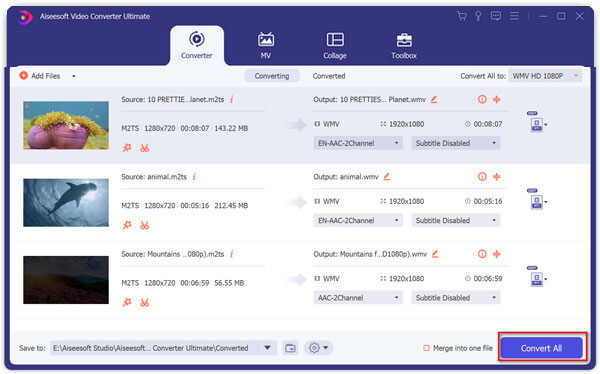
In this way, you can batch convert AVCHD files to WMV videos and then play on your Windows computer. Moreover, this software lets you convert AVCHD to MOV, MP4 etc., for playing on Mac computer.
Another way to convert AVCHD to WMV is using the free online video converter.
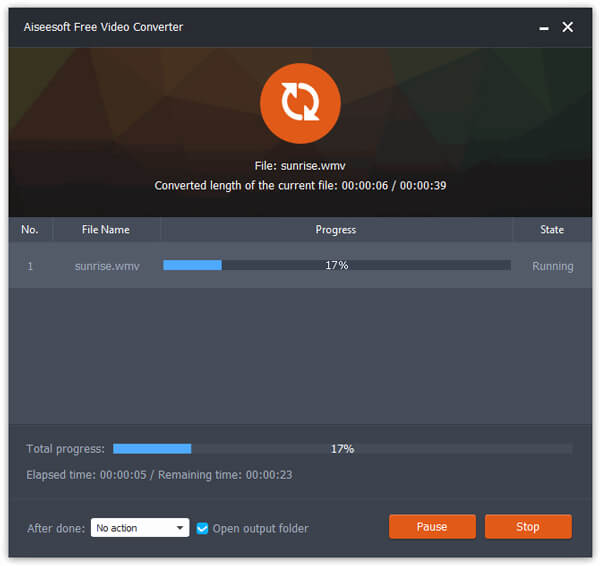
Aiseesoft Free Video Converter is the totally free AVCHD video converter. It can convert AVCHD MTS and M2TS file to WMV online and download the converted files automatically.
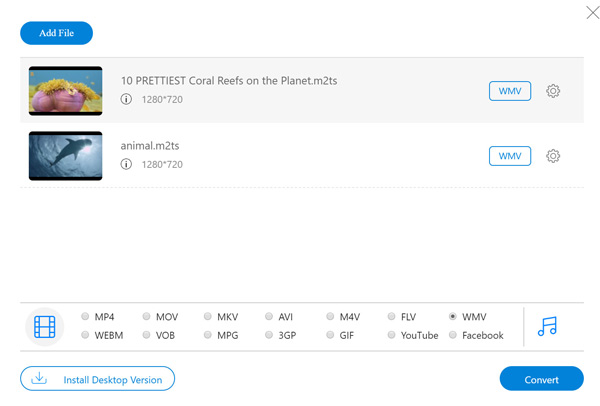
The high resolution of this freeware supports is 1080p HD. If you want to convert AVCHD to 4K WMV, then you have to turn to the first method.
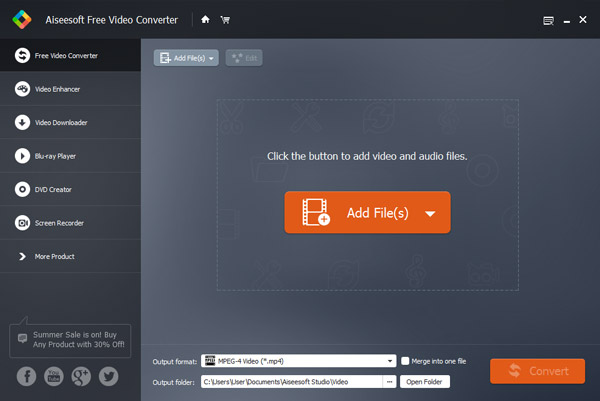
If you are looking for a free AVCHD to WMV converter, Aiseesoft Free Video Converter might be your best choice. It is excellent that it can convert any AVCHD video to other video and audio format, including MP4, MKV, MOV, FLV, AVI, WMV, MP3, etc. Besides, you can convert the AVCHD videos to multiple digital devices like iPhone, iPad, iPod, Samsung, LG, Google devices, etc.
100% Secure. No Ads.
100% Secure. No Ads.
Before converting AVCHD to WMV, you'd better get a full understanding of the two different formats. The followings are the main concepts of AVCHD and WMV.
AVCHD, short for Advanced Video Coding High Definition, is a recording format for high-definition digital video cameras. It support high definition resolution like 720p*, 1080i* and 1080p. The AVCHD is jointly developed by Panasonic and Sony. When you want to play the AVCHD on your Windows computer, it is the most acceptable solution to convert the AVCHD recording to WMV.
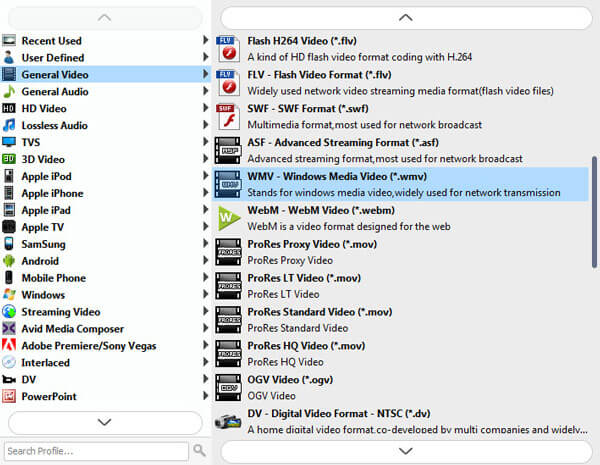
WMV (Windows Media Video) is a video compression format based on Microsoft's Advanced Systems Format (ASF). It is a high-resolution format that uses other Blu-ray, DVDs and other multimedia video formats. WMV is the default video file format for Windows Media Player. Some DVD and Blu-ray also use the WMV format. So you can use WMV files on Windows Media Players and movie & TV players.
Can HandBrake convert AVCHD to MP4?
Yes, HandBrake can open MTS and M2TS files and then convert them to WMV, MP4, M4V, MKV, MOV, MPG or MPEG, and AVI.
How do I convert AVCHD to MP4 on Mac?
For converting AVCHD to MP4 on Mac, you still need the AVCHD video converter for Mac computer. Aiseesoft AVCHD Video Converter is compatible with Windows and Mac computer, and you can free download this software on your Mac computer, then select MP4 or MOV as the output format, and finally click Convert All to start converting AVCHD MTS/M2TS to MOV MP4 on Mac immediately.
Is AVCHD better than MP4?
AVCHD is the video format developed by HD camcorder from Sony, Panasonic, etc., while MP4 is the media container that holds vide, audio, image and subtitle. JVC records MP4 videos, which go up to 1080p at 60 frames per second, while AVCHD is created for capturing video in 1080p 50p/60p with the maximum bitrate of 28 Mbit/s, and AVCHD has a higher quality than MP4. For more details of AVCHD VS MP4, you can refer to it here.
Conclusion
AVCHD files cannot play via Windows Media Player on Windows computer and you need to convert AVCHD MTS/M2TS to WMV. This post shares 2 methods of changing AVCHD to WMV on your computer and online.
Which way is your favorite one?
Let me know by leaving your comments below.
 Best Way to Convert AVCHD to MP4 without Losing Quality
This tutorial focuses on how to convert AVCHD to MP4 on Windows and Mac. You can get high-quality output MP4 videos within few steps.
 How to Convert AVCHD Video to MOV with AVCHD Video Converter
A guide about how to convert AVCHD video to MOV format. Free download AVCHD Video Converter to convert AVCHD to MOV.
 AVCHD or MP4? Which One Is the Better to Output Camcorder Recording?
AVCHD or MP4, What is the difference? Which one is better for recording, playback or editing on iMovie, Premiere Pro, etc.? Find the answers in this comprehensive guide.
 Leave your comment and join our discussion
Convert AVCHD
1. AVCHD 2. AVCHD vs MP4 3. Convert AVCHD Video 4. AVCHD to MP4 5. Convert AVCHD to AVI 6. AVCHD to WMV 7. Convert AVCHD to MOV 8. AVCHD to SD 9. AVCHD to iPod 10. Convert AVCHD to iPad 2 11. AVCHD to Kindle
Video Converter Ultimate is excellent video converter, editor and enhancer to convert, enhance and edit videos and music in 1000 formats and more.
100% Secure. No Ads.
100% Secure. No Ads.

