"I get an MP3 file and want it to convert to M4R as the ringtones for my iPhone. Is there any M4R converter that can help me?"

Summary: If you use iPhone, you will be familiar with M4R, which is the iPhone ringtone format. What we shall show you is how to convert to M4R and put the M4R file on your iPhone to custom your own ringtone on iPhone X/8/7/6/5/4, etc.
M4R file is the file extension of iTunes ringtone file. The MER file is created to be used to custom ringtone sounds. Working for different purposes, M4A file has been renamed to M4R. M4R file can be opened with iTunes, and you could use VLC to play the M4R file that is not copy protected.
Compared with Android ringtone in MP3 format, M4R is the iOS ringtone format. So if you want to change a customized ringtone on your iPhone, you need to create an M4R file first. That is what we shall show you in the following description.
Aiseesoft M4R Converter is the M4R converter software for Windows and Mac users. Let's check its features:
✔ Convert MP3, AIFF, FLAC, OGG, WAV, WMA, OGG, etc. to M4R.
✔ Extract M4R ringtone from MP4, MOV, WMV, MKV, AVI, SWF, FLV, etc.
✔ Manage iPhone ringtones on computer like delete, rename, etc.
✔ Transfer M4R ringtones between iPhone and computer.
✔ Sync M4R ringtone to iTunes directly.
Check the following tutorial to use the M4R converter on your computer.
Step 1 Add Video
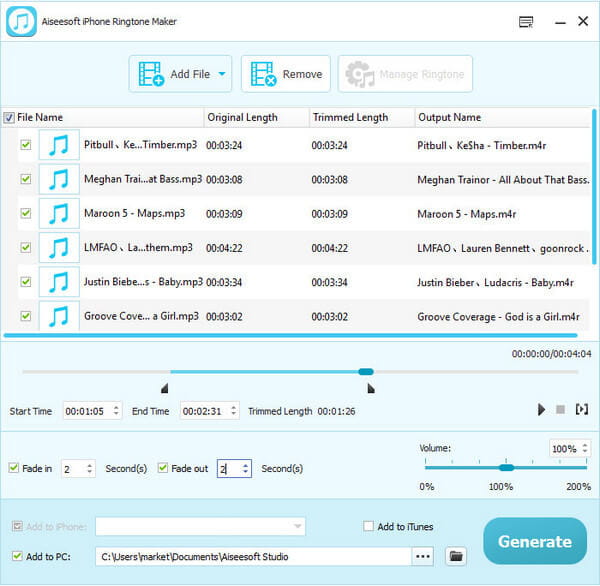
Click "Add File/Disc" button, find the video/audio you want to convert in the pop-up window, select them and click "OK" button to add these files into the M4R converter.
Step 2Edit your ringtone
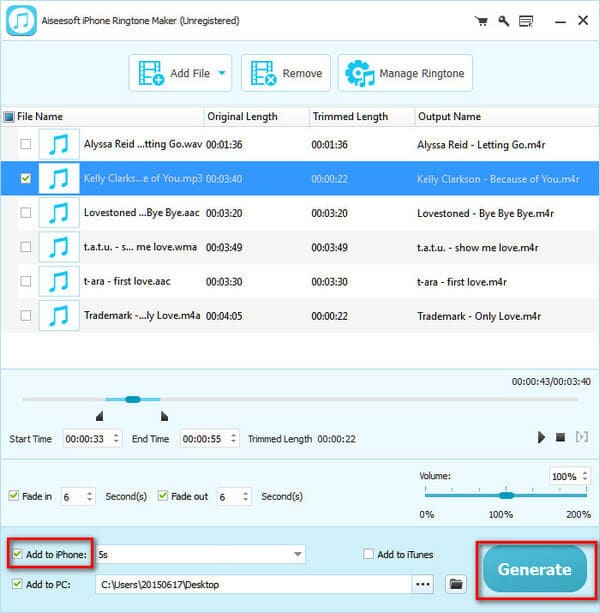
Drag the slider to specify the part you want to create iPhone ringtone. Also you can adjust the output volume for iPhone ringtone and set the fade in and fade out time.
Step 3Select the output path and start to generate ringtones
This M4R converter allows you to convert media files to M4R audio files to iPhone, PC and iTunes at the same time. Just check the three options and click "Generate" button to begin the conversion.
iTunes is the free M4R ringtone maker and converter for iPhone iPad and iPod users. It can convert MP3, AAC, AIFF, ALAC and WAV to M4R ringtone on iTunes, and sync M4R file to iPhone with USB cable.
Check the guide below to convert M4R on iTunes
Step 1 Set AAC codec
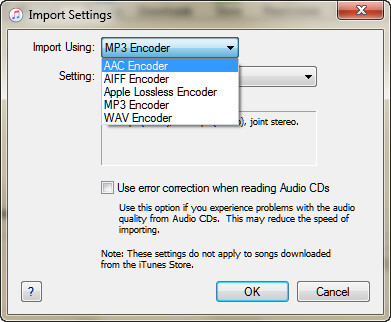
Run the latest iTunes on your computer. Click "Edit" > "Preferences" > "General" > "Import Settings" > "Import Using" to select "AAC Encoder".
Step 2 Import audio to iTunes
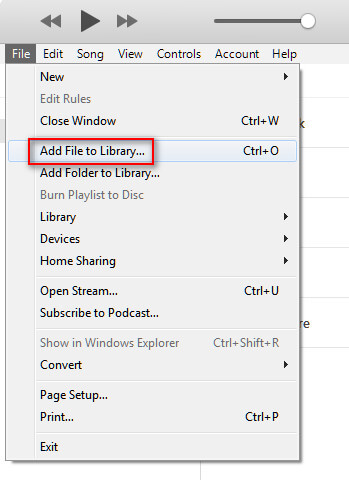
Click "File" > "Add File to Library" to import the songs to iTunes. Or just drag the audio file to iTunes Library.
Step 3 Make M4R settings
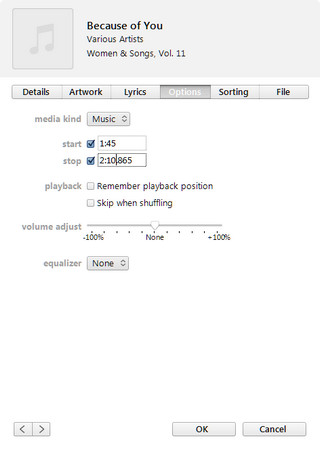
If you want to convert to M4R ringtone on your iPhone, then you should make sure the ringtone time is not longer than 40 seconds.
Navigate the song, right-click your mouse to select "Song Info" > "Options" to set the ringtone time, volume, etc. and click "OK" to save the changes you made just now.
Step 4 Create AAC
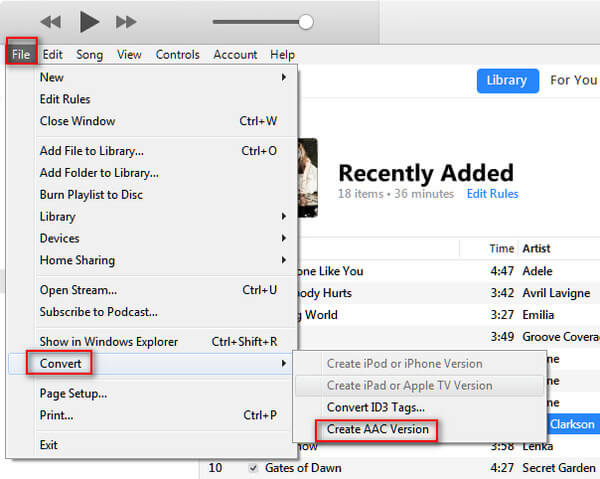
Back to the song, click it > "File" > "Convert" > "Create AAC Version" and you will find the AAC version of the song is below the original song.
Step 5 Convert AAC to M4R
Drag the converted AAC song to desktop on your computer, and you will find it gets the file extension of M4A. Here you need to rename the M4A to M4R manually.
Now you have converted the music file on iTunes to M4R.
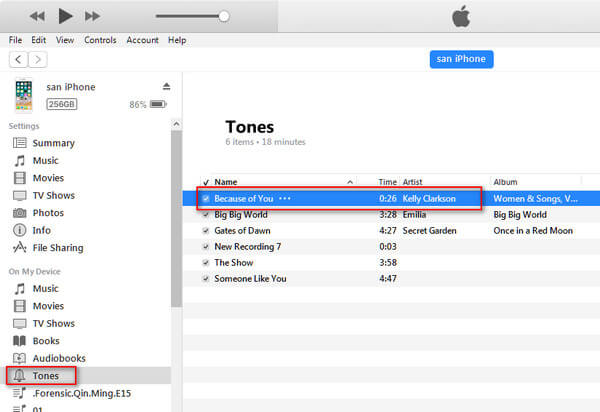
If you want to put M4R file on your iPhone, you need to connect your iPhone to computer. Find and click your iPhone icon on iTunes > Click "Tones" under "On My Device", and drag the converted M4R ringtone to Tones list directly, and you will find your iPhone will sync the ringtone to your iPhone automatically.
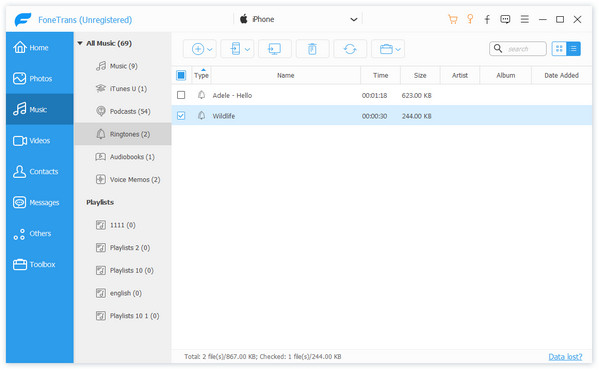
FoneTrans is the iOS data transfer tool and M4R ringtone converter. It can help you convert music file to M4R ringtone for iPhone iPad iPod, and transfer the M4R ringtone to your device directly. Moreover, it can be the iOS manager to manage iPhone data on computer, like contacts, photos, messages, music, videos, etc.
Check the steps below to convert MP3, WAV, WMA, etc. to M4R on computer.
Step 1 Download FoneTrans on your computer, install and run it.
Step 2 Connect your iPhone to PC with USB cable, Click "Media" > "Ringtone".
Step 3 Click "Add" to import the music file to your iPhone, and the pop-up window will remind that "One or more files are not in ringtone format. Do you want to convert these files to iOS supported formats and upload to the device?" Just click "Yes" to covnert the audio file to M4R ringtone on your iPhone.
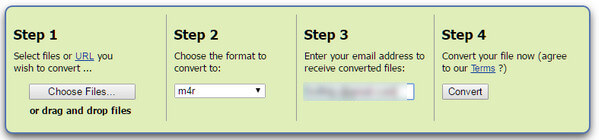
ZAMZAR is the online M4R converter to help you convert MP4 to M4R ringtone. It supports batch converting from MP3 to AAC, FLAC, AC3, M4R, M4A, MP4, WAV, and WMA, and you just need to type your email address to convert and download the converted M4R ringtone.
Check the tutorial to start to use the M4R converter online.
Step 1 Go to ZAMZAR, click "Choose Files" to load the audio files.
Step 2 Choose the format that you want to convert, and here you just select "M4R".
Step 3 Enter the email address for receiving the converted M4R file.
Step 4 Click "Convert" to start to convert and get the M4R file.
After converting to M4R, you could put the ringtones to iPhone.
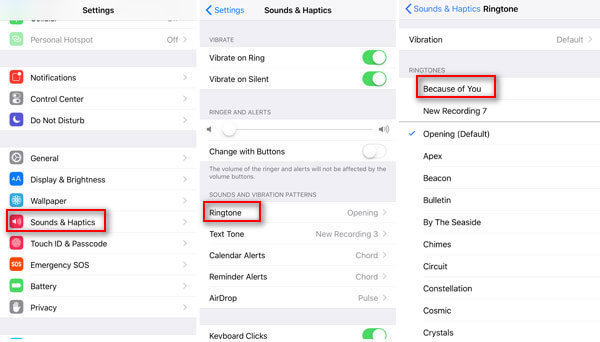
After you successfully convert to M4R file, you could set the M4R as the iPhone ringtone. On your iPhone, go to "Settings" > "Sounds & Haptics" > "Ringtone" to navigate the M4R file, tap it to set it as your iPhone ringtone.
Conclusion: This page shows you four M4R converters and converts to M4R with the converters. The former three converts can help you directly convert to M4R and transfer the converted M4R ringtone to iPhone. The last one will require you to do more steps to transfer ringtone to iPhone. You can choose the best one solution as you like.

June 26, 2018 18:10 / Updated by Louisa White to Convert Audio
 How to Convert MTS to iPhone
Convert MTS to iPhone – Guide about how to convert MTS video to iPhone compatible video and audio formats. Free download this MTS to iPhone Converter to enjoy MTS video on iPhone
 How to Play AVI Videos on iPad
Do you want to know how to convert avi to ipad? In this article, you will learn how to convert avi video to ipad.
 How to Customize Ringtones for Android
Want to make ringtones for Android with songsyou like? This post will show you how to make ringtones for android phone.
 Leave your comment and join our discussion
