First let's have a look at what F4V format is: F4V is a format encoded with H.264, and it is HD video format. The F4V format is the file format is widely used for storing media content to deliver streaming audio and video for playbacks on your computer. F4V and FLV are in fact the standard for web video today; 80% of online videos are viewed worldwide in F4V and FLV formats.
This guide will show you how to convert F4V video using Aiseesoft FLV Video Converter, a professional and outstanding F4V Converter software. This F4V converter can convert F4V to MP3, WMV, AVI, MPEG, MP4, and other popular formats.
Aiseesoft FLV Video Converter is the best F4V converter to convert F4V to any format you want, you can even convert F4V videos to audios for you to enjoy. For example, our F4V converter can convert F4V to WMV, convert F4V to AVI, convert F4V to MP3, convert F4V to MPEG, convert F4V to MP4, 3GP, MOV, etc. So that you can enjoy your F4V files on any portable media players you want.
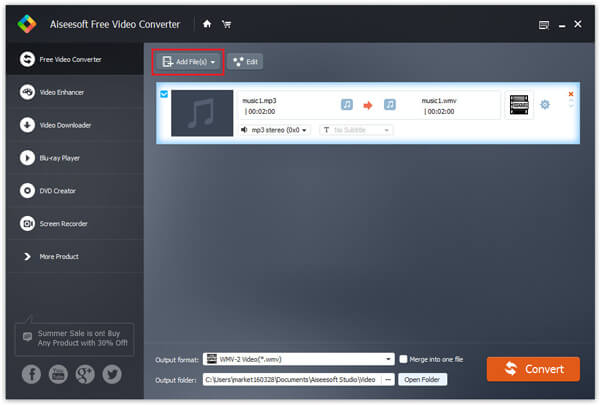
Step 1 Add FLV Video File
Click the "Add File" button to open the F4V Videos, you can also click the "File" menu to open the following drop-down menu, then select "Add File" to import files.
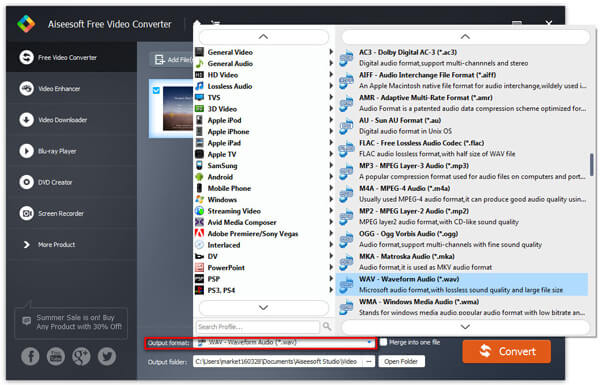
Step 2 Choose output profile
Select the output video format you need from the "Profile" drop-down list. Click "Settings" button to set your video and audio parameters.
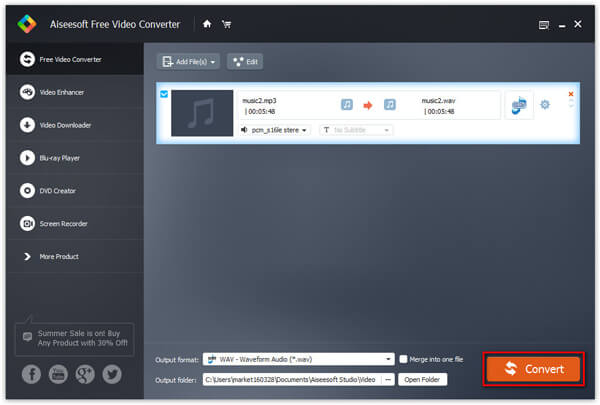
Step 3 Start Conversion
Click "Start" button to start your conversion and it will be finished in a short while.
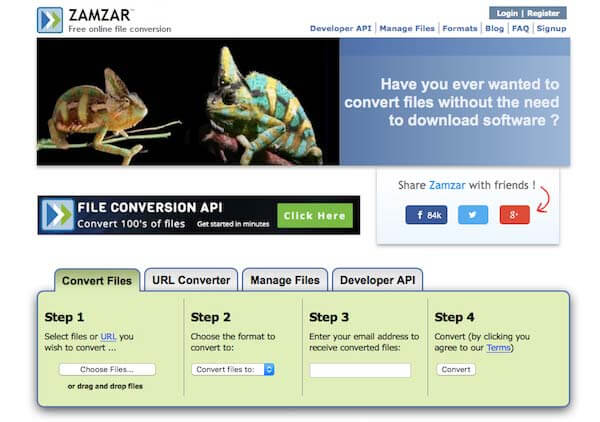
There are some popular online video converters to convert F4V to MP4 and other video file. Such as media.io - video online converter, convertio, and zamzar - convert F4V to MP4, and other online video converter. Here we take Zamzar for example:
Step 1 Go the Zamzar website.
Step 2 Drag the F4V Video file to the website. Or you can also click "Choose Files" to import source video.
Step 3 Click "Convert File to" to choose a output format such as MP4.
Step 4 Enter your email to receive converted file.
Step 5 Click "Convert" to convert F4V to MP4.

July 13, 2018 18:51 / Updated by Jenny Ryan to Convert Video
 How to Combine MP4 Files on MacBook Pro/iMac/MacBook and More
Have some MP4 files and want to join them together on MacBook? Here are three approaches to combine MP4 files on Mac without damaging video or audio quality.
 The Best Way to Convert FLV to MP4 for Free
How do you convert FLV to MP4? This guide will tell you how to free convert FLV to MP4 with RealPlayer, Zamzar, and Free FLV to MP4 Converter.
 How to Convert FLV to 3G2
When you have some FLV video files, you should convert FLV to 3G2 for mobile. In order to transcode FLV to 3G2 as you requirement, you can learn the details now.
 Leave your comment and join our discussion
