
Aiseesoft Video Converter Ultimate
 100% Secure. No Ads.
100% Secure. No Ads.
Can Audacity extract audio from video? When you search for a free tool to edit audio, you may easily get the Audacity recommendation. It is a powerful, open-source audio software for editing, recording, and converting sounds. However, when it comes to extracting audio from video in Audacity, a question arises: The software fails to open your MP4/MOV file, or displays an error message. You may be confused if Audacity is able to separate audio from a video.
As mentioned above, when you try loading a video file in Audacity, you often fail to do that. This is a common issue for many new users.
The truth is, Audacity is a dedicated audio tool that does not support video files by default. It lacks the necessary code to decode video files like MP4, MOV, MKV, or AVI. But you can unlock its capability with a little help. You can install a plugin called FFmpeg Import/Export Library to bridge this gap. Then, Audacity will let you add video files and work with their audio tracks.
This optional plugin enables Audacity to read the container format of a video and access the audio stream inside. After installation, you can directly access the video’s audio track and import it into Audacity for editing and exporting.
You can install the FFmpeg Import/Export Library to unlock video imports. Besides, it will support more audio formats, including WMA, M4A, and AC3.
Whether you use Audacity on a Windows PC or Mac, you can download the FFmpeg Installer from /lame.buanzo.org/ffmpeg.php. Select the correct version based on your system version.
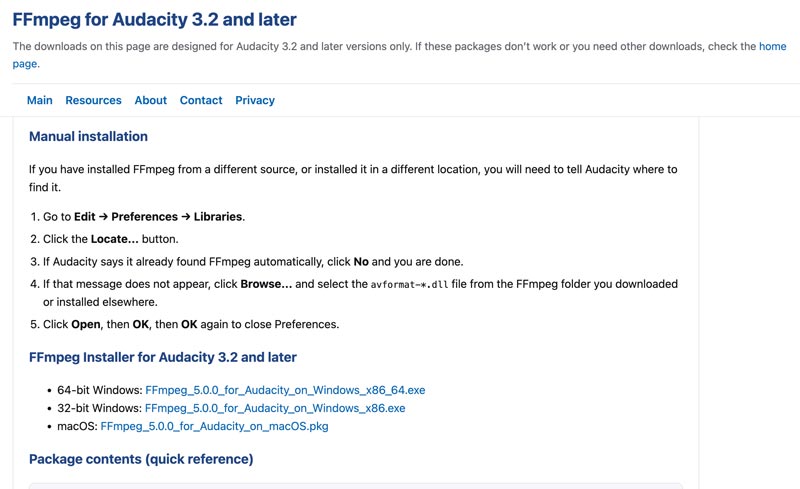
Open the downloaded file to turn the installer. When the installation is complete, close and reopen Audacity. The software will automatically detect the FFmpeg Library.
As you can see from the FFmpeg for Audacity page, you need to manually customize the installation if you have installed FFmpeg from a different source. Go to the Preferences of Audacity, click Libraries, and then click the Locate... button.
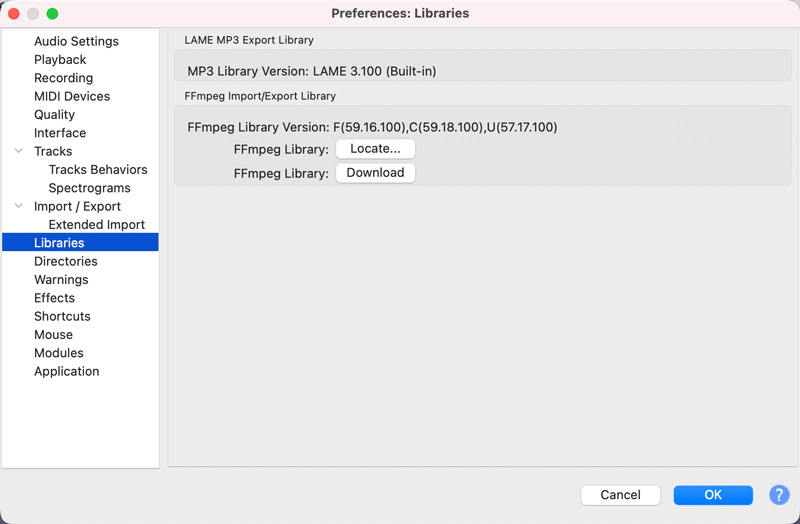
With FFmpeg installed, you can handily extract audio from a video with Audacity. As mentioned, you should restart the software after the FFmpeg Library installation.
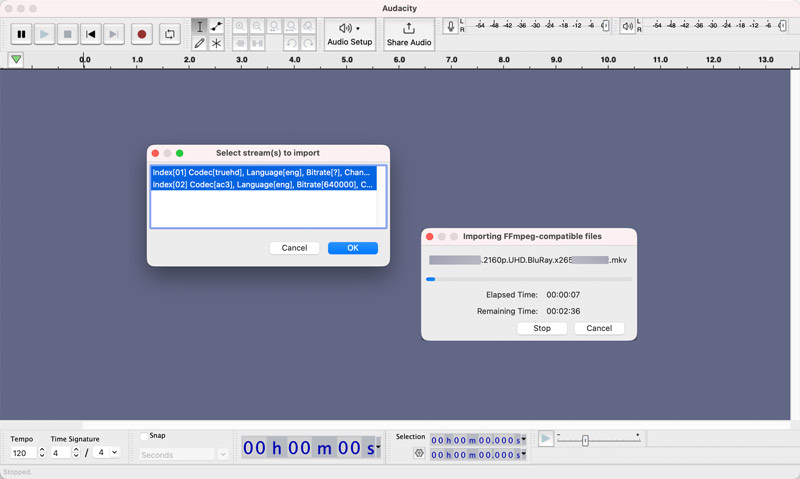
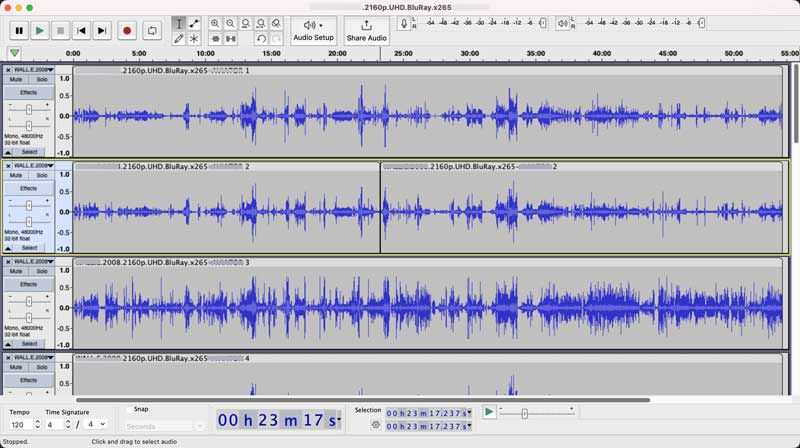
Sometimes, you will be prompted to select stream(s). Then, you will see the importing process. Audacity will not load the video file. Instead, you will see the waveform of its audio track appear in the main editing window.
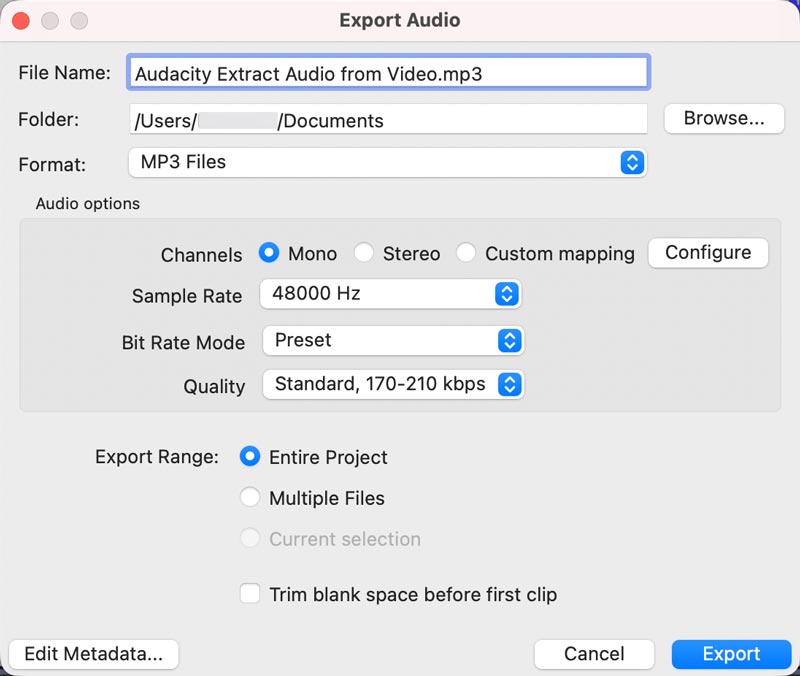
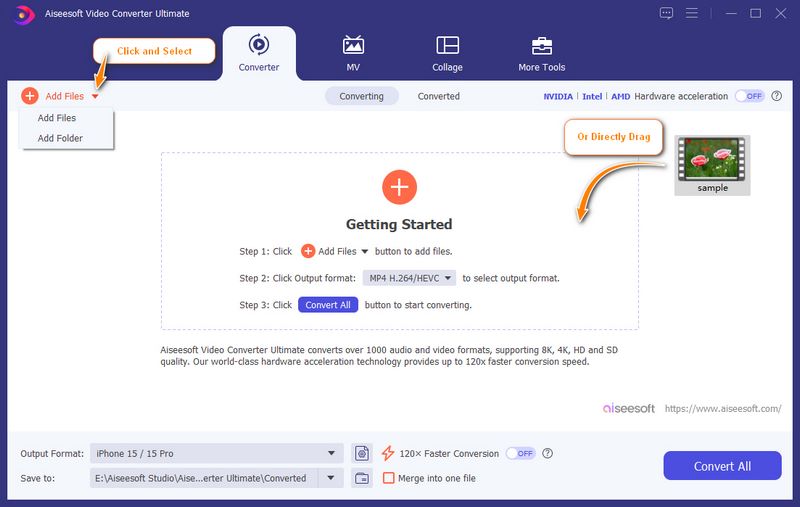
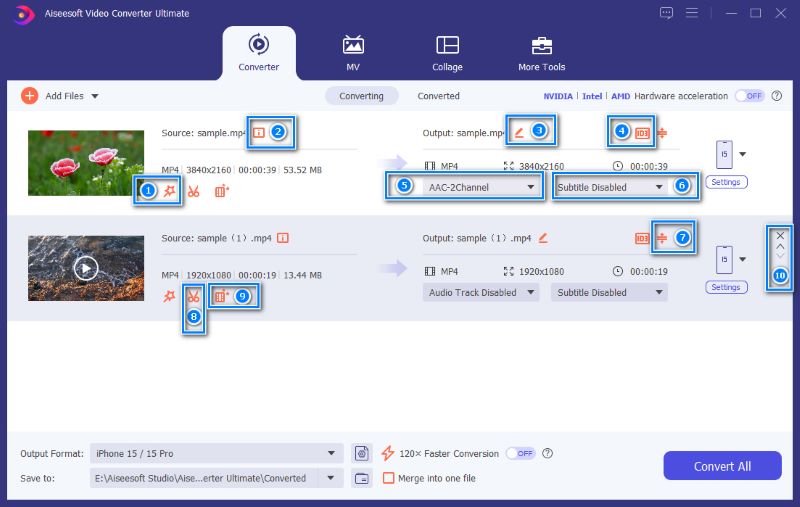
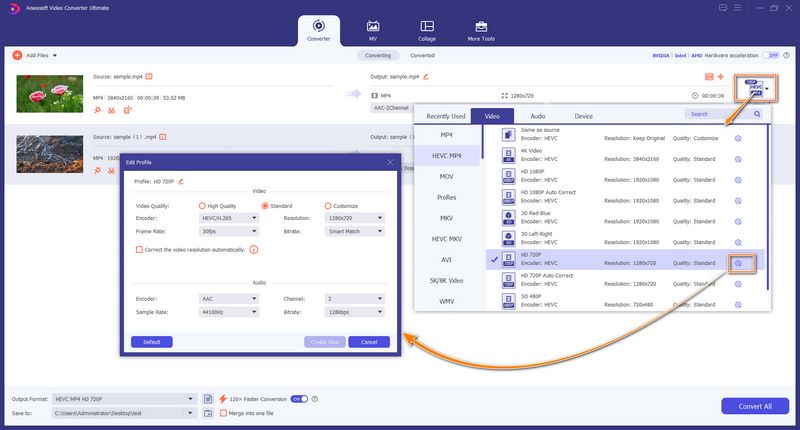
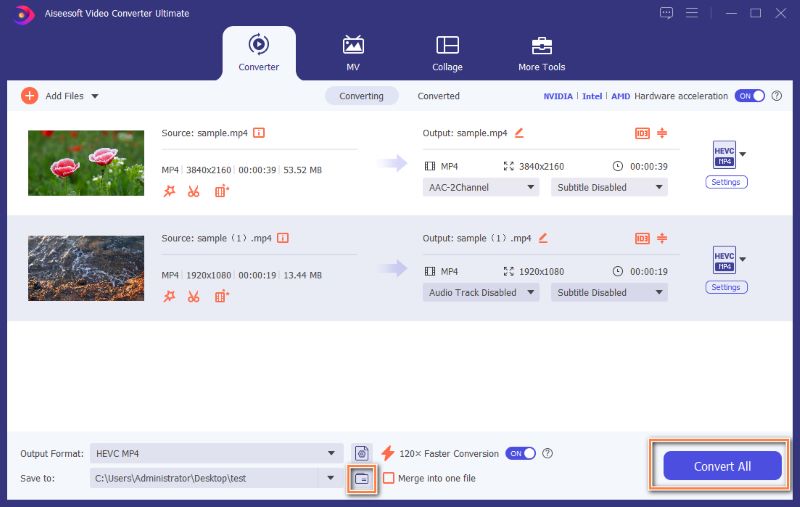
If you are not comfortable with the separate FFmpeg installation or unsatisfied with the whole audio extraction process, you can turn to a great Audacity alternative, Aiseesoft Video Converter Ultimate, for a more streamlined experience.
As a professional-grade multimedia toolbox, it is designed to handle various video/audio conversion, editing, and enhancement tasks easily. It allows you to extract audio from any video while maintaining the original sound quality.
100% Secure. No Ads.
100% Secure. No Ads.
Question 1. Is Audacity completely free?
Yes, Audacity is completely free. It is a free, open-source tool mainly designed for audio recording and editing. Its open-source nature also means that all its source code is publicly available. You have the freedom to use Audacity for any purpose with no subscription plans.
Question 2. Can Audacity remove background noise from audio?
Audacity has a dedicated Noise Reduction tool for efficiently removing unwanted background noise from audio. You can access and apply it from “Effect” > “Noise Removal and Repair” > “Noise Reduction”. If the feature does not help much, try using the “Noise Gate” or “Notch Filter”.
Question 3. Can Audacity remove audio from a video?
No. Audacity is mainly designed to handle audio tracks. Even though you can extract audio from a video using Audacity, it cannot export video files like MP4 or MOV. If your goal is to have a video that plays in silence, you can use a conversion tool like the recommended Aiseesoft Video Converter Ultimate.
Conclusion
We have to admit that extracting audio from video is a common task, and many converters can do that. However, many Audacity users don’t know how to import video files into the software and perform audio extraction. If you want to use Audacity to extract audio from videos, follow the extra step to install the FFmpeg Library for unlocking its video importing capability. If you prefer a straightforward, convenient, and all-in-one approach, the introduced Aiseesoft Video Converter Ultimate is the superior choice.
 Audacity Voice Recorder Review and Learn the Audio Recording
Is Audacity suitable for vocal recording? How do you capture voice on it? Here is a detailed Audacity review to show its features, usage, and drawbacks. Learn it carefully!
 How to Compress an Audio File in Audacity into Ideal Size & Quality
Do you want to know how to compress an audio file in Audacity without losing the quality? Read this carefully to know more about it.
 5 Tips to Fix the Error Opening Sound Device in Audacity
Why is Audacity not recognizing the mic? How do you open sound device in Audacity? Figure out reasons and solutions for the Audacity error opening sound device.
 Leave your comment and join our discussion
Video Converter Ultimate is excellent video converter, editor and enhancer to convert, enhance and edit videos and music in 1000 formats and more.
100% Secure. No Ads.
100% Secure. No Ads.

*Required field
*Please enter a valid email

