
Best AI Video Converter Ultimate
 100% Secure. No Ads.
100% Secure. No Ads.
You don’t need to edit your low-resolution, blurry, or outdated videos to improve their quality. Whether you want to increase clarity, upscale resolution, remove background noise, enhance color accuracy, or even create additional frames and add details, you can rely on an AI video enhancer. Nowadays, when you search for a way to edit videos and improve quality, you will get many recommendations for AI-powered video enhancement software. This article introduces you to nine compelling AI video quality enhancement tools, both free online and professional desktop tools.
Yes, Clipchamp can export your edited video to an audio file.
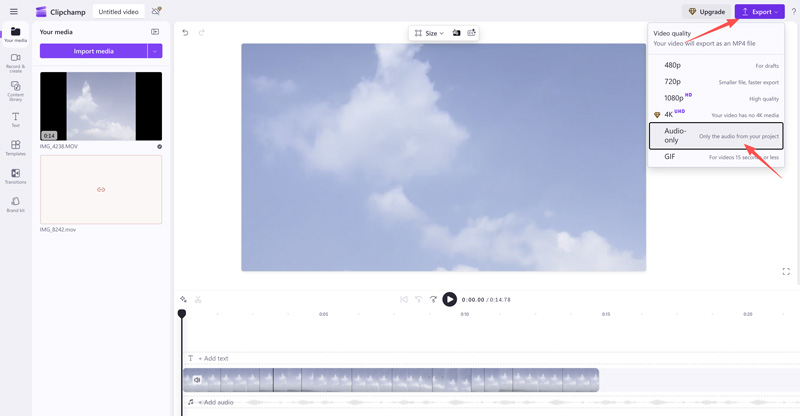
Personal accounts now have a direct export option (Audio-only) to do that. If you are using a work or school account, you can rely on its Detach Audio feature to extract and save audio from a video clip.
As mentioned above, there are two primary methods for exporting audio-only files from Clipchamp. This section shows you how to extract audio from your uploaded video and download it to your device.
Many users complained that there’s no direct option to export audio only in Clipchamp. The truth is, only a personal Microsoft or Clipchamp account gets the feature. You are no longer allowed to directly sign in and use Clipchamp with your Google account. In fact, the previous Clipchamp account doesn’t have the Audio-only export.
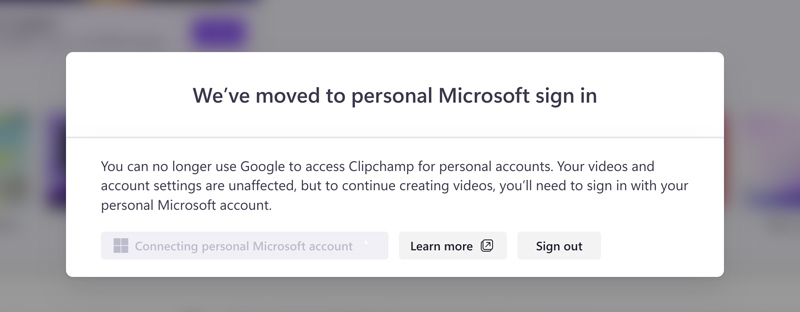
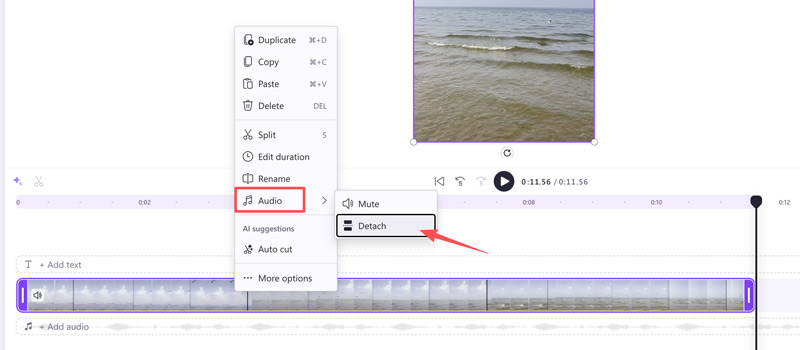
If your account doesn’t have a direct Audio-only option, use its “Detach Audio” feature to extract the audio track from your video.
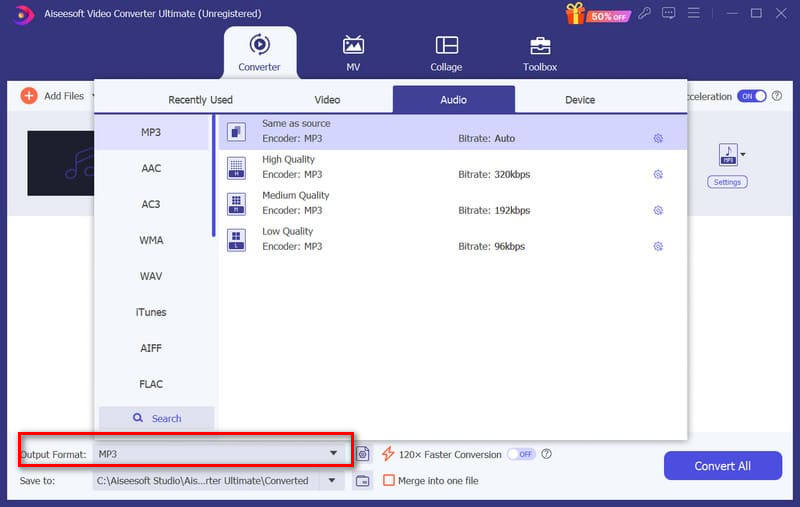
With the two methods above, you can easily export audio in Clipchamp. However, Clipchamp will export audio in M4A format by default. For different reasons, you may want to convert M4A to another audio format with wider compatibility or higher sound quality. You should use a reliable converter to do that.
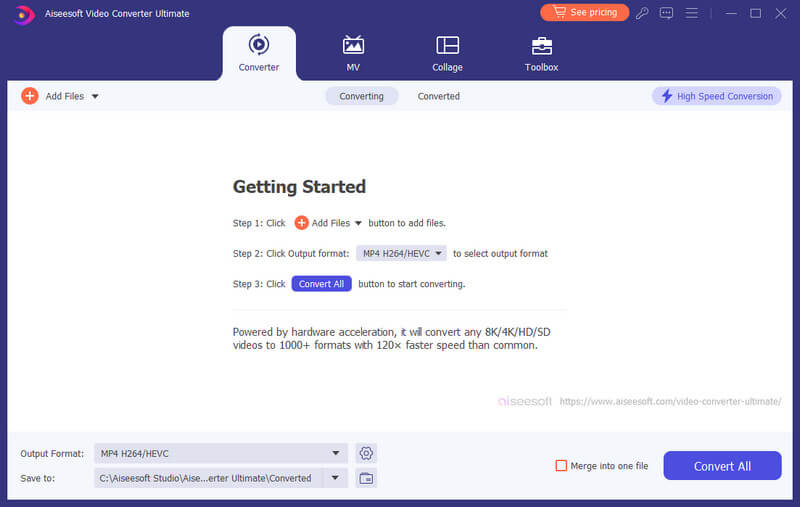
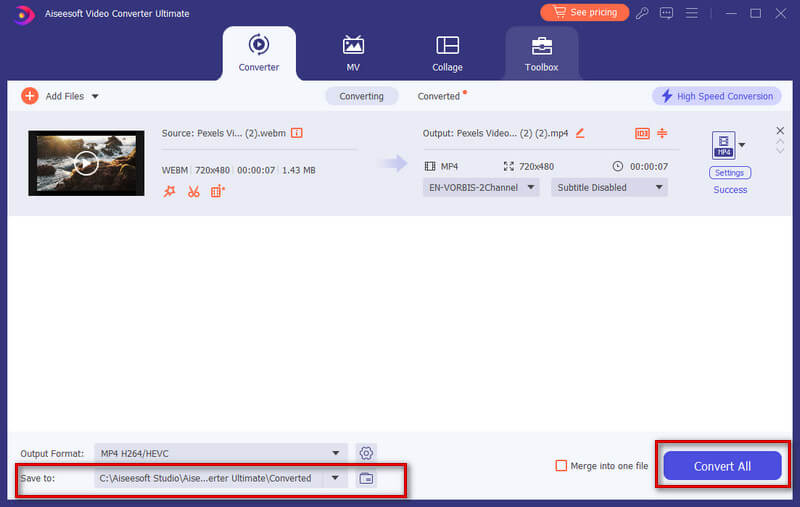
Our recommendation is Aiseesoft Video Converter Ultimate. Currently, it supports more than 1,000 multimedia formats, covering almost all the kinds we encounter in our daily lives. In terms of conversion efficiency, after constant updates and iterations, its conversion speed has increased by 120X. No matter how big your audio files are, you can get the converted files immediately. In addition, Video Converter Ultimate supports editing and enhancing music, removing noise from tracks, and adding fade-in or fade-out effects.
100% Secure. No Ads.
100% Secure. No Ads.
How to record audio only in Clipchamp?
To record audio, you can add a simple image or a dummy video file to the Clipchamp timeline. Use a blank image or any placeholder video with no visual content. Then, position the play head at the beginning of the timeline and start recording the audio using your microphone or any external audio input device. When exporting, export the audio only.
How to export Clipchamp as MP3?
Once you have uploaded your video to Clipchamp and added it to the timeline, you can extract the audio track from the video file. To do this, choose your video and click audio > detach audio. The audio will appear on the timeline. And it will be downloaded to your device in MP3 format.
How do I delete a video but keep the audio in Clipchamp?
To do this, you need to separate audio from video and export the audio file. Add the video file to the Clipchamp platform and put it on the timeline. Right-click on the video clip, and choose Audio > Detach. The audio track will be saved to your browser's download folder.
Conclusion
In this article, we first analyze the feasibility of exporting audio only in Clipchamp for you and then guide you step by step through the process. For some users' conversion and editing needs when exporting audio, we recommend the top audio and video editing tool, Aiseesoft Video Converter Ultimate. Likewise, we have provided detailed instructions on how to use it. Hopefully, these contents will ensure that you can successfully export the audio files. If you have any other comments, please feel free to leave them in the comment section.
 How to Extract Audio from Video with High Quality (Free & Online)
Want to extract audio from video or convert video to audio? You can learn how to extract audio from MP4 video in this post.
 Top 3 Ways to Remove Audio from Video on Windows/Mac
Where can you find a video editing software to help you remove audio track from video? Fortunately, this article will introduce one reputable video tool.
 Audio Splitter - How to Cut MP3 with Audio Splitter on Windows/Mac
Want to find song cutter or MP3 trimmer? You can learn how to cut your MP3 songs with audio splitter in this post.
 Leave your comment and join our discussion
Video Converter Ultimate is excellent video converter, editor and enhancer to convert, enhance and edit videos and music in 1000 formats and more.
100% Secure. No Ads.
100% Secure. No Ads.

*Required field
*Please enter a valid email

