How do you back up your Motorola phone?
This post gathers 5 easy ways to help you back up data from your Moto Razr Ultra, Edge, G Power/Play, G7/G6/G5/G4, Z3/Z2/Z Droid/Z Play, X4, and other Motorola phones.
Motorola is one of the famous brands of Android mobile phones throughout the world for its cost-effectiveness. Though the Moto mobile has been connected with Lenovo, it still enjoys a high reputation among lots of users. However, like other Android phones, Motorola is also suffering from data loss due to accidental deletion, factory reset, phone stolen/lost, root failure, etc.
Very annoyed when you encounter the data loss issue?
To solve the trouble thoroughly, you should back up Motorola frequently. This post aims to show you five standard methods to migrate your Motorola data to a PC, cloud, or another phone.
To help you quickly find the best method to back up your Motorola phone data, we have made an overview of the five backup methods. You can compare them and navigate the most suitable one based on your goal.
| Motorola Backup | Backup Location | Supported Data | Tool | Drawbacks |
| Android Data Backup & Restore | Computer | Contacts, messages, call logs, videos, audio, documents, and others | USB cable, computer | Phone settings are not backed up |
| Motorola Migrate | Another Moto phone | Contacts, messages, photos, videos, audio, call logs, WhatsApp, documents | USB cable | Phone to phone backup limits the storage |
| FoneCopy - Phone Transfer | Another phone (iOS & Android) | Contacts, photos, and other media files | USB cable, computer | Phone settings are not backed up |
| Verizon Cloud | Verizon Cloud | Contacts, photos, videos, and documents | Wi-Fi and mobile data | Only contacts are supported for backup for free |
| Google Account | Google Drive | Apps, call history, device settings, contacts, calendar, SMS, photos and videos | WiFi, Google account | Google only offers limited free cloud storage |
Note that the Motorola Device Manager is necessary for you to connect your Motorola phone or tablet to your computer using a USB cable. So you should download it to a Windows PC or Mac before you follow the steps below to make a Motorola backup on your computer.
In this way, you will need the data migration app, Android Data Backup & Restore, to help you. The software is specially designed to transform all types of files from an Android device, like your Motorola phone, to a Mac or PC directly.
Downloads
 100% Secure. No Ads.
100% Secure. No Ads.
If you want to copy the entire phone data from an older Motorola device running Android 5.1 Lollipop or older, you can use the Motorola Migrate app. Even though it is Motorola’s official data transfer app, its support was discontinued. The app can only be used to transfer files directly from one phone to another.
Ensure you have two compatible Motorola phones with Android 5.1 or below, and then use the Motorola Migrate app to back up data from one device to the other.
Download and open the app on both phones. It will display a QR code on the new phone. Select the specific file types you want to move to the old phone, and then use it to scan the QR code for the transfer.
When you get a new phone and want to move all the valuable data from your old Motorola phone to it, you come to the right place. The reputable FoneCopy - Phone Transfer is what you will need exactly.
Phone Transfer
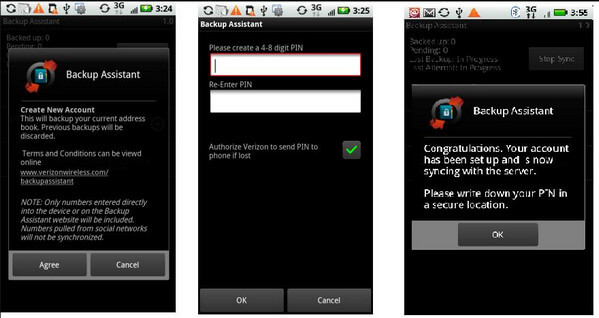
You can back up a Motorola phone to Verizon Cloud using the official Verizon Cloud app. This cloud service allows you to back up contacts, messages, and photos.
Note that Verizon Cloud is a carrier-specific service. You must have an active Verizon Wireless account for it to work. What’s more, only the contacts storage is free.
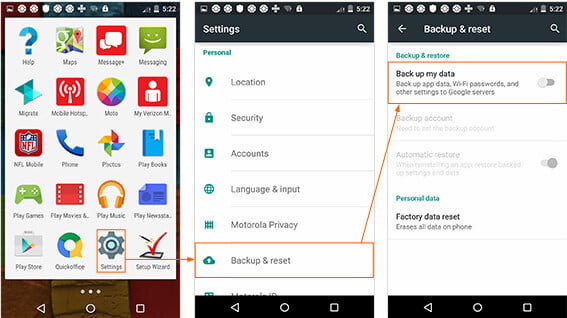
When you switch Motorola phone or erase its data, you can use Google account to help you backup and restore files with WiFi connection.
The steps are as following.
Here all the 5 ways to backup Motorola have been shared here. Check the best one way for you to keep your Motorola phone safe.
Question 1: How do I back up my entire Motorola phone?
You can select a suitable method to back up your entire Motorola phone based on the specific data type you want to include, such as contacts, messages, photos, videos, apps, and settings. You can set up Google One Backup to automatically back up your Android phone data. If you want to manually back up selected files from your Motorola phone to a computer, the recommended Android Data Backup & Restore is a good choice.
Question 2: What is the best way to back up photos on my Motorola phone?
Google Photos is often considered the best way to back up photos and videos on an Android device, including your Motorola phone. It is naturally integrated and offers free storage for backing up. If you prefer cloud convenience, it can be the most convenient way to back up photos. However, if you want to create a physical copy on your computer, you can use a USB cable and file explorer.
Question 3: Are Motorola phones still around?
Yes, Motorola is actively releasing new phones across all price ranges. You can see several new devices launched in late 2025 and early 2026. It is a dynamic and evolving brand under Lenovo. Its new flagship products (Motorola Razr fold) are ambitiously expanding into the premium and innovative foldable markets.
Conclusion
Here, all the 5 ways to back up Motorola have been shared above. Check them and pick the best way based on your goal. The most seamless backup method is using Google’s built-in services, especially when you have a new Moto phone. Moreover, Google Photos is the best solution for automatic photo and video backup on your Android phone. For certain data types or easy restoration in the future, you need to use dedicated third-party apps like Android Data Backup & Restore.
 Backup Android App Data with Helium and Its Alternative
What is Helium app? How to use Helium to backup app data to PC? This post will show you how to backup or sync Android data with Helium. Moreover, you can find best Helium alternative here.
 How to Make LG Backup and Restore via Cloud/Computer/Another Phone
Do you really know LG backup? This post provides you the full guide of how to backup LG phone to Cloud, computer, or another phone, and restore the backup easily from the backup.
 Samsung backup: Backup Samsung Galaxy S3/S4/S6/S7 to Clouds
Want to back up your Samsung Galaxy S3/S4/S6/S7 but have no idea? Read this article and learn some useful ways to backup Samsung to Cloud or computer.
 Leave your comment and join our discussion
Provides a simple way to back up and restore all types of files like contacts, messages, call logs, gallery, videos, audio, etc. on your Android device safely and selectively.
100% Secure. No Ads.
100% Secure. No Ads.

*Required field
*Please enter a valid email

