Summary: Want to backup iPhone music to Mac or Windows PC computer? In fact, iTunes is not a good iOS data transferring tool. This post recommend a powerful iPhone data transfer to help you backup your iPhone files to computer with ease.

Are you still searching on the Internet for the best method of backuping iPhone music to computer?
If you have the need to backup various iOS files from iPhone to computer, you are in the right place. Whether you want to backup iPhone to Mac/PC or iTunes/iCloud, you can find suitable method here. A professional iPhone data transfer will be recommended to help you backup iPhone to computer.
To easily backup iPhone music to Mac/PC, here we sincerely introduce you with the professional iOS data transferring software, FoneTrans. FoneTrans is specially designed to manage various iOS files on iPhone/iPad/iPod. Any frequently-used iPhone data like contacts, photos, videos, songs, messages, etc, can be easily backed up to your computer.
Step 1 Launch iPhone data transfer
Double click on the download button above to free download and install this powerful iOS data backing up software on your Mac. Make sure you download the right version.
Step 2 Connect iPhone to your Mac.
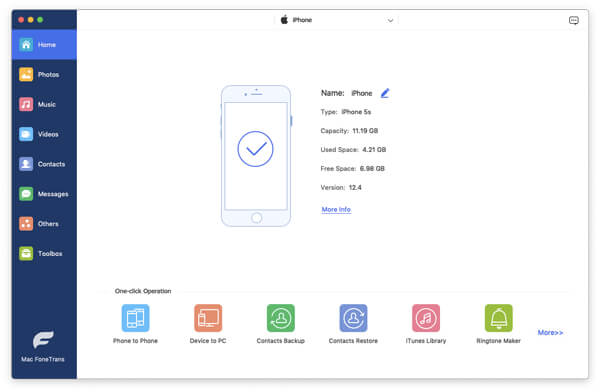
Run Mac FoneTrans and connect your iPhone to it with USB cable. It can automatically recognize your iPhone and show its basic information in the interface. After detecting, the iPhone icon and its library and playlists will appear in the Device list.
Step 3 Check iPhone music
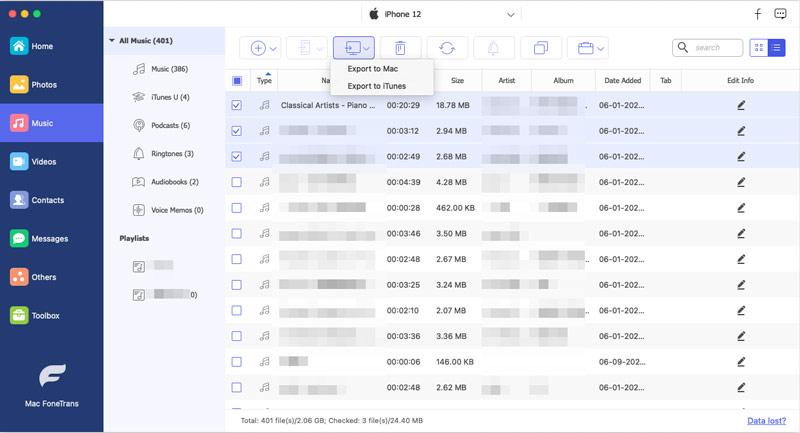
All frequently-used iOS files are listed in categories on the left control. Here you want to backup iPhone music to Mac, so you can click Media > Music and then check details of each song on the right window.
Step 4 Backup iPhone music to Mac
Choose the iPhone songs you want to back up to Mac, and then click on Export to to back up selected music from your iPhone to Mac. If you want to back up other iPhone files like photos, messages, books and more, you can take the same method.
Step 1 Launch iPhone backup tool
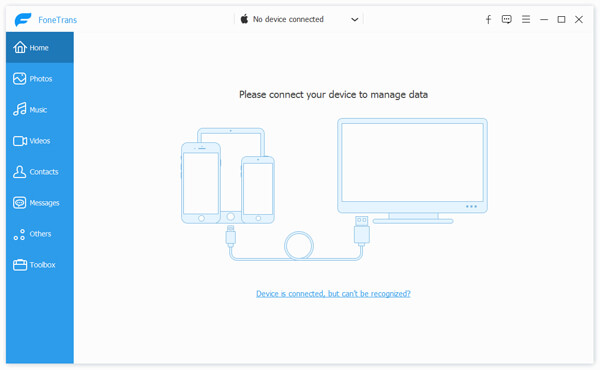
Free download the Windows version of this iPhone data transfer on your PC, install and run it.
Step 2 Connect iPhone to your PC.
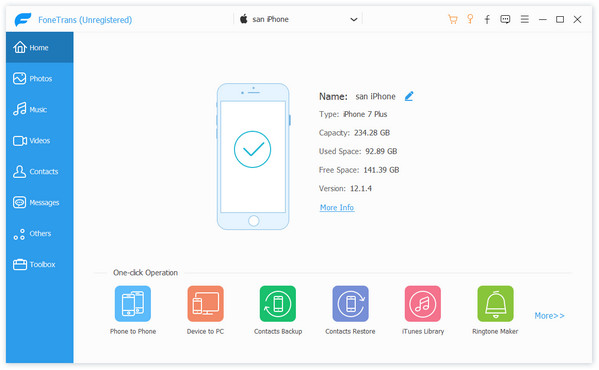
Run the software, and connect your iPhone/iPod to your computer via USB cable. After done, the iPhone/iPod icon and its library and playlists will appear in the Device list.
Step 3 Backup iPhone to PC
Click Music on the left side and then check detailed information of each file on the right. Choose the iPhone music you want to backup, then click Export to > Export to PC to backup iPhone data to your computer.
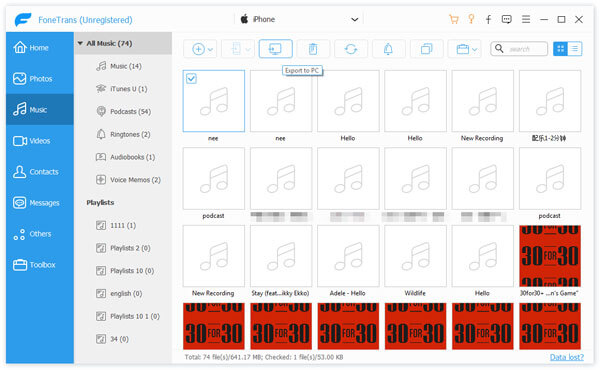
With this iPhone data transfer, you can handily backup iPhone music to Mac and PC. As you can see from above, when you click Export to button, besides Export to Mac/PC, there is also a Export to iTunes Library option for you. If you want to back up iPhone music to iTunes, you can pick it.
iCloud provides a convenient way to back up all types of iOS files on your iPhone. This part will show you how to backup iPhone to iCloud.
Step 1 Unlock iPhone and open Settings app.
Step 2 Tap your Apple account at the top of the screen. Then tap iCloud > iCloud Backup.
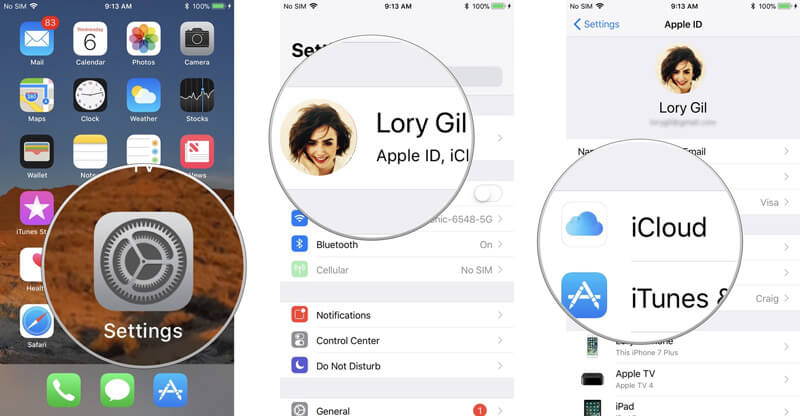
Step 3 Flip the switch next to iCloud Backup to On and then tap OK.
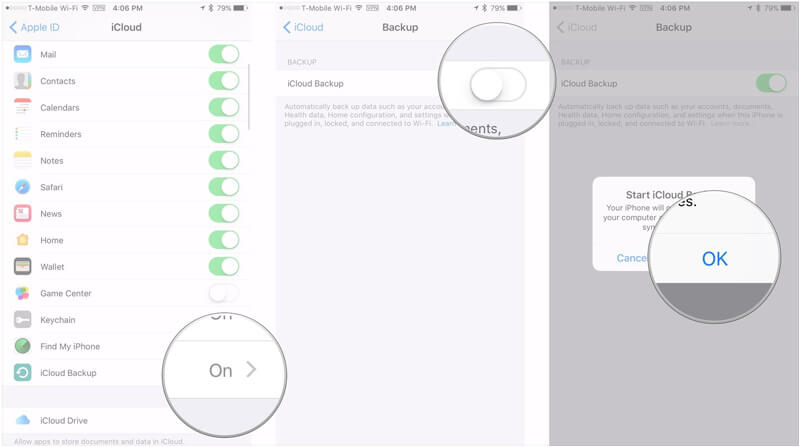
iCloud will try to create a new iCloud backup of all your iPhone data every 24 hours. Make sure your iPhone is connected to Wi-Fi and has enough battery life.

June 05, 2018 12:25 / Updated by Louisa White to Back up iOS Data
 The Easiest Way to Transfer Photos Videos Music Contacts from PC to Your iPhone
The tip show you how to transfer files from PC to your iPhone with iPhone Transfer.
 How to Manage iPhone Files on Windows & Mac
This article mainly describes how to organize your iPhone X/8/7/SE/6s Plus/6s/6 Plus/6/5s/5c/5 files and documents with iPhone files manager.
 How to Transfer Video between iPhone and Computer without iTunes
You can learn how to transfer videos between iPhone and PC/Mac in this post.
 Leave your comment and join our discussion
