Aiseesoft Screen Recorder
 100% Secure. No Ads.
100% Secure. No Ads.
Are you getting a black screen when you want to take screenshots on Amazon Prime Video?
When you try to screenshot a scene while watching your favorite Amazon Original, you often get a black rectangle. You may be confused about the frustrating black screen. This guide will explain why that happens and provide three reliable methods to bypass the void and screenshot Amazon videos. You can select a desired way to capture clean, high-quality screenshots from Amazon Prime Video.
Yes, even though you are not allowed to directly take screenshots on Amazon Prime Video, there are still ways to do that.
The platform does not offer a dedicated option for screenshots. In addition, it relies on your browser and graphics hardware to block your screenshot action. Amazon can prevent the video frame from being captured if you use the standard screenshot methods. In that case, you will often see a blocked, blacked-out image, leaving only the playback interface or subtitles visible.
To take screenshots on your favorite Amazon Original, you need to bypass these hardware-level protections using specific apps, browser extensions, or specialized screen recorders. These screenshot tools can easily capture high-quality, full-resolution still images from Amazon videos for personal use.
To bypass Amazon’s screenshot restrictions, you need to change how the content is rendered on your screen. This section shares three methods to disable the black screen effect and take screenshots on Amazon Prime Video with ease.
Aiseesoft Screen Recorder is a professional screen capture tool that can give you full control over the output quality. It offers a reliable solution to record on any platform with high-definition images and clear audio. The software is an ideal choice for bypassing the DRM restrictions and capturing your desired frames. Aiseesoft works seamlessly on both Windows 11/10 PC and Mac.
100% Secure. No Ads.
100% Secure. No Ads.
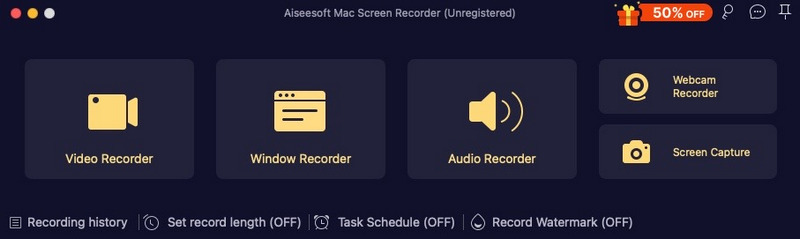
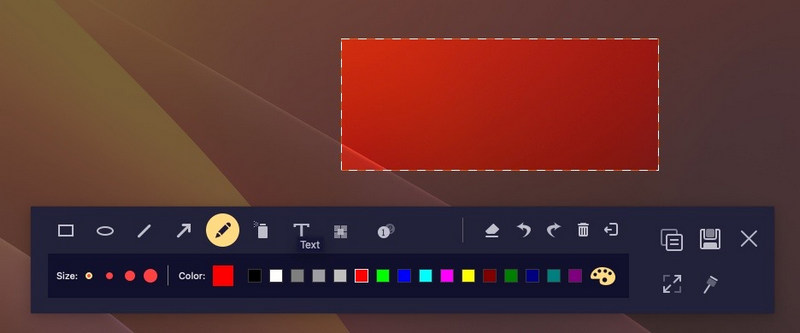
You can also use the Video Recorder to capture a full-length movie or TV show. When you play the recording file, you can click the Screenshot (camera) icon on the toolbar to capture a still.
If you prefer a browser‑based solution to screenshot Amazon Prime Video, the Video Screenshot extension is a good choice. You can easily locate it from the Chrome Web Store.
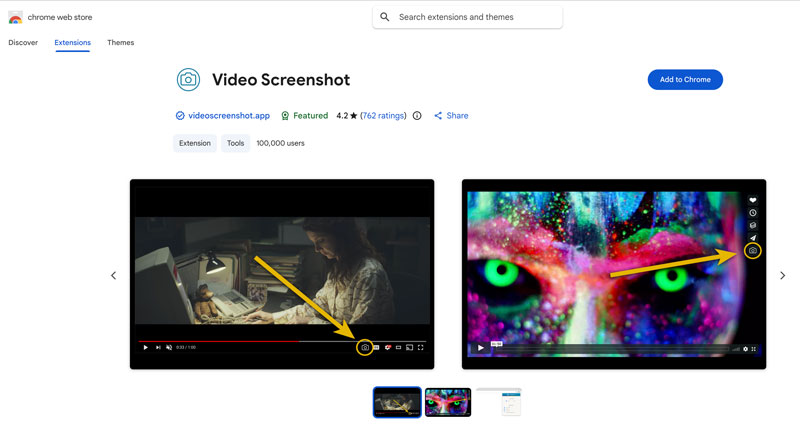
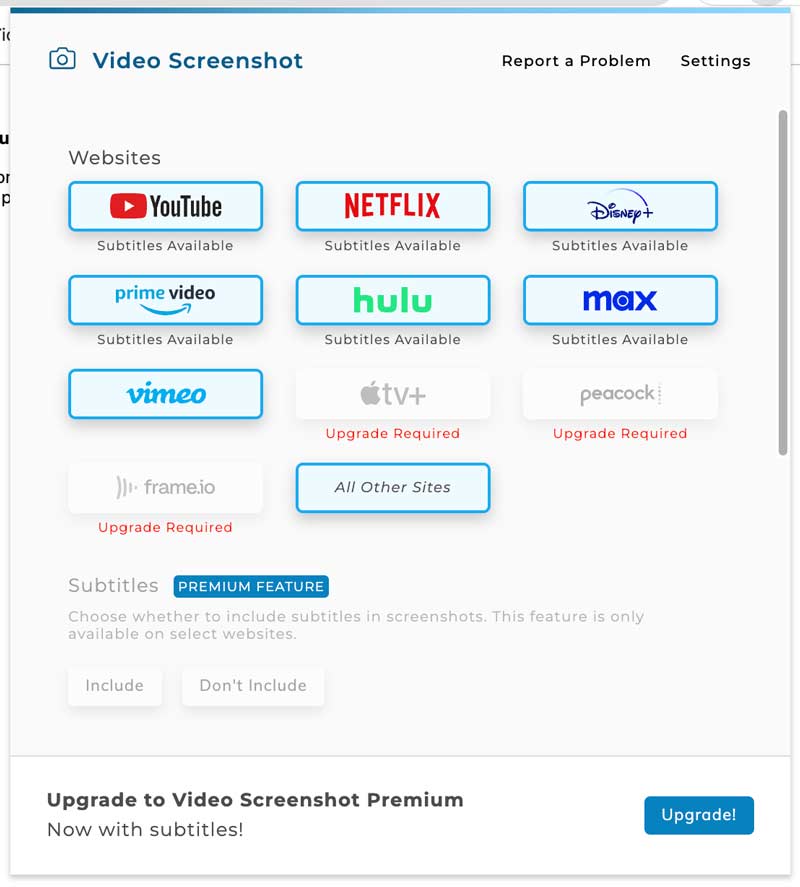
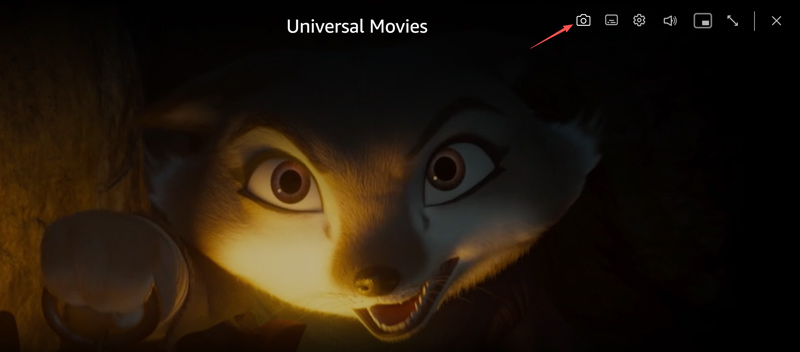
If you often watch Prime Video using the desktop application on Windows, you have a limited but legitimate way to take screenshots. This Windows app allows you to download select movies and TV shows for watching offline. After downloading, you can screenshot on the Amazon video without the black screen limit. However, your saved content is still encrypted and tied to the app. Amazon will restrict the number of devices and the time window you can watch offline titles.
Question 1. Why can’t I take screenshots on Amazon Prime Video?
Movies, original TV shows, and other streaming content on Amazon Prime Video are protected. The pop-up black screen is a technology known as DRM. It is a security feature designed to prevent piracy. It can efficiently prevent people from illegally recording and distributing copyright-protected movies. The platform will send an encrypted signal to your computer when you stream on Amazon Prime Video. That ensures the content is not being intercepted by a recording device.
Question 2. Is it legal to take screenshots on Amazon Prime Video?
It is generally considered legal to screenshot Amazon Prime Video for personal use. For instance, you can take a screenshot for reference, study, or other personal reasons. However, distributing, selling, or publicly re-posting these screenshots is illegal. That will break Amazon’s terms of service.
Question 3. Can I screenshot Amazon Prime Video on my iPhone?
Yes. You can use the recommended Aiseesoft Screen Recorder to capture screen content on your iPhone or Android phone. The standard screenshot way on your phone does not allow for a screenshot.
Conclusion
This post explains why you will encounter a black screen when you try to screenshot Amazon Prime Video. Moreover, three methods are offered to take screenshots without the DRM restrictions. If you want to edit and annotate your captures, turn to the introduced Aiseesoft software. If you prefer a no‑installation browser screenshot tool, start with the Video Screenshot extension.
 How to Change Country on Amazon [Solved]
How do you change the country on Amazon? This post will offer several methods to realize it, including the official and third-party methods. Let’s find out!
 Top 5 Ways to Troubleshoot the Amazon Error Code 5004 Issues
Why did I get the Amazon error code 5004 on my Samsung TV? How do you fix the Prime Video error? Learn what the code 5004 is and get five tips to resolve it.
 How to Record A Amazon Chime Meeting [Online & Offline]
With Amazon Chime, you can schedule an online meeting, chat and business calls with ease. This post will tell you 3 efficient ways to record Amazon Chime SKD meetings.
 Leave your comment and join our discussion
Aiseesoft Screen Recorder is the best screen recording software to capture any activity like online videos, webcam calls, game on Windows/Mac.
100% Secure. No Ads.
100% Secure. No Ads.

*Required field
*Please enter a valid email

