
Best 8K Screen Recorder
 100% Secure. No Ads.
100% Secure. No Ads.
I encountered a screen recording on my Mac that wouldn’t stop. There was no clear stop button, no helpful shortcut, just another recording that kept going. So rather than just guessing or forcing, quitting and risking lost footage, I somehow figured out the proper ways to stop the different kinds of recordings. I tested these methods, and now I've written this article where I share practical solutions with the readers and explain how to stop a screen recording on Mac in different scenarios, those real-life ones when shortcuts fail, or the screen recorder is unresponsive. I would like to end up giving you the clean ways of finishing your recording, saving the file, and avoiding the frustration I got into.
When my Mac screen recorder just keeps on going, the issue is generally not the shortcut itself, but rather what’s going on in the background. The most popular shortcut, Command + Control + Esc, relies on the system responding as usual. If macOS is loaded heavily, frozen, or lagging, the command might not be recognised.
Another reason is app conflict. If I am recording via QuickTime, the Screenshot Toolbar, or a third-party recorder, only the active app is the one that can receive the stop command. Hence, switching apps while recording or clicking on a different window might result in the shortcut not working anymore.
The menu bar icon disappearing or becoming unresponsive is a known issue, especially after macOS updates or very long recording sessions. In such a case, the system still records in the background, but there is no shortcut alone to stop it, as the visible way has disappeared.
Finally, external keyboards or custom key mappings might cause problems with default shortcuts. I noticed this on a couple of occasions when using Bluetooth keyboards or remapped keys. MacOS detects the command as being pressed, but in reality, nothing happens.
When my screen recording refuses to stop, I don’t panic right away. macOS actually gives several built-in ways to end a recording. You just need to know where to look. Below are the most reliable fixes I use when shortcuts fail, including the proper how to stop QuickTime screen recording.
Usually, the menu bar is the easiest and safest way for me to stop a recording quickly. This is my method:
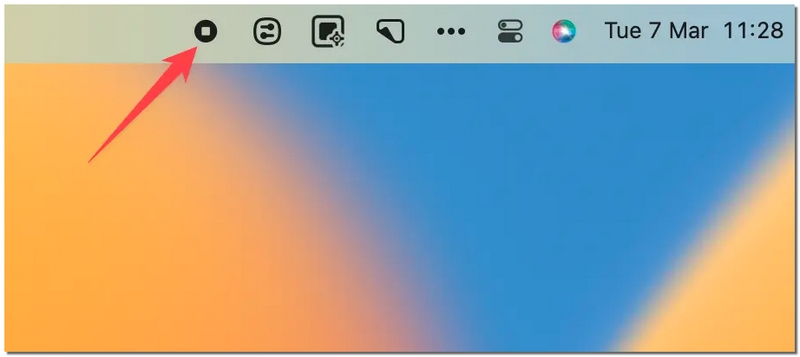
This method is perfect if you’re unsure which shortcuts to use or want to stop the recording safely. If you’re wondering how to end a screen recording on Mac, this menu bar option is usually the most reliable way.
If the menu bar isn’t responding or hidden, I often use keyboard shortcuts to stop a screen recording. Here’s my step-by-step method for doing it safely:
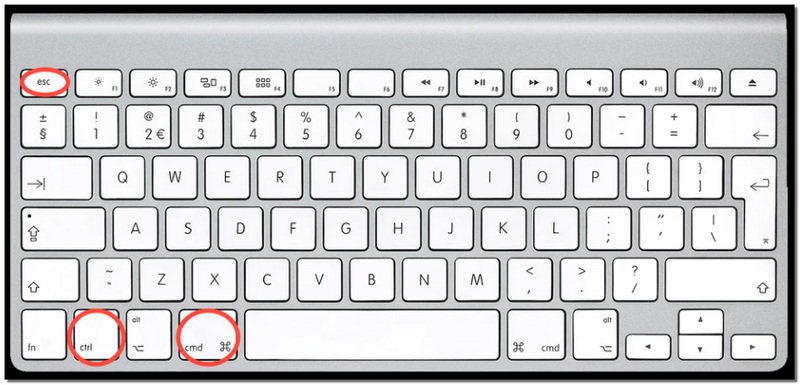
This is my go-to method when I want to stop quickly without clicking anything on the screen. If you’re wondering how to exit screen recording on Mac, using the keyboard shortcut is one of the fastest ways.
I typically use QuickTime Player to manually end a recording when shortcuts or the menu bar don't work. Here's my methodical approach:
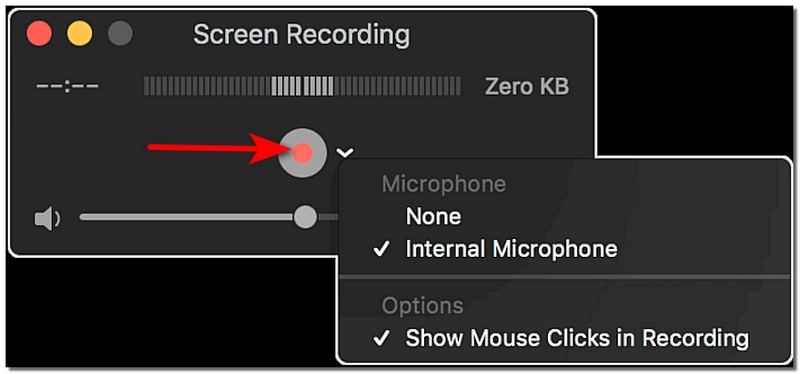
If you’ve ever wondered how to quit QuickTime screen recording, this method is the most reliable way to end the recording safely without losing your video.
After I got my recordings stuck on my Mac a couple of times, I figured the best thing to do to avoid this kind of frustration was to start using a trustworthy screen recorder that makes it very easy to stop the recording. Personally, Aiseesoft Screen Recorder has been a real helper for me. It is created to be very easy for you to use, and it is quite stress-free to stop the recording whenever you want. If you’ve ever wondered how to turn off screen record on Mac, this tool makes it straightforward.
Downloads
100% Secure. No Ads.
100% Secure. No Ads.
Steps to Stop Recording in Aiseesoft Screen Recorder
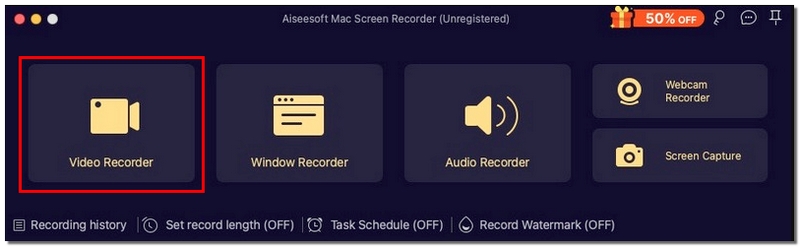
If you wish, select the recording feature (click the webcam, like button) in the main interface.
With Aiseesoft Screen Recorder, I can record the Mac screen without any hassle and no longer worry about frozen recordings or lost files. Knowing how to turn off screen recording on Mac has never been easier.
Can I stop a screen recording using Siri?
At the moment, Siri is not able to stop a screen recording on its own. You will still have to use the menu bar, keyboard shortcuts, or the recording app to accomplish it.
What happens if I close QuickTime or the recording app while recording?
If you close QuickTime or the app without properly stopping the recording, your video may get lost. Always use the stop button or the correct shortcut to save your file safely.
Can I set a timer to stop a screen recording automatically?
Certain fancy screen recorders, for example, Aiseesoft Screen Recorder, are capable of scheduling stop times. This works well if you want to record a meeting or tutorial for a fixed duration without monitoring it.
Conclusion
Don’t get stressed over how to stop a stuck screen recording on a Mac. Simply pulling up the menu bar, using keyboard shortcuts, or clicking the stop button on QuickTime are all ways of saving your video safely to your device. If you want to have better control, use a program like Aiseesoft Screen Recorder, which will make stopping the recording a breeze and thus, save your video always. Learning how to end a screen recording on Mac always guarantees your footage is saved without your getting frustrated.
 How to Record Live TV on Mac, PC, and Mobile: 2026 Guide
Want to know how to record live TV so you never miss a show? From Mac's QuickTime to professional tools to capturing everything from Hulu to YouTube TV!
 Top 10 Alternatives to Soundflower for Windows and Mac Computers
Look for an alternative program to Soundflower for your computer? Here we list top 10 best alternatives to Soundflower available to Windows 10/8/7 and Mac OS X.
 Top 3 Approaches to Record a DVD on Windows 10/Mac
Wish to record your DVD and convert DVD movie to digital files? Here are our concrete guide about three methods to do it and the steps for each approach.
 Leave your comment and join our discussion
Aiseesoft Screen Recorder is the best screen recording software to capture any activity like online videos, webcam calls, game on Windows/Mac.
100% Secure. No Ads.
100% Secure. No Ads.

*Required field
*Please enter a valid email

