Switching phones can be exciting, especially when you move from an iPhone to an Android phone. You can experience a completely different system with various new advanced features and tools. However, it also brings some hassles. Among them, one significant challenge is transferring your valuable iOS files.
How do you copy all the essential data on your iPhone, such as messages, contacts, photos, videos, and more, to an Android device? Here are three proven methods to transfer messages from iPhone to Android.
You have three solid options for moving SMS and iMessage conversations from an iPhone to an Android phone.
1. If you want to quickly migrate all your important files from an iPhone to an Android device, the Android Switch app is a popular choice.
2. Samsung users get a second option with Smart Switch, which is free and built into the phone.
3. The most complete method is a dedicated third‑party file transfer, such as FoneEase, FoneTrans, MobieTrans, or iTransor.
Before you transfer messages from iPhone to Android, there are three conditions you should consider.
√ First, you should turn off iMessage on your iPhone before the transition.
√ Second, your iPhone and new Android device should have enough battery and connect to a stable WiFi connection.
√ Third, you should know clearly which messages you are moving. Standard SMS messages are small and transfer quickly. In some cases, you need to copy message attachments.
As mentioned, there are three standard methods to copy your iPhone messages to a new Android phone. Based on your new device, the specific file type(s) you want to transfer, and other personal reasons, select a desired tool below.
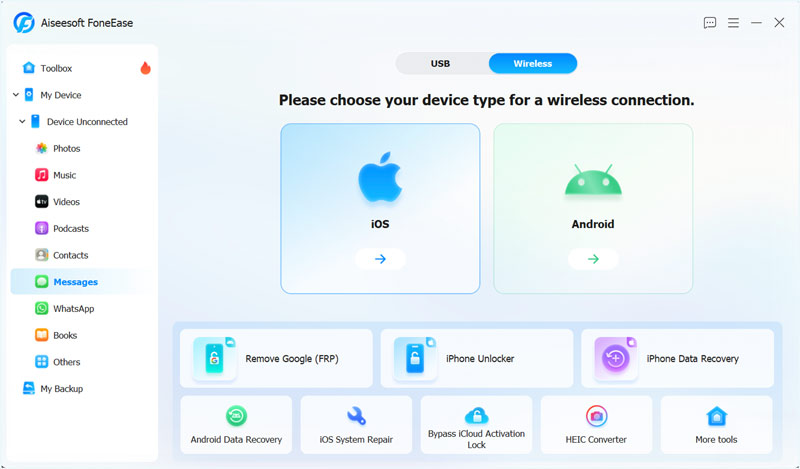
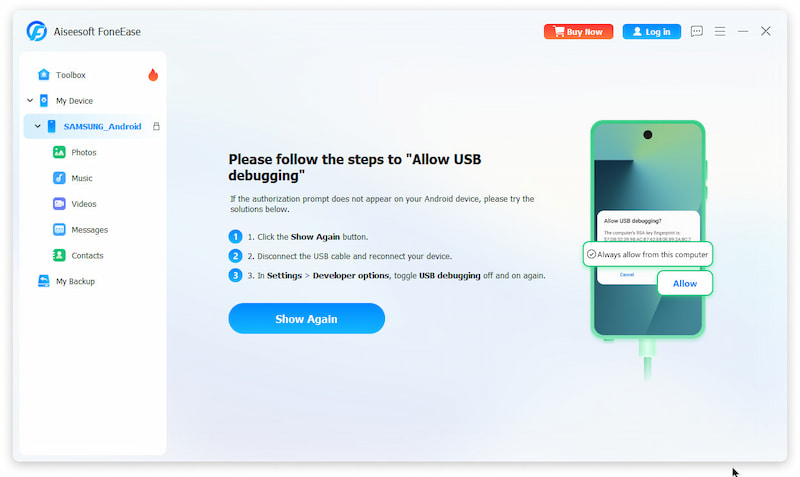
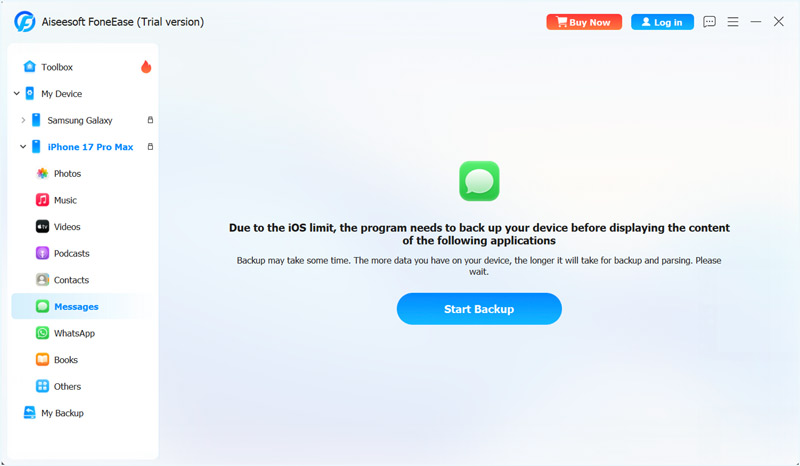
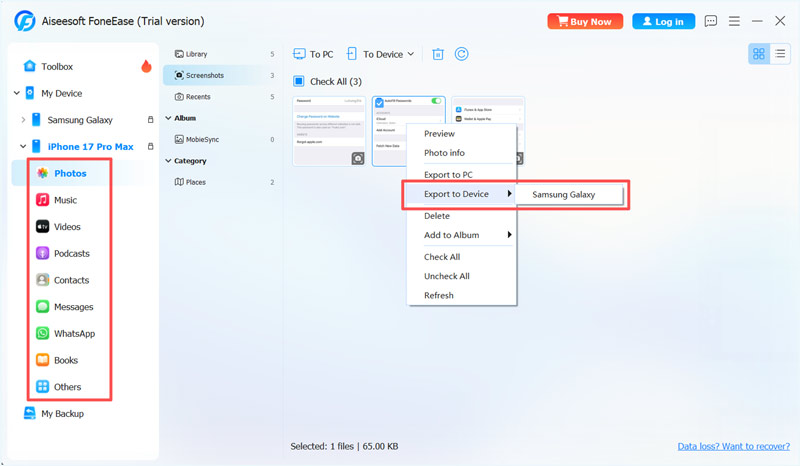
If you need a powerful data transfer tool that can handle all the commonly used iOS files, use the reputable Aiseesoft FoneEase. It is designed to bridge the gap between iOS and Android devices. FoneEase lets you transfer messages, contacts, music, photos, and app files freely.
 100% Secure. No Ads.
100% Secure. No Ads.
For most Android or Google users, the official approach is the Android Switch tool. It supports SMS, MMS, encrypted RCS conversations, and iMessage history.
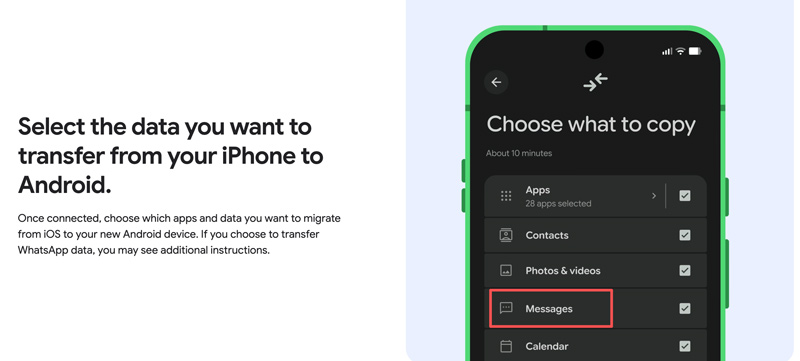
On your new Android phone, follow the on‑screen setup instructions. When prompted, select the option to copy iOS data from your iPhone. The Android Switch tool works wirelessly over WiFi. Both devices need to stay close to each other throughout the process, and your iPhone must be running iOS 15 or later.
Beyond messages, Android Switch can sync or move your iPhone call history, calendars, passwords, WiFi credentials, files and folders, and more to the new Android device.
If you are moving to a Samsung Galaxy phone, you have an excellent built‑in alternative: Samsung Smart Switch. This free app comes pre‑installed on most Galaxy phones and is designed specifically for Samsung devices.
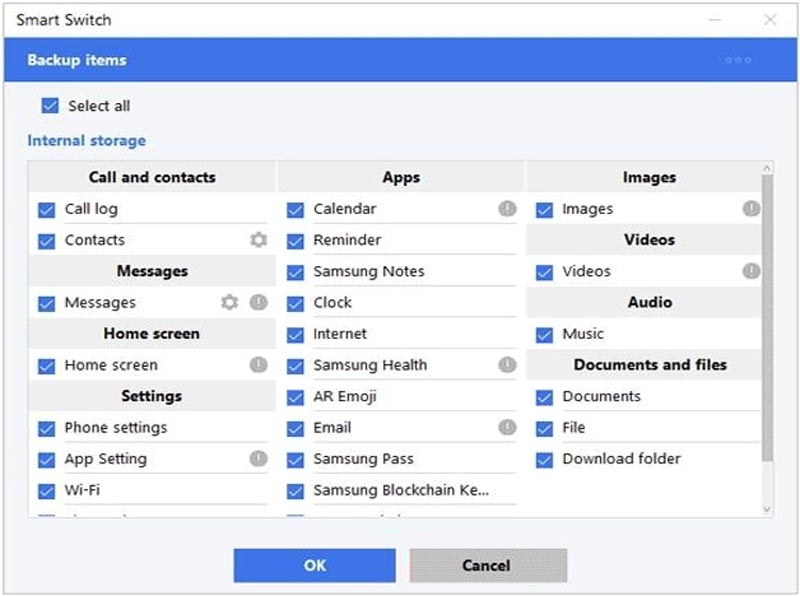
To use it, open Smart Switch on your Samsung phone. Select Receive data and choose iPhone as the source device.
Connect the two phones using a USB‑C‑to‑Lightning cable. The wired connection is significantly faster than wireless for large message archives.
Smart Switch scans the iPhone and presents a list of data types. Check Messages, then tap Transfer. The transfer process often takes 10 to 20 minutes for most users.
Will the timestamps on my messages be preserved?
Yes. Third‑party iOS transfer tools like FoneEase preserve original timestamps for SMS and MMS messages. Smart Switch can preserve timestamps for most messages but has been inconsistent in my testing with messages older than two years.
Can I sync my iPhone messages to my Mac?
Yes, you can sync iPhone messages to your Mac through iCloud. Apple offers a built‑in way to sync all types of iOS files among linked devices. You can turn on Messages in the cloud to ensure all your stored SMS, MMS, and iMessages on your iPhone are synchronized across other Apple devices, including your Mac.
Is there a free way to transfer iPhone messages?
All three methods above allow you to transfer messages for free. Smart Switch is free for Samsung users. For non‑Samsung Android phones, you can start with FoneEase or Android Switch, whichever you prefer.
Conclusion
In this post, you can learn three standard methods to transfer messages from iPhone to Android. You can compare them and pick a preferred tool to transfer your iPhone data. If you have a new Samsung Galaxy phone, Smart Switch is an ideal choice. For other Android phones, a third‑party tool is the reliable choice.
 How to Retrieve Deleted Text Messages on Android (4 Ways)
Accidentally deleted an important text? Learn how to easily retrieve deleted text messages on Android using the Recycle Bin, Google Drive, or without a backup.
 Top 7 Methods to Transfer Photos from Samsung to PC or Mac
Need to back up your photos from Samsung Android phone to computer before deleting them? Here are top 7 approaches to transfer Samsung photos to PC or Mac with ease.
 Learn 3 Easy Ways to Transfer Music from iTunes to iPhone
Can I transfer songs from iTunes to iPhone without a cable? How do you download and sync iTunes music to an iPhone? Learn to transfer music from iTunes to iPhone.
 Leave your comment and join our discussion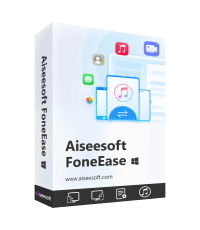
Aiseesoft FoneEase is a data transfer and management tool that lets you seamlessly move, back up, and manage various data between iOS, Android, and computers without resetting your phone or relying on iTunes.
100% Secure. No Ads.

*Required field
*Please enter a valid email

