Transferring music from one computer to another is not a big issue at all, but it might become confusing when there is a desire to still keep the old music stored on the device. So, how to transfer music from a computer to an iPod without wiping out your old music? Well, the way you do that mostly depends on whether you're on Windows or MacOs X and how much control you'd like the transfer to be your responsibility. In this write‑up, two easy‑to‑handle options that you can try are described. On top of that, some of the frequently encountered issues that might arise at the time of the transfer will be explained to you briefly as well.
If you're interested in adding new songs while still keeping the old ones on your iPod, you should try out Aiseesoft FoneEase. Besides enabling you to transfer and manage music right from your computer, it is also a very effective means through which one can learn to transfer music to an iPod from a computer without getting involved in a full‑library synchronization process.
Downloads
 100% Secure. No Ads.
How to Transfer Music from Computer to iPod Using Aiseesoft FoneEase
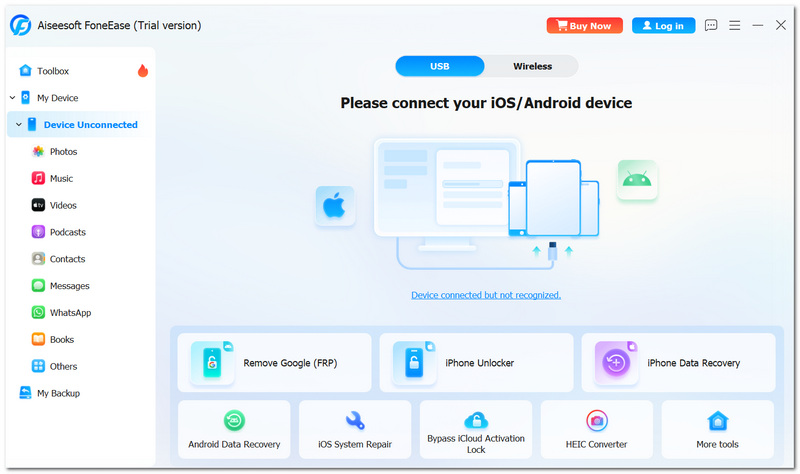
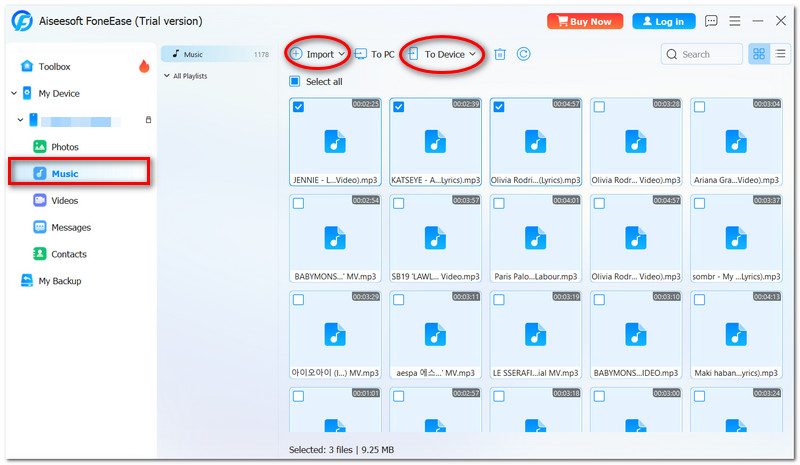
It should be noted that the options available in different stages may depend on your iPod model, as well as your system settings on the computer.
Why Use Aiseesoft FoneEase for This Transfer?
The key benefit of FoneEase is the greater degree of control it allows you to have during the transfer. Rather than being required to do a whole music‑library transfer to your iPod, you have the option here to transfer just the specific songs that you would like to move. You might appreciate this feature if your iPod already has songs and you are not keen on replacing any of them. It saves a lot of hassle in the situation the songs on your iTunes music player is in several locations. Those who only wish to change some music tracks without affecting the entire contents of their iPod will find this way to transfer is preferable to the usual method of syncing.
How do I transfer music from a computer to an iPod touch? You probably don't need a music transfer application if you use the new Mac with Finder, since it can easily take charge of transferring music via the iPod connected to a Mac in the background. This method is quite handy when, for instance, you have the need to manage your music right from macOS.
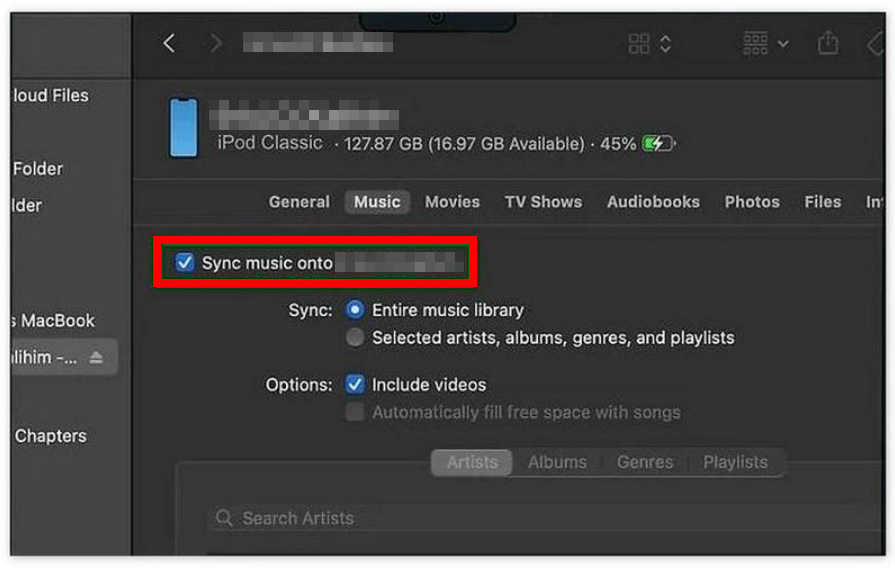
What to Know Before Using Finder
Finder is the best option here because it lets us keep music files as they are in the default folder for Mac. Still, its operation is quite a bit different than copying files manually, as it depends on syncing. First of all, find out how much data has been prepared for syncing in Finder. If you have an iPod and it was linked with some other music collection, Finder might decide to overwrite that content during syncing with a new one. So, Finder is a recommended choice for people who know quite well how to manage their iPod via the computer's music collection.
Why is the transferable song shown only on the iPod and not in the Music library?
To explain, a file might be copied to a device without the addition of that file to the Music database on the device. It is a kind of music sync that not only transfers songs but also changes the way songs are displayed in the library.
Why is the name of the song displayed differently after transfer?
The display of the Music app or iPod will show the music's embedded metadata instead of the file name on the computer. This means that details like artist, album and track will also appear to the user as being different on the iPod.
Why do some songs get transferred whereas others are not?
Probably the files you didn't get transferred were in incompatible file formats, were corrupted, or had other kinds of issues related to their compatibility. To narrow down the cause of the problem, try a single‑file transfer.
Is it possible to transfer music from a ZIP folder directly to an iPod?
No, typically when music is inside a ZIP folder, you need to open the music files (the extraction) and have that music in a single folder so that the song‑transferring application or the Music app has physical access to each and every audio file. In this case, one may only access such files in an extracted way and transfer them one by one.
Is it possible to transfer music to an iPod from a Windows PC without using iTunes?
Absolutely, a Windows computer and an iPod with music files can be paired together without involving the music player or the file storage program. However, it would be helpful to use third‑party file‑transferring software like Aiseesoft FoneEase, that are specifically developed for transferring songs (music) from a Windows PC onto an iPod device, without the need to use iTunes for that.
Conclusion
Moving tunes to an iPod can be a simple process. It really does not matter what method you prefer. A direct transfer tool or Finder on a Mac. What is important is finding the right fit so that you can use it efficiently. Once you have figured out how to transfer music to an iPod from a computer, you can easily add your favorite music to your iPod and still maintain your music library sorted and available for future use.
 Guide for Recovering Music from iPod and Copy to Computer
If you need to recover music from the iPod and copy it to a computer, this article will be the best option. You'll learn 3 practical ways and get the best tool.
 Google Photos Vs Google Drive: Which One Should You Choose?
Confused between Google Photos Vs Google Drive? Discover their differences in storage, file types, and backup features. Learn which is best for your needs!
 [Best iOS Manager] How to Manage iPod without iTunes
Want to manage iPod files? How can you manage iPod without iTunes? This article introduces the best iPod management tool for you.
 Leave your comment and join our discussion
Aiseesoft FoneEase is a data transfer and management tool that lets you seamlessly move, back up, and manage various data between iOS, Android, and computers without resetting your phone or relying on iTunes.
100% Secure. No Ads.

*Required field
*Please enter a valid email

