Contents
How to transfer video from iPhone to Android?
As an iPhone user, you may feel hard to transfer various data to your computer. Compared with Android system, iOS provides a sync way for the data transferring. What's worse, you are not allowed to directly check these backup files. So when you switch to a new Android phone, it will turn to be a little bit complex to transfer valuable iOS data to Android.
Now we back to the question, how to transfer videos from iPhone or iPad to an Android phone? In fact, it's quite simple to copy videos from computer to Android device. But there is not straight-forward way to copy iPhone videos to Android. Here in this post, we will share 5 easy methods to help you share video from iPhone to Android.
Downloads
Aiseesoft FoneEase - Best iPhone to Android Video Transfer
 100% Secure. No Ads.
For the videos in your iPhone camera folder, you can handily transfer them to your Android phone with a traditional drag-and-drop method using a Windows computer. It is a straightforward way to move your files without installing third-party apps, though it is best suited for small or few video files.
⚠️ Important: Unlock your iPhone screen and tap "Trust" (or "Trust This Computer") when prompted. If you skip this, your computer will show an empty folder and won't be able to access any videos.
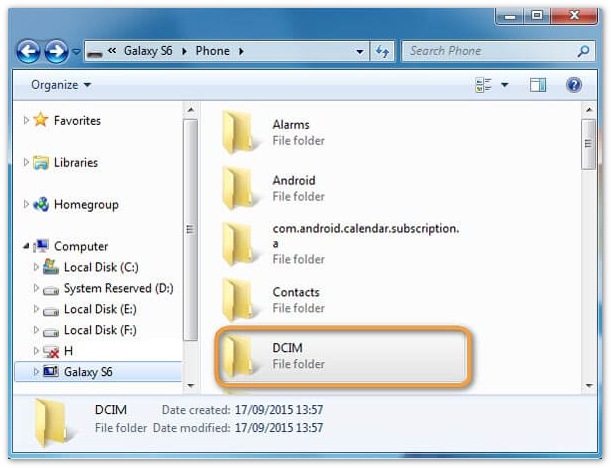
1) This method only allows you to transfer videos saved in your iPhone's local camera roll. 2) Large files or high-definition videos (like 4K) may cause the transfer to freeze or disconnect due to Windows driver limitations. 3) iPhone videos are often saved in HEVC (H.265) format. Some older Android devices might only play the audio without video playback unless a compatible media player is installed, or convert the iPhone video to MP4 before transferring.
If you have a massive collection of videos, large 4K movies, or want to completely switch from an old iPhone to a new Android device, the manual drag-and-drop method can be slow and easily interrupted. To avoid these issues, using a professional one-click phone data transfer tool like Aiseesoft FoneEase is your best choice.
Here is the step-by-step guide on how to use Aiseesoft FoneEase to transfer videos from iPhone to Android:
100% Secure. No Ads.
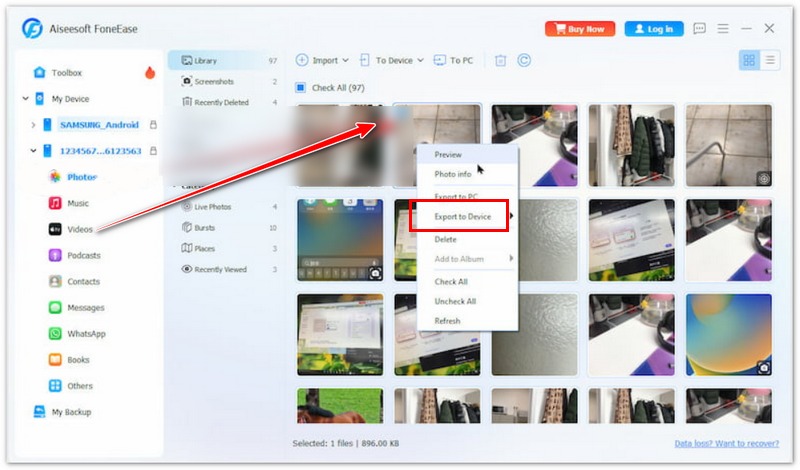
The software will instantly begin the high-speed transfer process. After a short while, all your selected iPhone videos will be safely saved onto your Android phone and will be ready to view in perfect quality.
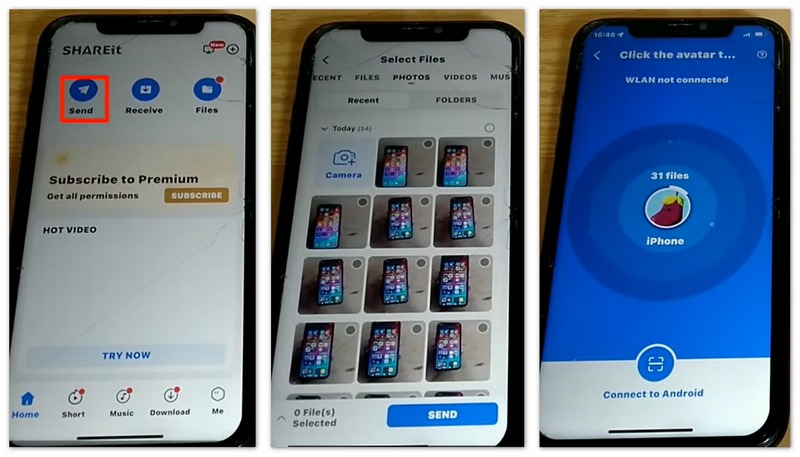
SHAREit app is another popular iPhone to Android data transfer. It allows you to share video from iPhone to Android through Wi-Fi. The detailed steps below will show you how to copy iPhone video to Android phone with this app.
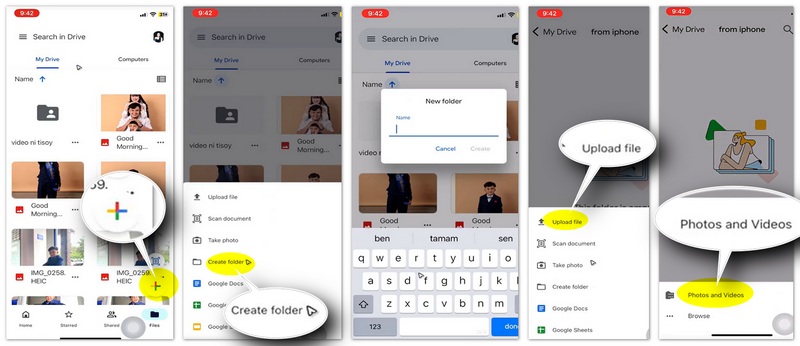
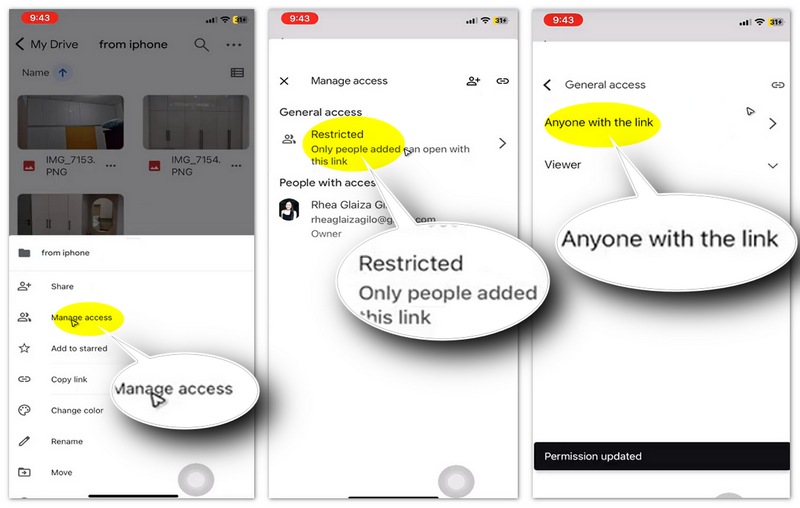
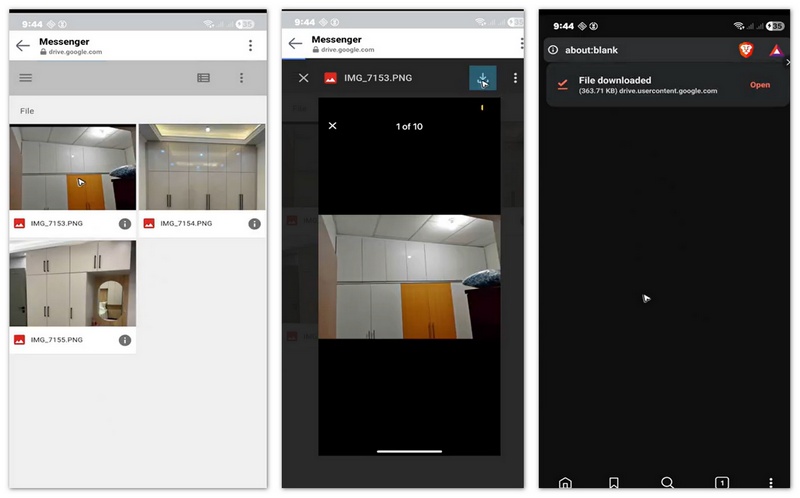
Google Drive provides a simple and efficient way to transfer videos and photos from iPhone to Android by uploading files to the cloud and downloading them on the target device.
Dropbox is a popular cloud storage service that makes cross-platform file sharing seamless. Since iCloud does not have a dedicated app for Android, Dropbox serves as an excellent alternative to sync various data, including videos, from iPhone to Android.
While the transfer process is simple, make sure your Android device supports the video formats (such as HEVC/H.265) commonly recorded by newer iPhone models to ensure smooth playback.
Can I send video files from my iPhone to a new Samsung phone with iCloud?
You should know that iCloud is only designed for Apple devices. It does not work directly with Android devices. You can’t transfer or sync iPhone data, such as videos or photos, to an Android phone via iCloud. Instead, you can download your iPhone videos from the official iCloud website to your computer, upload them to Google Photos, and then access them on Android via the Google Photos app.
Is there an official tool to transfer iPhone videos to a new Android phone?
Yes, there are official tools to help you transfer videos from your iPhone to a new Android phone. Google provides an app called “Android Switch” for this exact purpose. If you purchase a new Samsung phone and want to get your iPhone files, you can use its built-in tool called “Smart Switch” to transfer videos from your iPhone.
Does iTunes support Android phones?
No, iTunes does not support Android phones. Apple never released a version of the iTunes application for the Android system. You can only use iTunes to manage iOS devices like iPhones and iPads.
Conclusion
This post provides an ultimate guide to transferring videos from iPhone to Android. After you switch from iOS to Android, you can rely on the recommended five methods to copy all your iPhone videos to the new Android device. Leave us a message if you still have any questions.
 How to Transfer Videos from iPhone to iPhone 15/14/13/12/11/X/8 Plus/8/7/6/5
Want to transfer videos from iPhone? You can learn how to copy videos from iPhone to iPhone/iPad/PC/Mac in this page.
 Tutorial of Sending Large Video Files from Android to Another Device
Sending large files is never easy. If you want to send large video files from your Android phone to computer, iPhone or another Android device, you can find the best methods in this post.
 5 Best iPhone to Android Transfer Reviews in 2021
What is the best iPhone to Android transfer software? Is there any simple way to directly transfer various iOS data like contacts, messages, music, videos, etc. to Android phone? 5 best iPhone to Android transfer apps are offered here to help you manage your iOS/Android files.
 Leave your comment and join our discussion
Aiseesoft FoneEase is a data transfer and management tool that lets you seamlessly move, back up, and manage various data between iOS, Android, and computers without resetting your phone or relying on iTunes.
100% Secure. No Ads.

*Required field
*Please enter a valid email

