Parental Controls on Android generally refer to Google Family Link, a tool that provides parental control services that allow parents to limit what their children can watch and set screen time, etc. This tool is suitable for parents to protect their teenage children from harmful information when they have inadequate judgment. However, as children gradually grow up, they will become independent and need their own space. Parents should remove this parental control service to give them more respect and freedom. So, how to turn off Parental Controls on Android? This article will guide you both with and without a password.

| With password | Google Family Link |
| Play Store | |
| Without password | Factory reset (loses data) |
| Contact manufacturer | |
| Android Unlocker (no data loss) |
How We Tested
We tested all methods on a Samsung Galaxy A54 (Android 17) with an active Family Link account.
Best balance: Use Family Link if you have the password. Use Android Unlocker if you don’t.
Turning off Parental Controls on an Android device can take different solutions based on whether you have a password. This section shows how to do it with a password.
Google Family Link is a parental control service from Google that allows parents to manage what their children can watch. If you are using Family Link to manage your children's accounts and want to stop monitoring them, the following will provide you with the steps on how to turn off Parental Controls through Google Family Link:
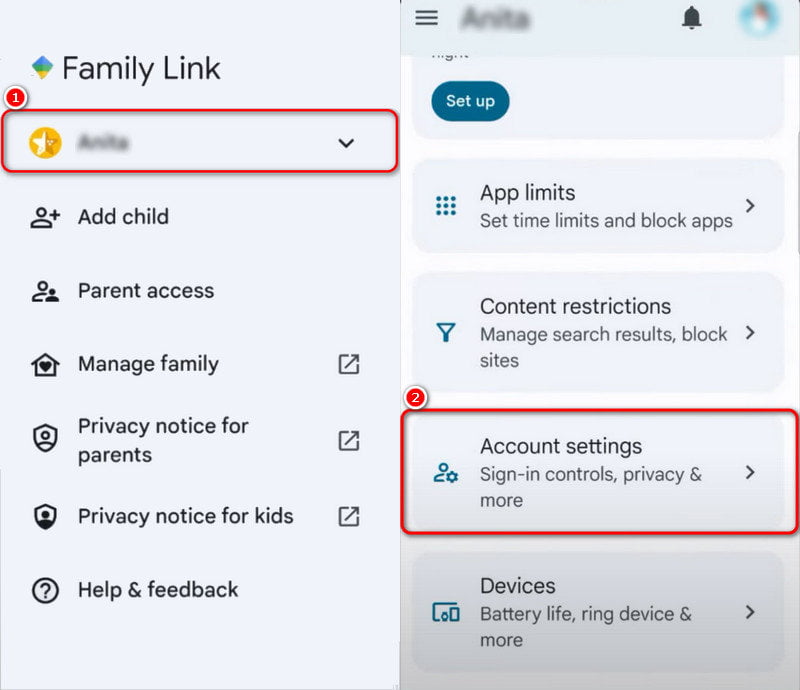
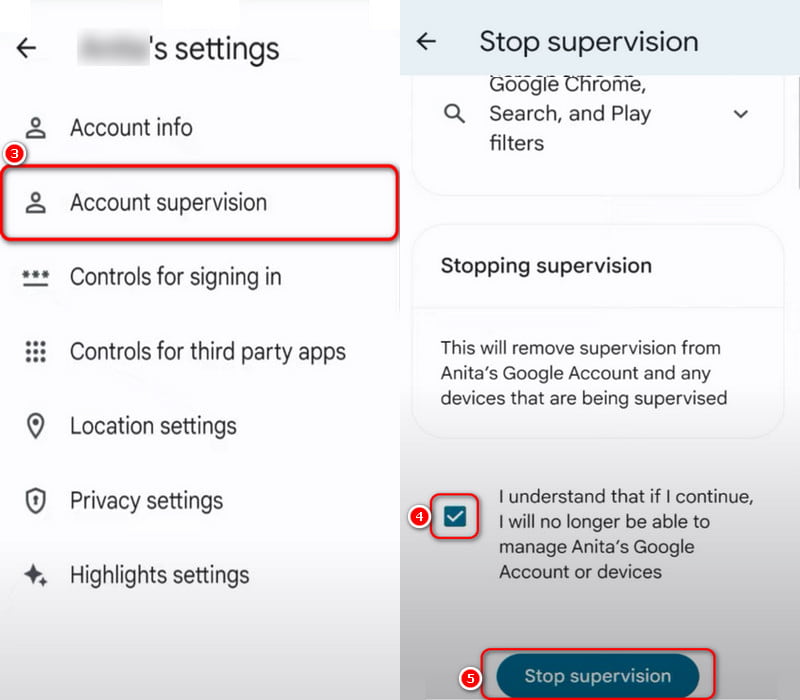
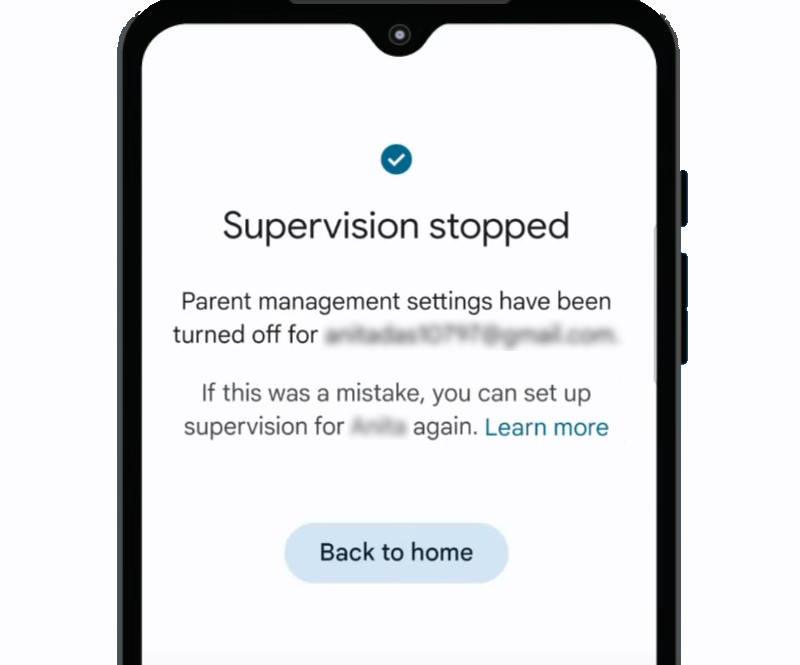
Note: If you successfully complete the last step, you will see the words Supervision stooped, Parent management settings have been turned off, etc.
The Parental Controls in the Google Play Store restrict your child from downloading or purchasing content from it when they use the mobile phone based on maturity settings, ensuring that they cannot access inappropriate 18+ programs.
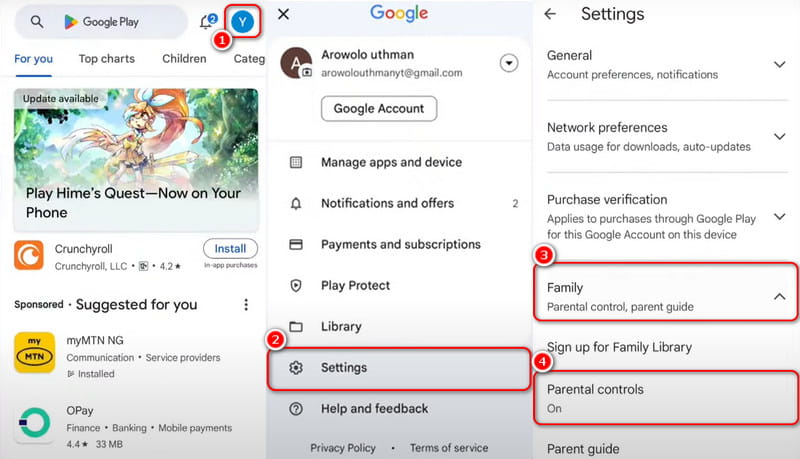
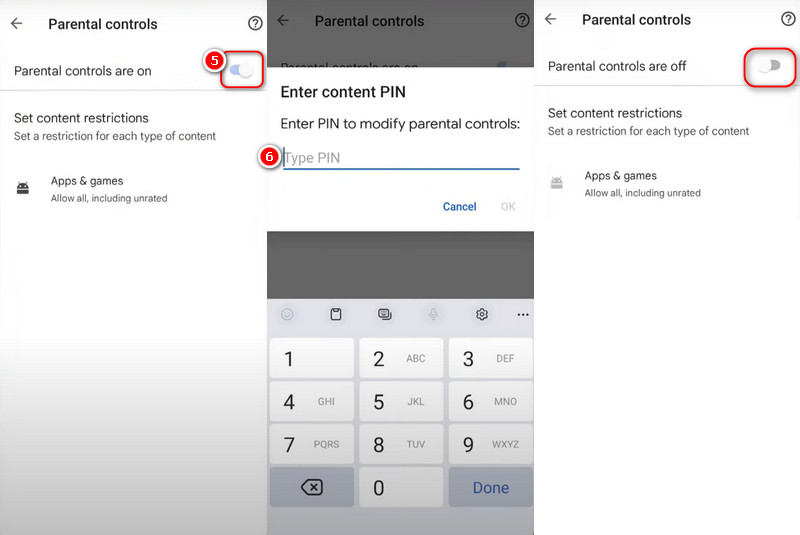
The button turns grey to indicate that it is turned off.
In most cases, you don’t know the password to turn off Parental Controls on your Android phone. Actually, there are still ways to disable it. This part will share two proven methods to remove Parental Controls with ease.
Turning off Parental Controls on Android through restoring factory settings is an extreme method. It will delete all data on the device, including settings, installed apps, and, of course, Parental Controls. So, please use it with caution unless you have to. Here, we use a Samsung Galaxy phone as an example. How to turn off Parental Controls on Samsung by restoring factory settings? Below are its simple steps:
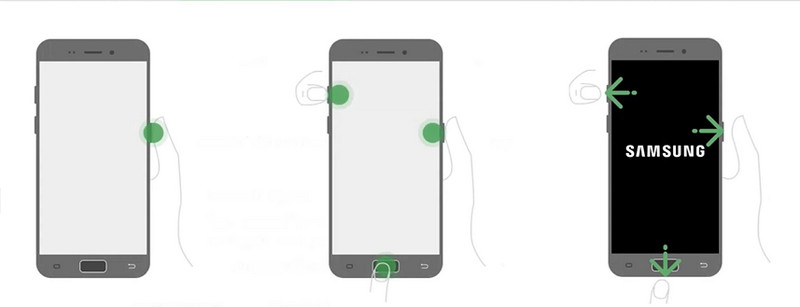
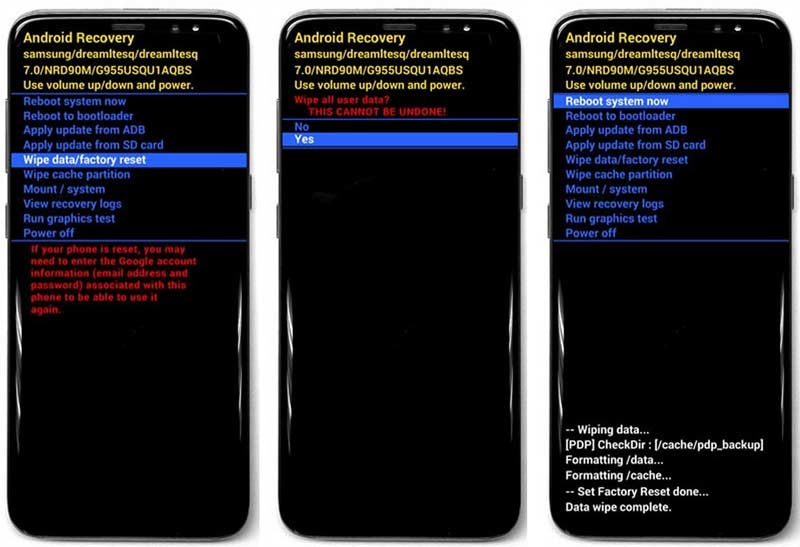
Warning: Factory reset will erase all data on your device. If you need to turn off Samsung Kids mode as well, you can disable it separately through Settings > Apps > Samsung Kids > Uninstall.
Another method is to contact the manufacturer or service provider of your Android device for help. They may be able to offer remote unlocking services or guide you through the unlocking process.
Besides the methods mentioned above, you can also bypass Parental Controls with an easy‑to‑use and secure tool called Aiseesoft Android Unlocker. It can remove any Android screen locks, including PINs, patterns, passwords, fingerprints, and facial recognition, and it allows you to easily bypass Google account verification without needing a Google account or password.
Moreover, Aiseesoft supports all operating systems from Android 6.0 to the latest Android 17. It also supports many devices, including Samsung, Google Pixel, Motorola, LG, Xiaomi, and more, and is currently working on expanding brand compatibility. Just connect your phone to your computer with a data cable, and it will help you instantly remove screen passwords and regain access to your Android phone.
 100% Secure. No Ads.
100% Secure. No Ads.
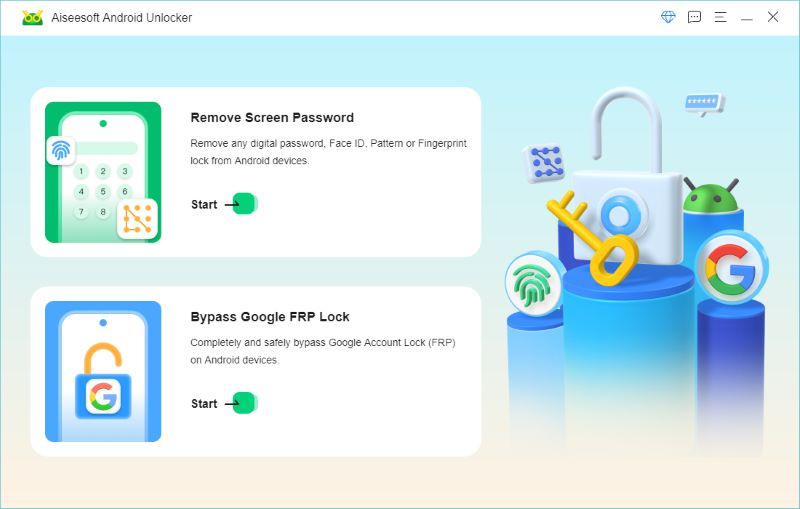
If you don’t have a USB cable handy or your device doesn’t work properly with a USB connection, click “Try Other Unlock Methods” and follow the instructions to remove the password.
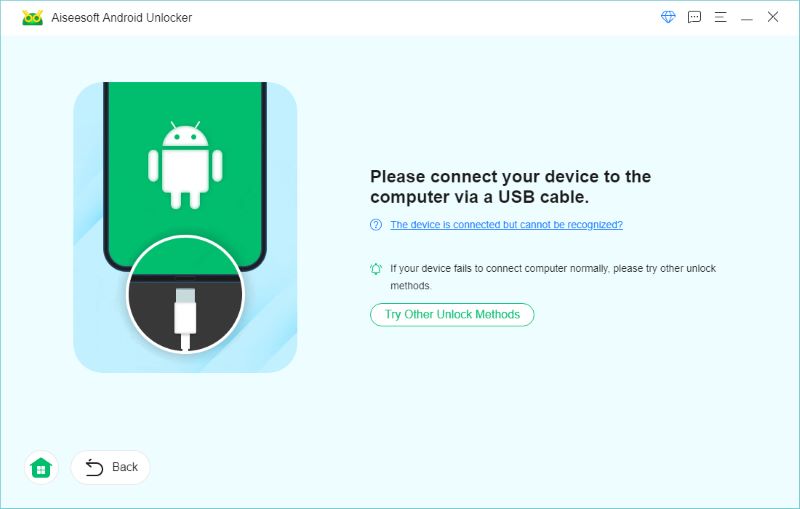
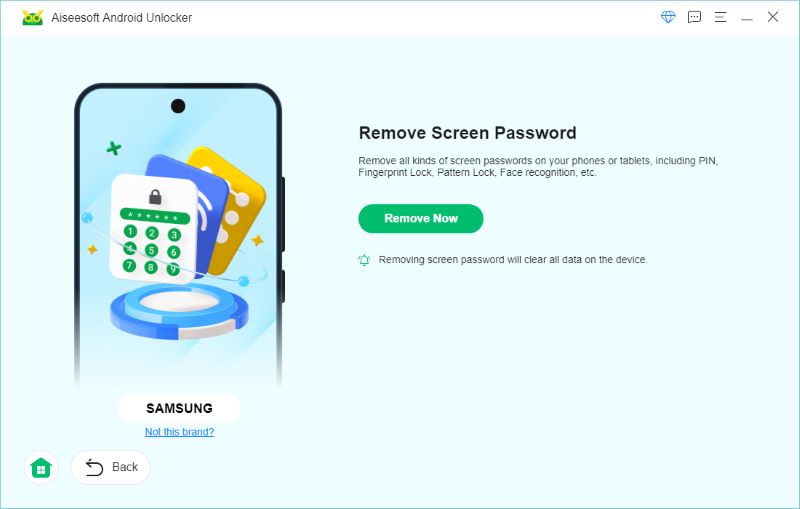
Note: This will clear all the data on your phone. You should back up all the important data first.
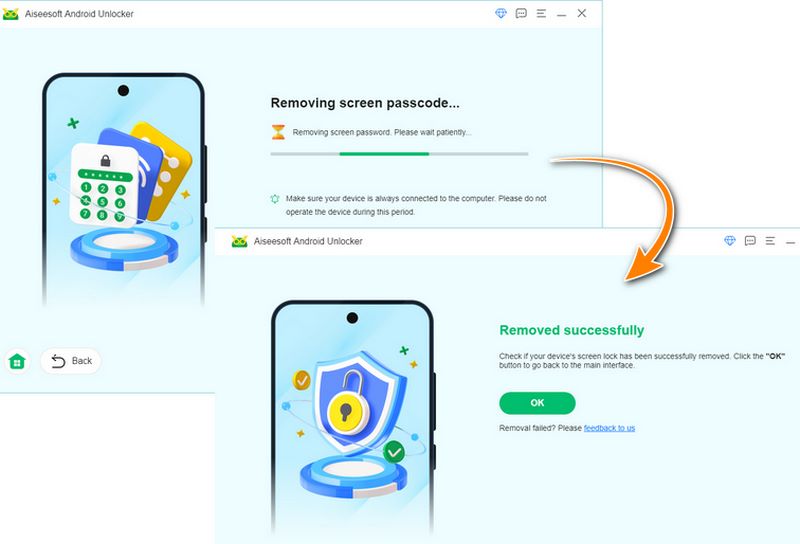
Personal Experience: I used Android Unlocker to remove Parental Controls from a Samsung Galaxy A54, and it took about 7 minutes.
How to turn off parental controls on Android without password?
You have two main options: perform a factory reset (which erases all data) or use a third-party tool like Aiseesoft Android Unlocker (which removes the lock but also clears data). There is no official way to bypass Family Link without the parent’s password, as it’s designed to be secure.
Will a factory reset remove Google Family Link?
Yes, you can use a factory reset to remove Family Link from your Android device. However, Factory Reset Protection may still require your last synced Google account after the reset.
Can I bypass Family Link without the parent account?
There is no official way to bypass Family Link without the parent’s password. The only workarounds are factory resetting the device or using third-party unlocking tools, both of which will erase data.
How to turn off Parental Controls on Samsung phone?
You can turn off Parental Controls on a Samsung phone through Google Family Link (if using Family Link), through the Google Play Store settings, or by performing a factory reset. To turn off Samsung Kids mode specifically, go to Settings > Apps > Samsung Kids > Uninstall, or from the Samsung Kids home screen, tap Menu > Close Samsung Kids and enter your PIN.
What happens to my child’s data when I stop supervision?
Your child’s phone data will remain safe when you stop supervision. Their account will not be removed, and all the related phone files and settings, including photos, videos, documents, games, and various app data, are preserved. To avoid data loss, you’d better back up your child’s data before you perform any action.
Conclusion
This article mainly introduces how to turn off Parental Controls on Android with and without a password. However, turning off Parental Controls requires choosing the correct method for the actual situation and following the steps and precautions during the process. In addition, we also provide ways to bypass the screen lock easily by using a safe and reliable third-party Android screen unlocking tool called Aiseesoft Android Unlocker. You can choose what you are interested in from the article to disable Parental Controls.
 Best 20 Parental Control Apps for Safety of Kids
Protect your kids from inappropriate sites through following 20 best parental control apps, equipped with location tracking, time supervision, app blocks, etc.
 How to Set Parental Controls and Restrictions on iPhone/iPad
Wondering to set up parental controls on iPhone in order to prevent unauthorized operations on your iPhone when sharing your device with your kid or other family members? Here we have prepared complete guide for you.
 How to Turn Off Parental Controls on iPhone [Solved]
How to turn off parental controls on iPhone without password? This post shares 3 ways to disable Parental Controls on iPhone with or without passcode.
 Leave your comment and join our discussion
Compatible with all Android OS versions, this unlocker provides a secure and easy way to remove screen lock of any kind and bypass FRP quickly.
100% Secure. No Ads.
100% Secure. No Ads.

*Required field
*Please enter a valid email

