CapCut, one of today’s most popular video editors, features a built-in upscaling function that instantly enhances the resolution and clarity of your video. In this guide, we’ll show you how to upscale video in CapCut step by step so that you can transform grainy footage into smooth, high-quality visuals. You'll also learn why CapCut's upscaler might not work as intended and how to resolve the issue easily. We also offer an option for those who are ready to further advance their AI enhancement. An alternative that gives your videos the look of having been professionally upscaled, with just a few clicks. Let's go!
CapCut provides a straightforward and efficient solution for enhancing the quality of your video and giving it a more polished appearance. Even if you are working on an edited vlog, TikTok video, or marketing video, you can achieve a clearer HD look with just a couple of clicks using this integrated tool. Discovering how to upscale video CapCut style is fantastic for you as a creator, allowing you to engage in effortlessly and uplift quality without having to deal with advanced, expensive editing software.
Detailed Steps to Upscale Video in CapCut
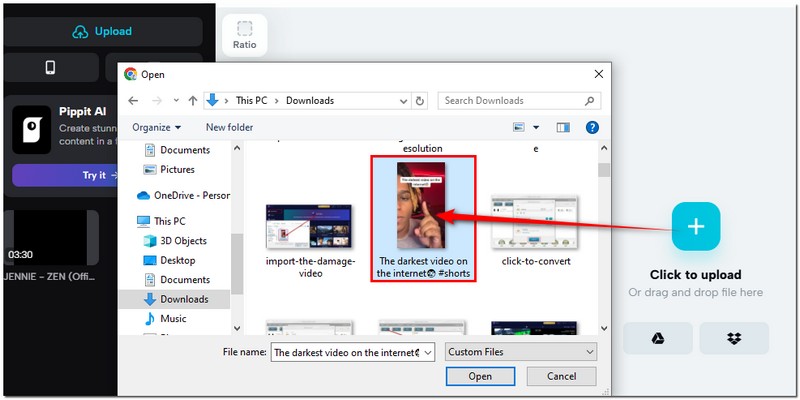
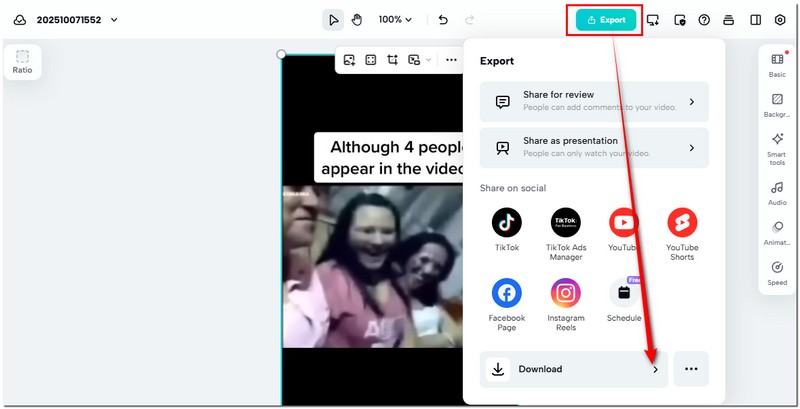
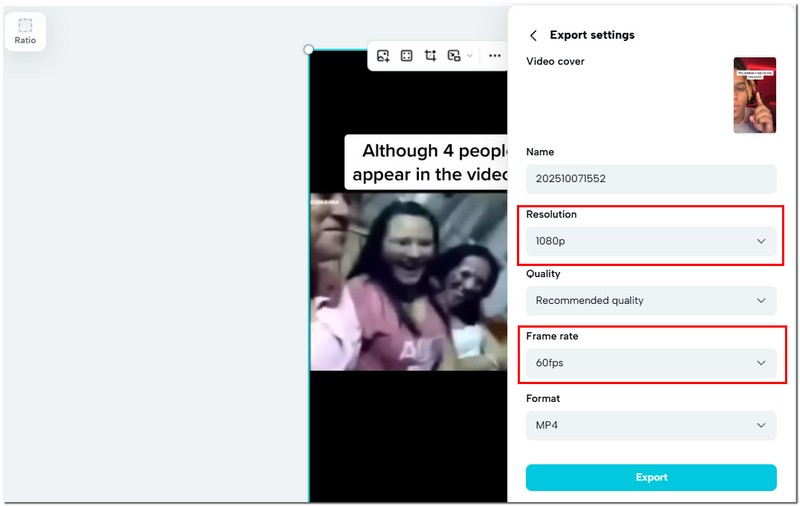
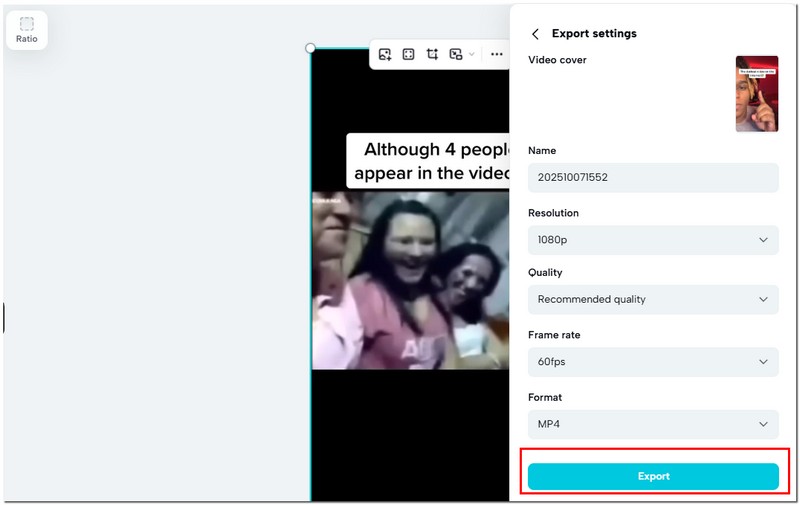
CapCut is a straightforward option for fast editing, particularly for influencers. However, if you are looking for a more polished and detailed upscale, you will get much better results with an AI-powered tool like Aiseesoft VidHex in conjunction with CapCut.
If you’ve tried improving your footage but noticed that your CapCut video upscaler isn’t giving the results you expected, it happens more often than you think. Many users ask, “Why is my CapCut upscaler not working?” or even Can CapCut upscale video consistently?” The truth is that several common issues can affect the upscaling process, but they’re usually easy to resolve. Here are a few potential explanations and remedies to consider:
1. Outdated Version of the App
Reason: The latest upscaling features might not be compatible with older versions of CapCut.
Solution: Update CapCut to the most recent version on your app store. Once you have updated, restart the app and retry.
2. Unsupported Device or Limited Processing Power
Reason: Upscaling requires high processing power, and some devices, such as phones or PCs, may struggle to handle it.
Solution: Close background apps before using CapCut, or try using the desktop version for better performance.
3. Low-Resolution Source Video
Reason: If your original footage is too low in quality, the AI has limited data to enhance it.
Solution: Try using footage that’s at least 720p. For poor-quality videos, consider download and give Aiseesoft VidHex a try, which offers more advanced AI-enhanced features.
4. Poor Internet Connection (for Online Editing)
Reason: CapCut relies on cloud processing for certain features, particularly in the web version.
Solution: Switch to a stable Wi-Fi connection or edit offline using the downloaded app.
5. Cache problems or glitches in the app
Reason: The CapCut upscaling tool may not work properly due to accumulated cache files.
Solution: To improve CapCut's performance, either reinstall the app or clear its cache in the settings.
6. Incorrect Export Settings
Reason: If you don't explicitly choose a higher output, the video may occasionally export at its original resolution.
Solution: Before exporting, go to Settings, click Resolution, and select 1080p or 4K. Ensure the Bitrate is set to high.
 100% Secure. No Ads.
100% Secure. No Ads.
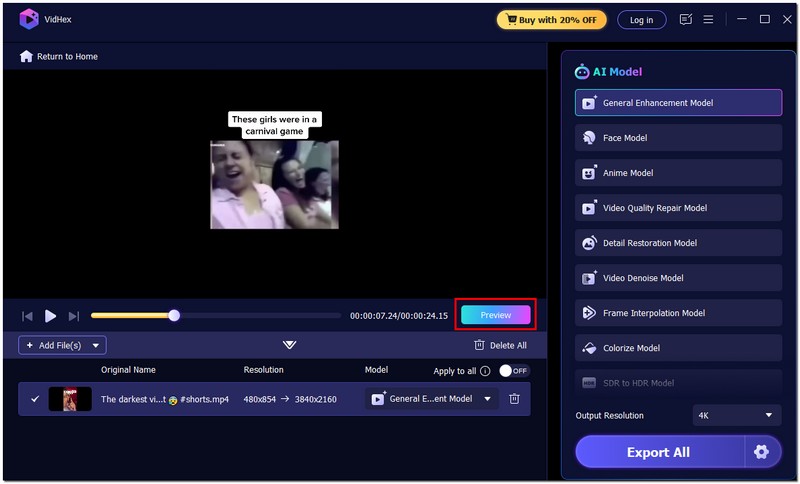
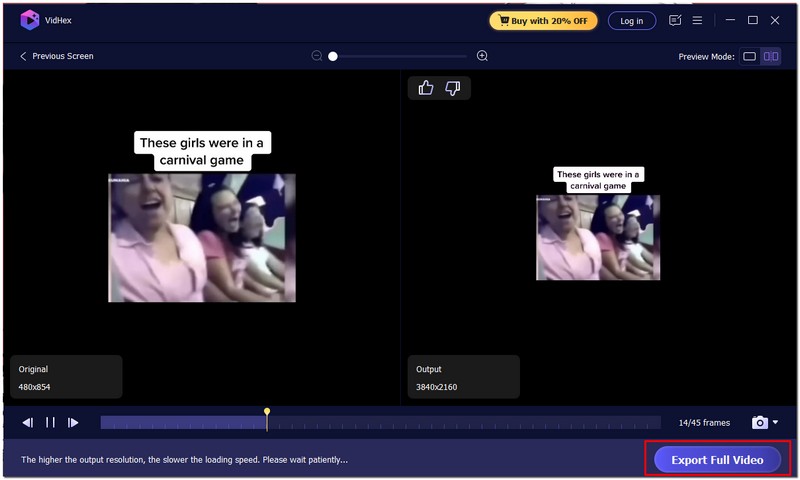
Suppose the AI video upscaler CapCut does not meet your expectations, particularly when you want to upscale 4K or a highly compressed video. In that case, you can try Aiseesoft VidHex as a robust alternative. With this AI video enhancer, users can upscale their videos with remarkable clarity and fluidity while maintaining realistic textures and color balance to ensure your video is clear, smooth, and visually pleasing, even if your original footage is of poor quality.

117,882Downloads
100% Secure. No Ads.
100% Secure. No Ads.
Detailed Steps to Upscale Videos with VidHex
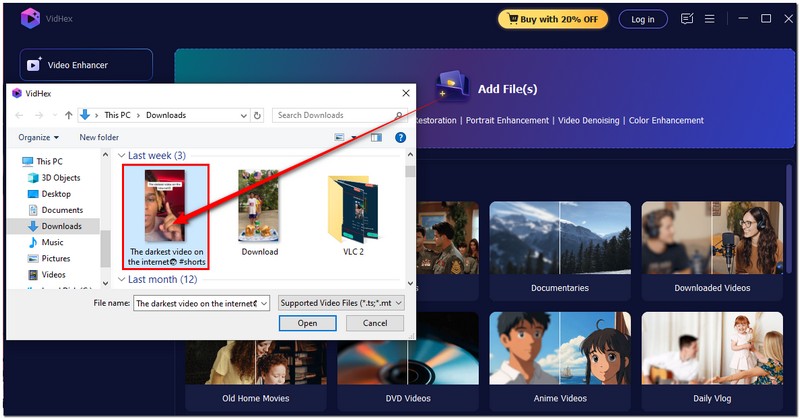
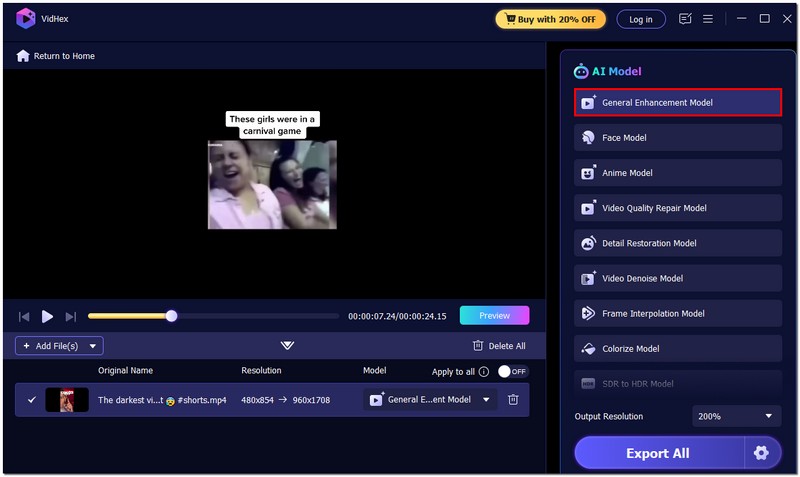
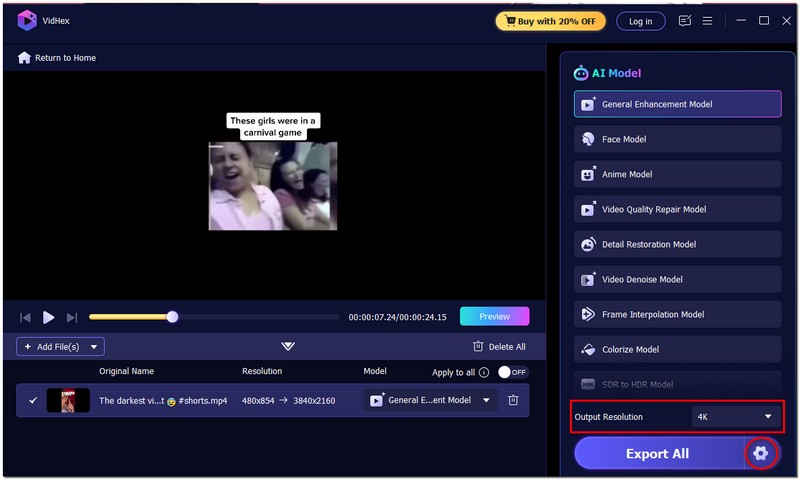
Why Choose Aiseesoft VidHex?
Aiseesoft VidHex offers deeper AI processing and smarter detail recovery than the AI video upscaler CapCut. Although CapCut is sufficient for quick updates, VidHex provides better quality results, more control, and fewer restrictions. The main tool creators turn to for smoother, sharper, and cinema-quality visuals, as it is also ideal for those seeking the ease of professional-quality enhancements.
Why is my CapCut video upscaler not working?
If the CapCut video upscale feature isn’t working, it could be due to low storage, an outdated app version, or an unstable internet connection. Try clearing your cache, updating the app, or restarting your device.
Can CapCut upscale 1080p to 4K?
CapCut can simulate 4K quality using its AI enhancer, but it’s technically an upscaled 1080p version, not a true native 4K resolution. Still, it’s great for social media uploads.
Can I use CapCut's upscaling feature on both PC and mobile?
Absolutely. The AI upscaler feature works on both platforms, though the desktop version typically provides faster and more stable performance. If you are not satisfied with CapCut’s performance, you can also try other CapCut alternatives.
Conclusion
Wrapping things up, learning how to upscale video CapCut is a simple yet effective way to make your clips look sharper and more professional, perfect for sharing on social media or YouTube. Simply clicking a few buttons, and you can see the resolution and details improved with CapCut's built-in enhancer, leaving you with a polished video. However, if you ever have any issues with the tool or want to see even more improvement, you can use an alternative powered by AI, Aiseesoft VidHex, to elevate your video quality even more. Upscaling won't just be for pros anymore, as it's now an easy hack for anyone making their videos that much better.
 Download and Use CapCut for Mac and Get 5 Alternatives
Can you use CapCut on your MacBook? Where to get the CapCut for Mac download? Check the detailed review of CapCut for Mac and get 5 alternatives to CapCut.
 How to Add, Blur, Change, Remove, and Use CapCut Background
How can I put a background on CapCut? How do you make a CapCut background wallpaper? This post tells how to add, blur, change, and remove CapCut backgrounds.
 Does CapCut Have a Watermark and How to Remove It
Can CapCut save a video without a watermark? How do you get rid of the CapCut watermark? Learn effective methods to remove the CapCut watermark with ease.
 Leave your comment and join our discussion
VidHex is an AI-powered video enhancer that upscales, denoises, colorizes stabilizes, and improves video quality in 1 click.
100% Secure. No Ads.
100% Secure. No Ads.

*Required field
*Please enter a valid email

