When you get a new iPad, the first thing you want to do is copy all the essential data from the old iPad to it. How to transfer iPad to iPad? What is the easiest way to do that?
There are multiple ways to quickly copy iOS files from one iPad to another, including both official Apple tools and third-party tools. We have tested over ten tools and selected four reliable ones for you to choose from. You can select one that best suits your needs and transfer your iPad data with ease.
The first section gives a quick comparison table of 4 transition methods. We tested Quick Start, iCloud, Finder/iTunes, and a third-party tool. Check which method works best for your situation.
| iPad Transfer | Best For | Data Types | Difficulty | Speed | Requirements |
| Quick Start | Full device migration for brand-new iPad | All iOS data + settings | Very Easy | Varies | Both devices nearby Wi-Fi + Bluetooth |
| iCloud Sync | Users who want cloud backup + cross-device access, without a computer | Photos, videos, contacts, music, calendars, messages | Easy | Varies | Stable Wi-Fi Sufficient iCloud storage |
| Aiseesoft FoneEase | Selective file transfer with extra management features | All iOS data like photos, videos, music, contacts, messages | Very Easy | Fastest | Computer + USB cables |
| Finder/iTunes | Users who need full backup and restore | All data + settings | Moderate | Fast | Mac/PC + USB cable |
If you just buy a new iPad and want to migrate all the existing files from the old iPad to it, you can use Apple’s Quick Start. It is an official wireless migration tool designed for setting up a brand-new device. You can use it to transfer data like photos, messages, apps, settings, and more directly from your old iPad to the new one.
Best for: New iPad users who want a cable-free transfer and have both iPads at hand.
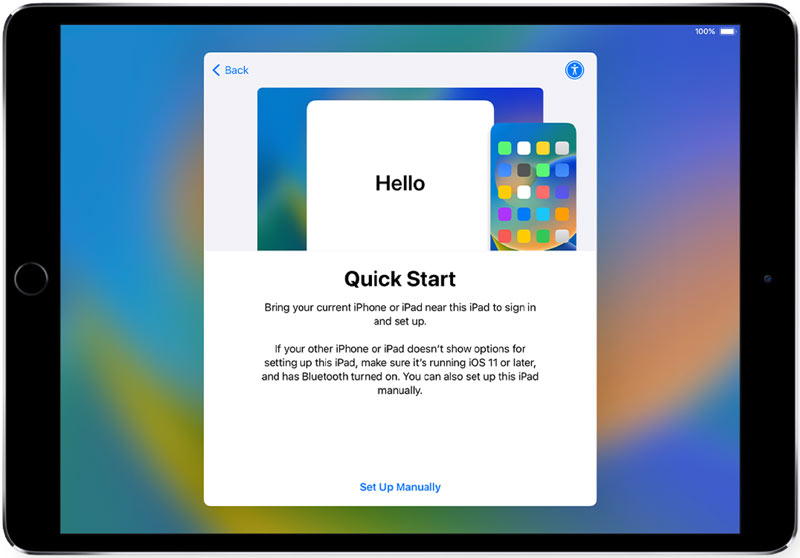
This method only works during initial device setup. If you have already set up your new iPad, you will need to erase it and start over.
If you already use iCloud for backups, transferring your old iPad data to a new iPad is quite easy. You can restore a recent backup to the new one.
Best for: Users who have a recent iCloud backup that contains all the old iPad data.
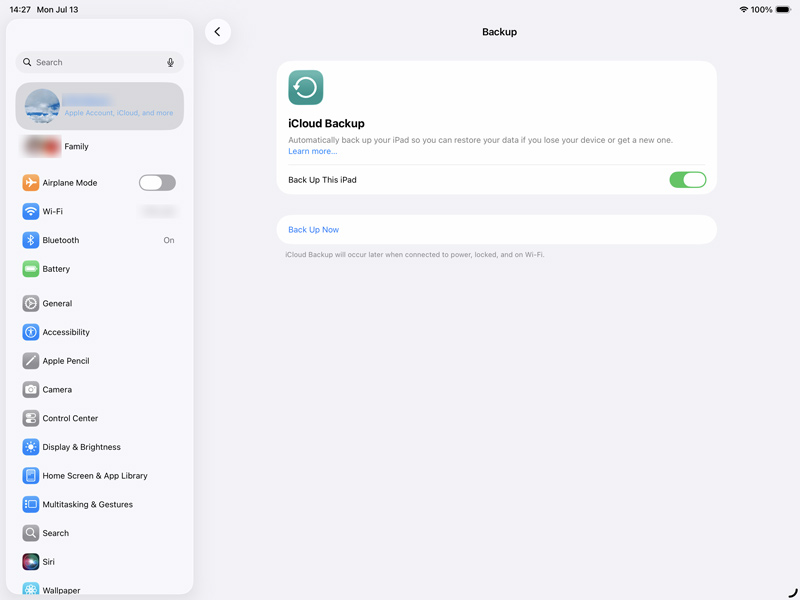
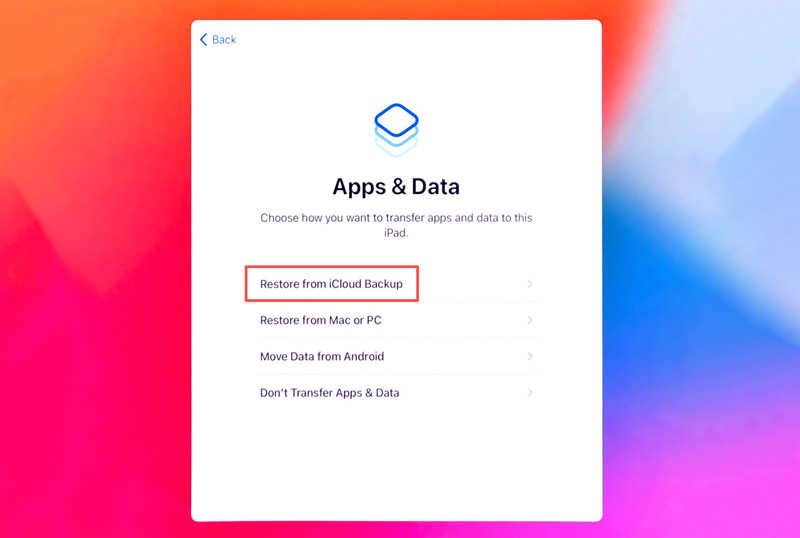
Free iCloud storage is only 5GB. If your data exceeds this, you will need to purchase additional storage or use a dedicated iOS data management tool, such as Aiseesoft FoneEase. Compared with Apple’s built-in options, this tool offers more flexibility and faster transfer speeds. It handles photos, videos, music, contacts, messages, notes, books, and app files.
Best for: Users who want to transfer selected iOS files rather than everything, or those who need additional device management features beyond basic transfer.
 100% Secure. No Ads.
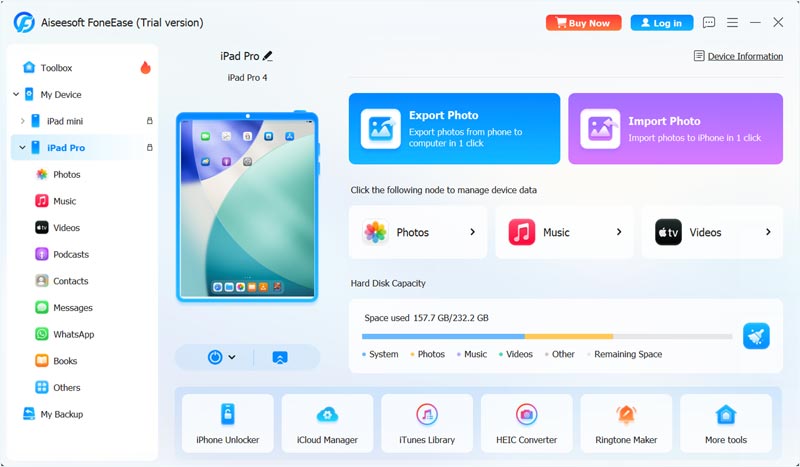
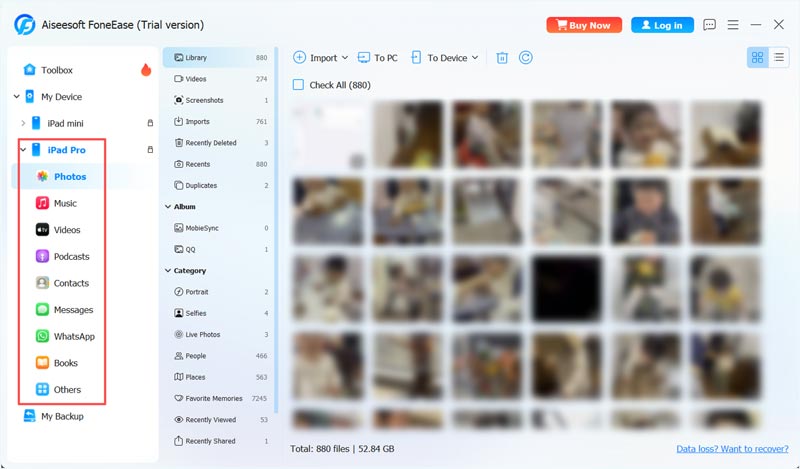
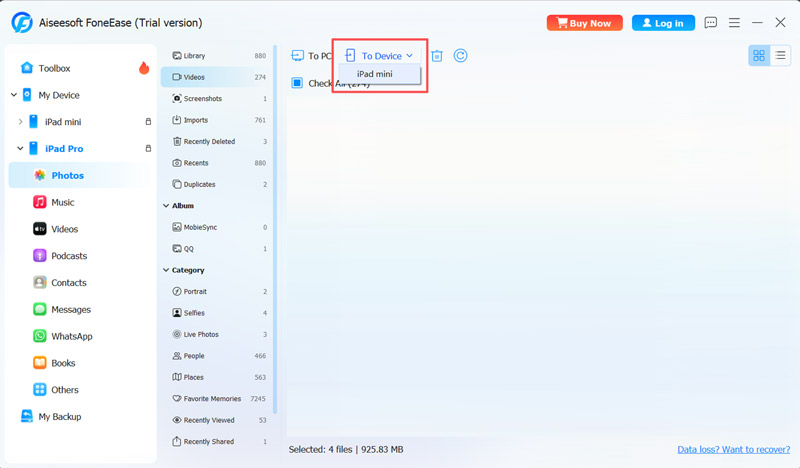
Note that FoneEase works best for transferring all types of content from iPhone and iPad devices. It does not move system settings the way a full backup would.
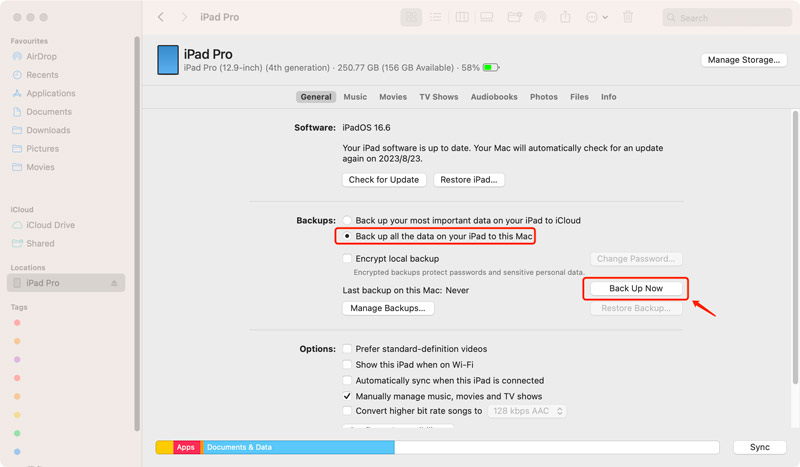
If you often create local backups on a computer, you can use iTunes or Finder to create a backup of all your old iPad data, and then restore it on the new iPad. This part takes Finder as an example.
Best for: Users with a nearby computer and who want a complete backup.
Question 1. Does Quick Start transfer everything?
Quick Start can transfer virtually everything from your old iPad to the new one, including commonly used apps, account details, and your personal settings. It can perform a full device copy of your old iPad and restore it to the new device.
Question 2. Can I transfer data if my new iPad is already set up?
Yes, you can use the recommended FoneEase to transfer data to your new iPad with ease. If you prefer the official tools, erase your new device first. During the setup, you can start the transfer process from scratch.
Question 3. Why Quick Start doesn’t work?
Check that both Apple devices have Wi-Fi and Bluetooth enabled. If the prompt disappears from your old iPad, restart both devices. Moreover, devices enrolled in Apple School Manager or Apple Business Manager cannot use Quick Start.
You can learn four efficient methods to transfer data from one iPad to another. Select a preferred tool based on your specific situation. If both iPads are in hand and you want the quickest wireless experience, Quick Start is an ideal choice. However, if your new iPad has been in use for some time and you want to selectively transfer data from an old iPad, FoneEase is the clear winner.
 Top 6 iPad Transferring Tools for Windows and Mac Computers
What is the best iPad transferring software? This article identifies and shares you top 6 best tools to help you transfer iPad data from and to computer easily.
 Complete Guide: How to Restore iPhone/iPad with iTunes & Alternative
Learn how to restore your iPhone or iPad with iTunes and the best alternative on the market. Instructions and additional information are added on backup up on iTunes.
 Learn 3 Easy Ways to Transfer Music from iTunes to iPhone
Can I transfer songs from iTunes to iPhone without a cable? How do you download and sync iTunes music to an iPhone? Learn to transfer music from iTunes to iPhone.
 Leave your comment and join our discussion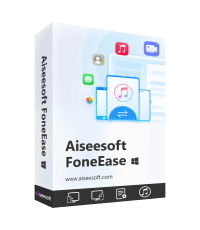
Aiseesoft FoneEase is a data transfer and management tool that lets you seamlessly move, back up, and manage various data between iOS, Android, and computers without resetting your phone or relying on iTunes.
100% Secure. No Ads.

*Required field
*Please enter a valid email

