
Best for: Fast transfer of large files, including photos, videos, documents, music, and more, without relying on WiFi.
Contents
Sometimes your computer just has the file you need, but you actually want to use it on your Android phone. The problem could be that you want to transfer some photos or move work documents. Alternatively, you might want to save videos for later. Fortunately, you do not have to resort to emailing files to yourself or setting up something really complicated. So, if you are thinking about the best way to transfer files from PC to Android, we have a few ways for you that are quite dependable and that anyone can use. At the very last, you will be very clear about the most time-saving, the easiest, and the one that works best for you.
Best Ways to Transfer Files from PC to Android
Top Pick: Aiseesoft FoneEase delivers a balanced mix of speed, ease of use, and file management functionalities to many users.
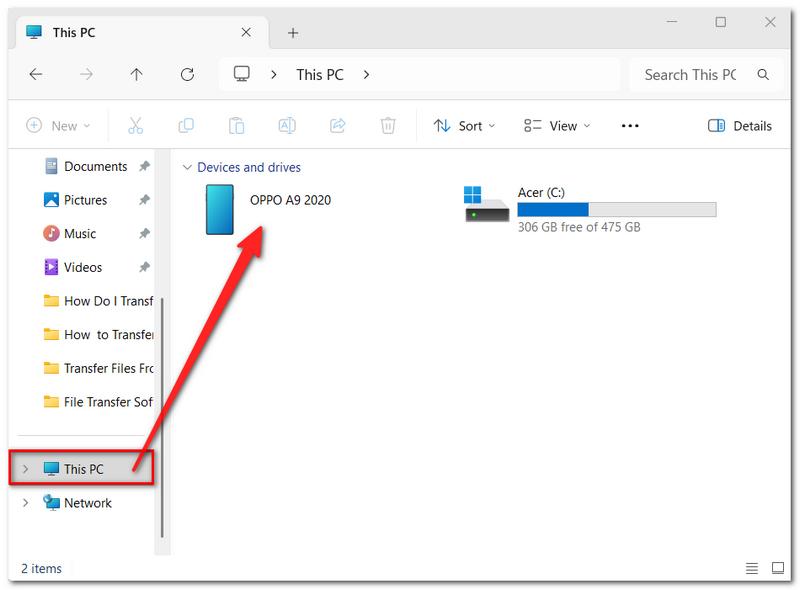
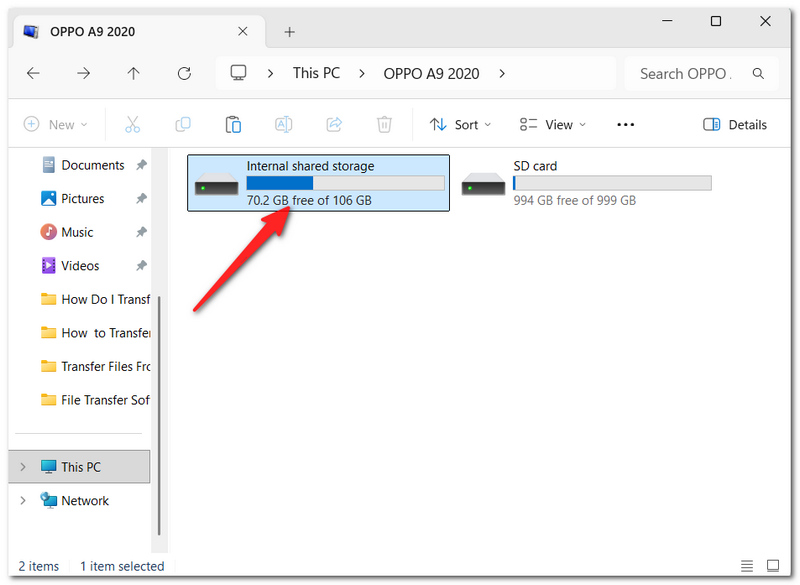
A USB cable is, for sure, one of the fastest and most effective methods for copying your files from a PC to an Android phone. This cable establishes a direct link, so you do not have to wait for the transfer of big files via the internet. If you're looking for file transfer from a PC to an Android device, this approach is a good first step.
Best for: Fast transfer of large files, including photos, videos, documents, music, and more, without relying on WiFi.
Restrictions
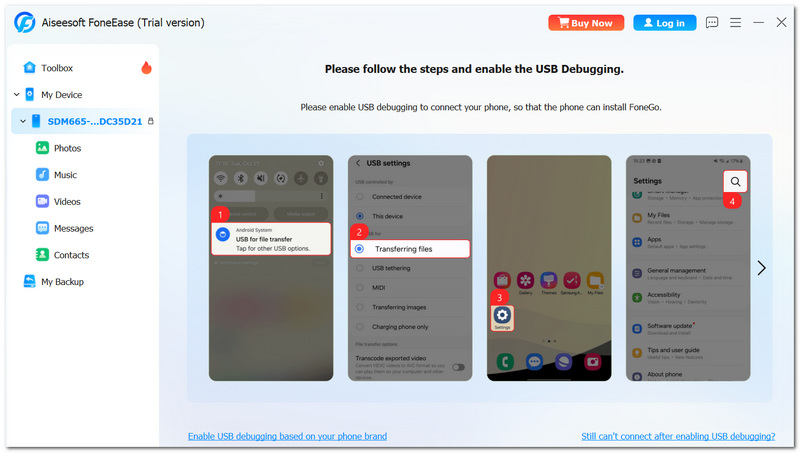
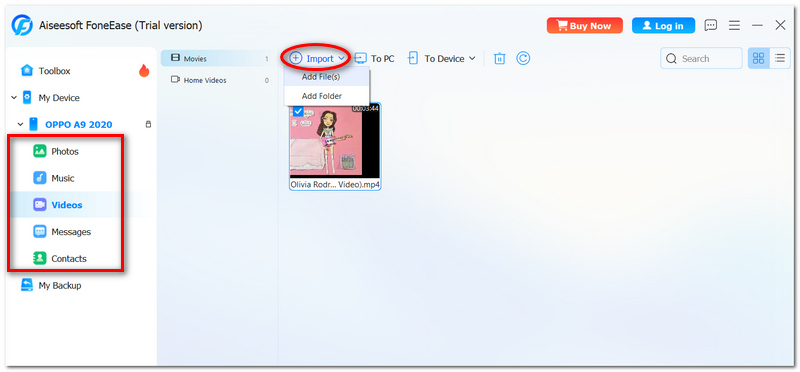
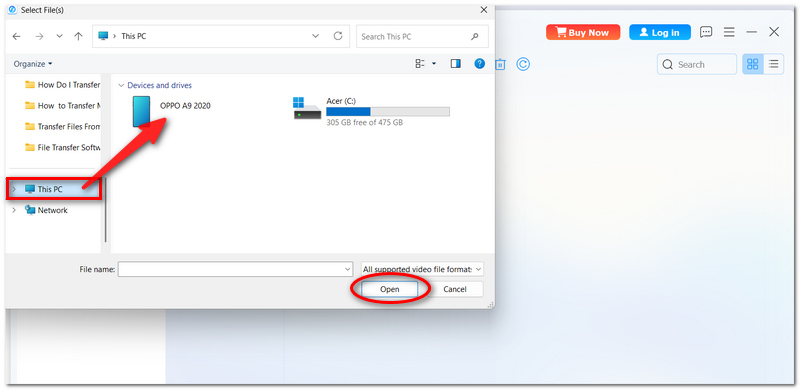
Aiseesoft FoneEase is an excellent multitasking phone management application, and it is a breeze to transfer files from your Android phone to the PC. You probably searched for how to transfer a file from a PC to an Android. This application allows you to send files straight to your mobile and also lets you manage your data very smoothly.
Main Features
 100% Secure. No Ads.
Best for: Fast and organized file transfers from a PC to an Android phone.
Steps to Transfer Files with Aiseesoft FoneEase
Limitation
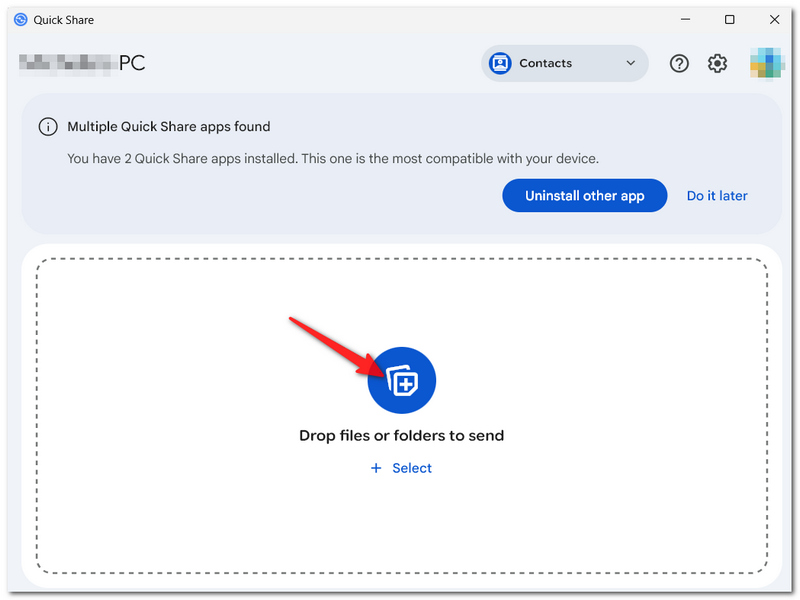
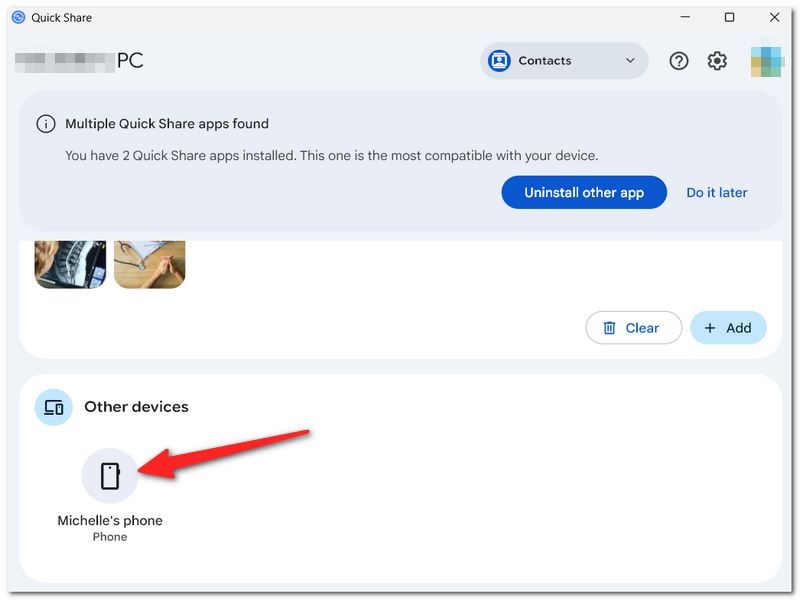
Apart from being convenient, Quick Share is an inbuilt capability of Google that allows you to share wirelessly between compatible Windows PCs and Android devices. The ability to send a file transfer from a PC to an Android without the use of a USB cable provides one of the fastest and most convenient methods to do so.
Best for: Fast wireless file transfers between Windows PCs and Android devices.
Limitations
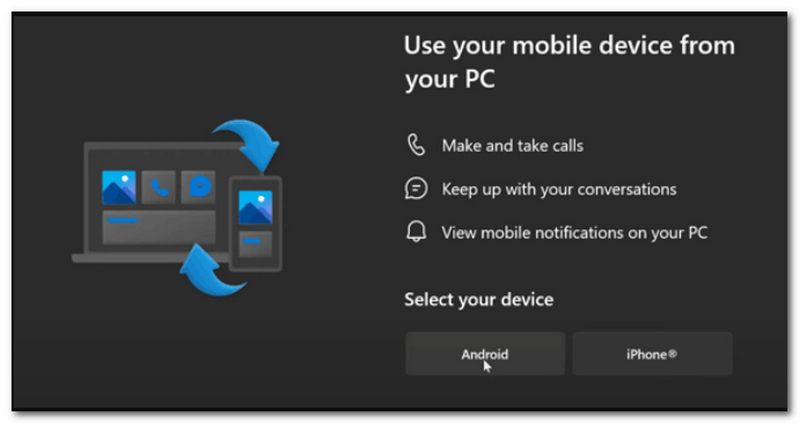
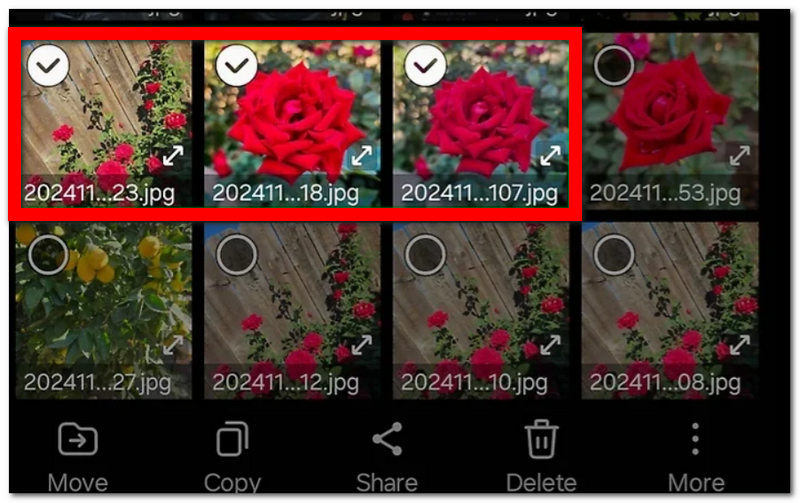
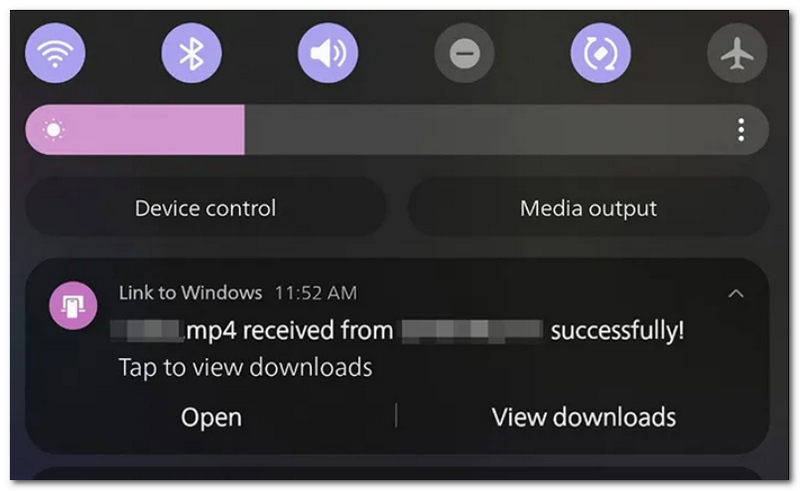
Microsoft Phone Link, based on Windows PC, is one of the phone transfer apps that allows you to link and manage your Android phone. This gives you an easy way to open, edit, copy, paste, and transfer supported file types from your Android phone to your PC without the need to use a USB cable. For users who like to do it via their Windows PC, Phone Link is definitely a very attractive alternative to managing their Android device.
Best for: Seamless file sharing and device integration between Windows PCs and Android phones.
Limitation
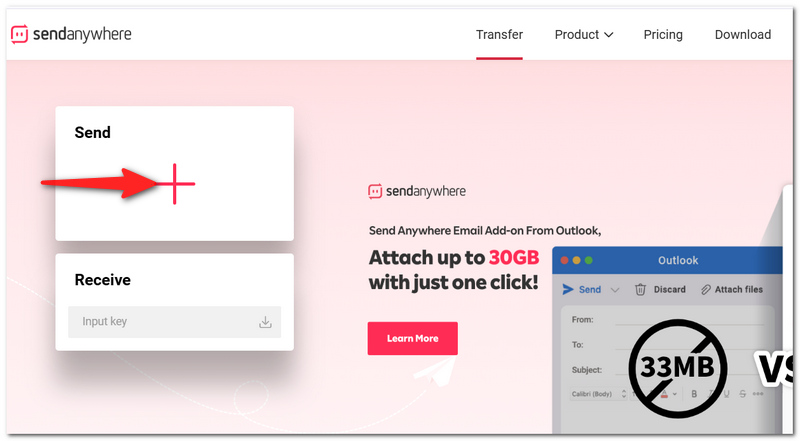
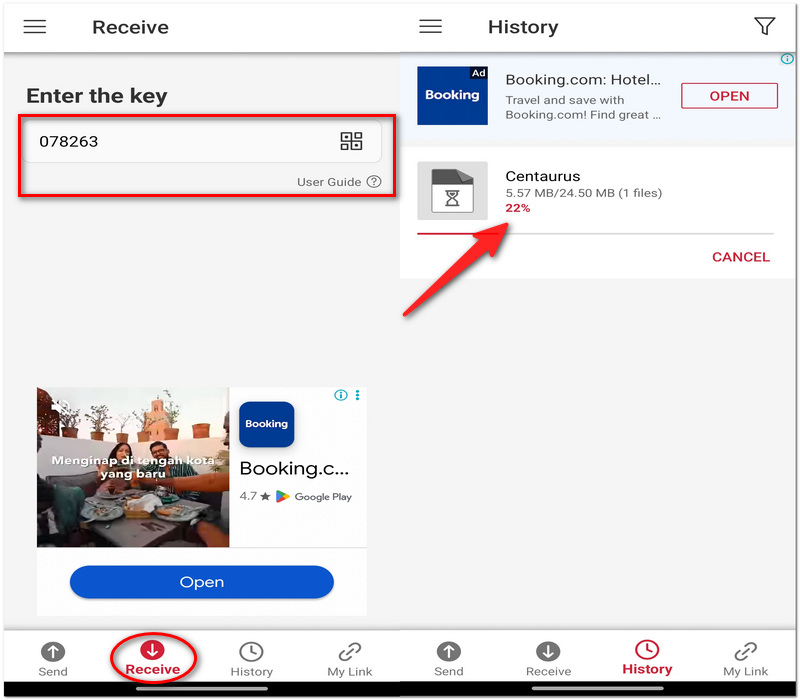
Send Anywhere is a cloud-based file-sharing service through which you can share files between your computer and Android phones via a one-time transfer key or QR code. This makes your life easier. At the same time, your devices are not on the same network, or the USB cable is not available.
Best for: Cross-platform file transfers between PCs and Android devices.
Limitation
What should I do if a file won't open after the transfer?
In the first place, be sure that the transfer went smoothly. Once the file is confirmed to be unharmed, check and see if your Android device has the right program installed to open that file type.
Why are some file names changed after transferring?
A file of the same name already on your Android device, or the transfer app renaming duplicated files automatically, could have led to the changing of some file names.
Should I compress large folders before transferring them?
By way of packing a folder into a ZIP file, the whole operation of transferring multiple files at once becomes simpler in one aspect. In addition, it also helps to safeguard the hierarchy of folders.
Conclusion
Once you've got a good understanding of how to transfer files from PC to Android, it will only take a moment to decide which method works for you, wired or wireless! By selecting wisely, you will not only enhance your file-transferring speed but also make it hassle-free and organized. In this way, you will never have a problem reaching your data on Android when you need it most.
 Best Approach to Run Android Apps on a PC Without Rooting [Updated]
Learn how to run Android apps on a PC without rooting your phone. Plus, we added alternatives you could use to mirror Android screens easily.
 Unlock Convenience: How to Access Android on PC [No Rooting Required]
How to access Android on PC? Whenever you want to access the Android on a PC, you can do multiple ways to connect it. This article completed the ways of doing it.
 3 Solutions to Control Android Phone from PC with No Lags
This article will give you several workable solutions to seamlessly remote control Android from PC, along with the top three mirroring apps.
 Leave your comment and join our discussion
Aiseesoft FoneEase is a data transfer and management tool that lets you seamlessly move, back up, and manage various data between iOS, Android, and computers without resetting your phone or relying on iTunes.
100% Secure. No Ads.

*Required field
*Please enter a valid email
