Getting Started
Introduction
Aiseesoft UltPDF is a powerful, all-in-one solution designed to make document management effortless. It provides a seamless experience for modifying text, images, and pages within your PDF files, offering an interface as intuitive as a standard word processor for your digital productivity.
Part 1. Open PDF File
There are 3 methods to load your PDF file before editing.
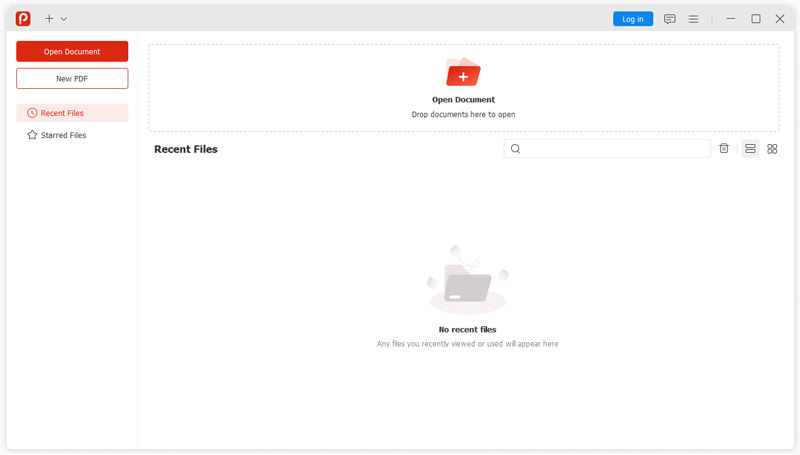
Method 1. Click Open Document and select the PDF file to load.
Method 2. You can also drag and drop the PDF file to the Aiseesoft UltPDF home interface and the PDF file will be loaded automatically.
Method 3. Click the + button in the top menu. This is better for editing and opening multiple files.
You can also click New PDF to create a new empty PDF file.
Part 2. Edit PDF
Aiseesoft UltPDF provides multiple editing tools to help you edit your PDF file freely. First, open your PDF file or create a new PDF, then, you can see different editing functions on the top menu.
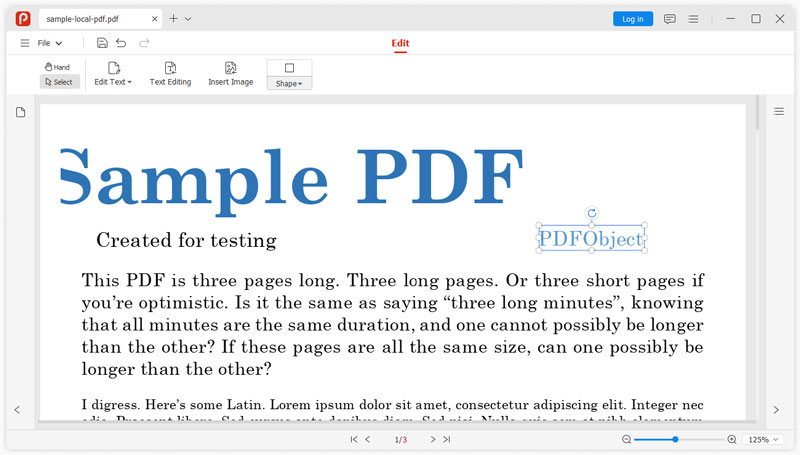
Transform PDF Text/Image
Aiseesoft UltPDF allows you to rotate, move and decrease and increase the size of the texts, images and other elements in your PDF file.
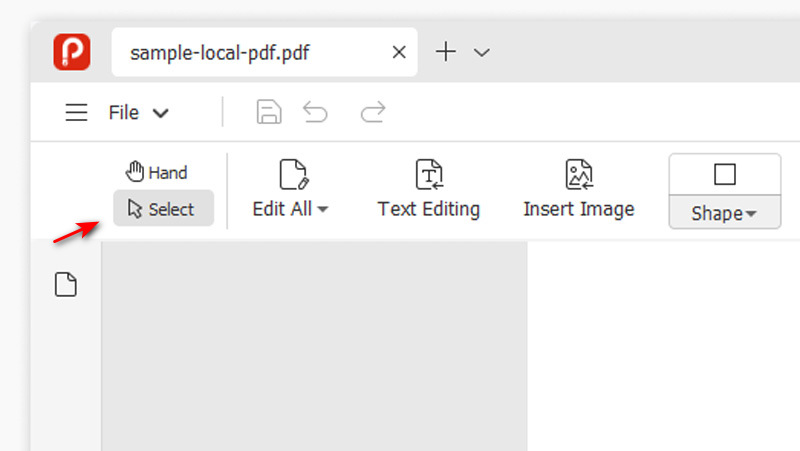
Step 1. Open your PDF file and click the Select tool.
Step 2. Click to select a single line of text or an image. You can also drag to select an entire area.
Step 3. Click and drag the white dots on the selected border to change the size of the image.
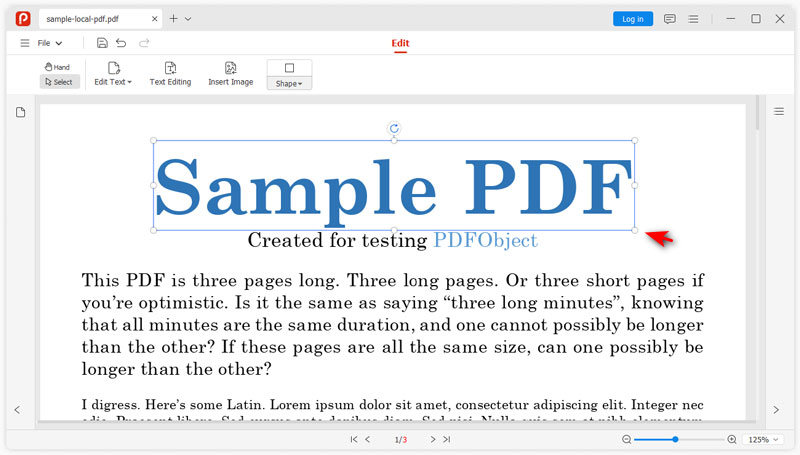
Step 4. Click and drag the rotate button to rotate the selected area up to 360 degrees.
Step 5. Hold the mouse within the selected area, click and drag it to move it to any part of the PDF file.
Add New Text to PDF
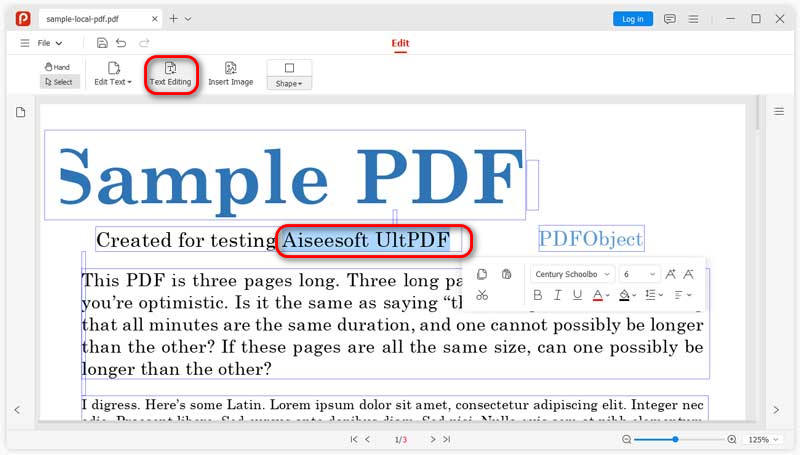
Type and add new text to your PDF, change the color, size and font of text in your PDF file.
Step 1. Open PDF with Aiseesoft UltPDF, it will automatically detect and select all the text.
Step 2. Click to move the cursor to anywhere you want to add new text. Type with your keyboard and new text will be automatically added to the PDF while preserving the original formatting.
Edit Text Format
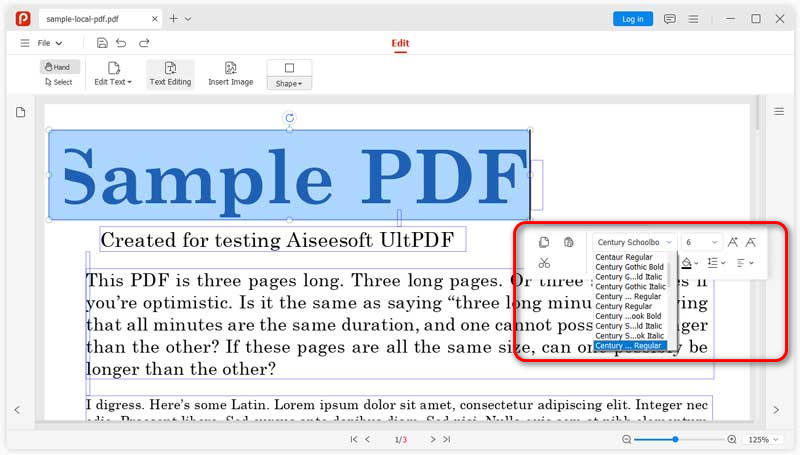
With the Select tool, you can edit the text font, size, color, and other settings like in Microsoft Word.
Step 1. Enable the Text Editing tool after opening PDF.
Step 2. Drag to select the text you want to edit.
Step 3. An editing menu will pop up where you can customize the text format including color, size, bold, italic, etc.
Insert Image to PDF
Insert images to your PDF for better clarity or use as a background.
Step 1. Click Insert Image and choose an image from your computer folder.
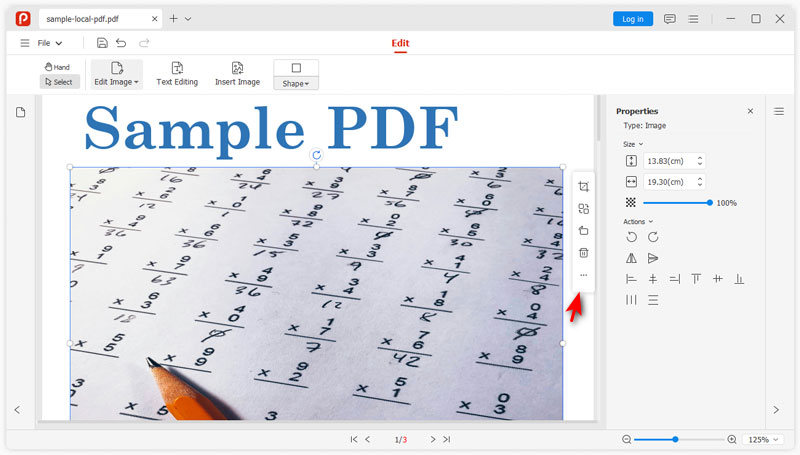
Step 2. Click the inserted image and you can see a menu bar on the right of the image where you can crop, replace and rotate the image.
Step 3. Click the Properties button for advanced settings. You can edit the image size precisely, adjust the transparency, etc.