
Best for: Content creators, vloggers, social media marketers, and casual editors who want color correction without needing professional color grading knowledge.

Video Converter Ultimate
 100% Secure. No Ads.
100% Secure. No Ads.
How We Test and Review
We test and review color correction software by evaluating installation and system compatibility, interface and workflow efficiency, core color tools like curves, levels, hue/saturation, and LUTs, performance, including real-time playback and export quality, advanced features such as AI enhancements and masking, and support/resources. Each tool is assessed for ease of use, feature set, output quality, performance, and overall value, helping users quickly identify the best solution for their image or video editing needs.
You definitely want to shoot a high-quality video to save or share using your phone’s camera. However, things don’t always go as we imagine - videos often end up blurry and shaky due to shaky hands, or too dark because of poor weather conditions. Don’t worry, most of these problems have corresponding solutions. With the help of this video color correction article, you can easily enhance video quality and achieve a professional, cinematic look.
Video, much like photography, is a sophisticated form of visual art. At its core, every frame is a mosaic of pixels carrying specific color data. However, capturing the “perfect” color is rarely a one-step process. Environmental factors-especially light intensity and color temperature-can drastically shift the natural hues of your subject.
Although we often use “Color Correction” and “Color Grading” interchangeably, they serve two distinct purposes in the post-production workflow. This section will explain their main differences.
Color correction is often the first step. The primary goal is to fix related technical issues, such as exposure, white balance, contrast, and more. By repairing these video issues, it makes the footage look more “natural”.
Color grading occurs after the correction is complete. The primary goal is to create a desired artistic mood and style. It refers to the process of applying an aesthetic, art style, or “mood” to the footage. Grading is about generating stylized or creative looks.
As mentioned, we recommend five leading video color correction tools for you to choose from. The following table compares them based on their functional performance, ease of use, key features, and cons. You can use it to quickly identify which software fits your specific needs.
| Color Correction Tool | Ease of Use | Key Features | Cons |
| Aiseesoft Video Converter Ultimate | ★★★★★ Very Easy |
AI video color correction Auto‑enhancement, brightness/contrast/saturation/hue Multiple AI models for different enhancement needs Hardware acceleration and batch processing Real‑time preview |
Lacks advanced customization controls, best for quick fixes |
| DaVinci Resolve | ★★★☆☆ Difficult |
Industry-standard Nodes HDR Grading Precision Wheels |
Steep learning curve for beginners Resource-heavy |
| Final Cut Pro | ★★★☆☆ Difficult |
Color board, color wheels Shape masks Advanced keyframing HDR tools |
Mac‑only Limited third‑party plugin compatibility for color Resource-heavy Expensive |
| iMovie | ★★★★☆ Easy |
Basic color correction sliders One‑click white balance |
Mac‑only Very limited controls |
| Adobe Premiere Pro | ★★★☆☆ Difficult |
Lumetri Color panel HSL secondaries Comparison view LUT support Masking & tracking |
Steep learning curve for beginners Subscription‑based, Expensive Resource-heavy |
Best for: Content creators, vloggers, social media marketers, and casual editors who want color correction without needing professional color grading knowledge.
Star Rating:5/5
Aiseesoft Video Converter Ultimate is an all-in-one media utility that also lets you correct video color.

Downloads
100% Secure. No Ads.
100% Secure. No Ads.
Pros
Cons
Best for: Professional colorists, filmmakers, and advanced video editors who need industry-standard precision and control for cinematic color grading and detailed color manipulation.
Star Rating:5/5
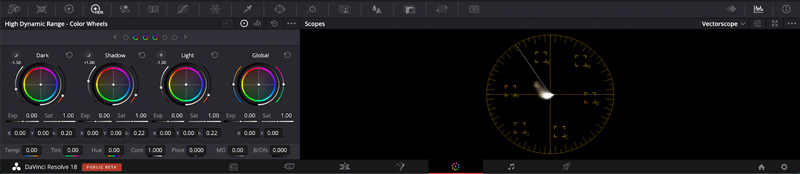
DaVinci Resolve is a professional video editor that excels at color correction and grading.
1. Adjust color using advanced tools like primary and secondary color wheels, curves, and HDR grading.
2. Correct exposure, white balance, and saturation for precise color control.
3. Use node-based workflows to apply complex color effects and cinematic looks.
4. Preview all changes in real time to ensure accurate results.
Pros
Cons
Best for: Color correction in Final Cut Pro is best for professional Mac users who want fast, high-performance video editing with magnetic timeline precision and seamless Apple ecosystem integration.
Star Rating:4.5/5
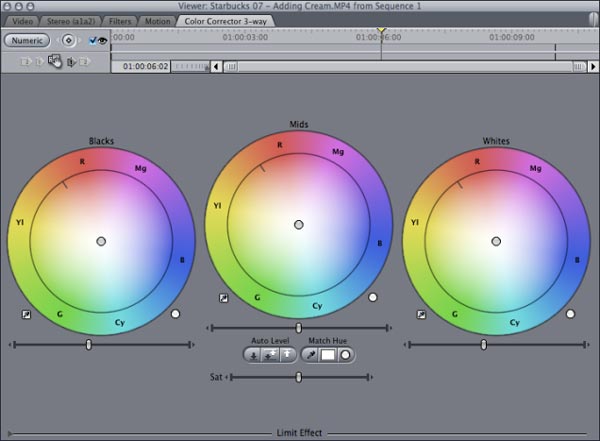
Final Cut Pro X is another professional video editor that is good at correcting video color. Its features related to video color correction include:
1. Display video color on Color Corrector panel for editing further.
2. Move the dials to balance and correct video color.
3. Adjust exposure and other parameters on Color Board panel.
4. Provide extensive video editing tools besides color correction.
Pros
Cons
Best for: Beginners and casual creators who want an easy, free video editor on Mac or iOS with simple drag-and-drop tools and built-in cinematic templates.
Star Rating:4.5/5
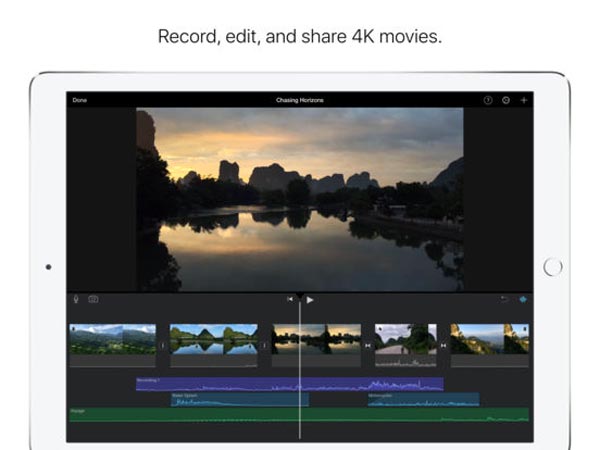
iMovie is another video editor released by Apple. It also provides the features to correct video color.
1. Adjust video color parameters on the Inspector window, like Red Gain, Green Gain and Blue Gain.
2. Balance exposure, brightness, contrast and saturation to make the video looking better.
3. Edit the color corrected video with a variety of tools, such as rotate and more.
4. Preview the result video in real time.
Pros
Cons
Best for: Professional editors and content creators who need industry-standard video editing with advanced tools, flexible workflows, and seamless integration with the Adobe Creative Cloud ecosystem.
Star Rating:4.5/5
Unlike Photoshop, Adobe Premiere is a professional video editor and offers a variety of video color correction features.
1. Apply the Color Correction effects to correct video color automatically.
2. View luminance values for correcting video color.
3. Control shadow and midtone using Tonal Range Definition tool.
4. Correct exposure for specific color or range of color.
5. Balance video color, saturation and other parameters.
Pros
Cons
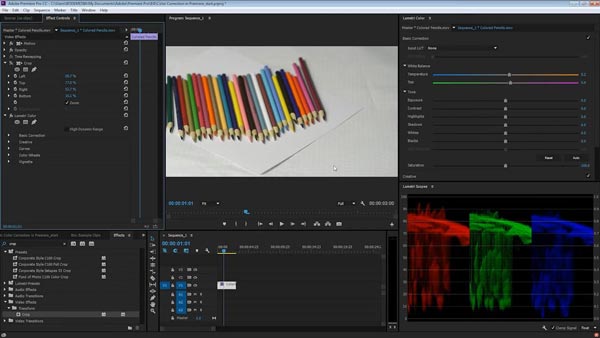
Unlike Photoshop, Adobe Premiere Pro is a professional video editor that offers a variety of video color correction features and enhances videos in resolution, fps, light, etc.
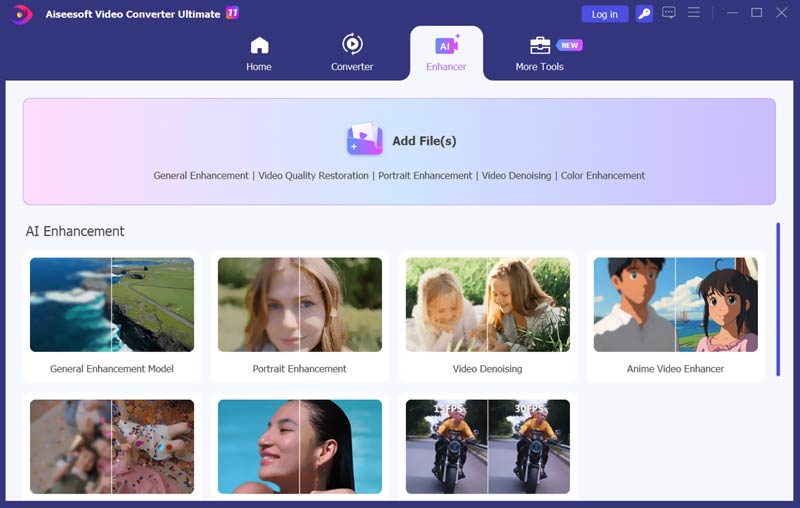
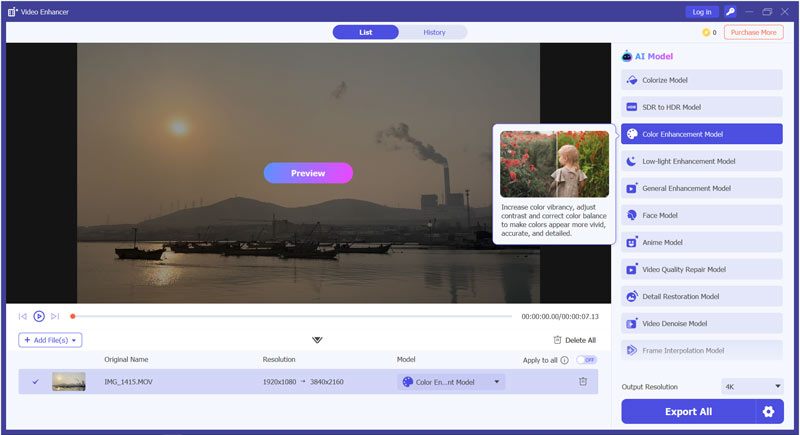
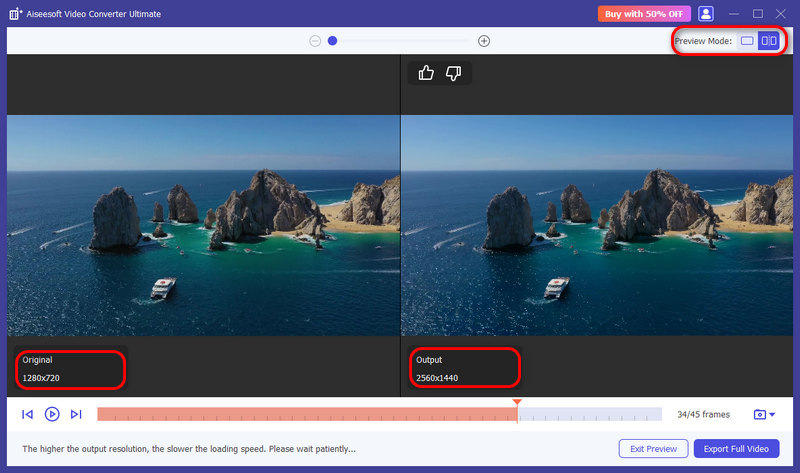
If you prefer a quick way to get a professional, natural look for your footage, turn to the AI-powered Aiseesoft Video Converter Ultimate. It has a dedicated AI Enhancer specifically designed to analyze the source video frames and intelligently perform color correction. The advanced AI can automatically adjust color balance, lighting, clarity, and more to improve the overall look in a single step.
100% Secure. No Ads.
100% Secure. No Ads.
What’s the difference between color correction and color grading?
Color correction focuses on fixing technical issues (e.g., lighting, white balance), while color grading enhances mood and style (e.g., cinematic teal-and-orange look). Tools like DaVinci Resolve separate these workflows clearly in their Color page.
What are LUTs in color correction?
LUTs (Look-Up Tables) are preset color profiles that automatically adjust color values to create a specific look or convert LOG footage to standard color space.
Will color correction reduce video quality?
Not if done properly. Using high-bitrate source files and exporting with optimal settings ensures minimal quality loss.
Conclusion
Choosing the right video color correction tool depends on your experience level and project needs. Beginners or casual editors can start with Aiseesoft Video Converter Ultimate or iMovie for simple, fast corrections. Professional editors and filmmakers benefit from DaVinci Resolve, Final Cut Pro, or Adobe Premiere, which offer advanced grading, scopes, and node-based workflows. By understanding the core principles of color correction and using the right software, you can restore natural colors, create consistent visuals, and elevate your video projects to a professional level.
 VideoGrade Review: The Best Color Correction App on iOS Devices
VideoGrade offers color correction that you can use on your video or images, yet there are still questions about it. All answers are here.
 Colorize GIF: Easy Ways to Add Vibrant Colors with Different Tools
Learn how to colorize GIF easily using 3 tools. Discover step-by-step methods to add vibrant colors, enhance quality, and make your GIFs stand out.
 Top 5 AI Tools to Colorize Your Black and White Videos
Can AI colorize videos? Is there a free AI video colorizer to turn a black and white video into color? Check the five best AI tools to colorize your videos.
 Leave your comment and join our discussion
Video Converter Ultimate is excellent video converter, editor and enhancer to convert, enhance and edit videos and music in 1000 formats and more.
100% Secure. No Ads.
100% Secure. No Ads.

*Required field
*Please enter a valid email
