
Trust by 50,000+ Users: Aiseesoft Android Unlocker
 100% Secure. No Ads.
100% Secure. No Ads.
Have you ever grabbed your Samsung S22 Ultra only to realize you completely forgot your password, PIN, or pattern? Don’t worry, and I’ve been there too. The panic hits first, followed by the desperate attempts to guess the password…and then the realization that you’ve just locked yourself out even more.
Luckily, unlocking a Samsung S22 Ultra isn’t as scary as it sounds. Over time, we have tried several methods: some quick, some a bit technical, and some that saved us when we thought the phone was ruined forever. In this guide, we’re going to walk through 4 easy ways to regain access, from professional software to native Samsung/Google tools, so you can learn exactly unlock Samsung S22 Ultra and get back to scrolling through TikTok (or, you know, doing something productive).
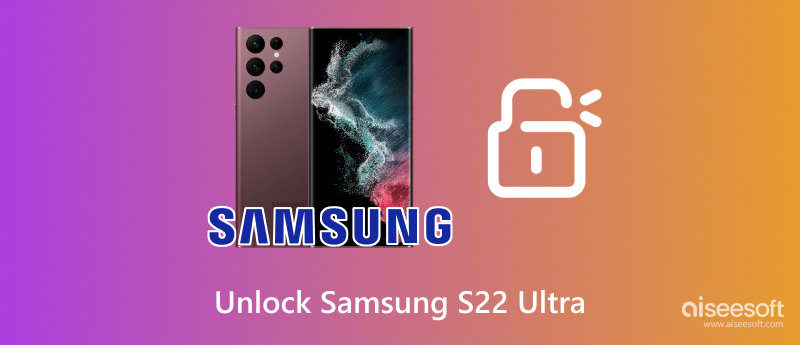
If you want a straightforward and reliable method, using a professional unlocking tool is often the easiest solution. One program I’ve personally tried is Aiseesoft Android Unlocker, and it has never failed me when dealing with forgotten passwords, PINs, or even fingerprint issues.
It is a premium, secure option that bypasses the limitations of the free methods. It’s what you turn to when you’re completely locked out and need a guaranteed solution.
| Feature | Why it matters for your S22 Ultra |
| Bypass Screen Lock | Removes PINs, patterns, passwords, fingerprints, and even face recognition in minutes. Essential if you forget your main password and need to know how to unlock the Samsung S22 without a password. |
| FRP Removal | Specifically designed to remove the tough Google FRP lock without needing the password. If you bought a phone from someone who didn't perform a proper factory reset, this is the tool for that tricky Samsung S22 FRP unlock job. |
| High Success Rate | Because it’s a dedicated program, it often has a higher success rate than relying on manual exploits or account settings that may not be enabled. |
Steps of using Aiseesoft Android Unlocker:
100% Secure. No Ads.
100% Secure. No Ads.
Launch the software and connect your Samsung S22 Ultra using a good-quality USB cable.
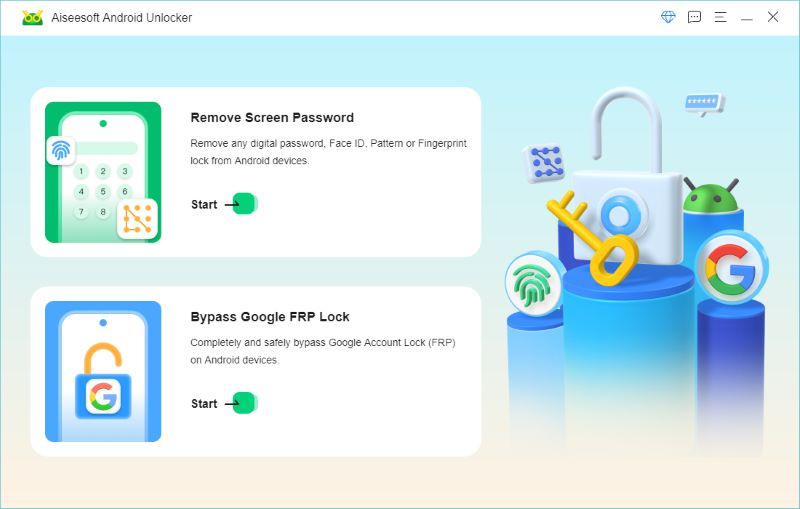
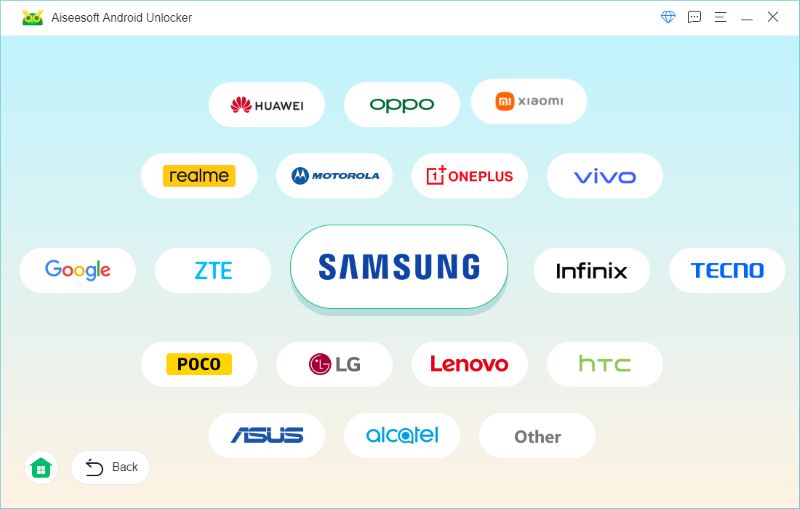
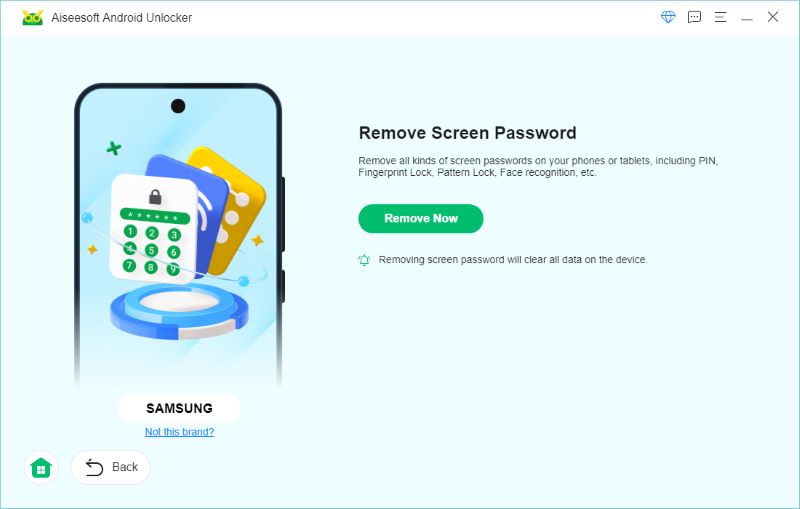
Once the process is finished, your phone will reboot, and the lock will be gone.
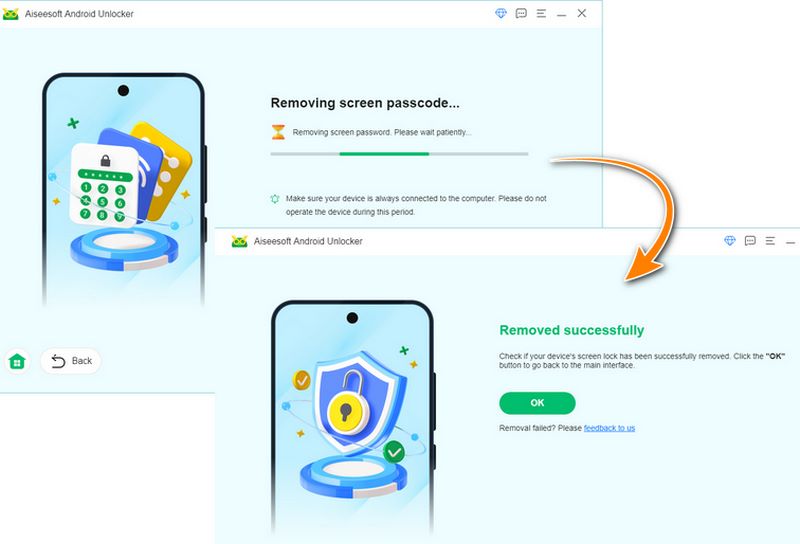
That’s it, and your Samsung S22 Ultra should be accessible again.
Google’s Android Device Manager (now called Find My Device) is another helpful method. This option works only if:
• Your phone is connected to the internet.
• Your Google account is signed in.
• Find My Device is turned on.
Steps to unlock via Google Find My Device:
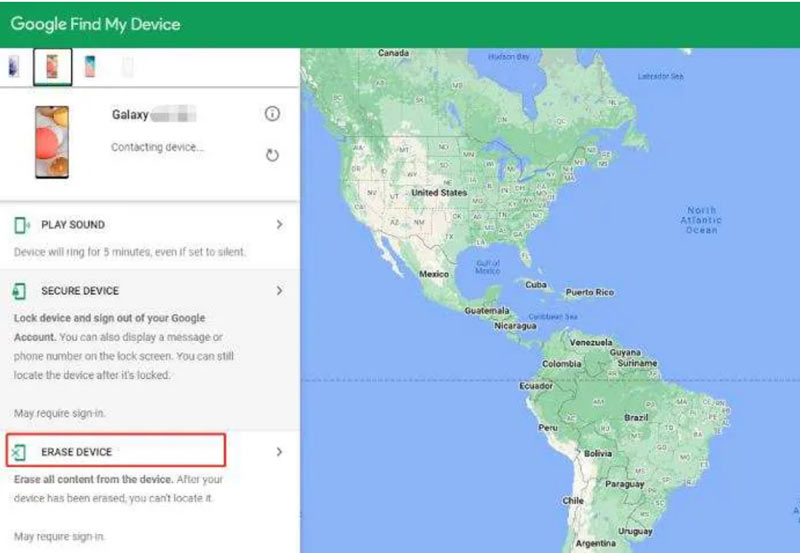
The 'Erase Device' option will remotely factory reset your phone, wiping all data (photos, apps, settings) but removing the forgotten screen lock. It's the only option available through Google's service for this type of lock, so be prepared for potential data loss./p>
Additionally, it is recommended that you develop a habit of backing up your Samsung phone to prevent data loss.
If you're loyal to Samsung’s ecosystem like I am, the Find My Mobile feature is a lifesaver. It works even when Google options fail.
Requirements
• You must have a Samsung Account linked to your S22 Ultra.
• The phone must be connected to the internet.
• The Remote Unlock feature must be enabled in your phone’s settings before you are locked out (Settings > Biometrics and security > Find My Mobile > Remote unlock).
Steps to unlock via Samsung Find My Mobile:
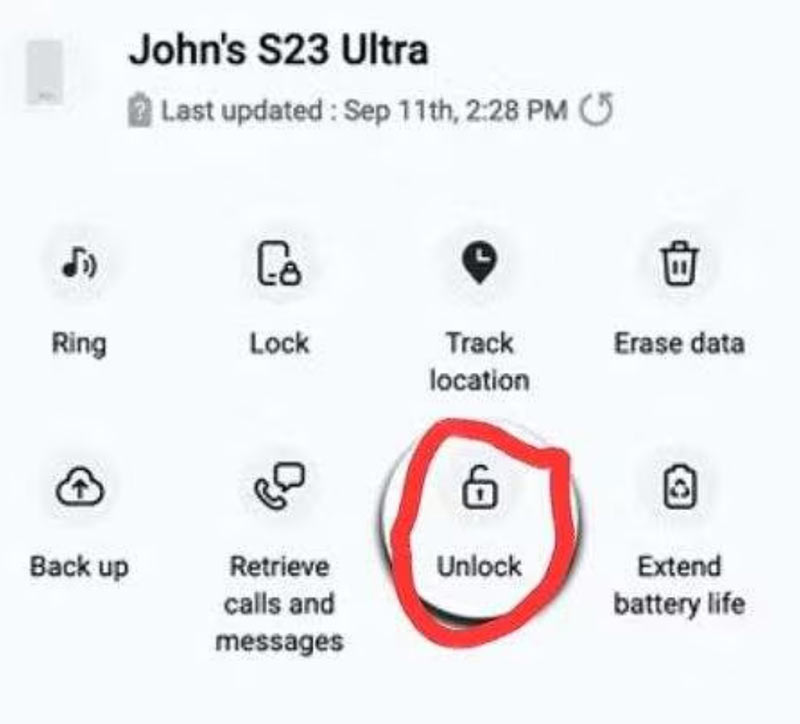
If successful, the screen lock (pattern, PIN, or password) will be remotely removed from your phone without deleting your data!
Trust me, if you haven’t done it yet, log in to your Samsung account on your phone and enable the Remote Unlock feature right now! It’s the difference between saving all your data and losing everything if you forget your password again.
If you cannot access your Samsung or Google accounts, or if the Find My services aren't working, the final, and most drastic, free method is performing a physical factory reset using the hardware keys.
WARNING: Before you proceed with these steps, be certain you have no important data left on the phone. This method will completely erase everything, including photos, contacts, apps, and settings, just as if it were a brand-new phone. Data loss is guaranteed.
Steps to factory reset the Samsung S22 Ultra:
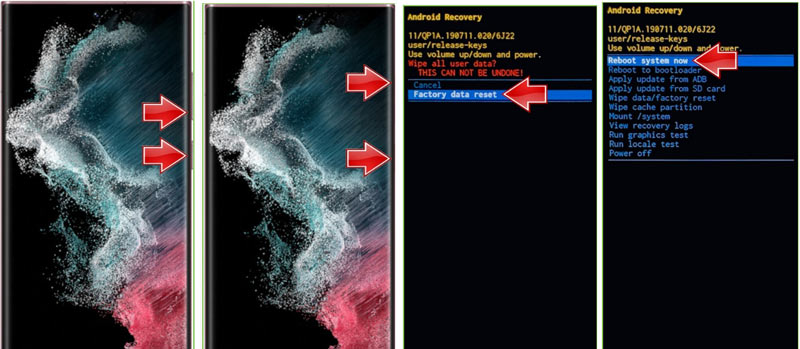
Your phone will now boot up like a brand new device, free of the old screen password. However, you will likely still need the Google account credentials for the FRP lock if you hadn’t removed the account beforehand!
If you’re stuck at FRP, you’ll need a Samsung S22 FRP unlock tool such as Aiseesoft’s FRP Unlock mode or another professional software solution.
What is the free Samsung unlocking code?
There is no universal free unlocking code for Samsung phones. Network carriers sometimes provide unlock codes, but only for devices that meet eligibility requirements (fully paid, not blocked, etc.).
Is it possible to bypass the FRP lock on a Samsung device?
Yes, but not through simple built-in settings. You will need a FRP unlock Samsung S22 Ultra tool or your Google account login details. Professional software is the most reliable option.
How to unlock the Samsung S22 Ultra network lock?
You can:
• Request an unlock code from your carrier
• Use a professional carrier unlock service
• Use software-based unlocking tools (use only trusted services to avoid damage)
Conclusion
Getting locked out of your Samsung S22 Ultra is stressful, but it doesn’t have to be the end of the world. Whether you’re dealing with a forgotten password, FRP lock, or even a network lock, there are several safe and effective methods to help you regain access.
From tools like Aiseesoft Android Unlocker to built-in options like Google’s Find My Device and Samsung’s Find My Mobile, you have plenty of reliable solutions. Just remember to keep backups, enable Find My Mobile, and store your passwords in a safe location.
Hopefully, this guide helped you unlock the Samsung S22 Ultra easily, and without the panic spiral I experienced the first time it happened to me!
 Forgot Samsung Password: How to Access Android Files
Forgot Samsung password? How can you access and back up Android files from the locked Samsung device? Here you can find Broken Android Data Recovery to help you.
 Unlock Samsung: Break Samsung Phone Factory Restrictions
What is bootloader? How to unlock the bootloader on a Samsung Galaxy phone? Learn from this article about Samsung bootloader unlock.
 Samsung Password Manager - See Saved Passwords on Samsung
Where are passwords stored on my Samsung phone? Does Samsung have a password manager? How to access Samsung password manager? Learn more about Samsung Pass.
 Leave your comment and join our discussion
Compatible with all Android OS versions, this unlocker provides a secure and easy way to remove screen lock of any kind and bypass FRP quickly.
100% Secure. No Ads.
100% Secure. No Ads.

*Required field
*Please enter a valid email

