Video Converter Ultimate
 100% Secure. No Ads.
100% Secure. No Ads.
Contents
Do you want to convert a MOV file to MP4 without needing to install extra software? An online converter like CloudConvert can do the trick! Before you upload your video and click 'convert, ' though, it's better if you find out what the tool really has to offer and how suitable it is for you. In this review, besides giving a description of CloudConvert MOV to MP4, we will also guide you through the conversion process and at the same time identify its main features and potential drawbacks. We will compare it with an alternative to determine which of these options is more convenient for various kinds of users.
How We Test
We ran tests on both the web-based CloudConvert and the desktop-oriented Aiseesoft Video Converter Ultimate software with a MOV file to see how fast the file conversion happens. The test results have been compared for conversion speed, file size after conversion, and the resulting video and audio quality. We have also checked whether the file conversion was done easily and whether the user enjoyed using the service altogether.
CloudConvert is a browser-based converter that allows you to convert videos, among other things, without having to download or install any additional software. Besides converting MOV videos to MP4, one of the features of its tool is that you can change some settings, like video quality, resolution, and file size, to your liking before starting the conversion.
To convert CloudConvert MOV to MP4 quickly, just follow these steps:
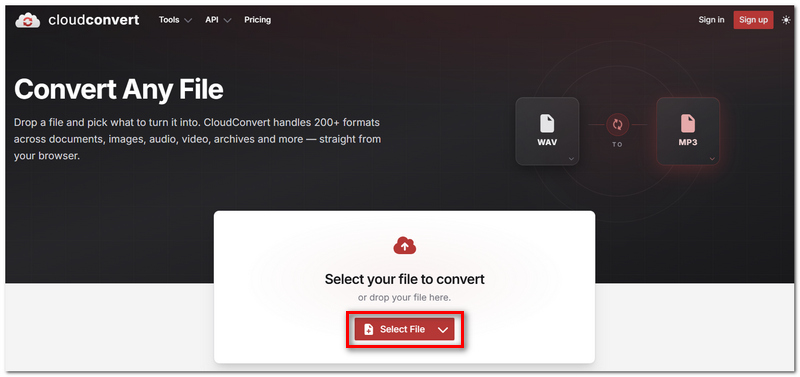
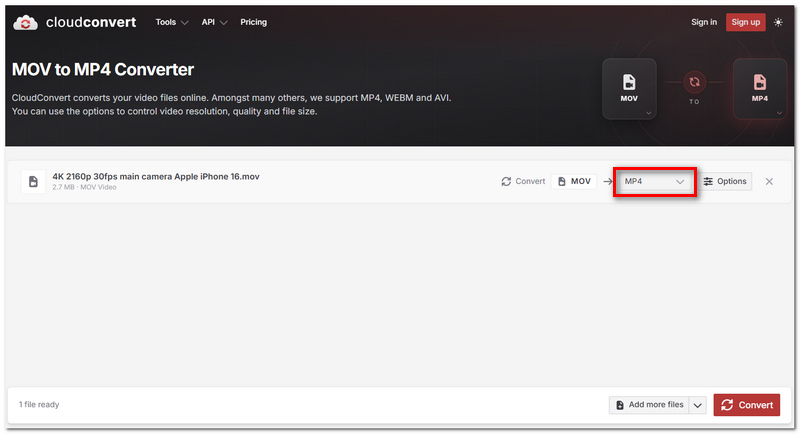
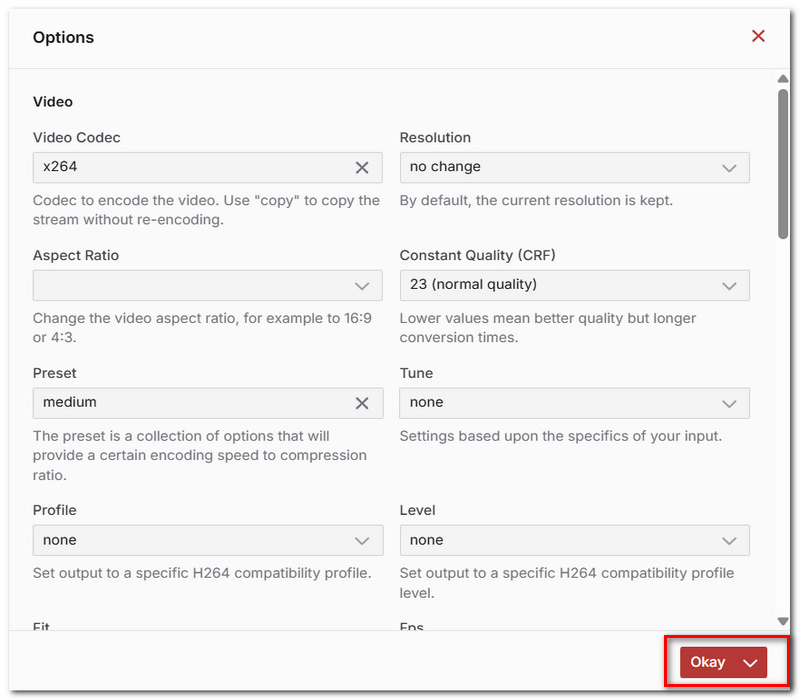
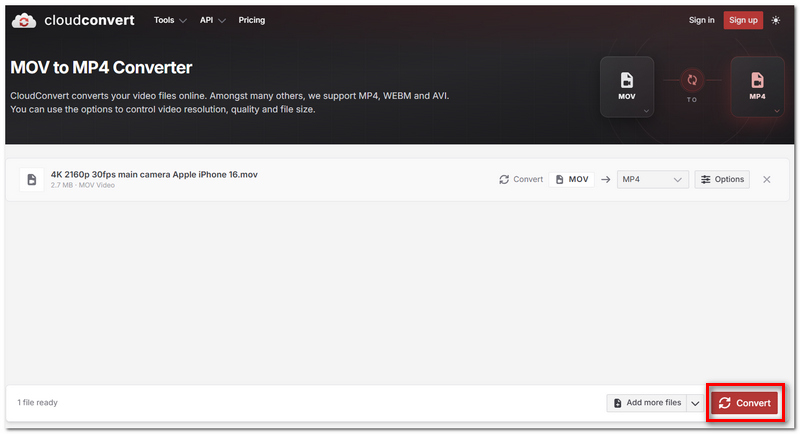
A good feature is that CloudConvert allows you to convert videos straight from your browser, which is a big plus when you are in a rush. You can easily convert MOV to MP4 on Mac or Windows or other devices as long as you have a browser in it. Even so, just like other online converters, it has a couple of drawbacks that you should keep in mind before deciding to use it as a regular go-to tool.
Pros
Cons
CloudConvert is suitable for infrequent online conversions, although you may end up losing precious time while uploading and downloading large files if you work with them a lot on a regular basis. Aiseesoft Video Converter Ultimate comes with a desktop-based workflow so you can convert videos directly from your computer without having to upload them first to an online service. A very diverse number of file types are supported, and some nice editing & enhancement tools are also included in the software.

Downloads
100% Secure. No Ads.
100% Secure. No Ads.
How to Convert MOV to MP4 with Aiseesoft Video Converter Ultimate
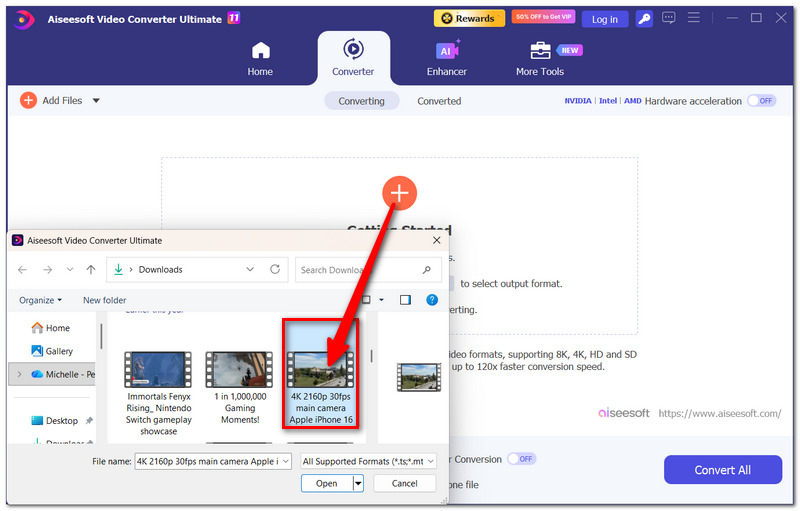
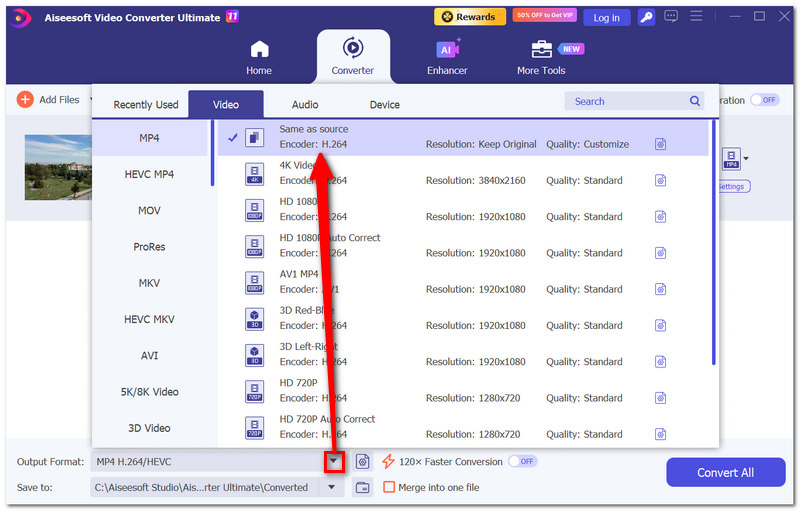
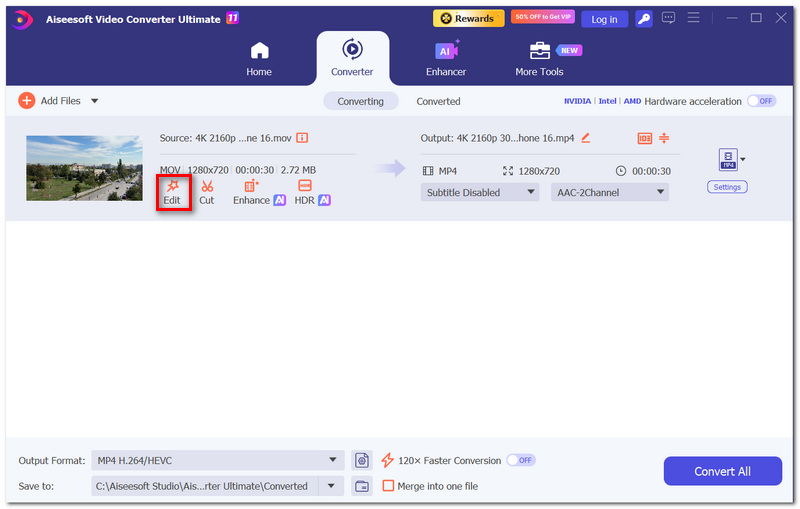
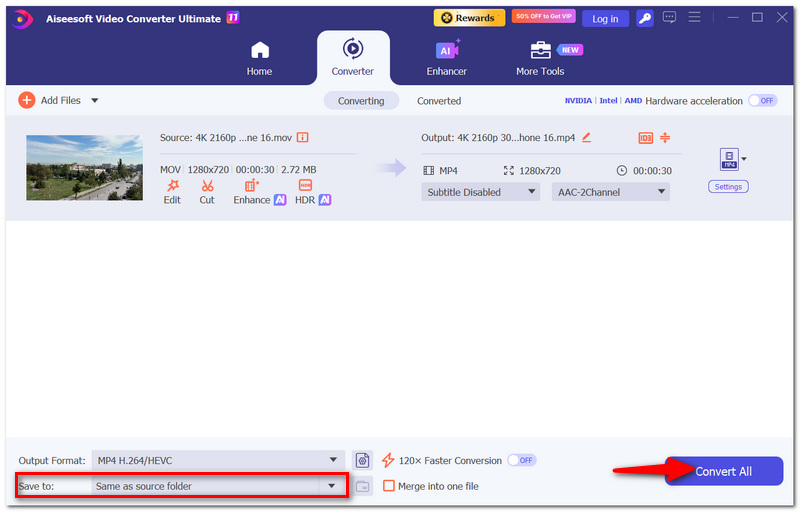
Both tools can convert MOV to MP4, but the better choice depends on how you plan to use them. Here's a quick comparison:
| Feature | CloudConvert | Aiseesoft Video Converter Ultimate |
| Platform | Online | Desktop |
| Installation | Not required | Required |
| MOV to MP4 | Yes | Yes |
| Batch conversion | Yes | Yes |
| Output settings | Basic to advanced | More flexible |
| Video editing | Limited | Built-in editing tools |
| Internet required | Yes | No |
| Free usage | 10 conversions/day, up to 1 GB per file | Free trial available |
| Best for | Quick, occasional conversions | Regular video conversion |
Which One Should You Choose?
For sporadic, fast conversions, go with CloudConvert. Aiseesoft Video Converter Ultimate is a more sensible option if you convert videos frequently or would rather work offline with more control.
Would I be able to use CloudConvert to convert videos made with an iPhone or Mac, i.e., a MOV file?
Of course! MOV files are frequently made by Apple products, and CloudConvert will convert these for you when you upload them, as long as the target format is MP4 in your conversion request.
Is it possible to convert the source file if it is located at a URL?
Actually, files hosted on a URL can be imported through CloudConvert, and this would really be a very smart idea if the video has just been uploaded online without being saved on your computer in the first place.
How long will my finished file be available?
For CloudConvert, the exported temporary files are only valid within the 24-hour period. Beyond that time, the service will automatically delete the file.
Conclusion
A few steps are enough for CloudConvert to convert your MOV files to MP4 quickly and easily, which suits mainly occasional users. On the contrary, a frequent user would likely be very happy with a local application, as it would offer a much wider variety, flexibility, and no online restrictions, of course. Basically, CloudConvert MOV to MP4 will do the job well if you just want a few simple files converted, whereas Aiseesoft would probably be the better choice if you do more regular work with videos.
 6 Best MOV Players You Can Have on Your Devices for Free
When a MOV player is needed there is the market you can go to. But which one is the best? Find out what are the best MOV players to have today.
 Top 11 MOV Editor – Edit MOV Files on Windows and Mac
Select the best MOV editor in the top 11 MOV editor list to edit your MOV files on Windows and Mac computer easily.
 Top 5 MOV Recorders for Windows 10/8/7/XP/Vista and Mac OS
This is a top list of 5 best MOV recorder software to capture your screen on PC and Mac, and save it as QuickTime MOV file.
 Leave your comment and join our discussion
Video Converter Ultimate is excellent video converter, editor and enhancer to convert, enhance and edit videos and music in 1000 formats and more.
100% Secure. No Ads.
100% Secure. No Ads.

*Required field
*Please enter a valid email

