
Best AI Video Converter Ultimate
 100% Secure. No Ads.
100% Secure. No Ads.
4K Ultra HD refers to a resolution four times that of 1080p (Full HD), providing cleaner, more detailed images. With 4K resolution, the video can be more visually attractive, especially when viewed on bigger screens.
In an era of massive 4K monitors and Ultra HD TVs, 720p and even 1080p footage can be blurry and pixelated on your modern displays. Whether you are trying to breathe new life into old 360p SD, 720p, and 1080p HD videos or want to create high-quality content for sharing, the 4K source is crucial for increasing the impact and interaction of your content. The question is, how to upscale video to 4K?
While simple conversion changes the resolution, true 4K upscaling uses advanced AI algorithms to generate and “fill in” missing pixels, resulting in a sharper, more detailed image. If you want to make your lower-resolution videos much clearer and more attractive, check the five effective methods below to convert video to 4K.
| 4K Upscaler | Platform | Capability | Ease of Use | Privacy | Batch Processing |
| Aiseesoft Video Converter Ultimate (Standard Upscaling) | Windows, Mac | Upscale video to 4K and higher | Very Easy (Intuitive GUI, presets) | Fully offline | Yes (Multiple files) |
| Aiseesoft AI Enhancer (AI Upscaling) | Windows, Mac | AI‑based 2X/4X/Custom upscaling to 4K, detail reconstruction AI noise reduction, sharpening, color grading, stabilization, and more |
Very Easy (Separate AI models) | Offline | Yes (Batch AI processing) |
| HandBrake | Windows, Mac, Linux | Basic scaling to 4K, filters, no AI | Hard (Steep learning curve for beginners) | Offline | Yes |
| Adobe Premiere Pro | Windows, Mac | Stretch/scaling to 4K Professional editing and enhancement |
Hard (Complex interface, settings) | Fully offline | No (One file at a time) |
| AVCLabs Video Enhancer AI | Windows, Mac, Any browser | Upscale to 4K (Web version has limited quality and file size) | Easy | Offline Online |
No |
This section shares five practical ways to convert video to 4K. Whether you are searching for a free upscaler or a professional tool, you can easily find a suitable option to start the 4K video upscaling.
Aiseesoft Video Converter Ultimate is the best solution for converting videos in 1000 formats, supporting SD, HD, 4K, and 8K resolution. Its advanced AI algorithm and built-in video enhancer technology allow you to quickly transfer your low-resolution videos to higher-quality ones. If you want to quickly make the 4K conversion, the fastest method is to directly select a 4K output profile.

Downloads
100% Secure. No Ads.
100% Secure. No Ads.
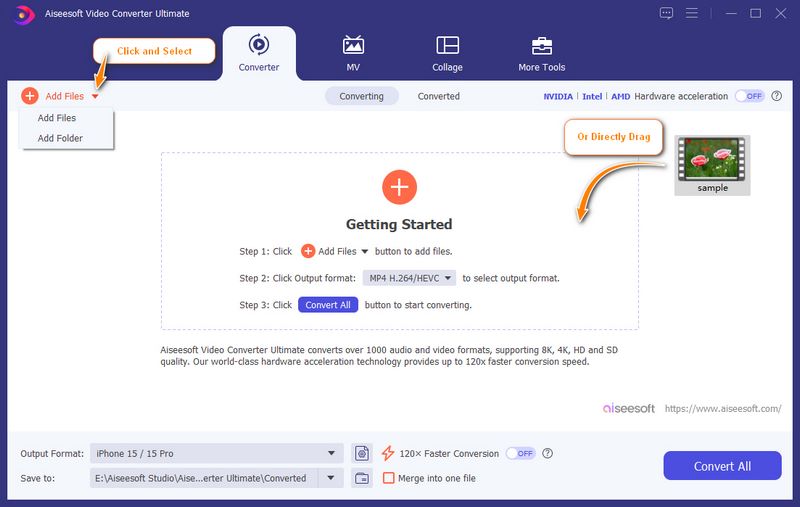
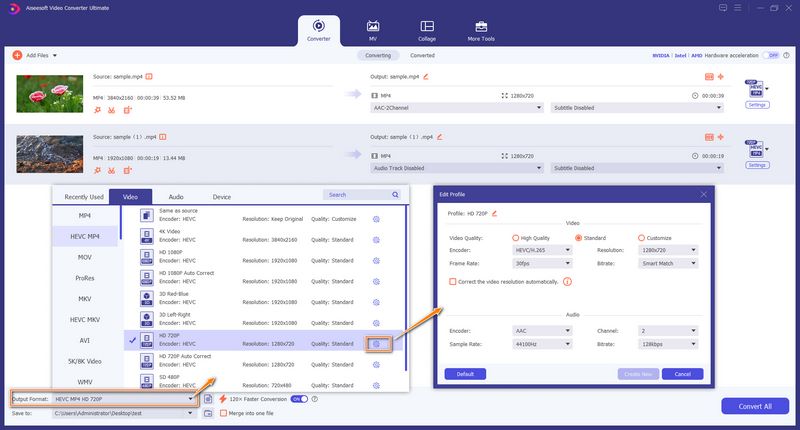
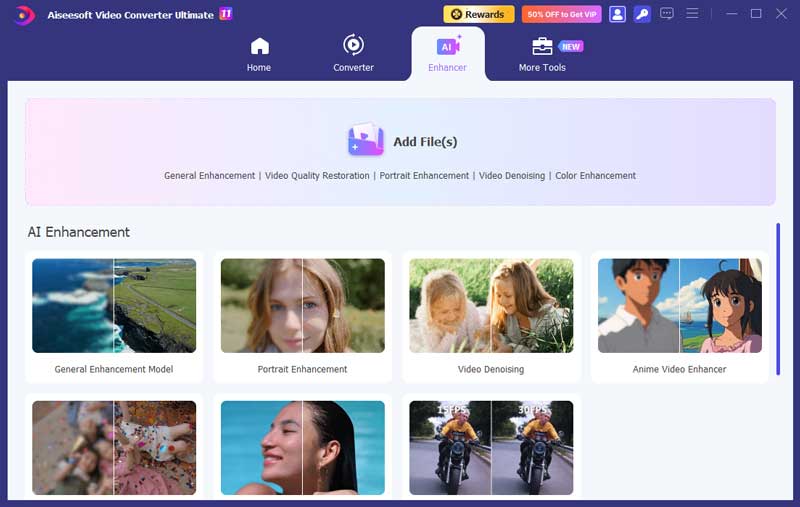
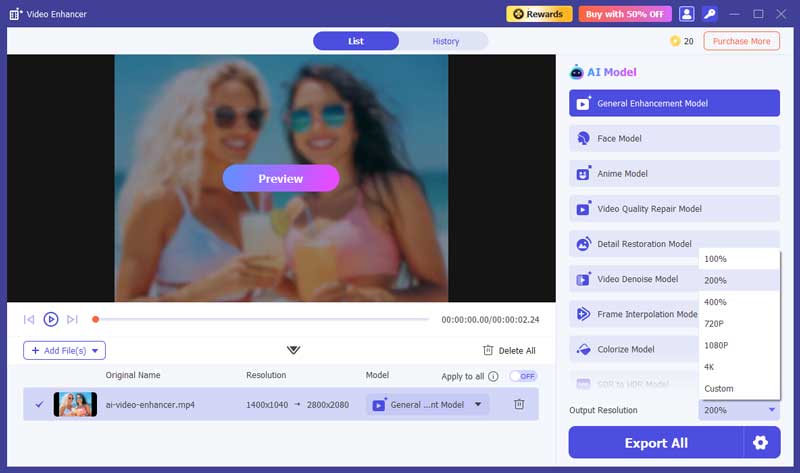
Besides the standard 4K upscaling way, Aiseesoft provides a separate AI Enhancer for professional results. It uses advanced neural networks to produce and add realistic details. This method will improve the video’s overall quality.
With the help of HandBrake, an open-source video transcoder, you can easily convert common video types like MP4, MKV, etc., to 2K and even 4K resolution for free. It also functions as a free 4k upscaling program to make 4K videos. Besides, HandBrake provides the required customization options for video encoding and resolution modifications. It works with Windows, macOS, and Linux systems.
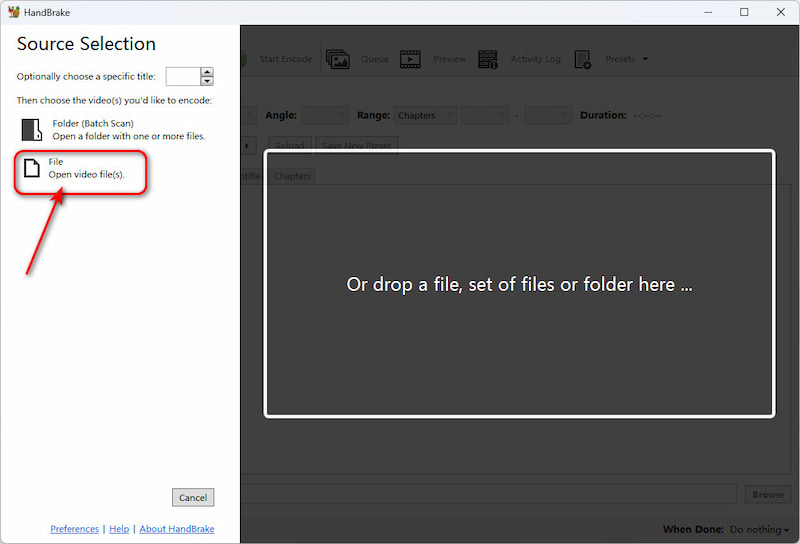
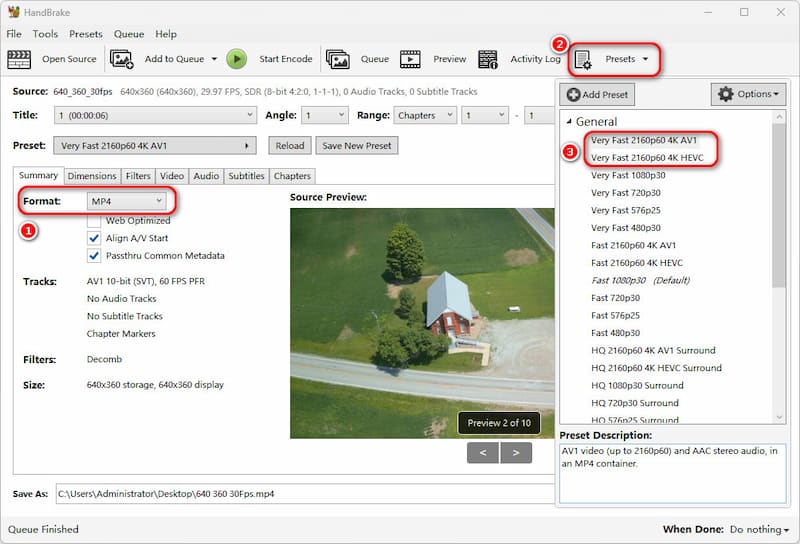
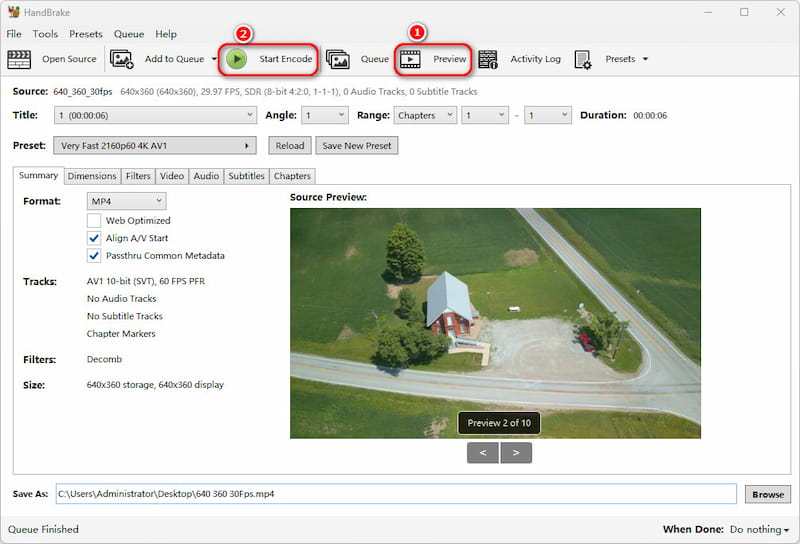
Overall, HandBrake is a nice tool for just stretching pixels and changing the resolution to 4K. But it is not an AI upscaler that can improve the quality of a low-res source file. It is a transcoder. And if you want to reconstruct details, you’d better try Aiseesoft Video Converter Ultimate’s built-in AI Enhancer.
100% Secure. No Ads.
100% Secure. No Ads.
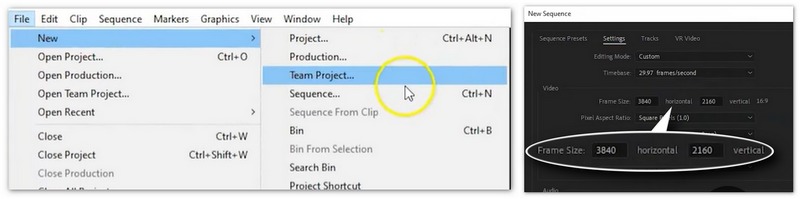
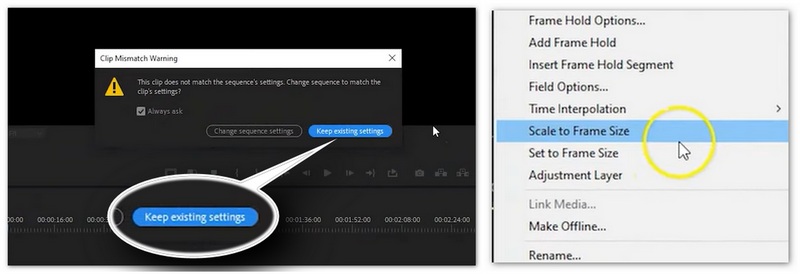
Adobe Premiere Pro allows editors to convert lower-resolution footage to 4K by creating a 4K sequence and scaling the clips to match the frame size. While Premiere performs basic upscaling natively, it can also round-trip footage to Adobe After Effects for access to the specialized “Detail-preserving Upscale” effect.
This advanced effect intelligently increases resolution while analyzing and reconstructing edge details to maintain image sharpness. The tool is ideal for professionals needing a comprehensive workflow that combines traditional editing with high-quality resolution conversion.
How to use Adobe Premiere Pro to convert video to 4K:
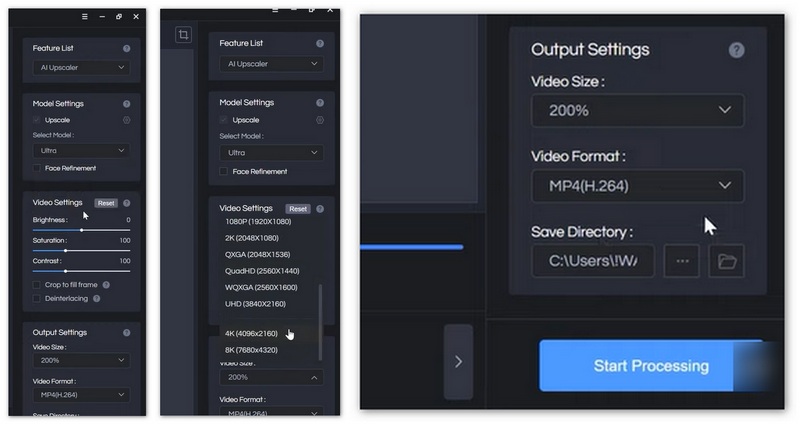
AVCLabs Video Enhancer AI is a powerful desktop application that utilizes deep learning algorithms to upscale low-resolution videos to stunning 4K and 8K resolutions. Besides, it offers a web version to upscale video resolution to 4K online.
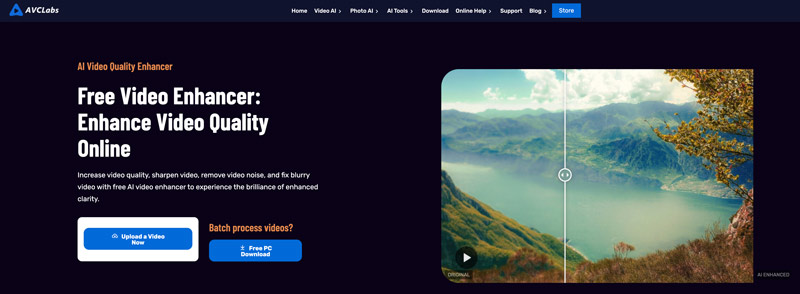
Beyond simply increasing pixel count, it intelligently analyzes frames to enhance details, reduce noise, and stabilize shaky footage for a clearer, more professional output. The software includes specialized AI models for face refinement, colorization, and motion compensation, making it an excellent all-in-one solution for restoring old home movies or enhancing modern digital footage.
What is the highest quality 4K video format?
The best video file formats for 4K videos contain MP4, AVCHD, and MKV. However, they are not the only choices available.
What are the minimum system requirements for 4K conversion?
To ensure smooth 4K video editing and upscaling, a high-performance computer is essential: you should use an Intel Core i7 or AMD Ryzen 7 processor (latest generation preferred), paired with an NVIDIA GTX 1660 series or better graphics card featuring CUDA support. Additionally, 16GB of RAM is the minimum requirement, though 32GB is recommended for heavy workloads, all supported by a fast SSD with ample storage space to handle large 4K file sizes.
Will 4K upscaling work on a 360p or 480p video?
Yes, it will work, but the results will not be cinematic. AI tools are excellent at restoring details, but they cannot create information that was never there. A 360p video upscaled to 4K will look significantly better than just stretching it, but it will still have more artifacts and lack the clarity of a video originally shot in 1080p or 4K.
Conclusion
4K resolution upscaling is an effective way to modernize your content for large screens and high-resolution displays. You can learn five efficient methods to convert videos to 4K. Choosing the right way depends on the source footage and your goal.
If you have a high-quality 1080p video, a standard 4K video converter will do the trick. However, if you are dealing with older or low-resolution footage, using an AI-powered upscaling tool like the AI Enhancer in Aiseesoft Video Converter Ultimate is essential. For the best balance of the final quality and ease of use, the software is recommended for general users. However, professionals can utilize Adobe Premiere Pro for advanced control.
 Comprehensive Guide on How to Enhance Videos in Premiere Pro
Can you enhance video quality in Adobe Premiere Pro? Does it have an AI video enhancer? Learn how to improve your video quality using Premiere Pro here.
 4 Free Open Source Video Upscalers [Windows, Mac & Linux]
Seeking the top free open-source video upscalers? Explore the four best tools, their pros & cons, and a bonus, an easier solution.
 5 Video Resolution Converters to Upscale a Video to HD or 4K
Can I convert a 360p video into 1080p? How to change the video resolution? Get 5 video resolution converters to turn your video resolution into 1080p HD or 4K.
 Leave your comment and join our discussion
Video Converter Ultimate is excellent video converter, editor and enhancer to convert, enhance and edit videos and music in 1000 formats and more.
100% Secure. No Ads.
100% Secure. No Ads.

*Required field
*Please enter a valid email

