Do you want to play a MP4 video on your media player?
MP4 is a common video format which can be supported by many devices, such as Sony, Canon, JVC, etc. However, MP4 also cannot be supported by some devices. If you would like to play MP4 videos on these devices, they have to convert MP4 video to AVI.
Follow the instructions below to learn step by step how to convert MP4 to AVI on Mac.
You can read this article to find the best way to convert MP4 to AVI on Mac.

MP4 to AVI
Aiseesoft MP4 to AVI Converter is one of the professional video converters. You are able to free download this MP4 to AVI Converter on your Computer. With MP4 to AVI Converter, you can convert MP4 video files to AVI or many other formats freely and quickly.
In addition, you are able to edit the video before converting as video converter has edit function, you can rotate video, adjust video effect, crop video and add watermark to video according to your demands.
1Install MP4 to AVI Converter on your computer
Free download MP4 to AVI Converter, install it and launch. Windows users can download the Windows version.
2Upload MP4 files
After launching the product, please click "Add File" to upload the MP4 files you want to convert on it for latter conversion.
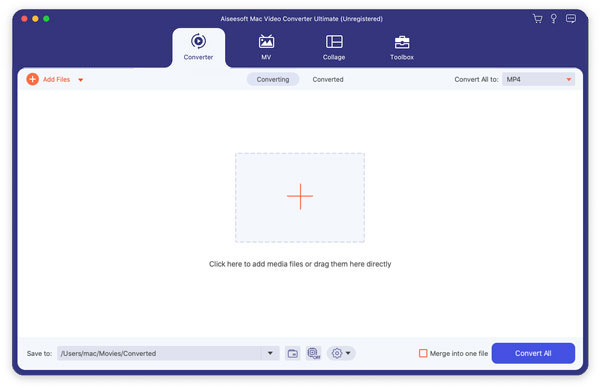
Besides, after adding MP4 files, you are able to use other functions of this product, such as "Video Enhance", "Clip", "3D", "Crop" video, and more.
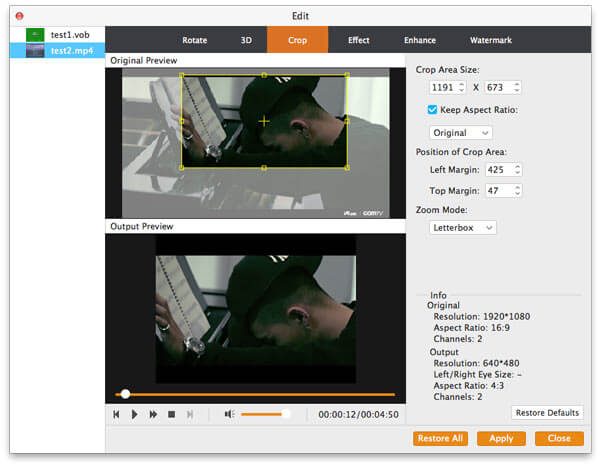
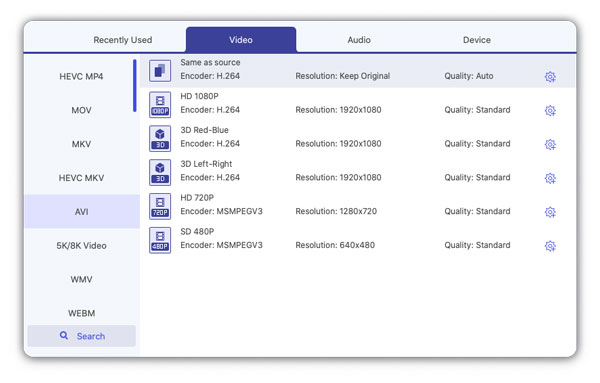
3Select output format
After adding and editing, please click "Profile" to select the output AVI format for converting MP4 to AVI Mac.
4Click "Convert" button to convert MP4 to AVI Mac.
Above part introduces the useful converter to convert MP4 to AVI Mac, here we will introduce a direct way to you to convert MP4 to AVI online. We will mainly introduce the steps of convertio for you. This way is somehow direct, but it is less convenient than using MP4 to AVI Converter. Below are the detailed steps.
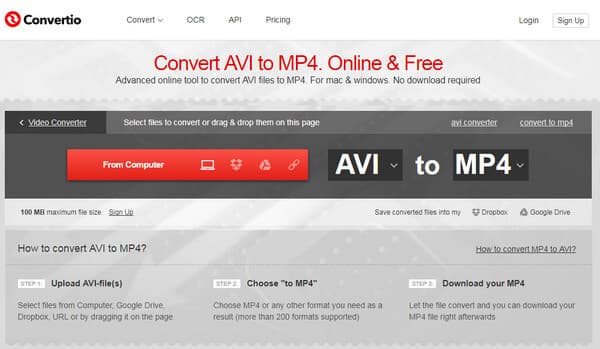
1Upload MP4 file from computer/Google Drive/URL on online converter. If you need to convert more than one MP4 files, you can click "ADD MORE FILES" to add more MP4 files on it.
2After uploading MP4 files, click "to MP4" to select output format. Then click "Convert" to convert MP4 files to AVI.
We have offered two ways for you to finish your conversion. You can choose MP4 to AVI Converter to convert MP4 to AVI (on) Mac, or you can choose online converter to finish the conversion. Hope it is helpful for you.
If you have any other problems, please leave us a message at message board.

June 21, 2018 19:31 / Updated by Jenny Ryan to Convert Video
 How to Convert VOB to MP4 on Win/Mac
You might want to find an effective way to convert VOB file to MP4. Then find the most effective VOB to MP4 Converter here.
 How to Combine MP4 Files on MacBook Pro/iMac/MacBook and More
Have some MP4 files and want to join them together on MacBook? Here are three approaches to combine MP4 files on Mac without damaging video or audio quality.
 A Simple Guide to Convert SWF to MP4 for Free
The answers for queries about converting SWF to MP4. You can learn more detail about the wonderful SWF to MP4 converter and how to convert SWF to MP4.
 Leave your comment and join our discussion
