There are many questions about converting MP4 video to MPEG in different forums. Some people have difficulties with the certain free MP4 converter Mac, while others have no idea how to convert an MP4 file to a MPEG on Mac. Here are some common examples you can see.
"I'm trying to convert MP4 to MPEG on Mac. But I have no idea how to do it. Any advice is appreciated."
"Does anyone know an easy to use tool to convert MP4 to MPEG2 Mac free?"
"I didn't see any possible way to convert MP4 to MPEG on Mac using iMovie or QuickTime Pro. Can anyone help me?"
Convert MP4 to MPEG on Mac
If you are a member of those groups of people, then you can read following paragraphs to seek simple but useful solutions. Now, let's take a look at detailed processes of how to convert MP4 to MPEG on Mac OS X.
Some people may hold the idea that MP4 and MPEG is the same thing. Actually, MP4 is one of file extensions developed by MPEG (Moving Picture Experts Group). MP4 file extension is short for MPEG-4 Part 14, which uses H.264 or MPEG-4 to code data and hold AAC or AC3 audio. Furthermore, MP4 has been the most popular video format accepted by most online websites and offline portable devices.
As for MPEG-1 and MPEG-2, they are standard for lossy video and audio compressions. To be more specific, MPEG-1 is widely used in DVD, while MPEG-2 is the default format accepted by DVD, camcorder, DVB and more. In addition, the related file extension is .mpeg or .mpg. Thus, if you want to output videos to those digital devices, you need to convert MP4 to MPEG on Mac OS X in advanced.
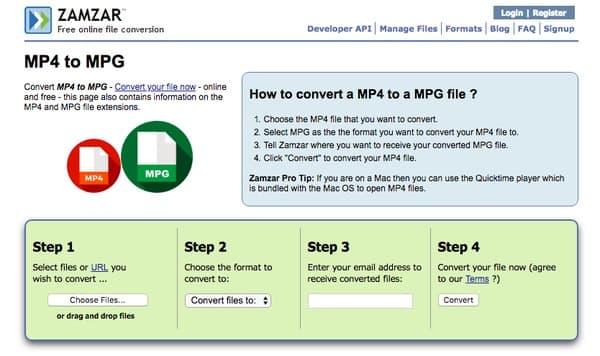
For people who do not have much MP4 videos need to be converted, using an online MP4 to MPEG video converter is a good choice.
Step 1 Search Zamzar and locate its MP4 to MPG converter page.
Step 2 Click "Choose Files" to import MP4 video.
Step 3 Select "MP4" from the "Convert files to" list.
Step 4 Enter your email address to receive the converted MPEG file.
Step 5 Choose "Convert" to start to convert MP4 to MPEG online on Mac.
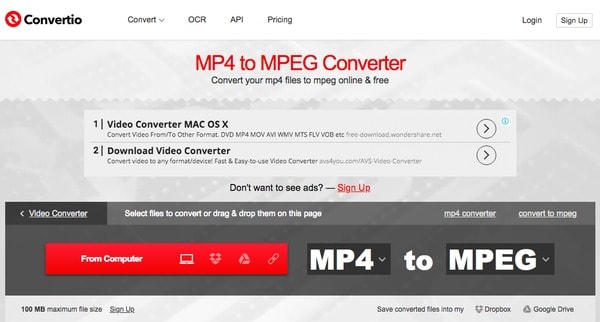
Step 1 Navigate Convertio on your web browser.
Step 2 Upload your MP4 file from computer, URL(download video to MP4 directly), Dropbox or Google Drive.
Step 3 Set MPEG as the output video format.
Step 4 Click "Convert" to convert MP4 video to MPEG on Mac for free.
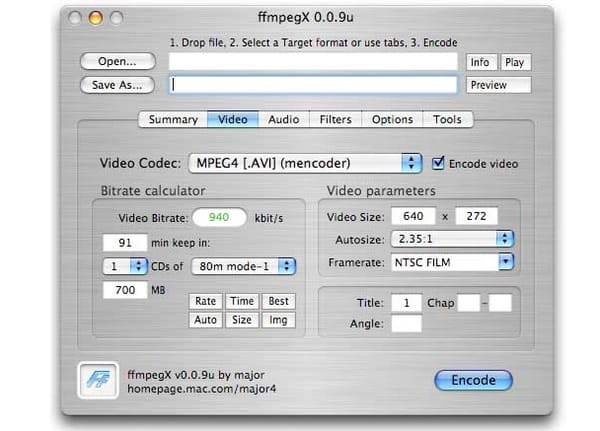
Here are also two MP4 to MPEG converter freeware on Mac you can use. And both two open source programs are free to download.
Step 1 Launch FFmpeg on your Mac computer.
Step 2 Choose "Open" on the top left corner to add MP4 video.
Step 3 Turn to "Video" section and select "MPEG" from the "Video Codec" list.
Step 4 Manage with "Bitrate calculator" and "Video parameters".
Step 5 Click "Encode" to convert MP4 to MPEG on Mac for free.
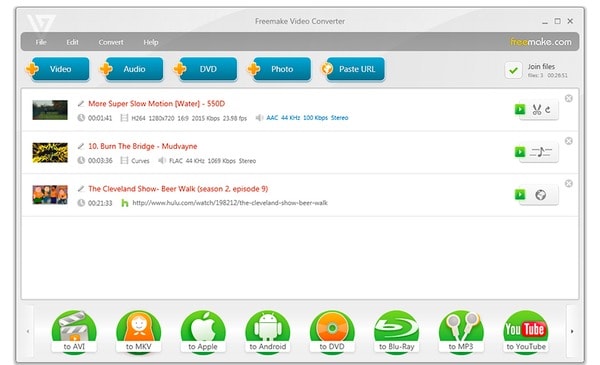
Step 1 Run Freemake Video Converter program on your Mac PC.
Step 2 Click "Video" option and add MP4 video.
Step 3 Select the editing tool you need from the "Edit" drop-down menu.
Step 4 Choose "to MPEG" from those available options at the bottom.
Step 5 Click "Convert" to convert MP4 to MPEG for free on Mac
Even though you can free convert MP4 to MPEG with above tools, there are always these or those limitations, such as Wi-Fi speed and others. Fortunately, you can run Aiseesoft Mac Video Converter Ultimate to get rid of those disadvantages. And you can batch convert MP4 to MPEG on Mac in fast conversion speed and high-quality output easily.
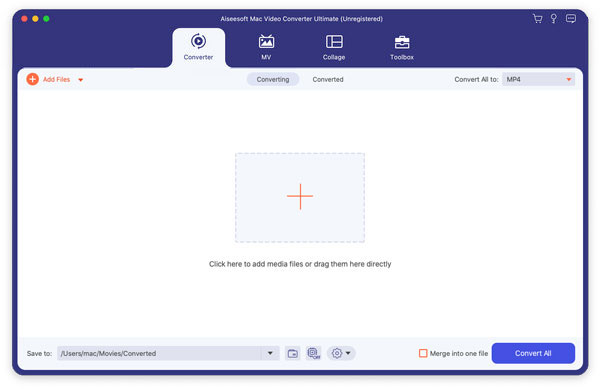
Step 1 Launch Mac Video Converter Ultimate
Free download and install Mac Video Converter Ultimate on your Mac OS X. Launch this powerful MP4 to MPEG video converter. Then click "Add File" to import as much MP4 videos as possible. Well, you can drag and drop MP4 videos to the main interface directly as well.
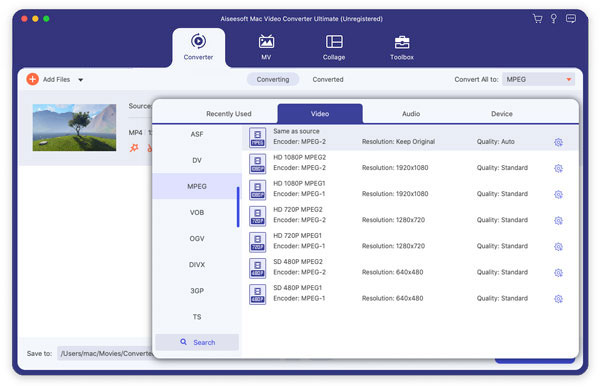
Step 2 Set MPEG as the output format
Locate "Profile" at the bottom of your MP4 video converter. Choose "General Video" from the drop-down "Profile" menu. Then select "MPEG-1 Video (*.mpg)" or "MPEG-2 Video (*.mpg)" to set the output format.
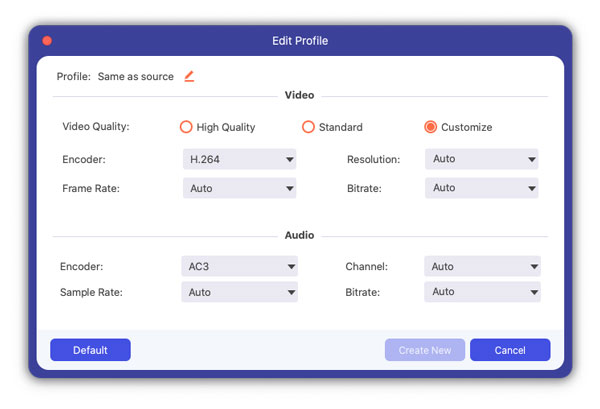
Step 3 Convert MP4 to MPEG on Mac in high quality
If you want to adjust profile settings, just click "Settings" option besides. You can change video and audio settings freely. Do not forget to click "OK" to save your change.
Choose "Browse" to set an output folder. Then click the huge "Convert" button to start to convert MP4 to MPEG on Mac in batch or singly.
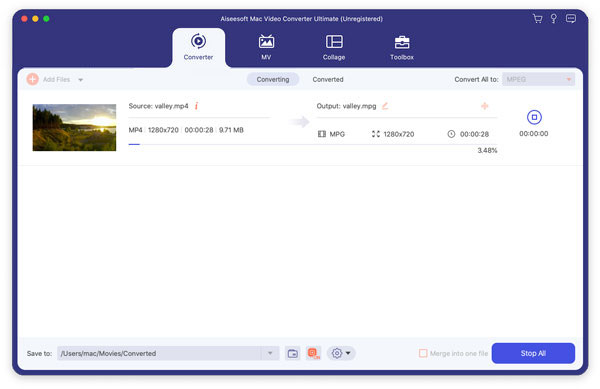
In spite of converting MP4 videos to MPEG, you can get many other powerful features from Mac Video Converter Ultimate. And it is also supported to batch apply the certain video effect with a preview window. In a word, this is your best MP4 to MPEG Video converter for Mac. That's all for how to convert MPEG to MPEG on Mac, feel free to contact us if you have any problem.

June 21, 2018 10:25 / Updated by Jenny Ryan to Convert Video
 How to Convert 3GP to iPhone on Mac
Want to play 3GP videos on your iPhone X or iPhone 8/8 Plus? You need learn how to convert 3GP to iPhone on Mac with the professional iPhone video converter for Mac in this article.
 How to Convert AVCHD Video to WMV
Convert AVCHD video to WMV – Guide about how to convert AVCHD video to WMV format with AVCHD to WMV Converter.
 Top 5 Mouse and Keyboard Recorders for Windows & Mac
How can I record my mouse and keyboard actions? Does Windows 10 have a macro recorder? What is mouse recorder? This post makes a list of 5 best mouse and keyboard recorders for you to record all your mouse and keyboard actions on computer.
 Leave your comment and join our discussion
