It’s essential to back up your WhatsApp messages regularly, especially for important chats, images, videos, and other content. WhatsApp provides a convenient way to connect with family, friends, and colleagues instantly. It allows you to share various messages, pictures, and other content. To prevent any valuable WhatsApp chats from being lost, you should often backup WhatsApp messages. This post will guide you on backing up your WhatsApp chats on both iPhone and Android devices.
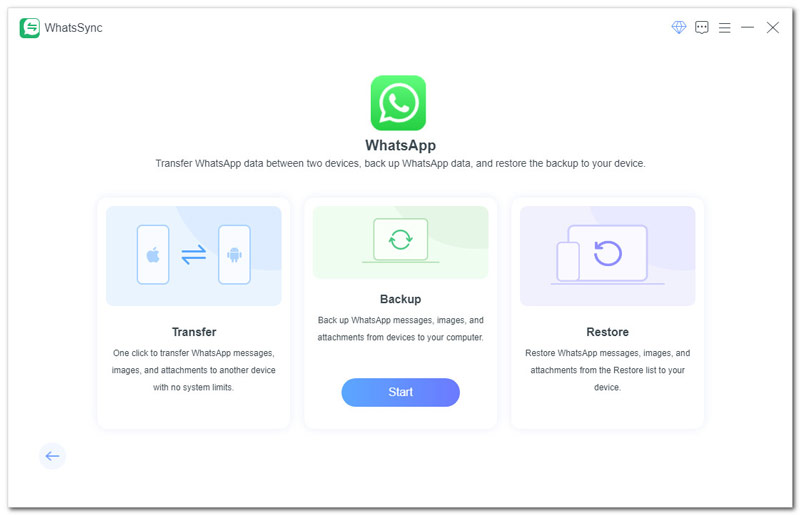
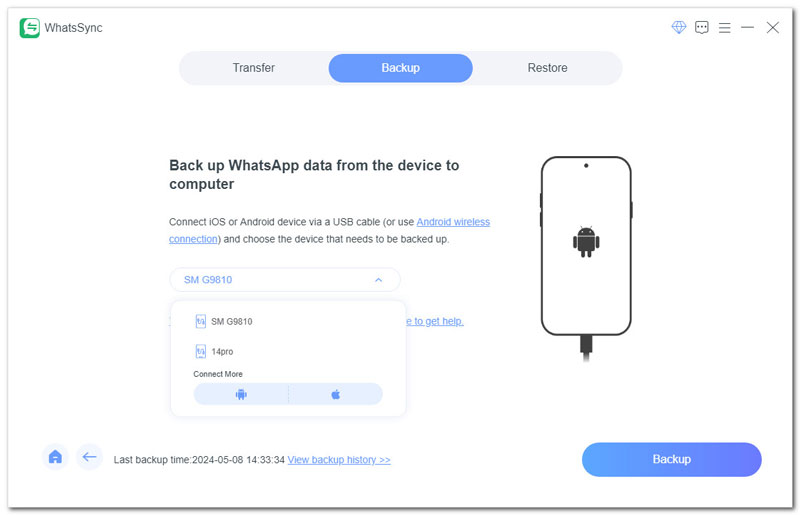
Aiseesoft WhatsSync is a trustworthy option for backing up and restoring your WhatsApp data securely on a single, convenient platform. The software is primarily designed for secure backup of messages and media from WhatsApp on your device to a computer or a cloud service, such as Google Drive. You can back up and transfer WhatsApp messages from your Android or iOS device to your Windows or Mac computer with WhatsSync. With WhatsSync, you can restore deleted or lost WhatsApp chats from backups you have saved before if you choose. If you’re looking for a simple answer to how to backup WhatsApp messages, WhatsSync provides one convenient solution to achieve both backup and restore WhatsApp data without the hassle.
Downloads
 100% Secure. No Ads.
Besides backing up your old WhatsApp chats to a computer, you can also copy these valuable files to Google Drive and iCloud. This section explains how to transfer WhatsApp messages using your Google and iCloud accounts, which is also helpful if you want to learn how to back up messages from WhatsApp on a Chromebook.
Ensure you’re signed in to a Google account on your Android phone and that Google Play services are enabled. Ensure your phone has sufficient free storage for the backup (Google Drive quota + local temporary storage).
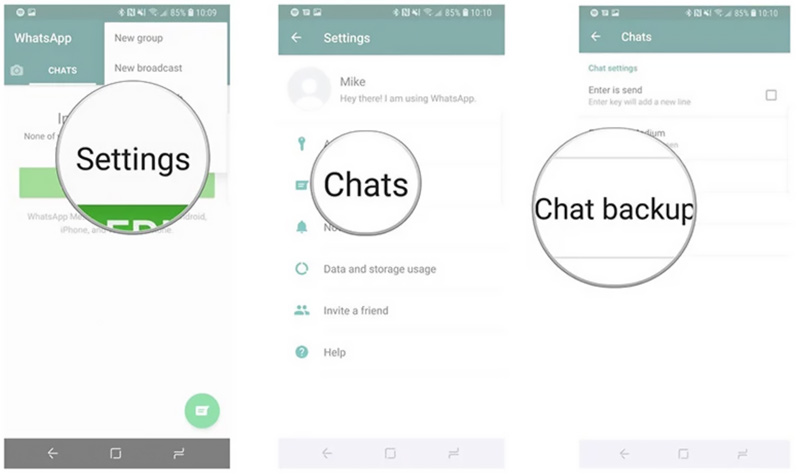
For regular protection, select a backup frequency (daily or weekly) that matches your WhatsApp usage. Also, keep an eye on your Google Drive storage. Large backups, especially those containing videos, can quickly consume storage space.
Prerequisites
Automatic (Scheduled) Backup
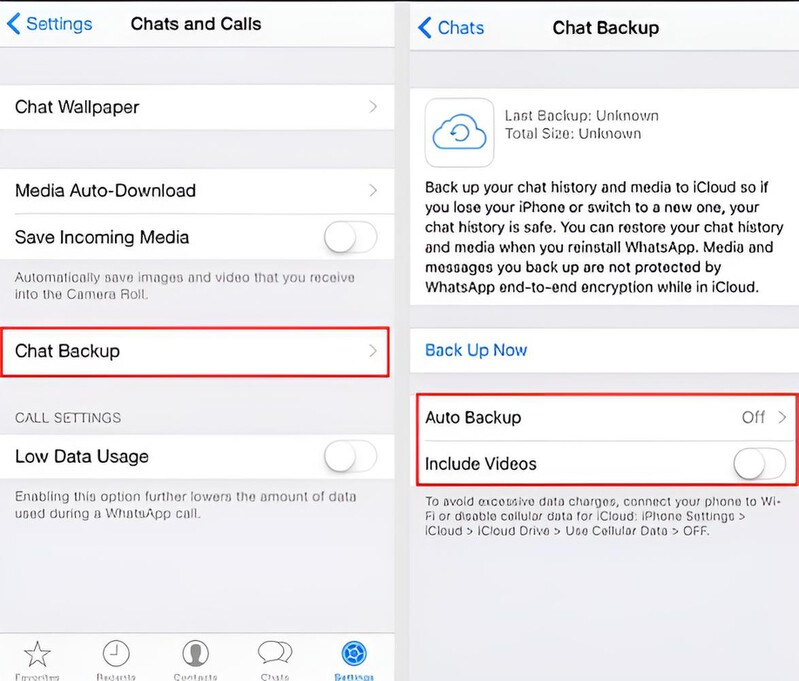
Manual Backup (Back Up Now)
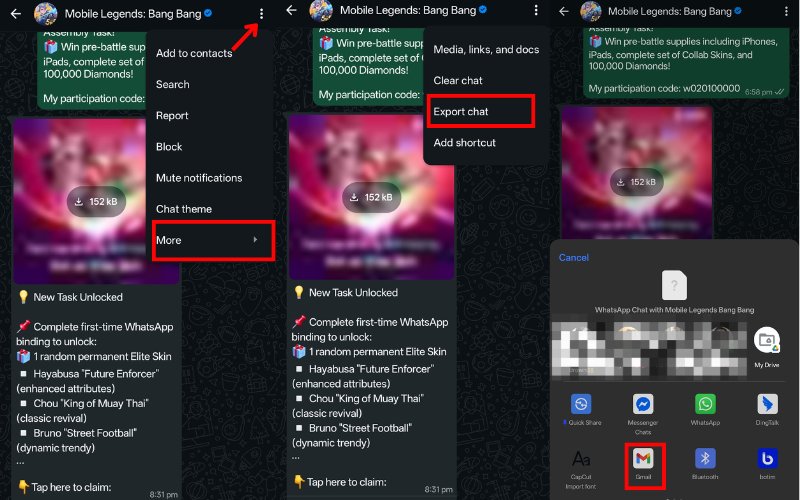
If you want to save or share only one specific conversation while avoiding a general backup of all your chats, you can easily export that chat for email. This is great for both Android and iPhone users to maintain a record of vital messages to share with others.
For Android Users
For iPhone Users
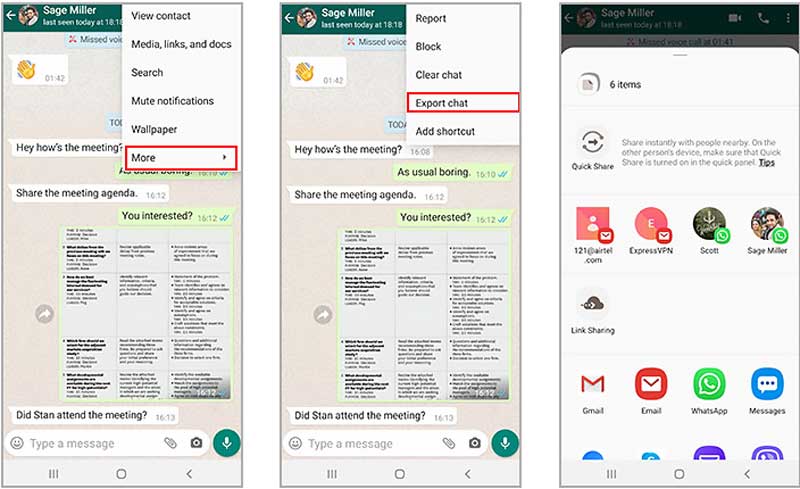
After completing these steps, you can easily back up a specific WhatsApp chat on your iPhone or Android device and keep it safely stored in your email for future reference.
Can I back up my WhatsApp chat history?
Yes, WhatsApp gives a straightforward way to back up your chat history. To back up your WhatsApp chat history on your Android phone, you can create a backup to Google Drive. As an iOS user, you can choose to back up WhatsApp on iCloud. You can set up an automatic backup schedule according to your needs. In that case, your WhatsApp conversations will be backed up regularly according to the schedule. Also, you can manually create a WhatsApp backup whenever you want.
Why is there no backup option on my WhatsApp?
Due to the app version of WhatsApp and other reasons, you may not find a backup option in your WhatsApp. This feature may be hidden in the settings. You can open WhatsApp and tap the Settings button to access the Chat backup option. If you are using an outdated app, you should update it first. In some cases, when your Google Drive storage is almost full, you may not be able to see the backup option.
Where are WhatsApp chat backups stored?
By default, your WhatsApp chat backups are stored in Google Drive on your Android phone and iCloud on your iPhone. To verify your created backup files, navigate to the Backups section. However, for security reasons, the detailed files of the backup are not allowed to be opened or viewed.
Why can't I see my WhatsApp backup in Google Drive?
Several reasons may prevent you from seeing your WhatsApp backup in Google Drive. Generally, your WhatsApp backups are hidden in Google Drive and are not displayed in the file list. You need to enter Storage to find them. In some cases, especially when you haven't used your WhatsApp account for a long time, Google Drive may automatically remove your WhatsApp backups to free up space. Additionally, temporary issues with Google Drive or WhatsApp may also cause this problem.
Conclusion
This post provides easy steps on how to back up WhatsApp messages on Android and iOS devices. With the help of Google Drive, iCloud, or Aiseesoft WhatsSync, you can make sure your chat messages and media are well protected. It's wise to perform chat backups regularly to avoid losing important conversations, which helps make your data easily recoverable when needed.
 [2021 Visual Guide] How to Backup and Restore WhatsApp Chats
To backup WhatsApp messages can restore the important chats to a new phone. Let's check the full guide to backup and restore WhatsApp data on iPhone and Android.
 WhatsApp iCloud Backup - How to Backup WhatsApp on iCloud
Why I can't backup my WhatsApp to iCloud? How do I access WhatsApp on iCloud? How to backup WhatsApp on iCloud? This post shares 3 simple ways to create a WhatsApp iCloud backup.
 How to Recover Deleted WhatsApp Messages
How to recover deleted WhatsApp messages? Let's learnhow to recover deleted WhatsApp messages with Android Data Recovery as well as Google Drive.
 Leave your comment and join our discussion
An efficient WhatsApp transfer tool that quickly backs up and syncs all WhatsApp chats, video/audio, files, stickers, and more across iOS/Android devices and online cloud services.
100% Secure. No Ads.

*Required field
*Please enter a valid email

