You may wonder why you need to convert HEVC to MP4, and the simple answer is device incompatibility. Although the HEVC code has great video compression that makes file sizes smaller while maintaining excellent quality, it is still unsupported by many platforms and OS. Still, there is no need to worry because there are solutions that help you convert the HEVC on your PC and turn it into an AVC-coded high-quality MP4 file. Let’s get started.
HEVC is an abbreviation for High Efficiency Video Coding, developed to be the successor of AVC or H.264. If you compare it to AVC, HEVC offers about 50% data compression at the same video quality and bitrate level. At the same time, HEVC is used for high-quality streaming that includes High Dynamic Range and Dolby Vision content. Here are more features and benefits of HEVC:
On the other hand, MP4 is one of the standard video formats to store video, audio, still images, and other data information. The container is mostly supported on any platform and even allows you to stream on websites effortlessly. Although more modern formats offer better quality and compression, MP4 is yet to be replaced since it is effective for any desktop activity.
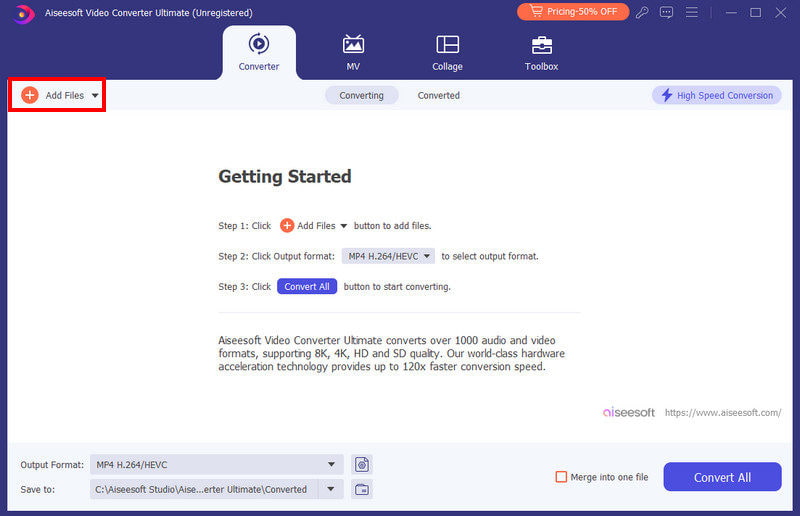
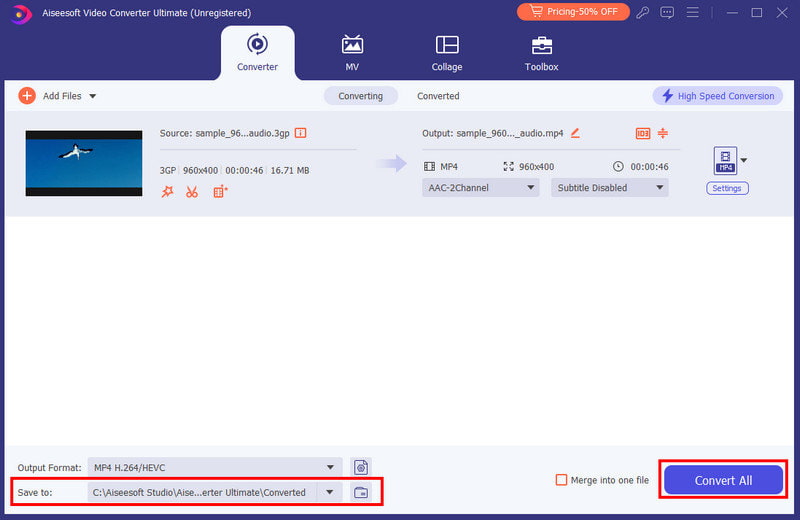
Do you have too many HEVC files to convert? The quickest way to convert them to MP4 is using Aiseesoft Video Converter Ultimate. It is a cross-platform converter that supports various formats, including MP4, MOV, MKV, FLV, etc. It can also detect the output information to edit before converting, such as the video codec, bitrate, resolution, and sample rate. Aiseesoft is a paid converting tool, but you can use its free trial version and experience its awesome converting algorithm for free.

Downloads
 100% Secure. No Ads.
100% Secure. No Ads.
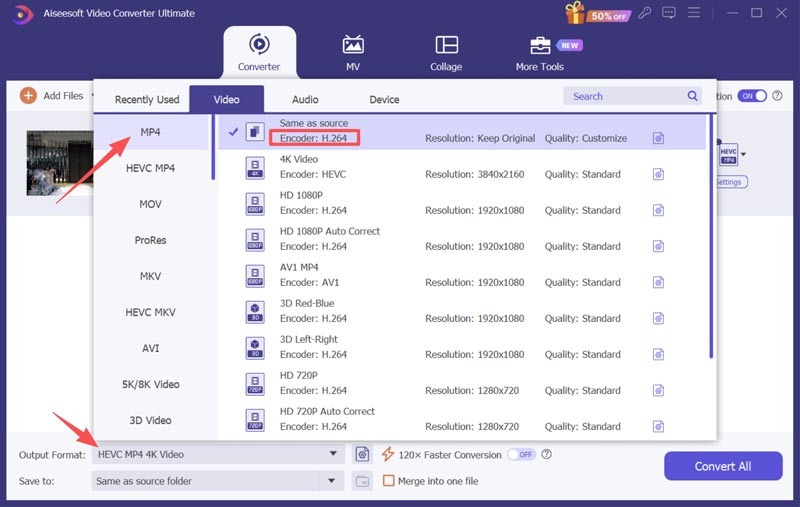
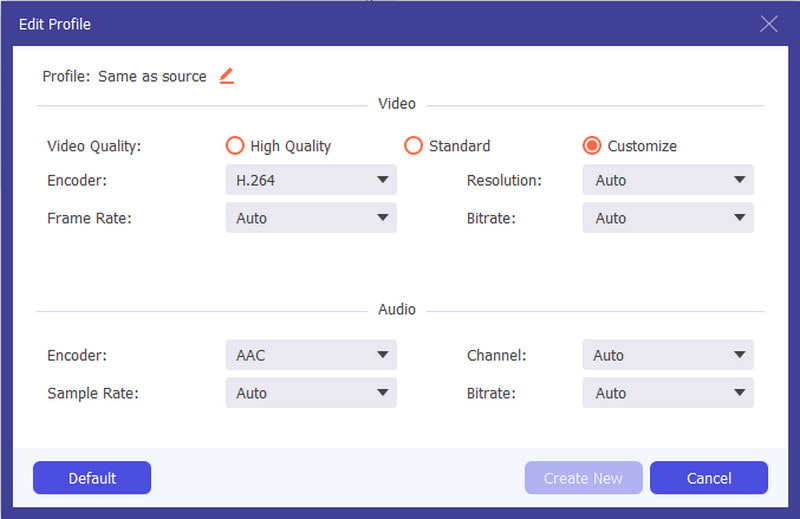
Click the Settings button to edit the output profile. When the dialogue box appears, adjust the video resolution, quality, frame rate, and other settings. Save the new settings once done.
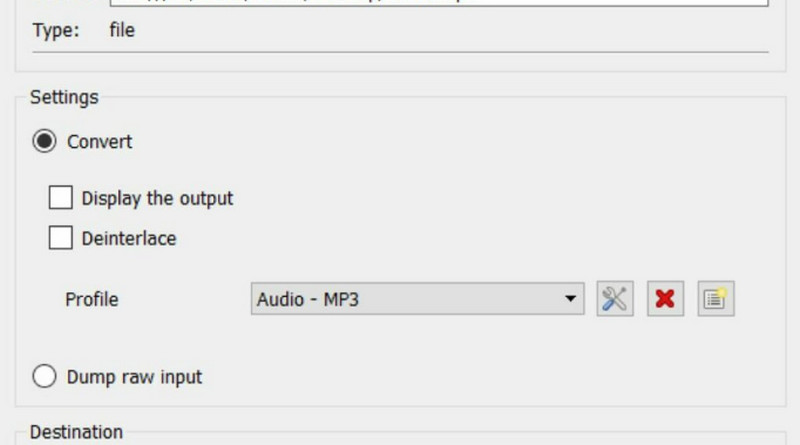
If you have VLC on your device, you can easily change the file extension on your videos. This is one of the hidden features of the media player, and it is also free to use without installing a plugin. Follow the steps below to try it:
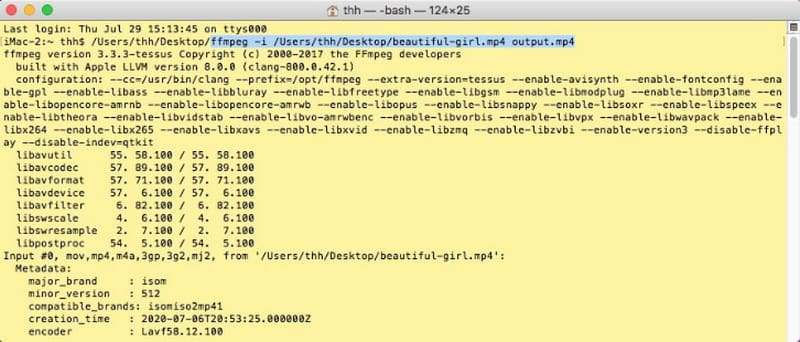
FFmpeg’s role is to decode and encode your media files precisely. It is an excellent alternative for a Mac user since it is free and accessible on Apple devices. Only FFmpeg is too complex for beginners, but you can get started with the following steps:
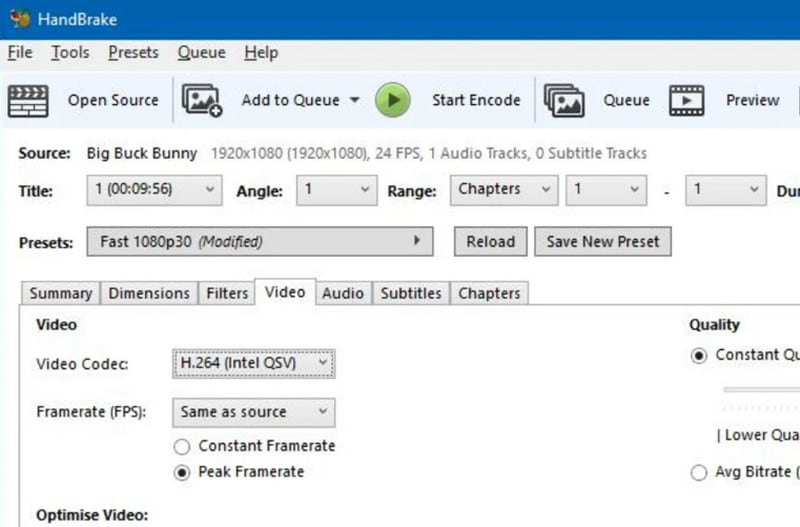
HandBrake for Windows and Mac are both great conversion tools for HEVC and MP4. It is known for its advanced algorithm to transcode, encode, and decode files on desktops, allowing you to change the outputs as you wish. The only drawback of HandBrake is its repetitive procedure, especially since it does not support batch conversion. Also, it can be unstable if the file is too big to convert.
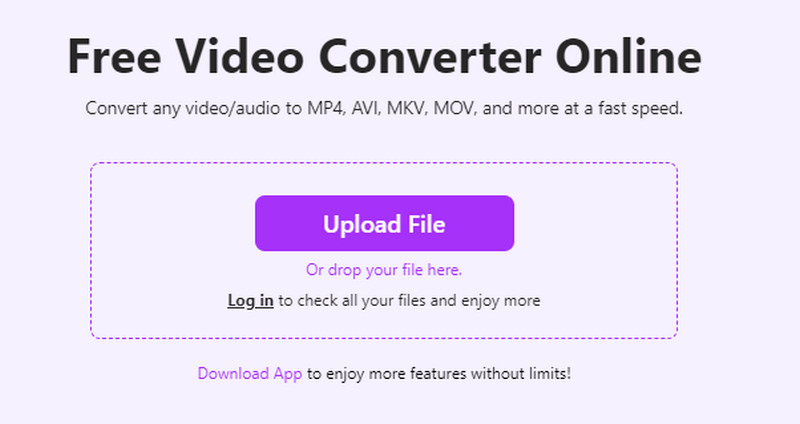
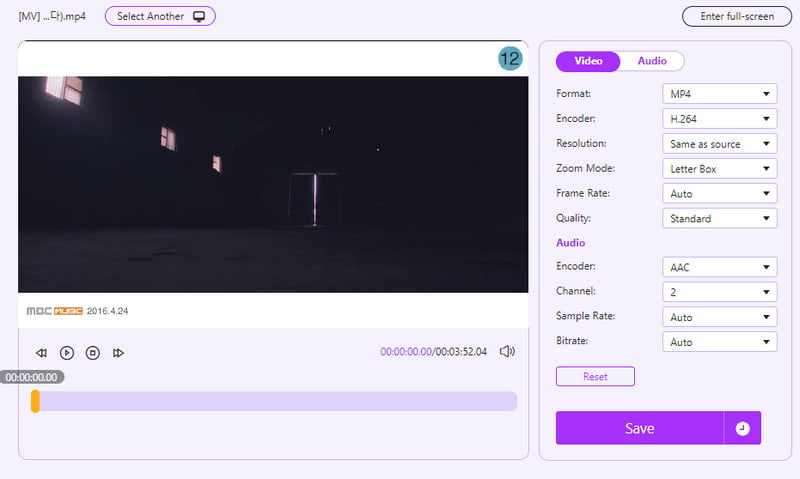
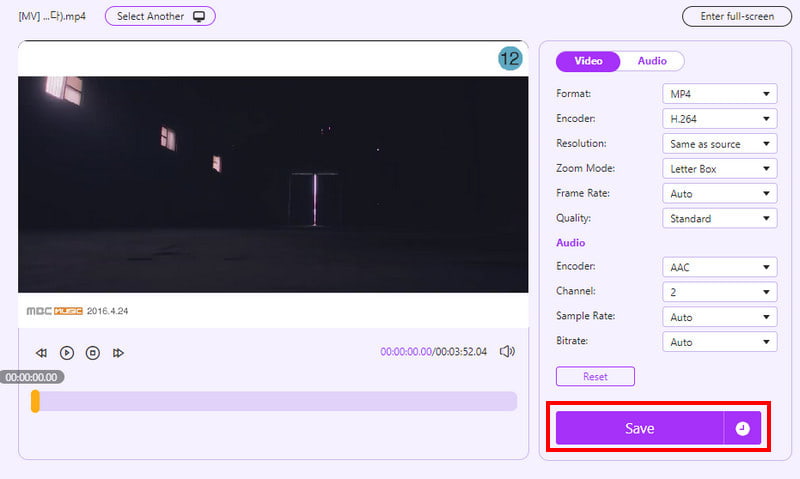
Aiseesoft Free Video Converter Online is a free alternative to desktop converters. However, the online platform mainly focuses on video conversion with custom frame rate, resolution, format, bitrate settings, and more. The best part of this alternative is its unlimited slots for video conversion with the same high-quality result for any format. Follow the steps to use Aiseesoft Free Video Converter Online:
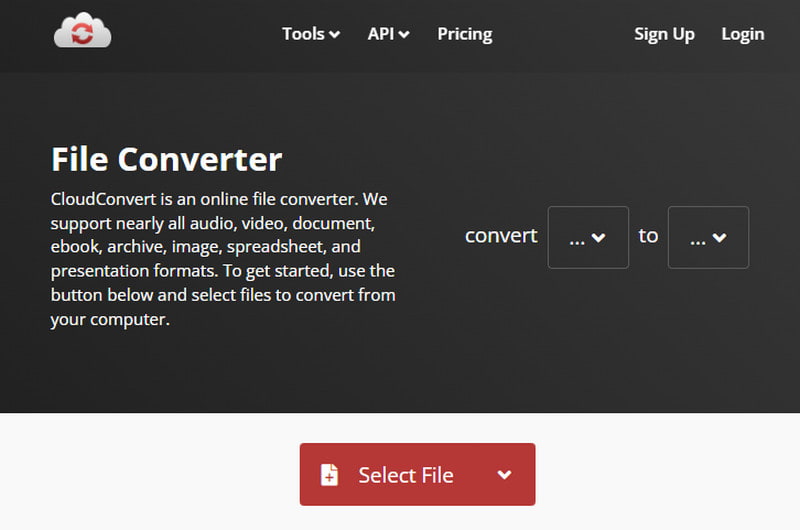
CloudConvert is a free video to MP4 converter that accepts various codecs, including HEVC, and delivers excellent results. Besides its high-quality conversions, CloudConvert protects the uploaded files to prevent viruses from entering the user’s domain. Here’s how to get started with the online converter:
Is HEVC the same as MP4?
No, HEVC is not the same as MP4. HEVC (High Efficiency Video Coding) is a video codec used to compress and decompress the raw video data. MP4 is a container format. You can find the HEVC compression inside an MP4 container.
Is HEVC a good video codec?
Yes, HEVC is often considered an excellent video codec. In many ways, it is a highly advanced codec over its predecessor, H.264. Compared with H.264, HEVC can deliver he same visual quality at roughly half the file size. It is specially designed for high-resolution videos. HEVC can better handle 4K, 5K, and even 8K content. Moreover, it supports HDR formats such as HDR10 and Dolby Vision. HEVC is optimized to run more efficiently on modern multi-core processors.
How do you convert HEVC to MP4 online?
Many web-based HEVC to MP4 converters are available for you to make the conversion with ease. Some popular ones include Aiseesoft Free Video Converter Online, Clideo HEVC Converter, Convertio, Online-Convert, and Restream HEVC to MP4 Converter. Select your preferred tool and start converting HEVC to MP4 online.
Conclusion
To conclude, HEVC to MP4 converters are reachable as desktop or online tools. We hope this article helped you find the best converter for your needs. Make sure to try Aiseesoft Video Converter Ultimate and Free Video Converter Online for effective and high-quality conversion on your desktop!
 How to Convert H.264 to MP4 with 5 Methods in 2024
H.264 is a high-quality codec but is incompatible with most devices. Convert your H.264 files to MP4 with the most recommended converters on your desktop.
 AVCHD VS MP4 – Which is Better for Video Recording & Playback
AVCHD or MP4, What is the difference? Which one is better for recording, playback or editing on iMovie, Premiere Pro, etc.? Find the answers in this comprehensive guide.
 H.264 vs. H.265: Which Video Encoding Is the Best to Use?
H.264 vs. H.265 are the most used codec up until now, but what are these differences? Which do you think wins? Read this to know it!
 Leave your comment and join our discussion
Video Converter Ultimate is excellent video converter, editor and enhancer to convert, enhance and edit videos and music in 1000 formats and more.
100% Secure. No Ads.
100% Secure. No Ads.

*Required field
*Please enter a valid email

