What is the correct way to safely delete Time Machine backups?
For freeing up your Mac storage or other reasons, you may be advised to remove Time Machine backups. The question is, how to correctly delete these old, unnecessary backups? Are you searching for a way to delete them without breaking your existing backup system? This guide shares six proven methods for safely deleting backups from Time Machine.
| Backup Deletion Method | Safety Level | Technical Skill | Speed | Reversibility | Best For |
| Time Machine Interface | ★★★★★ | Beginner | Medium | No | Deleting individual backups safely |
| Finder | ★★☆☆☆ | Beginner | Slow | No | Quick deletions |
| Terminal | ★★★★☆ | Advanced | Fast | No | Precise control, batch deletions |
| Aiseesoft Mac Cleaner | ★★★★★ | Beginner | Fast | No | One-click cleanup, efficient deletions, non-tech users |
| Disk Utility (Format) | ★☆☆☆☆ | Beginner | Fast | No | Starting completely fresh |
| Local Snapshots Cleanup | ★★★☆☆ | Advanced | Intermediate | Yes | Freeing up Mac system space |
When you want to delete some unwanted files from a Mac, your first idea might be to directly drag them to the Trash. However, when it comes to removing old Time Machine backups, do not do this.
You should know that Time Machine does not store files like a standard folder system. Instead, it uses a much more complex system. If you choose to move Time Machine backups to the Trash and attempt to empty trash on Mac, macOS will struggle to process them because these backups often contain millions of linked system permissions.
In most cases, your operation will cause the Trash to freeze when emptying. What’s more, it may potentially corrupt the remaining index of your backup drive. That’s why many Mac users are looking for a safe way to erase a Time Machine backup, rather than directly drag it to the Trash.
So, what is the safe way to purge old backup files without damaging your drive or causing system errors? Here are the six efficient methods to do it correctly.
Apple offers a standard way to remove backups from Time Machine. If you only want to free up your Mac space and erase the backup history of a specific file or folder, you should start with this built-in method.
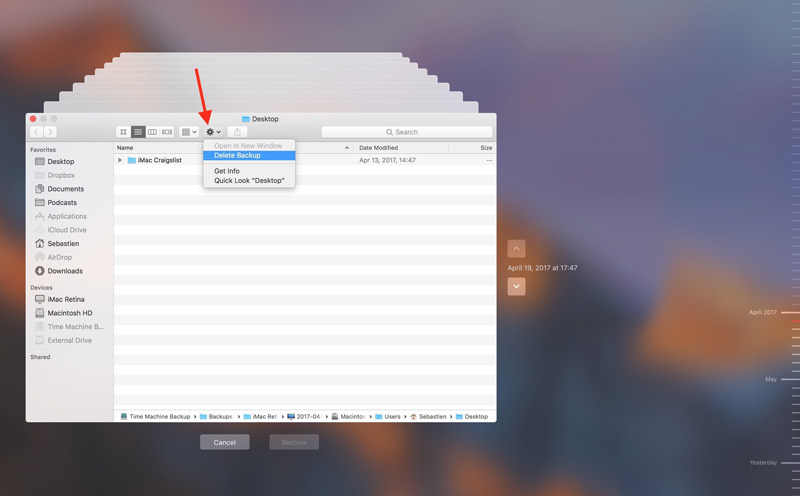
Note that if you are using a newer macOS version that runs APFS, you may not use this method to delete Time Machine backups.
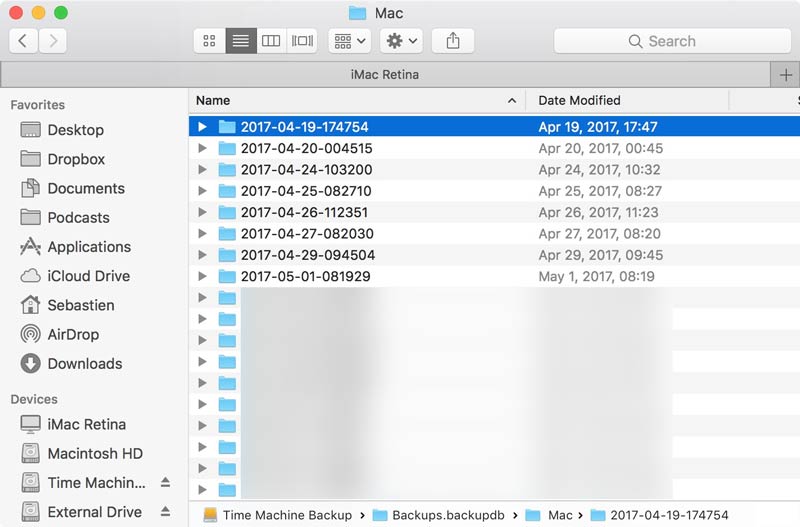
If your Mac runs an older macOS and you don’t mind erasing the entire backup date folders, you can choose to remove these Time Machine backups via Finder.
If you are comfortable with command-line interfaces, you can rely on the Terminal to delete Time Machine backups. This is often the most efficient way to do that.
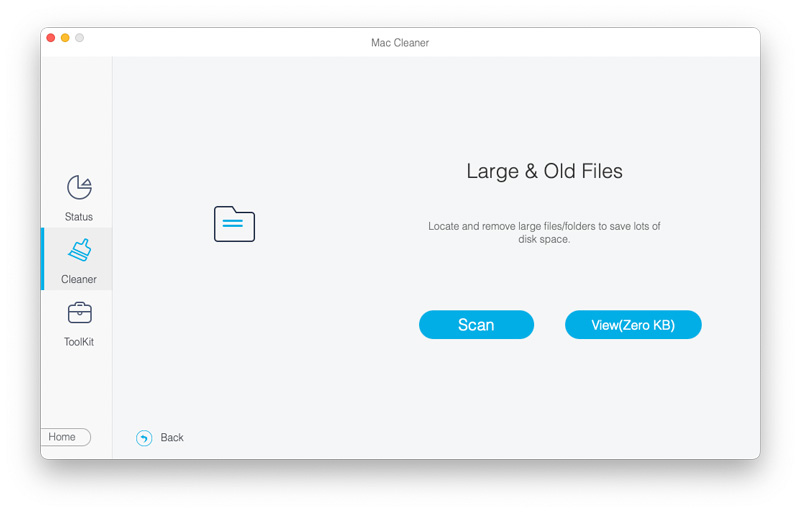
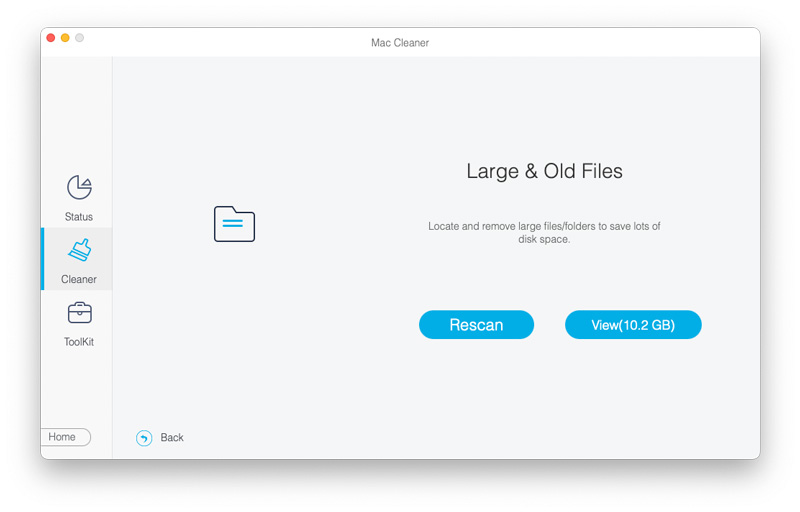
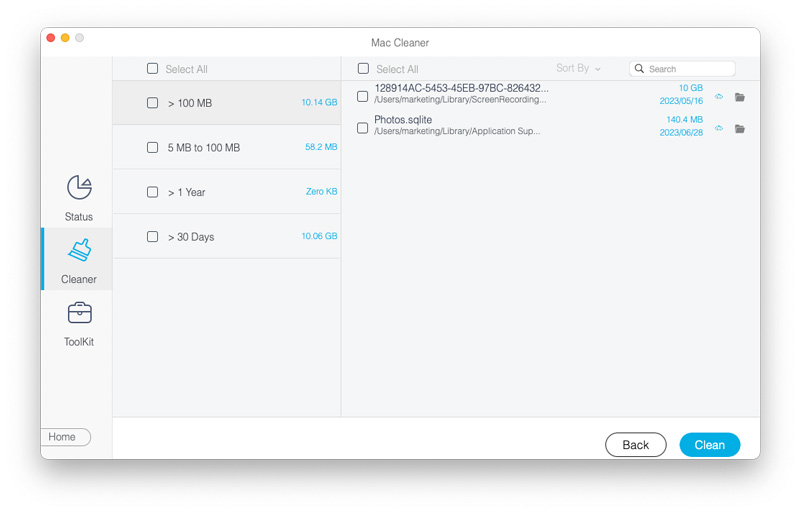
If you don’t want to use these Terminal commands and prefer a cleaner removal process, turn to a dedicated Mac data optimization software like Aiseesoft Mac Cleaner. It provides a straightforward way to remove Time Machine backups and other old, unnecessary files. It can easily locate large, useless data for you to free up Mac storage.
 100% Secure. No Ads.
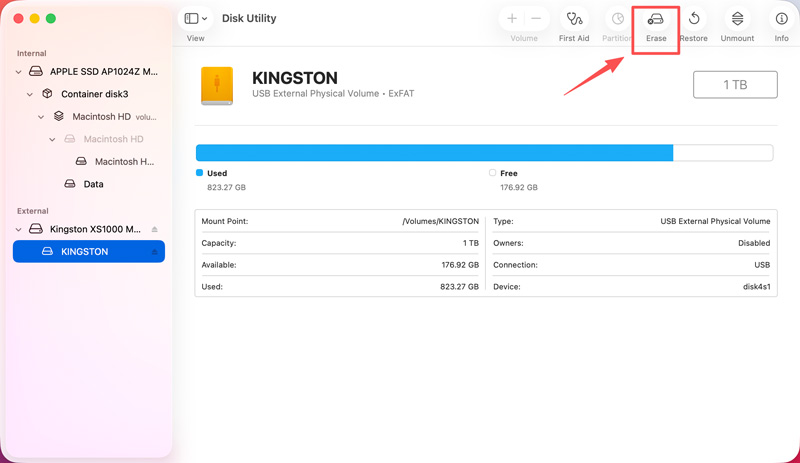
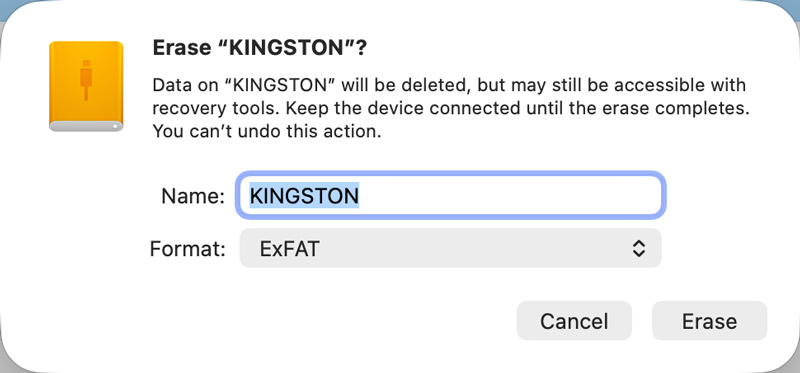
If you want to erase all the historical data on your Time Machine backups, especially when your backup drive is full, you can choose to format the whole drive. This gives you a fresh start for new backups.
In addition to the Time Machine backup stored on your external drive, your Mac also saves “Local Snapshots” on the internal hard drive. If you meant to free up Mac space, you can delete them.
Open Terminal on your Mac and paste the command below:
tmutil listlocalsnapshots /
It allows you to view a list of local snapshots taking up space on your Mac.
To delete a specific snapshot by its timestamp:
sudo tmutil deletelocalsnapshots com.apple.TimeMachine.[date]
Question 1. Why are Time Machine backups still taking up my Mac’s space when my external drive isn’t plugged in?
Your Mac creates temporary backups on your internal hard drive to ensure you can still restore recently deleted files, even without your backup drive. These “local snapshots” will consume your Mac’s storage.
Question 2. Will deleting a Time Machine backup remove the original files from my Mac?
No. When you delete a Time Machine backup, your operation will only erase the copy stored on your external drive. All the local files, including the original data on your Mac, will remain completely untouched and safe.
Question 3. How can I delete individual files from within a Time Machine backup?
You can use the first method to delete individual files from a backup via the Time Machine interface. Browse to find the file you want to remove, choose it, click the Settings (gear) icon, and then choose “Delete All Backups of [item name]”. Besides, you can rely on the introduced Mac Cleaner to locate and erase the target files.
Conclusion
You can learn six helpful methods to delete Time Machine backups from this post. It does not have to be a frustrating experience for managing your Mac’s storage. If you only want to quickly get more available Mac space, turn to the reliable Mac Cleaner. It offers a simple way to find and erase old, large, and useless files on your Mac. Before confirming any deletion, you should double-check the selected data and dates.
 How to Restore from Time Machine [macOS Sonoma Included]
How to restore data from the time machine? Can you retrieve files without the time machine backup? This guide will lead you through all you want to know.
 Title: How to Find, View, or Show Hidden Files on Mac [2026 Guide]
How to Show Hidden Files on macOS? Here we’ll tell you why files can be hidden on Mac and solutions for how to find and view them quickly. Don’t hesitate to read!
 Why Your SD Card Does Not Show Up on Mac and How to Fix It
What is my MacBook not reading my new SD card? Can I force my Mac to read an SD card? Figure out why your Mac is not reading an SD card and learn to resolve it.
 Leave your comment and join our discussion
Quickly clean junk files, large old files, duplicate data, Time Machine backups and more to free up Mac storage space with one click.
100% Secure. No Ads.

*Required field
*Please enter a valid email

