By default, your saved password should autofill for you to quickly log into a site you visited before. What if the password does not appear, or you need it on another device or to share it? How to see saved passwords on Safari?
Apple has built a password manager into Safari to store every credential you have ever saved. This guide will show you how to find saved passwords on Safari across your iPhone, iPad, and Mac with clear steps.
When you want to see saved passwords on Safari, you may easily open the app and try looking for them inside it. However, you cannot directly find them there. This section shares four solid ways to find saved passwords on Safari.
If your iPhone has upgraded to a newer iOS version like iOS 18 or later, open the built‑in Passwords app to view saved passwords on Safari.
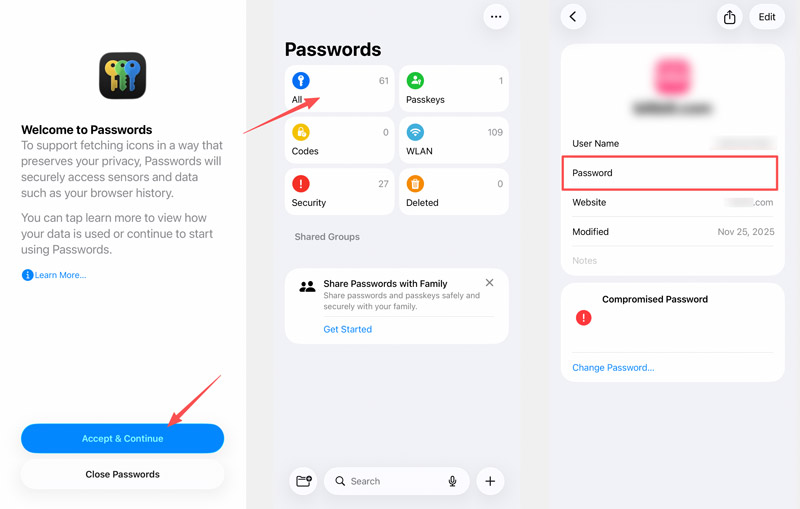
This Passwords app holds all credentials saved across Safari and other apps. It is the native method for seeing saved passwords on Safari without extra tools.
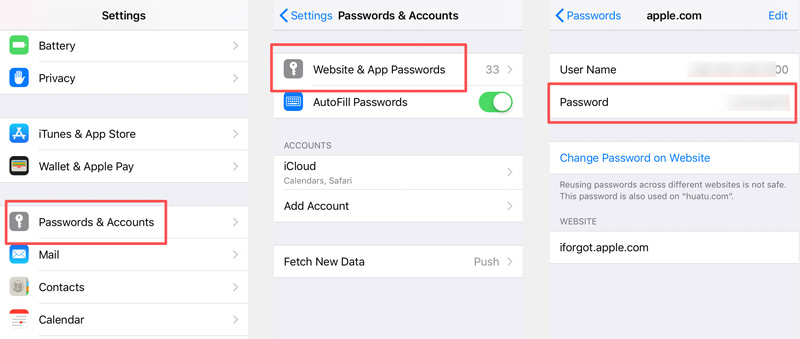
If your iPhone runs an older iOS version, you can find saved passwords inside Settings.
To quickly check a saved password on Safari or a specific app, you can arise Siri and ask Siri to show you the password. For example, you can say “Hey Siri, show me my password for Netflix.”
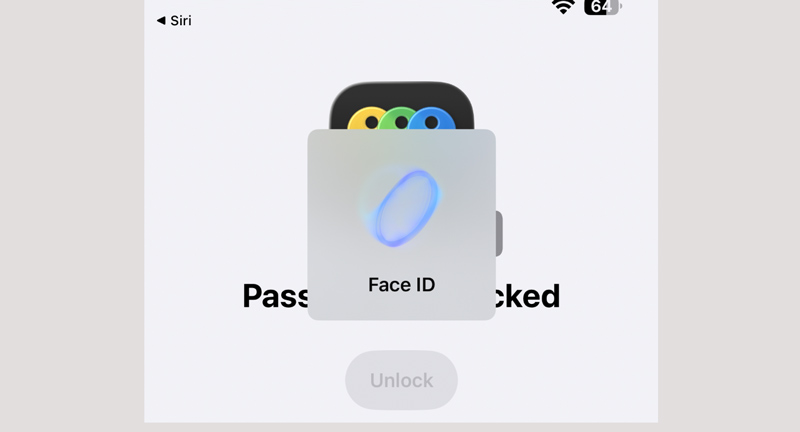
Siri will instantly open the Passwords app or Settings > Passwords for you to view passwords. Similarly, you must authenticate with your Face ID, Touch ID, or device passcode.
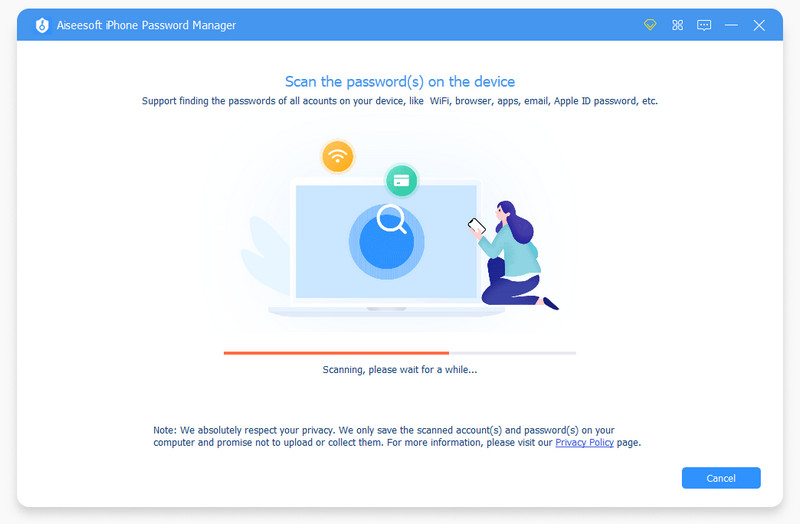
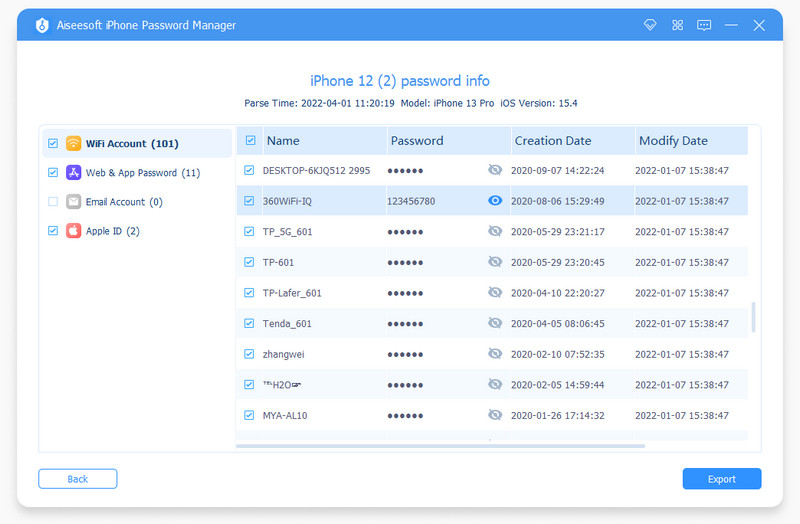
If you often need to view, export, edit, or manage iPhone and iPad passwords, the native Passwords app may fall short. In that case, Aiseesoft iPhone Password Manager will be a better choice for you to find and export all saved passwords with ease.
 100% Secure. No Ads.
100% Secure. No Ads.
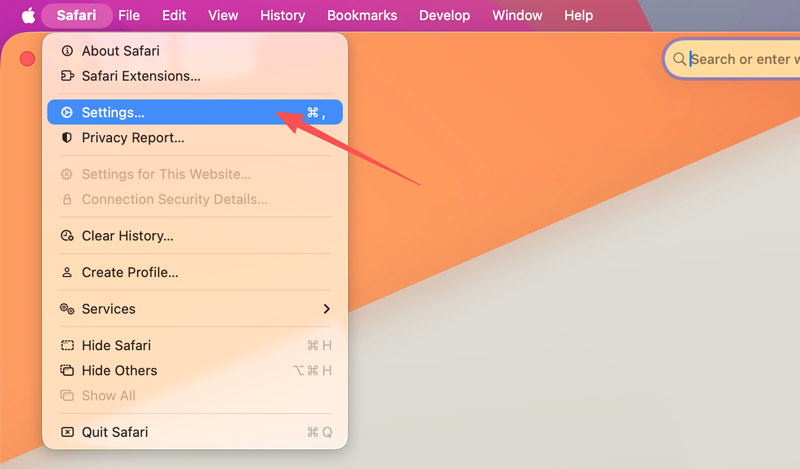
On a Mac, you can directly view your stored website passwords on Safari. Besides, you can go to System Settings to check synced Safari data (including passwords) on your Mac.
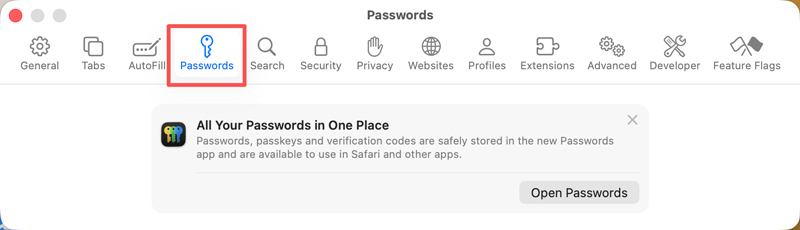
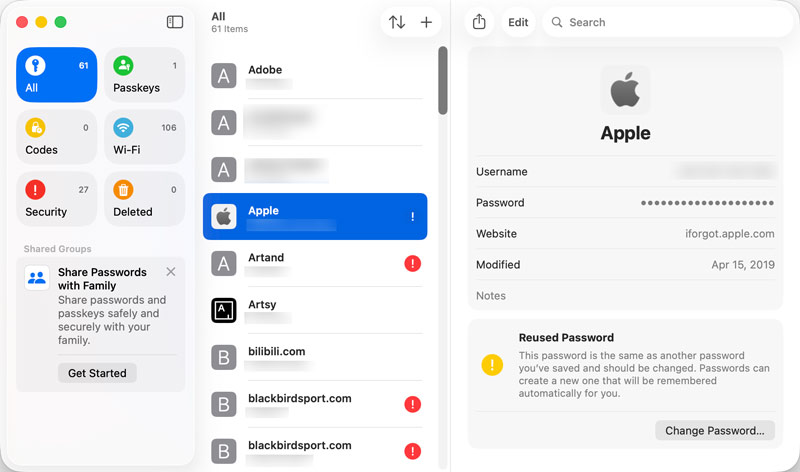
If your Mac runs macOS Sonoma or later, you can go to System Settings to check saved passwords on Safari.
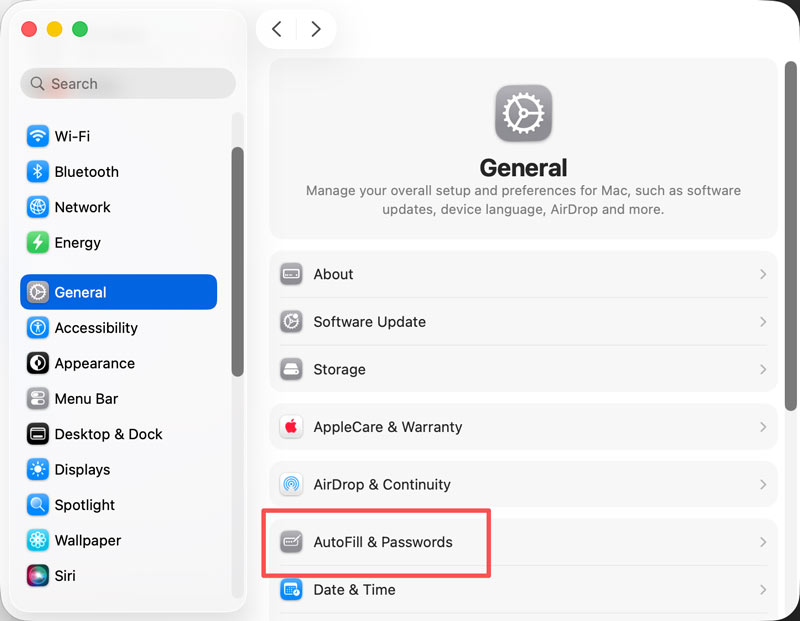
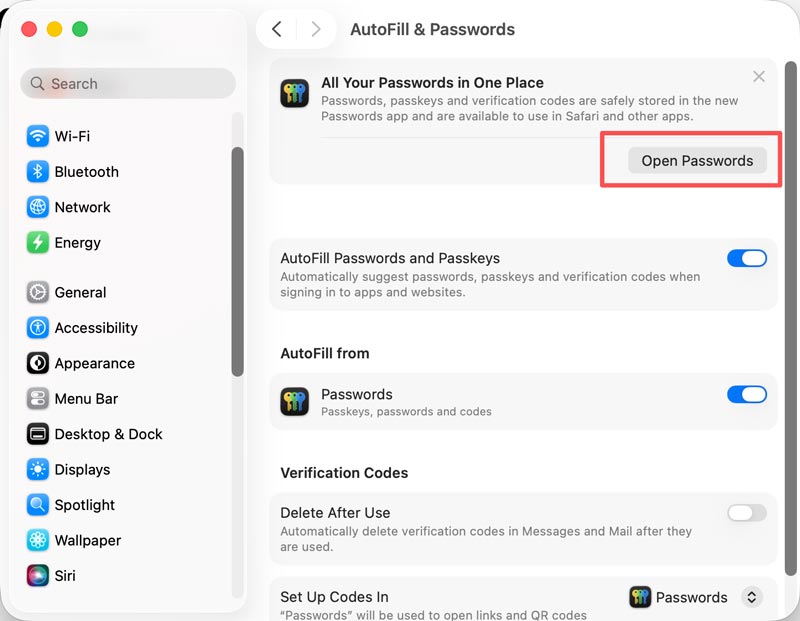
You are required to enter your Mac passcode to move on. After that, you can view all your saved passwords on Safari. Click any entry to see the password, copy it, or delete it.
You may notice that all your passwords created and saved on your Mac, iPad, and iPhone will be accessed and edited in the Passwords app. So, when you want to view a saved passcode, you can directly open the app.
You May Also Need:
Can I see saved passwords on Safari on my iPhone without a passcode?
No. As you can see from above, once you enter the Passwords app or want to display the password list, you are required to verify your authentication. Whether you check saved passwords on an iPhone, iPad, or Mac, you need to proceed with biometric or passcode authentication. If you forget your device passcode, you cannot access the password list.
Will saved passwords on iPhone be synced to Mac?
Yes, they will sync across all your Apple devices signed with the same Apple ID. By default, iCloud Keychain is enabled on your iPhone and Mac to ensure that happens. It can securely sync passwords, passkeys, credit card details, and other information across all your devices.
Where do saved passwords go when I delete the Safari app?
In most cases, deleting Safari does not affect or remove passwords stored in iCloud Keychain. All your saved passwords will stay in the Passwords app. You can still check and edit them from any linked Apple devices.
Conclusion
This post shares six methods to find saved passwords on Safari. Whether you want to check them on your iPhone or Mac, you can navigate to the Passwords app. iCloud Keychain is the key to syncing stored passcodes across all your Apple devices automatically. If you often need to export, search across hundreds of entries, or manage passwords from a computer, the introduced iPhone Password Manager is an ideal choice.
 Everything You Should Know about Safari Password Manager in One Place
If you are looking for a guide to learn how to use Safari password manager on your iPhone or Mac, you are lucky since you can learn it in the single article.
 How Do I See iCloud Keychain Passwords on iPhone, iPad, and Mac
If you need to use a password on another device, how do you see iCloud Keychain passwords on iOS devices? Here is the ultimate guide.
 Concrete Guide to Manage Passwords on iPhone and iPad for Beginners
This tutorial shows you the easiest ways to find, view, edit, and manage saved passwords on iPhone and iPad without losing data.
 Leave your comment and join our discussion
iPhone Password Manager is a great tool to find all passwords and accounts saved on your iPhone. It also can export and back up your passwords.
100% Secure. No Ads.
100% Secure. No Ads.

*Required field
*Please enter a valid email

