Contents
A cracked Samsung phone screen can quickly turn into a nightmare, especially when the display goes completely black, and all your important data becomes inaccessible. Many Samsung users have faced this frustrating situation after accidents or sudden damage, only to realise that photos, contacts, messages, and other valuable files are trapped inside the device. Situations like these can be frustrating, especially when recovering personal data is more challenging than changing the hardware or buying a new phone. A shattered screen that does not allow you to access your device does not necessarily imply that your data is lost forever, however. In this tutorial, we intend to help you understand various reliable ways through which you can perform Samsung broken screen data recovery, thus enabling you to retrieve the data that you deem essential even when the device is out of use.
| Tool / Method | Best For | Requires Backup | Data Loss Risk | Difficulty | Supported Android / Samsung |
| Aiseesoft Free Android Data Recovery | Black screen, cracked display, unresponsive touch | No | No (read-only recovery) | Easy | Android 10–14, Galaxy S21–S24, A series, Note series |
| USB Mouse (OTG USB Connector) | Screen is visible, but touch is not working | No | No | Easy | Android 8–14 (OTG supported models) |
| Screen Mirroring (TV/Monitor via HDMI or Smart View) | Partial screen visibility | No | No | Medium | Android 9–14 (Smart View supported devices) |
| Google Backup Restore | Device inaccessible, but Google backup enabled | Yes | No | Easy | Android 10–14 |
| Samsung Cloud Backup | Samsung account backup available | Yes | No | Easy | One UI 4–6 (Galaxy S, A, Z series) |
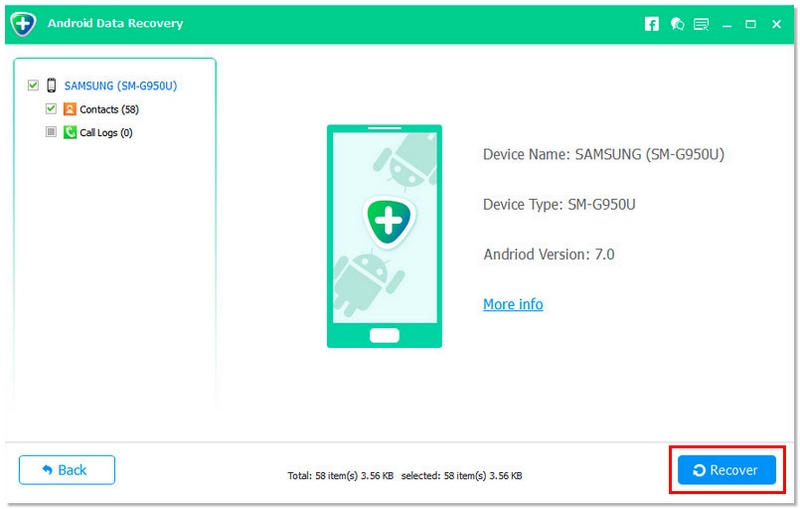
When your Samsung screen is cracked or completely black, accessing your data directly from the phone becomes almost impossible. Instead of replacing the screen immediately, you can use Aiseesoft Free Android Data Recovery to extract important files safely. This tool is designed for broken Samsung data recovery, allowing you to retrieve contacts, messages, photos, and more, even when the touchscreen is unresponsive. It supports modern Samsung devices, including Galaxy S21–S24, A series, Note series, and devices running Android 10–14 / One UI 4–6.
115,011 Downloads
Aiseesoft Free Android Data Recovery
 100% Secure. No Ads.
100% Secure. No Ads.
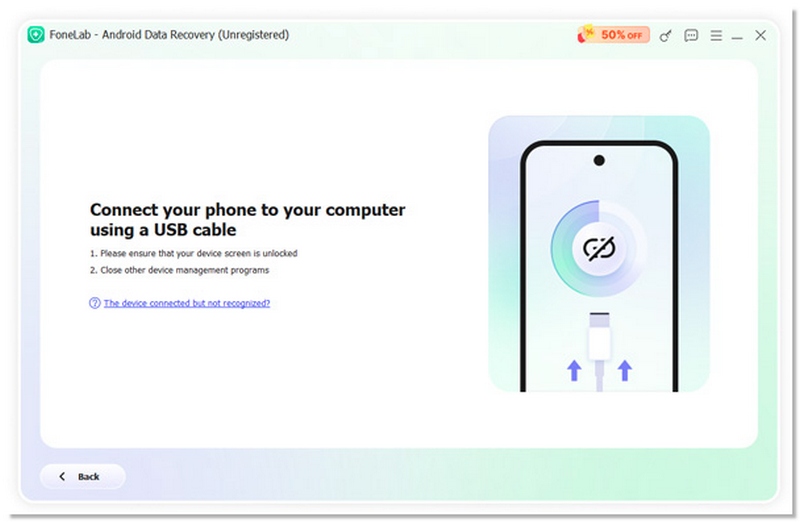
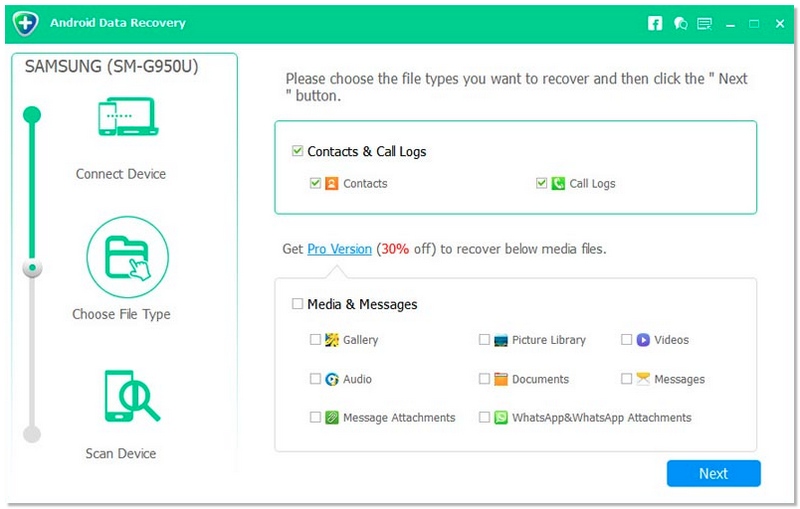
Steps to Recover Data from a Broken Samsung Screen
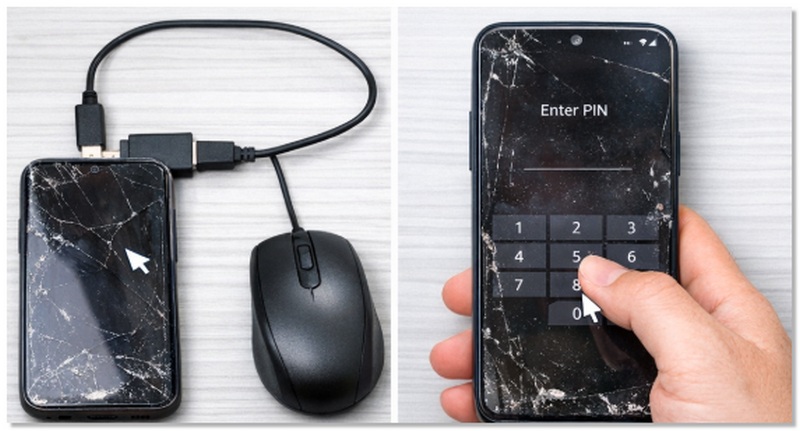
If your Samsung screen is cracked but still displays content and the touch function isn’t working, you can use a USB mouse with an OTG adapter to operate the phone and recover data. This is a practical solution to remove password from Samsung phone that has a broken screen when the device powers on and recover your data.
Pros
Cons
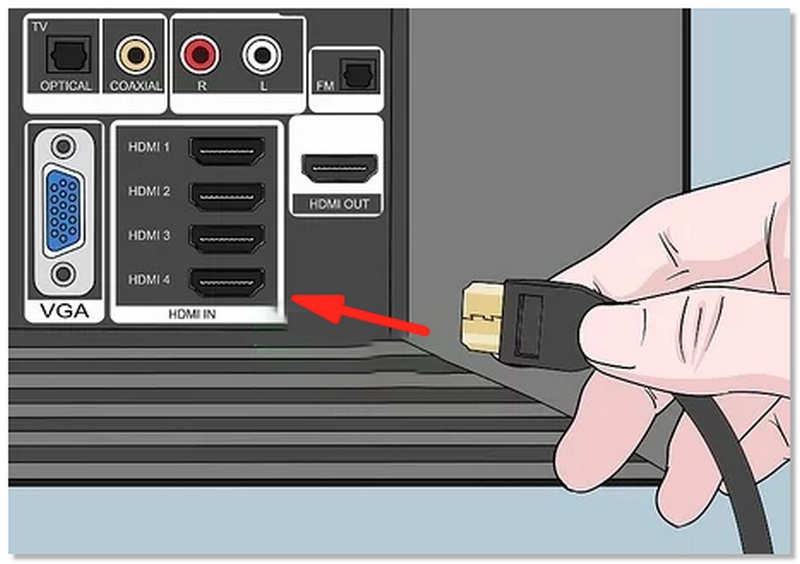
If your Samsung screen is too damaged to use, you can mirror it to a TV or monitor to access your data. This method is suitable when the display is black or unresponsive, but the phone itself still works. It allows you to navigate and copy files without touching the broken screen.
Pros
Cons
If your Samsung phone’s screen is broken but you previously enabled Google Backup, you can restore your contacts, photos, and other data to a new device or after repairing your current phone. This method works even if the screen is unusable, provided your data was backed up.
Pros
Cons
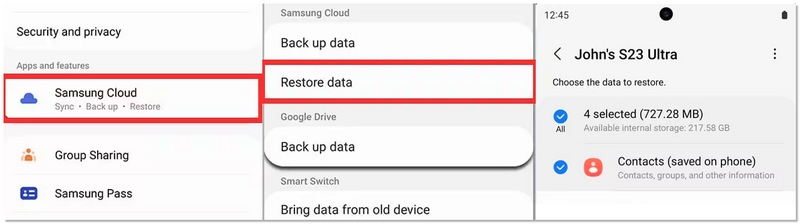
If you previously enabled Samsung Cloud backup, you can restore your important data even if your Samsung tablet won’t turn on for its broken screen. This method works best when switching to a new Samsung device or after repairing your current phone. It’s an effective solution for Samsung recover data from broken screen cases where cloud backup was activated beforehand.
Pros
Cons
Will data recovery from a damaged screen be possible if I root my Samsung phone?
Rooting is not recommended unless you are an advanced user. It may void the warranty and overwrite existing data, making recovery more difficult.
Can I recover WhatsApp or social media messages from a broken Samsung phone?
Yes, if the apps were backed up to Google Drive, Samsung Cloud, or other cloud services, you can restore your chats on another device.
Can I recover data from a water-damaged Samsung phone with a cracked screen?
Yes, but recovery success depends on the internal components. Using professional recovery software or hardware repair may be necessary before retrieving files.
Conclusion
Through this piece, readers will be able to figure out several methods for getting back important information from a Samsung phone that has a cracked screen. The article will help them make a decision regarding which method suits their device’s situation, whether they have a backup, and what kind of data they want to recover. They can select a professional broken Samsung data recovery tool, an OTG USB mouse, a display screen mirroring to a monitor or TV, or retrieve from a cloud backup, thus gaining assurance and confidence in their action to save contacts, pictures, messages, and other files. Besides, the guide points out that even from physically damaged devices, data can be recovered safely and efficiently.
 Samsung Smart Switch: Transfer Data With Ease
What is Samsung Smart Switch? How to use Samsung Smart Switch? Samsung Smart Switch is not working when you use it to transfer data? Read this article.
 Samsung Backup: Backup Samsung Galaxy S Series to Cloud
Want to back up your Samsung Galaxy S3/S4/S6/S7/S8/S9/S10/S20 but have no idea? Read this article and learn some useful ways to backup Samsung to Cloud or computer.
 How to Restore Contacts on Samsung If Contacts Deleted/Lost
This page tells 4 ways to recover the deleted/lost contacts on Samsung Galaxy S23 Ultra/Galaxy Z Fold 4/Flip 4, etc. after factory reset with(out) backup.
 Leave your comment and join our discussion
Samsung Data Recovery
1.1 Samsung Data Recovery 1.2 Samsung Photo Recovery 1.3 Samsung Contacts Recovery 1.4 Samsung Account Recovery 1.5 Cracked Screen Samsung Data Recovery
The best Android Data Recovery software to recover deleted files like SMS, contacts, call logs, documents, etc. from Android phone/SD card/tablet on Windows/Mac.
100% Secure. No Ads.
100% Secure. No Ads.

*Required field
*Please enter a valid email

