A broken Android phone can happen unexpectedly. Your phone may fall and get a cracked screen, become unresponsive because of system errors, or fail to unlock because of a forgotten password. If your Android phone contains important conversations from work, family, or personal life, you may wonder whether you can recover messages from a broken Android phone.
The answer depends on your phone condition and whether the data is still available. In this guide, we will show you how to recover text messages from a broken Android phone, including cracked-screen phones, locked devices, and Android phones with system problems.
You may need to recover messages from a broken Android phone in the following situations:
Different phone conditions require different recovery methods. Choose the solution that matches your situation.
If you enabled Google Backup before your Android phone was damaged, you may be able to restore your messages and other device data. Google Backup can save certain information, including MS messages. Contacts, app data, device settings, etc. To restore messages from Google Backup:
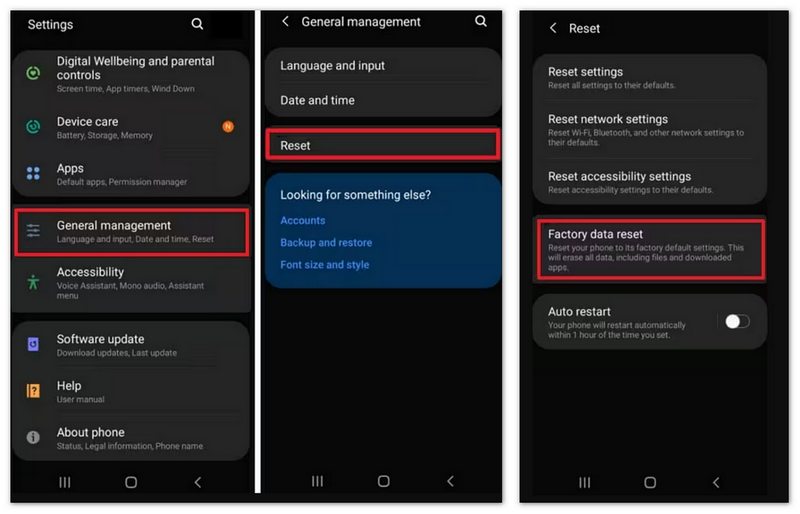
Note: A factory reset removes current data from your device. Make sure you have a valid Google Backup before continuing.
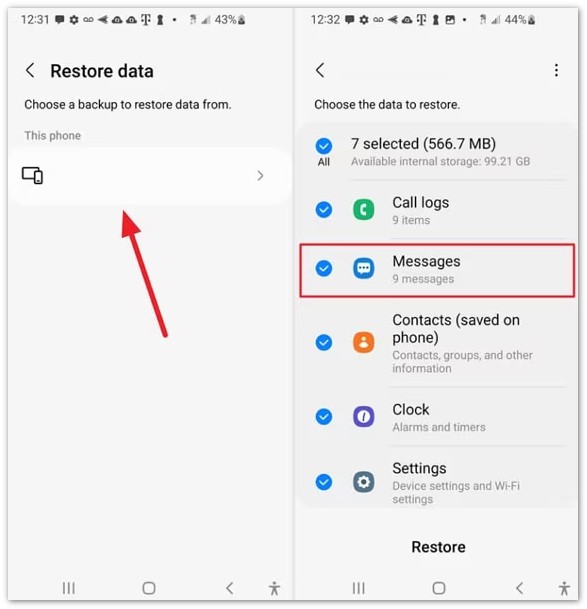
However, this method only works if your messages were backed up before your phone was damaged. Messages that were not included in the backup cannot be restored through this method.
Some older Android phones allow text messages to be stored on a SIM card. If your broken phone cannot be operated but the SIM card is still available, you can try checking whether your messages are saved there. To check SIM card messages:
Keep in mind that most modern Android phones store messages in internal storage instead of the SIM card, so this method may not work for all devices.
If your Android phone still turns on but the screen is cracked or the touchscreen does not work, you may be able to access your messages using other methods.
Use an OTG Adapter and Mouse:
This method only works if the display is still visible and the phone supports OTG.
Use Screen Mirroring Tools:
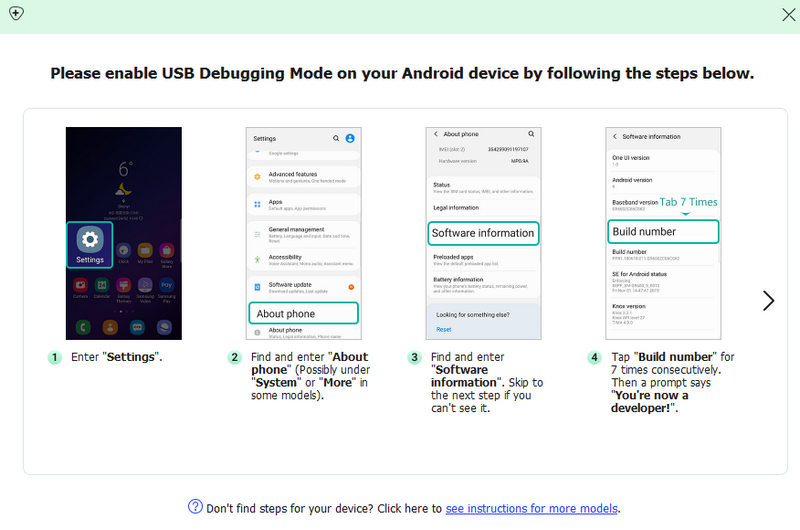
If USB debugging was enabled before your screen broke, you may be able to control your Android phone from a computer through Android screen mirroring.
After accessing your phone, you can back up your messages and other important data.
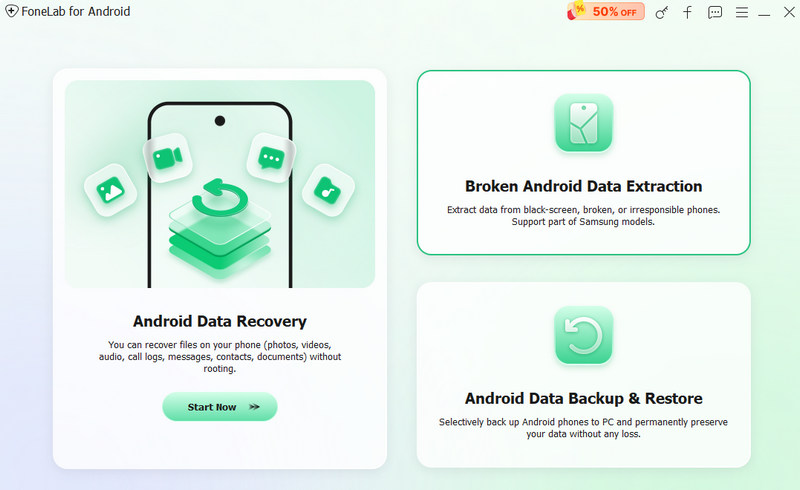
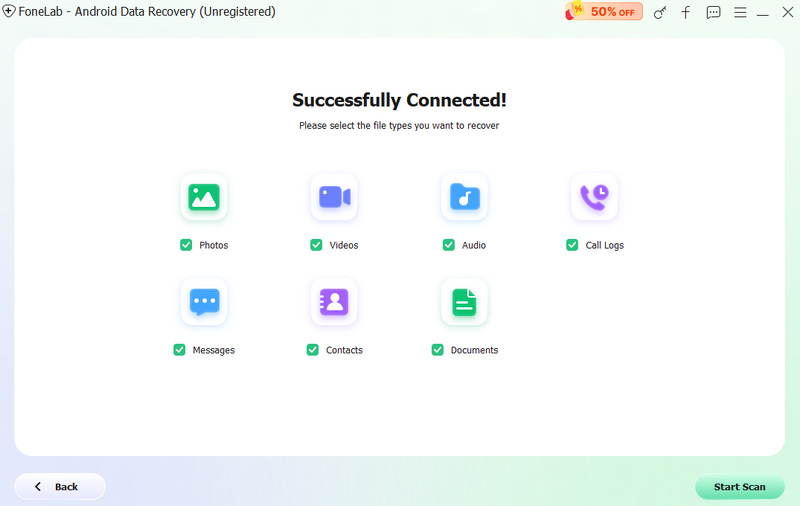
If your Android phone has a cracked screen, cannot respond to touch, is locked, or has system problems, accessing messages manually may not be possible. In this situation, you can try Aiseesoft Android Data Recovery to scan your device and extract available messages. The tool can help recover text messages, contacts, call logs, photos, videos, and audio files, WhatsApp data, message attachments, etc.
 100% Secure. No Ads.
100% Secure. No Ads.
How do I recover messages from a cracked Samsung phone?
If your Samsung phone has a cracked screen but still works, you can try using an OTG mouse, backup services, or Android data recovery software to access and save your messages.
Can I recover messages from a locked Android phone?
It depends on the phone condition and security settings. If you cannot unlock your Android phone because of a damaged screen or forgotten password, a supported Android recovery tool may help extract available data from your device.
How can I recover messages from an Android phone that won't turn on?
If your Android phone cannot turn on, first check the charger, battery, and power connection. If the device has hardware damage or serious system problems, you may need professional repair or a data recovery solution to access your stored messages.
Conclusion
A broken Android phone does not always mean your important messages are lost. Whether your device has a cracked screen, frozen system, forgotten password, or other problems, you can try different methods to recover text messages.
If your phone can still be accessed, backup solutions or external control methods may help you save your messages. For phones that cannot respond because of screen damage or system issues, Aiseesoft Android Data Recovery provides a convenient way to scan and extract available messages and other important files.
By choosing the right recovery method and acting quickly, you can increase the chance of retrieving valuable conversations from your broken Android phone.
100% Secure. No Ads.
100% Secure. No Ads.
 How to Recover Android Data after Factory Reset
Losing everything after factory reset your Android phone? Recover the lost data right now.
 Phone Broken Screen? Fix It and Access Data from Cracked Phone Screen
Phone broken screen? Fix the screen and get the solutions to recover data from the cracked screen by yourself.
 Locked iPhone: How to Back up iPhone with Three Steps
How to back up iPhone even though it is locked? This article introduces the best way for backing up iPhone.
 Leave your comment and join our discussion
The best Android Data Recovery software to recover deleted files like SMS, contacts, call logs, documents, etc. from Android phone/SD card/tablet on Windows/Mac.
100% Secure. No Ads.
100% Secure. No Ads.

*Required field
*Please enter a valid email

