
Best for: Users who have a well-organized music library and want the entire collection synced to their iPhone.
You may have collected thousands of songs and created many playlists on your Mac over the years. It’s common to transfer some of them to your iPhone, iPad, or iPod for offline listening. However, you may find it complicated to transfer music from Mac to iPhone, especially when you prefer direct transfers without losing your current library.
Whether you want to move your cherished old MP3 songs, downloaded podcasts, or self-made soundtracks, there are several ways to get the job done. This guide shares 3 reliable methods to help you copy your favorite music from your Mac to your iPhone. You can compare them and choose the one that best fits your situation.
Best for: Users who have a well-organized music library and want the entire collection synced to their iPhone.
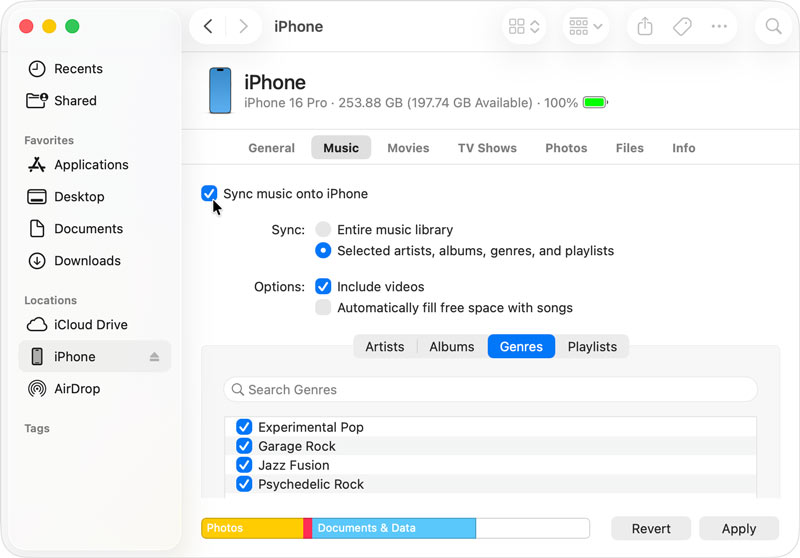
If your Mac runs macOS Catalina or later, you can use Finder to sync all types of files, such as songs, podcasts, TV shows, photos, videos, and more. Since macOS Catalina, Apple has replaced iTunes with Finder to manage your data.
Before you begin, you should know that Finder sync replaces the music content on your iPhone with new content. If you have songs on your iPhone that did not come from your Mac library, a sync will remove them.
You May Also Need:
Best for: Users who need to selectively add specific songs or albums without wiping the existing content on their iPhone.
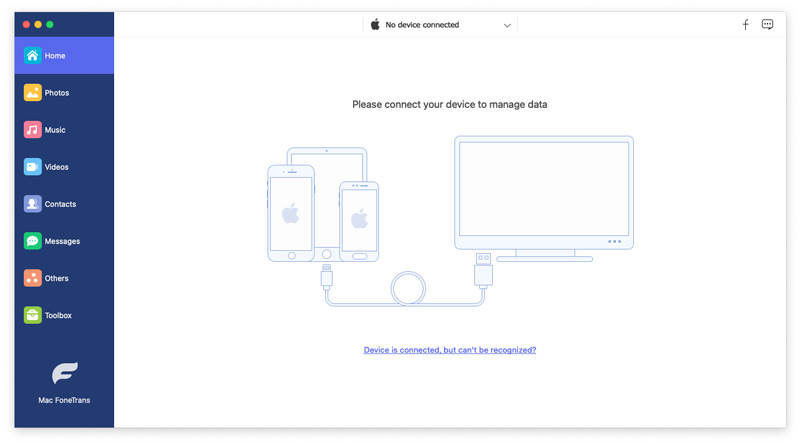
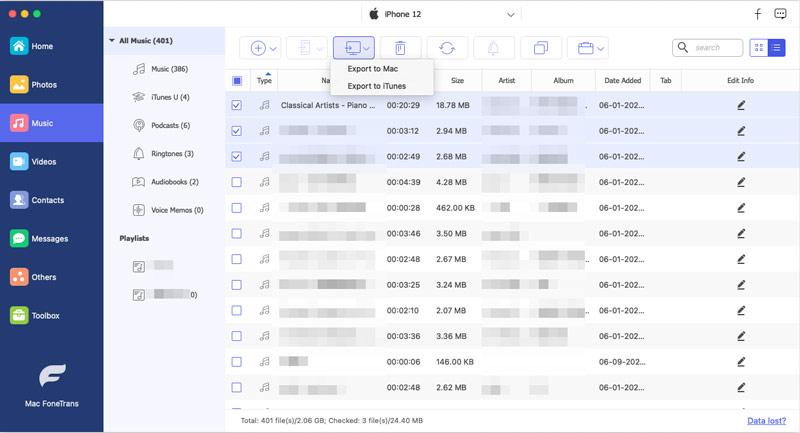
As you can learn from above, like iTunes, Finder will erase the existing songs on your iPhone during the sync. If you have music from multiple sources, or you want to add songs directly from your Mac to your iPhone without syncing, try a dedicated transfer tool like Aiseesoft Mac FoneTrans. FoneTrans is a reputable data transfer and management utility that treats your iPhone like an external drive. It lets you add music without wiping the current data.
 100% Secure. No Ads.
100% Secure. No Ads.
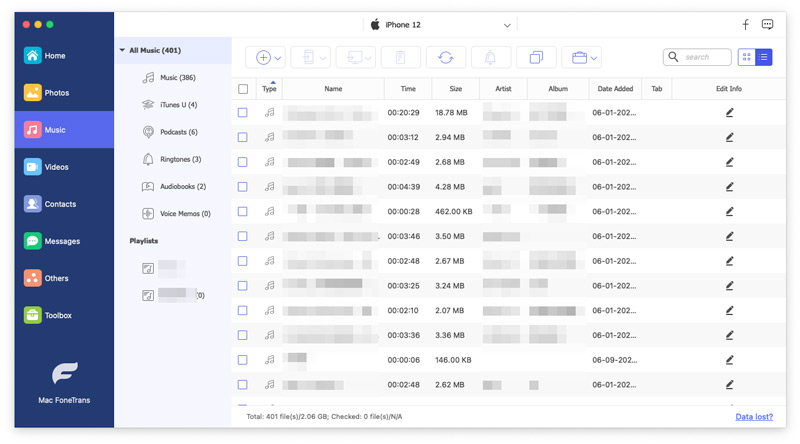
If you want to copy songs from your iPhone to your Mac, select the target music files and then click the Export To button. Select Export to Mac and confirm your action.
Best for: Apple Music users who want their purchased songs synced automatically.
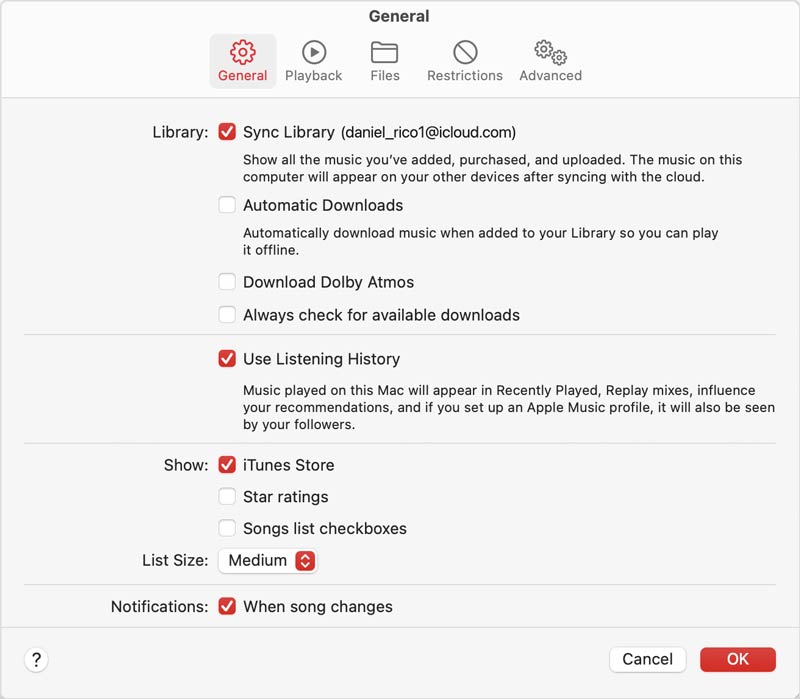
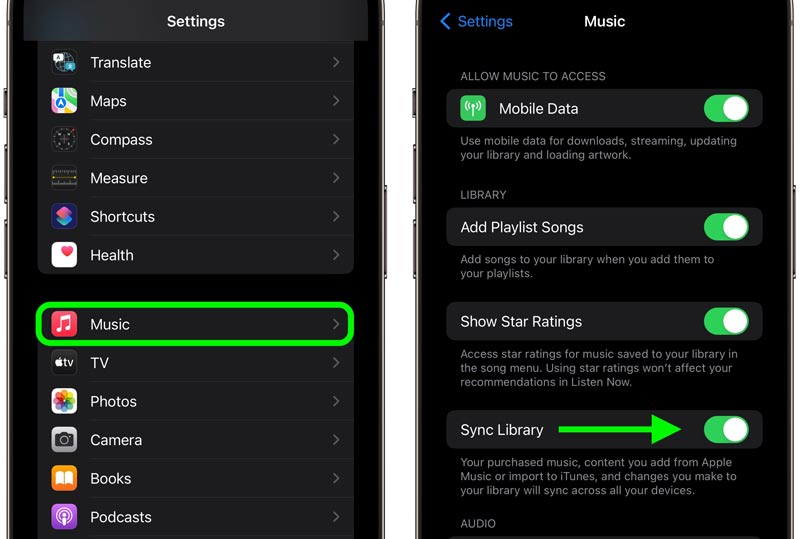
If you subscribe to Apple Music, there is a third path that operates wirelessly and requires no cable at all. The iCloud Music Library (now called Sync Library) matches your Mac’s music collection and makes those tracks available on your iPhone and other linked devices.
Question 1. Can I transfer music from my Mac to my iPhone with AirDrop?
Yes, you can easily copy music from your Mac to your iPhone using AirDrop. It can be an ideal tool for transferring one or several audio files quickly. Select the music you want to transfer, right-click on it and choose Share. Select AirDrop from the submenu and then set your iPhone as the target device.
Question 2. What is the easiest way to transfer music from Mac to iPhone without syncing?
AirDrop is the fastest way to transfer one or several songs, as long as two devices are close to each other. For larger libraries, a direct transfer tool like Mac FoneTrans is more efficient.
Question 3. Why doesn’t my iPhone show up in Finder?
You can switch to a different cable or port and try connecting again. Besides, ensure your Mac runs macOS Catalina or later. If your Mac still fails to detect your iPhone, try restarting both your Mac and iPhone. To build the connection, you should unlock your phone and tap “Trust This Computer”.
Conclusion
This post tells three methods for you to transfer music from your Mac to your iPhone. If you already subscribed to Apple Music, you can sync your songs through Sync Library. For a robust local backup, you can use the official Finder sync method. If you prefer to add new music files directly from your Mac to your iPhone without erasing existing songs, a dedicated tool like Aiseesoft Mac FoneTrans is a great choice.
 Learn 3 Easy Ways to Transfer Music from iTunes to iPhone
Can I transfer songs from iTunes to iPhone without a cable? How do you download and sync iTunes music to an iPhone? Learn to transfer music from iTunes to iPhone.
 Top 5 iPhone to Mac Transfers for iOS Data Migration Quickly
Cannot use iTunes to back up iPhone anymore? This article identifies and shares top 5 best apps to transfer data from iPhone to Mac or vice versa easily.
 4 Ways to Transfer Music from Android to iPhone
Learn how to transfer music from Android to iPhone with or without a computer. Compare iTunes, FoneEase, Google Drive, and File Explorer.
 Leave your comment and join our discussion
Transfer data from iPhone/iPad/iPod to your computer or reversely.
100% Secure. No Ads.
100% Secure. No Ads.

*Required field
*Please enter a valid email
