You can easily sync all types of data, including videos, from one iOS device to another. But when it comes to sending videos from Android to iPhone, it can be a bit difficult. How to transfer videos from Android to iPhone?
Various documents and even photos can be easily sent via email to others because of their small file sizes. However, you can't rely on Bluetooth or email to share videos between Android and iOS devices. After switching from Android to iPhone, you have to find other ways to transfer videos. In this post, we will show you 5 effective ways to transfer videos from Android to iPhone.
First, we’d like to show you an easy and direct way to transfer Android videos to iPhone. Here, we strongly recommend the professional iOS and Android data transfer – FoneEase. It can help you directly preview and move multiple videos from Android to iPhone.
Downloads
 100% Secure. No Ads.
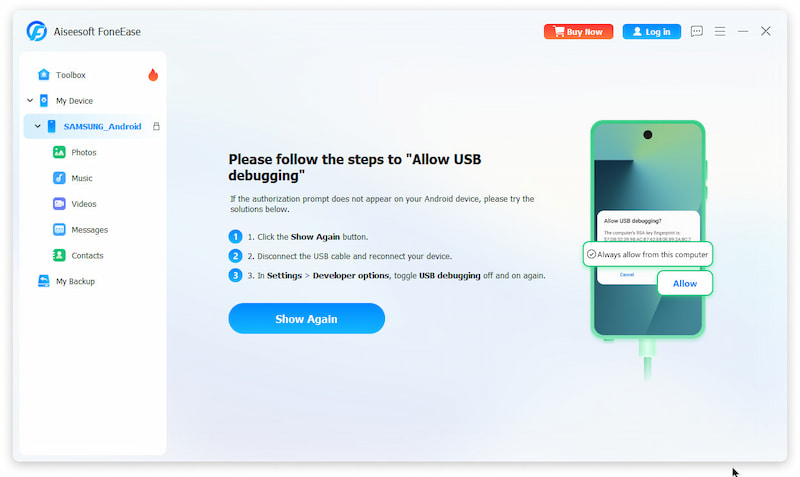
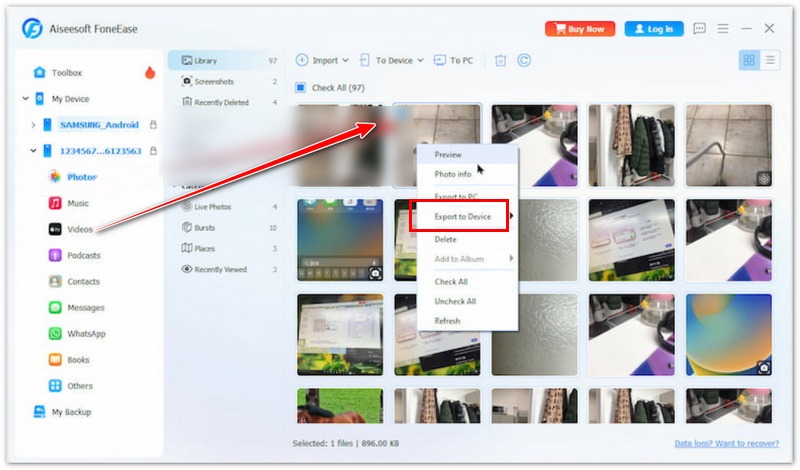
In addition to videos, you can rely on FoneEase to transfer Android music to iPhone, add files from a computer to Android/iOS devices, and copy iPhone data to Android with ease. You can download it to transfer and manage various data more effectively on your portable devices.
Move to iOS is a popular app which mainly designed to transfer all kinds of data including videos from Android to iPhone. You can take the following guide to copy your Android videos to iPhone with the Move to iOS app.
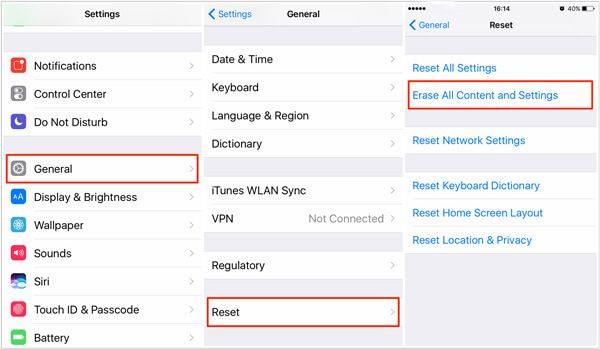
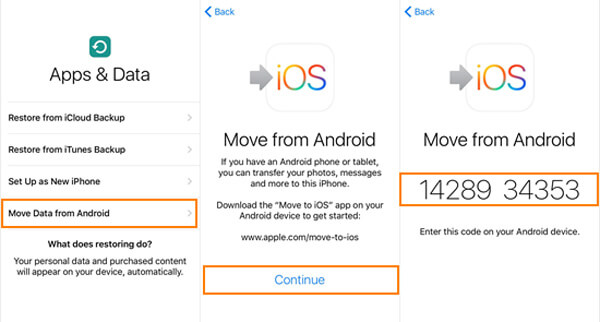
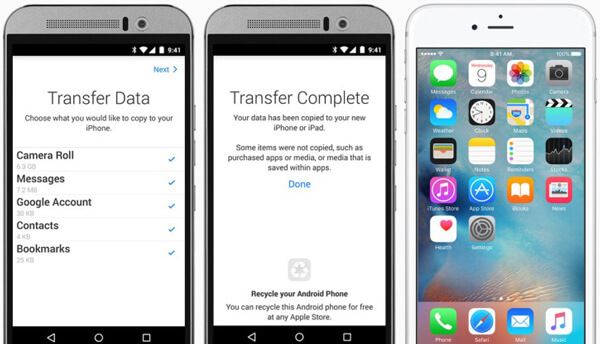
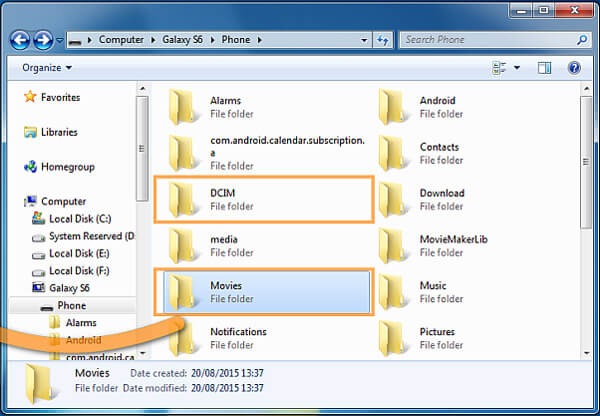
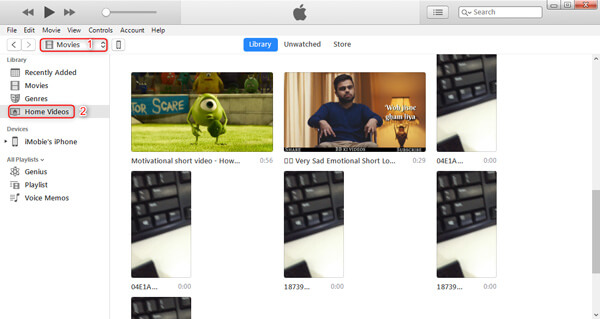
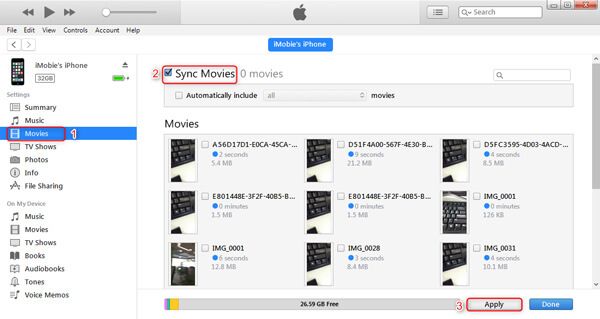
In fact, you can easily sync videos from your computer to your iPhone with iTunes (Windows/macOS Mojave or earlier) or Finder (macOS Catalina or later). And you can easily copy Android videos to your computer with a USB cable. Follow the steps below to send videos from Android to iPhone. Take iTunes as an example.
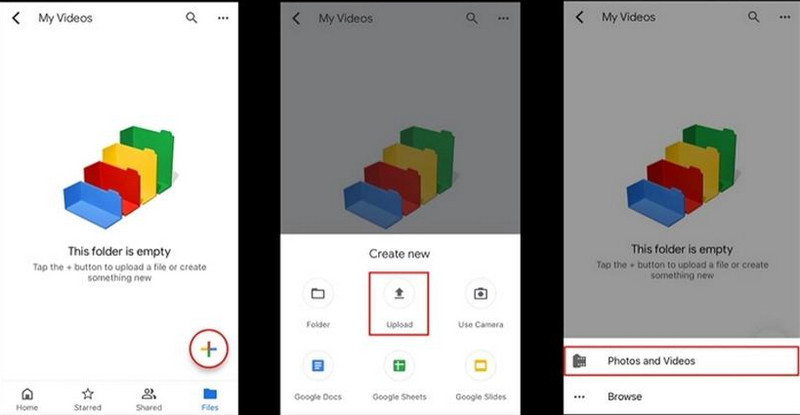
Using Google Drive is also an easy way. Just log in with one account, and don't need to connect devices. You can access them anytime. However, this method will consume a long time, and Google Drive offers limited free storage space.
If you only transfer a small number of videos, you can also try popular messaging apps like WhatsApp and Telegram. They are easy to use; you just send your videos as in the daily chat. But you need to know first that your videos may be compressed and lose some quality. Plus, there are size limitations in these applications.
What is the easiest way to transfer videos from Android to iPhone?
The easiest way is to use Move to iOS, Apple’s official tool. It allows you to wirelessly transfer videos during iPhone setup without needing a computer. If your iPhone is already set up, apps like FoneEase provide a quick alternative.
Can I transfer videos from Android to iPhone without losing quality?
Yes, it is possible to transfer videos without loss of quality using methods such as USB via iTunes or Finder, as well as professional software such as FoneEase. As regards quality, it is better to avoid transferring files via messaging applications such as WhatsApp, as they tend to compress video files.
Can I send videos from Android to iPhone via Bluetooth?
Using Bluetooth to transfer videos from Android to iPhone is ineffective due to compatibility issues and very low transfer speeds. Therefore, you should use other means such as USB or Wi-Fi transfer tools such as iTunes/Finder or FoneEase.
Why are my videos not playing on iPhone after transfer?
It often happens because videos may be transferred in incompatible formats. For example, an iPhone can play videos encoded in MP4 with H.264/H.265 codecs. You can convert your video’s format to MP4.
Conclusion
After reading this post, you can get 5 simple ways to transfer videos from Android to iPhone. If your iPhone is new, using Move to iOS is the best choice. If you frequently copy videos in batches, we recommend downloading FoneEase to quickly transfer your Android videos and other data to an iOS device.
 5 Best iPhone to Android Transfer Reviews in 2025
What is the best iPhone to Android transfer software? Is there any simple way to directly transfer various iOS data like contacts, messages, music, videos, etc. to Android phone? 5 best iPhone to Android transfer apps are offered here to help you manage your iOS/Android files.
 6 Ways to Transfer iPhone Videos to PC (Win 11/10 Included)
Learn how to transfer videos from iPhone to PC easily. This guide covers the best ways to import videos from iPhone 17 to iPhone 4.
 How to Transfer Photos between iPhone and Android
iPhone and Android transfer software allows you to move photos and other data easily between your iPhone SE/6s Plus/6 plus/6s/6/5s and Android phones of different brands, such as HTC, Samsung, Blackberry, LG, etc.
 Leave your comment and join our discussion
Aiseesoft FoneEase is a data transfer and management tool that lets you seamlessly move, back up, and manage various data between iOS, Android, and computers without resetting your phone or relying on iTunes.
100% Secure. No Ads.

*Required field
*Please enter a valid email

