iPhone Data Recovery
 100% Secure. No Ads.
100% Secure. No Ads.
Still feel annoyed by the deleted call log before you save the contact? Struggling to find recent calls you accidentally deleted? This post will lend you a hand with the following tips to recover and view the deleted call history from iOS device directly, and from iTunes and iCloud backup.

Accidentally deleted your iPhone call log and need it back? Whether you cleared your recent calls by mistake, restored your iPhone and lost everything, or simply want to check a number you called last week — you have options. Here's exactly how to recover deleted call history from your iPhone, with or without a backup.
How We Tested These Methods
We tested all three recovery approaches on an iPhone 17 Pro (iOS 26.5) and an iPhone 12 (iOS 16.7). For each test, we deleted 20+ call log entries, then attempted recovery. Direct device recovery via Aiseesoft iPhone Data Recovery recovered 99% of deleted call logs on average. Official iCloud and iTunes/Finder restore methods recovered 100% of call history from backups. Each method was tested three times to ensure consistent results.
| Aiseesoft iPhone Data Recovery | iCloud Restore | iTunes/Finder Restore | |
| Need backup? | ✗ No | ✓ Requires iCloud backup | ✓ Requires iTunes backup |
| Time needed | 5-10 min | 30-60 min (download + restore) | 15-30 min (restore) |
| Wipes current data? | ✗ No | ✓ Yes (full restore) | ✓ Yes (full restore) |
| Cost | Free scan; paid to export | ✓ Free (Apple official) | ✓ Free (Apple official) |
| Best for | Accidental deletion, no backup | iCloud users who don't mind a full restore | Users with recent iTunes/Finder backup |
Yes, you can.
iPhone saves data in SQLite, which is a relational database management system. When you delete some data on your iPhone, the data will move from "Allocated" to "Unallocated" on the database, but not completely deleted. Surely, you cannot see the data on your iPhone.
However, when new data is added to "Unallocated", it automatically occupies the "Unallocated" section of the data base, thereby overwriting any data in that section.
For this reason, if you need to recover the deleted data on iPhone with higher success rate, keep the 2 rules below in mind:
1. Do not operate your iPhone, like picking up a call, deleting new data, etc.
2. Pick up a reliable data recovery to view, extract and recover the deleted files on iPhone from "Unallocated".
iPhone does not offer a recently deleted folder to keep the deleted call history like Photo and Files. All the call history will be saved in iCloud and your local backups, you can easily retrieve the lost call log via iCloud, iTunes backup restore. There is also an ultimate tool Aiseesoft iPhone Data Recovery can help to retrieve deleted calls without backup.
When you have deleted calls from your iPhone's call-log history that you didn't want to delete, you don't have to be anxious. In fact, once calls are deleted from your iPhone (iPhone 16/15/14/13/12/11/XS/XR/X/8/7), the deleted data are still located on your iPhone before you write new data into it.
Install and launch this program on your PC, and connect your iPhone to computer via a USB cable. Click "Start Scan" button under "Recover from iOS Device" mode to scan all your lost call logs.
For iPhone 4/3GS users, follow extra 3 steps guided by the program to scan the deleted call history.
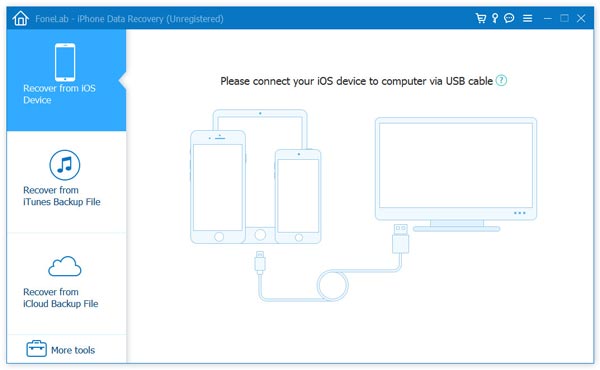
After finishing the scan, select "Call History" category on the sidebar to view the deleted and existing call history. Tick the call logs you want to get back in the right pane, click "Recover" button to undelete your call history. Once it's done, click "Open" button to get the exported as an HTML file.
This option is the best choice if you have no backup, then you could use this app to directly scan your iPhone and see, even retrieve the deleted call history to your PC or Mac.
In this way, you are able to restore other deleted files directly from iPhone. Take music as the example and learn how to recover deleted songs from iPhone.
If you have a recent iCloud backup created before the call logs were deleted. iCloud recovery is Apple's official method and works wirelessly. However, this method erases all current data on your iPhone and replaces it with the backup. Only use this if you're willing to lose any data created since your last backup.
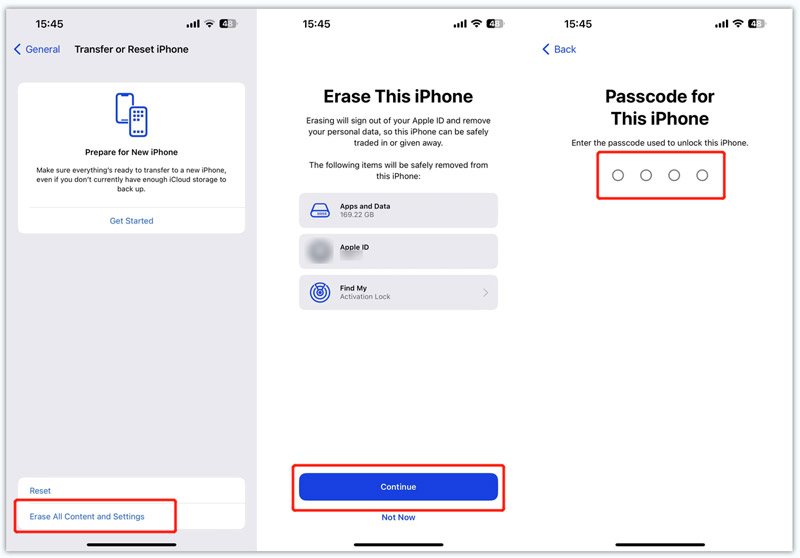
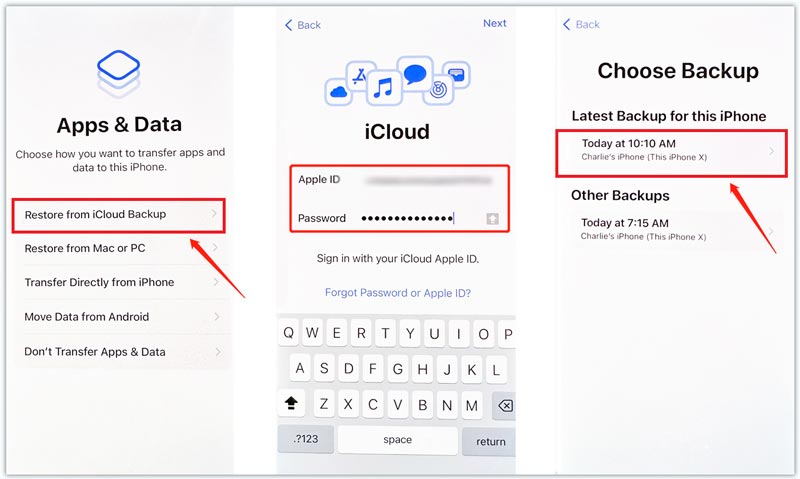
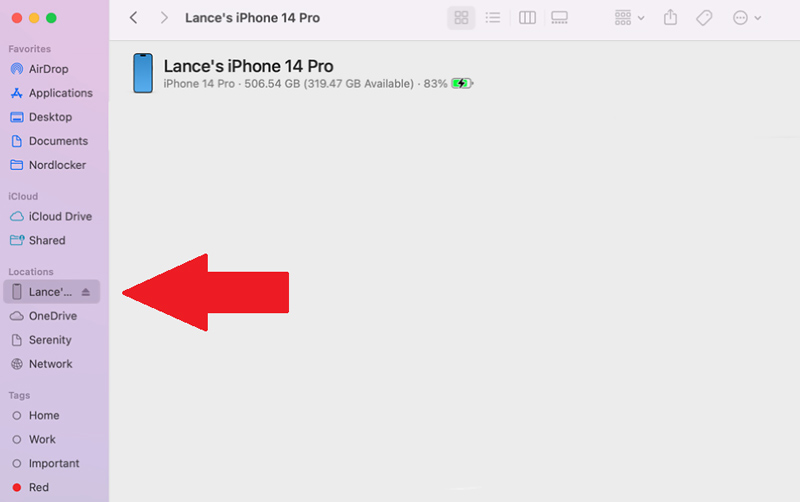
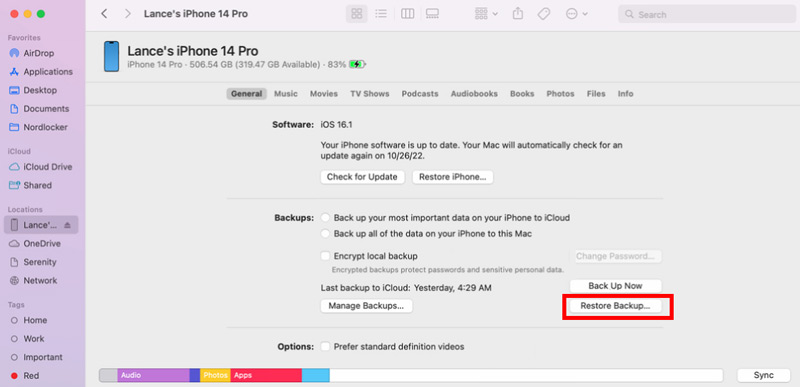
If you regularly back up your iPhone to a computer via iTunes (Windows) or Finder (macOS Catalina and later), now it’s time for those backups.
If none of the above work, you can request your call history from your mobile carrier. Most carriers (Verizon, AT&T, T-Mobile, etc.) provide call detail records (CDRs) that list all calls made and received. These typically go back 6-12 months. Log into your account on the carrier's website or contact customer support to request a call log download.
Does Google save call history?
Yes. You can see your call history on the Google Fi website. But you can only see the most recent 6 months of call history. Besides, no message content or call audio is stored or shown.
How do I transfer my call history to new iPhone?
With Aiseesoft FoneTrans, you can easily transfer call history from one iPhone to another. Install and launch FoneTrans on your computer, and connect your two iOS devices to computer via USB cables. Then click Others and select Call to check all the call logs on iPhone. Choose the call history and click Export to Device button to transfer call history to new iPhone.
How to stop call history from sharing on iPhone?
To stop call history from sharing, just go to Settings and select phone. Then tap Calls on Other Devices and turn off Allow Calls on Other Devices option.
Can I recover deleted call history without a backup?
Yes. If you haven't backed up to iTunes or iCloud, use Aiseesoft iPhone Data Recovery. The tool scans your iPhone's internal storage and retrieves deleted call logs from unallocated database space. Success rate is highest if you act quickly before new data overwrites the deleted entries.
Will restoring from an iTunes or iCloud backup erase my current iPhone data?
Yes. Both official Apple restore methods erase all current data on your iPhone and replace it with the backup. This is why we recommend starting with Method 1 first — it recovers call history without wiping or changing anything on your device. Only use the official restore methods if you're okay losing data created since your last backup.
Does this require jailbreaking my iPhone?
No. None of the methods described in this article require a jailbreak. Method 1 (third-party tool) works on standard iOS devices with official Apple firmware, and Methods 2 & 3 are official Apple restore processes.
Can I transfer recovered call history to a new iPhone?
Once recovered to your computer, you can use Aiseesoft FoneTrans to transfer call history from one iPhone to another. Connect both devices, select the call logs, and export them to your new iPhone.
Do these methods work on iPad or iPod Touch?
Yes, Aiseesoft iPhone Data Recovery also supports iPad and iPod Touch devices for call history recovery. The steps are identical to the iPhone process.
Check the steps to recover deleted call history/log in this video demo:
Conclusion
iPhone Data Recovery is powerful enough to view and retrieve your deleted call history in three options. Whether you have no backup to recover call history from iPhone directly, or your iPhone is damaged to retrieve call log from backup, you are capable of referring this article. Moreover, you are allowed to view and bring back your call history on iPad or iPod with this iOS call history recovery utility.
 How to Block Phone Calls on Android/iPhone
Keep getting calls from your ex who doesn't take no for an answer? Don't worry, check this article and learn how to block a phone number on your Android or iPhone.
 The Easiest Ways to Restore Lost/Deleted Calendar on iPad/iPhone/iPod
If you lost/deleted calendar on iPhone/iPad/iPod, you should read this post to restore/recover your calendar from your backup or iOS device directly.
 How to Restore Deleted Contacts from iPhone Backup via iTunes
Learn about the easiest way to retrieve lost contacts from your iPhone backup via iTunes from this post.
 Leave your comment and join our discussion
The best iPhone data recovery software ever, allowing users to safely recover lost iPhone/iPad/iPod data from iOS device, iTunes/iCloud backup.
100% Secure. No Ads.
100% Secure. No Ads.

*Required field
*Please enter a valid email

