Best Ways to Transfer Pictures Between Android Phones in Minutes
Getting a new Android phone can be very exciting. However, you may find that the hardest part is getting your lovely photos across. There are photos with family, ones that capture vacations, screenshots, and some that are just very important pictures. Leaving them behind or losing their quality when you transfer them is something nobody would want. The bright side of all this is that you may end up making it so simple for yourselves. If you've recently been questioning yourself, how can I transfer images from Android to Android in your mind, this is where you're likely to get the answer. The focus of this guide will be to provide you with a few simple and efficient ways that can help you transfer your photos, whether you're changing devices or sharing pictures with another person.
Comparison Table: Which Android Photo Transfer Method Should You Choose?
| Method |
Transfer Speed |
Internet Required |
Image Quality |
Best For |
Difficulty |
| Quick Share |
⭐⭐⭐⭐⭐ Very Fast |
No |
Original Quality |
Nearby Android devices with Quick Share support |
Easy |
| USB Cable (Android to Android) |
⭐⭐⭐⭐ Fast |
No |
Original Quality |
Direct device-to-device transfers using a compatible USB cable |
Moderate |
| Aiseesoft FoneEase |
⭐⭐⭐⭐⭐ Very Fast |
No |
Original Quality |
Bulk photo transfers, phone upgrades, and managing large photo libraries |
Very Easy |
| Google Photos |
⭐⭐⭐ Moderate (depends on internet speed) |
Yes |
Original Quality (if selected) |
Backing up and syncing photos across multiple Android devices |
Easy |
| Bluetooth |
⭐⭐ Slow |
No |
Original Quality |
Sending a small number of photos between nearby devices |
Easy |
Part 1. How to Transfer Pictures from Android to Android Using Quick Share
Quick Share is among the fastest and easiest ways to transfer data from Android to Android. As it's a feature built into most of the contemporary Android smartphones, there is no need for any additional apps to be installed or any cables to be connected. For those who have the problem of how to transfer images from Android to Android, the Quick Share application is ideal, as it allows you to share pictures wirelessly without reducing their original quality.
Best For
- Sending photos fast is now possible when you are using nearby Android devices.
- Sharing several pictures is possible even without using the device's data connection.
- Digital photos are transferred in the original state with no loss of quality.
- If you are looking for a sharing feature through the air without installing third-party apps, this might be the solution for you.
Step 1.
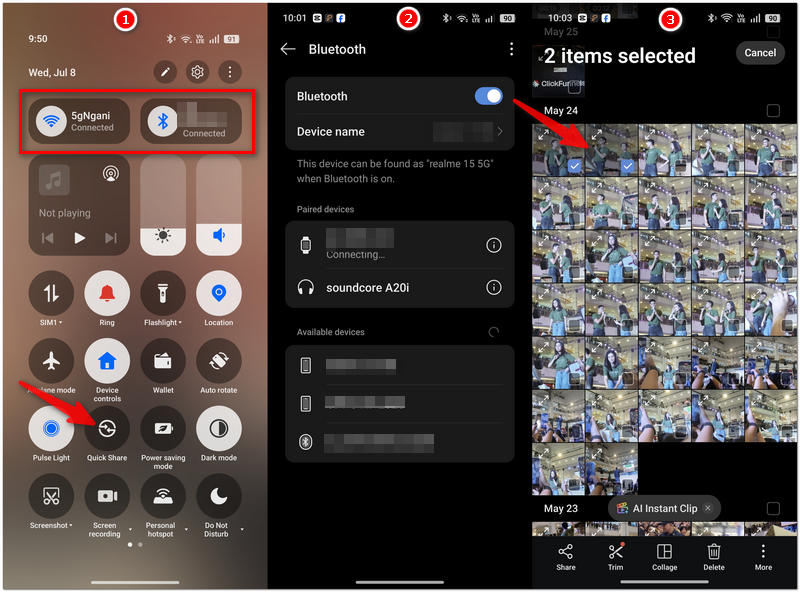
Activate the Quick Share option on your two Android devices. There are different ways to reach the Quick Share feature. You may access it from the Quick Settings panel or through Settings > Device Connect > Quick Share.
Step 2.
Enable both Bluetooth and Wi-Fi on the two smartphones. Hold them very close to each other.
Step 3.
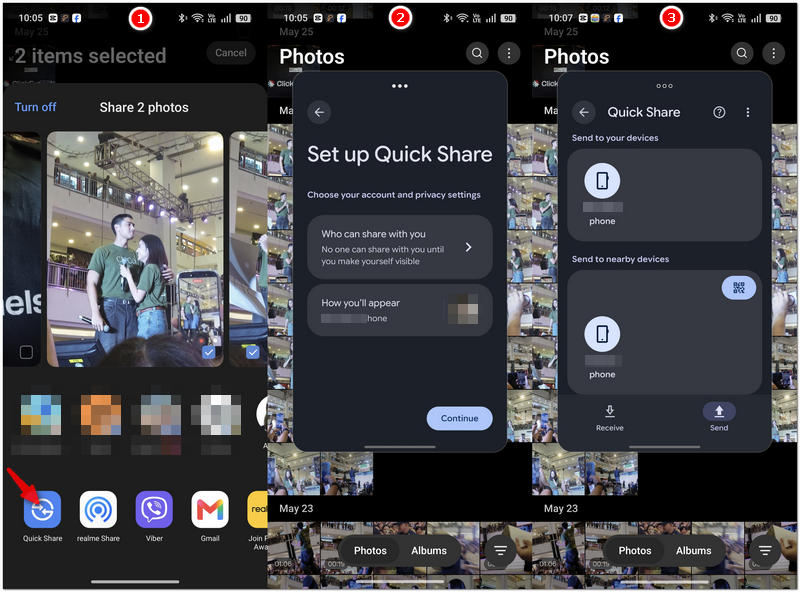
On your source phone running Android, tap on the Gallery or Photos app icon to launch it. Click on the photo or photos that you wish to share.
Step 4.
Click on the Share button and pick Quick Share as a sharing method from the list of options. Give a bit of time until the receiving Android phone shows up as a nearby device on the device listing on your phone.
Step 5.
Hit the recipient's phone on the receiving devices listing panel if you want to send that photo.
Step 6.
If you're on the phone that's going to receive a transfer, just tap the Accept button when the screen asks if you'd like to receive it. Allow the transfer to be completed. Photos will be automatically saved into the gallery on that recipient's mobile phone.
phone.
Part 2. Transfer Pictures from Android to Android with a USB Cable
By using a USB cable, you can have a fast and safe transfer of photos between two Android phones. It is an ideal solution if you want to transfer hundreds or maybe even thousands of pictures without any loss in quality. It does not even require an internet connection to be used.
Best For
- Transferring a lot of pictures fast.
- Moving images without mobile data or Wi-Fi.
- Preserving the original quality of photos.
- Users who favor reliable wired connections over wireless ones.
Step 1.
Join the two Android phones by plugging in the compatible USB-C to USB-C cable or OTG adapter if needed. Turn both locks off and screens on.
Step 2.
On the source phone, the device may prompt you about the USB connection. So click on the USB notification and choose File Transfer or MPT as appropriate.
Step 3.
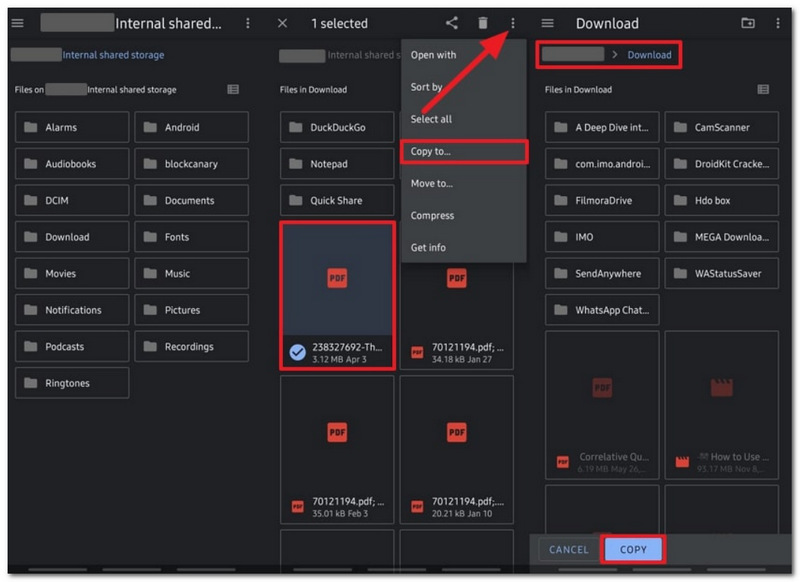
Access your Android phone's internal Files or File Manager app on the device that is receiving the pictures. Find your photos after clicking the other Android phone. They may be in a folder like DCIM Pictures, etc.
Step 4.
From your phone that you would be taking a picture of, pick which picture or pictures you would like transferred to the other phone. Select either Copy or Move and point the pictures to a destination folder on the receiving phone after the file operation has been initiated.
Step 5.
Make sure the pictures have been transferred completely, and then plug the cable out. Turn on the Camera Roll or Photos app of the device that received your pictures to check that the pictures have been successfully transferred.
Part 3. How to Transfer Pictures from Android to Android Using Aiseesoft FoneEase
Aiseesoft FoneEase is a specialized mobile data transfer tool designed to let you transfer pictures and other files easily among Android phones. Compared with conventional transfer methods, it allows you to do the transfer in large quantities, maintains the images' original quality, and with a very user-friendly interface, the entire transfer could be done just by a couple of clicks.
Best For
- Users are moving their large photo collections to a new Android phone.
- Those who are going to use different Android phones.
- Filming photos without compromising the quality.
- Effortless transfers that are almost as fast as a click and require very little preparation.
- The one who is looking for a complete data migration tool, which is not only photo-centric, for their Android gadgets.

Downloads
Aiseesoft FoneEase
- Transfer photos from one Android device to the other without compromising on resolution or clarity.
- The bulk transfer option makes it easy for you to move more than one picture at the same time.
- The app supports transferring not only pictures but also videos, music, contact information, text messages, and other types of data.
- Works with many different Android phone and tablet brands and versions.
- Protect and securely transfer your files using the feature that does not compress the source files.
Steps to Transfer Pictures with Aiseesoft FoneEase
Step 1.
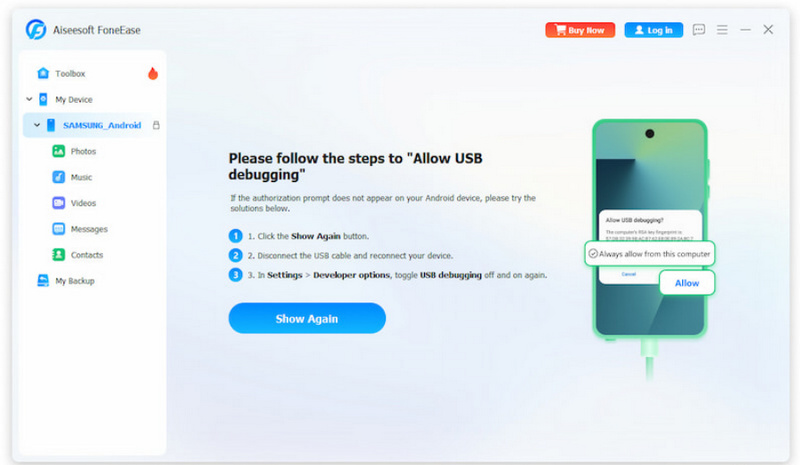
Get, install, and open your computer. Hook up the two Android phones with USB cables. Turn on USB Debugging if you're allowing this type of connection.
Step 2.
Highlight the Android phone that has the pictures you would like to transfer and, in the left menu, click the Photos icon. Use your photo library browser to check out pictures or albums and make your selections there.
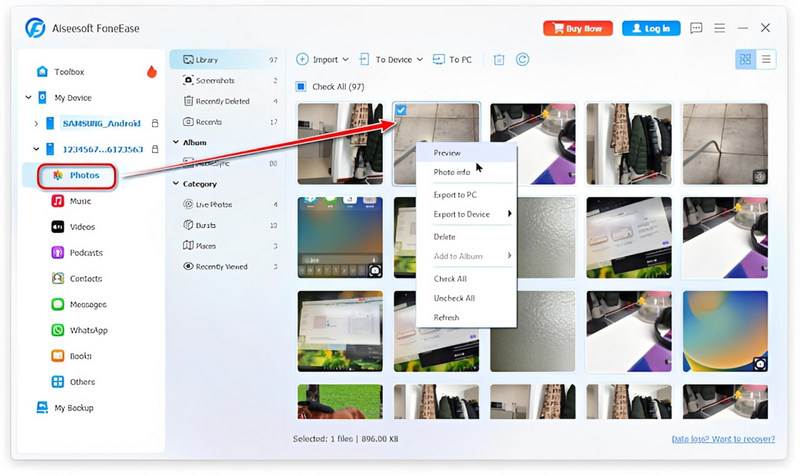
Step 3.
By right-clicking the chosen pictures on your computer, you can select Export to Device as your command to initiate the transfer, or use To Device, which is located at the main toolbar on your screen.
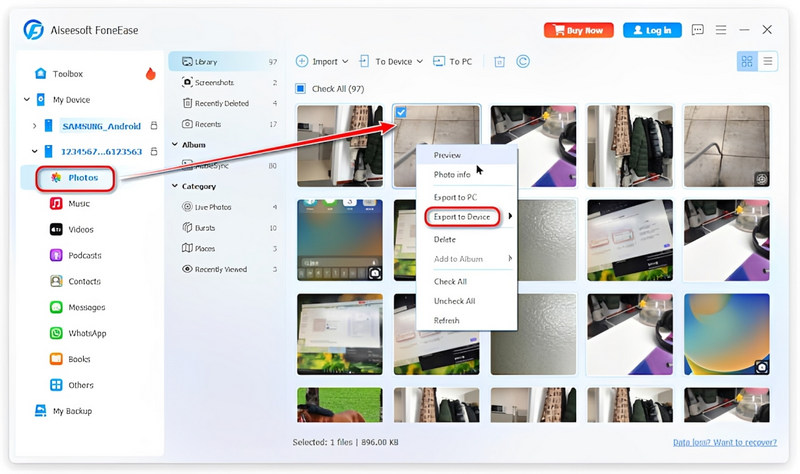
Step 4.
Your photos will be moved once the transfer process has finished, which you can see from the progress indicator popping up during the copy phase.
Step 5.
On the new Android phone, check your Gallery app to see that all the photos that you wanted have been successfully moved there.
Part 4. Transfer Pictures from Android to Android with Google Photos
Google Photos is a Google service that lets you back up your photos and videos to Google Drive, automatically syncing them across your different devices by using an identical Google account. It is a good solution if you are changing to a new Android phone or you just want to access your photos anywhere with internet.
Best For
- Transferring photos to a new Android phone.
- Automatically saving screenshots or pictures.
- Accessing your picture collection on other devices.
- User on the internet with steady access.
- Protecting your memories even if the phone is lost or broken.
Step 1.
Install or launch Google Photos through an old Android phone. Sign in with your Google account if you haven't yet.
Step 2.
Tap your profile picture and choose Photos settings.
Step 3.
Select Backup. and turn it on if Backup hasn't been turned on already. Be patient until your photos are uploaded completely to your Google Photos vault. To speed up the transfers, your handset should be linked to a Wi-Fi source.
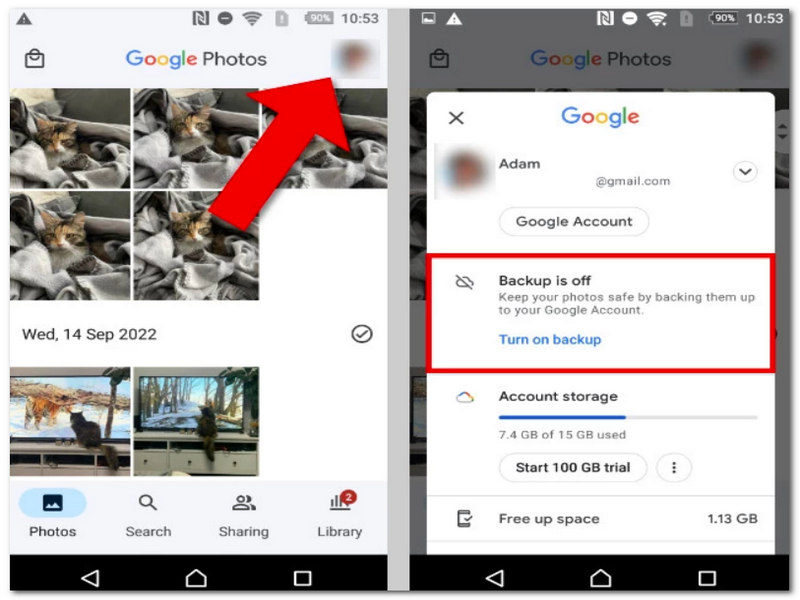
Step 4.
Install or launch the Google Photos app. on your new Android device. Log into the Google account you used on the prior device.
Step 5.
Without your involvement, the previously saved photos will show up in the Google Photos app. In case you want to locally have them saved in your new phone, take a photo, click the three-dot menu or More, and pick Download, which is available for cloud-only photos.
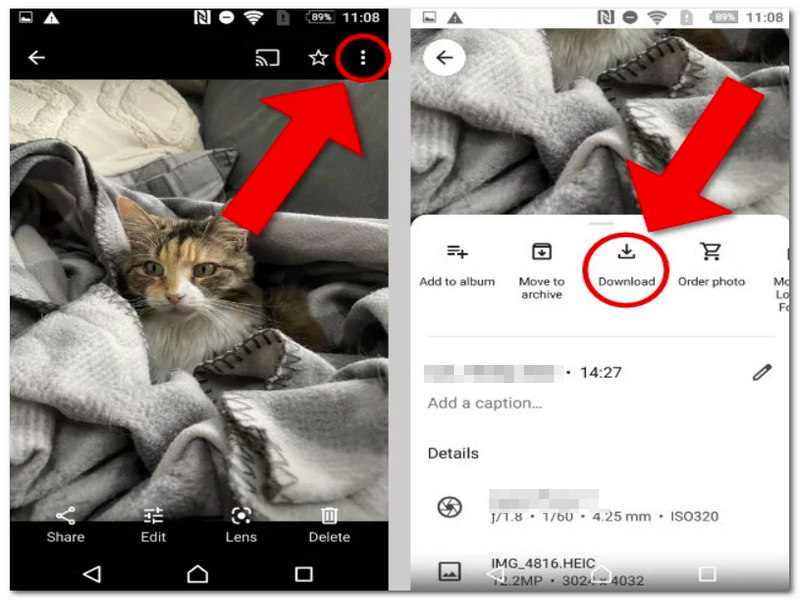
Part 5. How to Transfer Pictures from Android to Android via Bluetooth
Bluetooth is one of the oldest, simplest methods for sharing photos between Android devices. It works without needing an internet connection, cables, or special apps, which is quite convenient when you have no more than a few images to send around devices located close by.
Best For
- To send a few pictures between Android phones nearby.
- To transfer pictures without the Internet.
- Those who do not want apps to be installed.
- When you just need to share a picture quickly, without a care about speed.
Step 1.
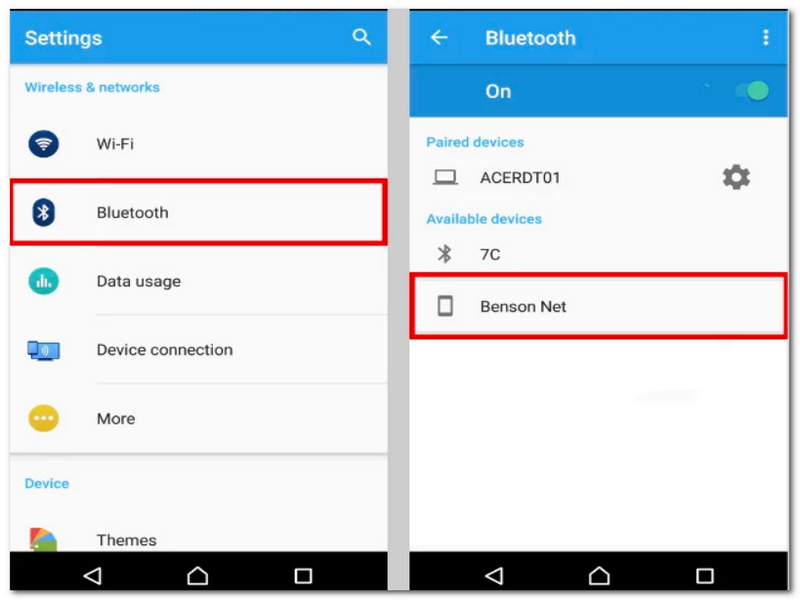
Enable Bluetooth on Each Android Phone. You may do this in the Quick Settings by opening the Quick Settings by dragging down from the top of the screen, or you may go to Settings > Bluetooth.
Step 2.
Select the second phone from the list of available Bluetooth devices to make a pair. Approve the pairing request on each of the phones.
Step 3.
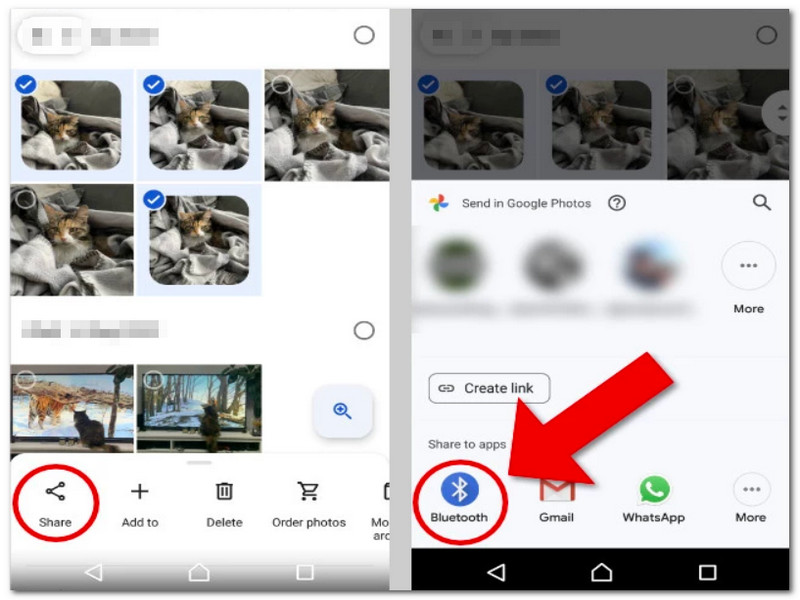
Access the Gallery or Photos application on your Android device. Choose the pictures that you want to send.
Step 4.
The Share icon should be selected, and choose Bluetooth from the sharing options. Choose the receiving Android Phone on the list of devices.
Step 5.
Accept from the receiving phone when requested to accept the file transfer. Stand by until the transfer is completed. The images received will most likely be stored in the directory Downloads or will show up in the Gallery application.
Part 6. FAQs about Transferring Pictures from Android to Android
Can one recover photos from an old Android phone with a cracked screen?
In case the device still works and it could be unlocked, you can transfer photographs via a computer or backup service or with transfer apps. But if the display is broken beyond all repair, you'll most likely require specialized recovery programs or the help of a professional.
Why don't some of my photos show up on my new Android phone?
Those particular images might not have been found since they were hidden in folders, saved onto the SD card, stored within the app's folder, or weren't part of any backup that was made. Go and look into your previous phone through its Gallery and File Manager, and check cloud storage as well.
Will the new phone still show photos in the same albums as they were on the old one?
Not necessarily. Certain transfer means preserve albums and metadata, while others merely move the image files. After transferring your pictures, you might have to redo your entire photo organization.
Conclusion
It's a simple way to share your memories if you choose one of the right ways to move your pictures from phone to phone. A cable, a cloud storage, or an app that helps your devices communicate can do it. The best way to make sure that your memories are kept safe and sorted is to pick the right option for you. When you get to know how to transfer images from Android to Android, you can easily and in a flash move your memories and not worry about the quality or losing files, in particular your important ones.
 Leave your comment and join our discussion
 100% Secure. No Ads.
 How to Get Gorgeous Photo Gallery – 10 Best Gallery APP for Android
 7 Easy Methods to Change the Resolution of Android Pictures
 Top 7 Al Photo Restoration Tools to Fix and Repair Images


