Is it difficult to transfer from iPhone to Samsung?
When you switch from an iPhone to a Samsung Galaxy phone, you may feel like it's a big leap. You can freely download various apps and access more advanced functions without limits. However, you may not know how to migrate your iPhone data to your new Android device. The convenient iCloud sync method no longer works.
The truth is, moving your iOS data to a Galaxy phone doesn’t have to be complicated. This guide will share three reliable methods to help you make the switch seamlessly. Select a desired way to handle your valuable iPhone files, including photos, videos, contacts, messages, app data, and personal settings.
Samsung Smart Switch is the official tool for transferring data from an iPhone to a Samsung Galaxy device. It comes pre-installed on most Galaxy phones and supports multiple transfer methods: wired USB connection, wireless transfer, and iCloud import. This method is free, secure, and does not require a Samsung account.
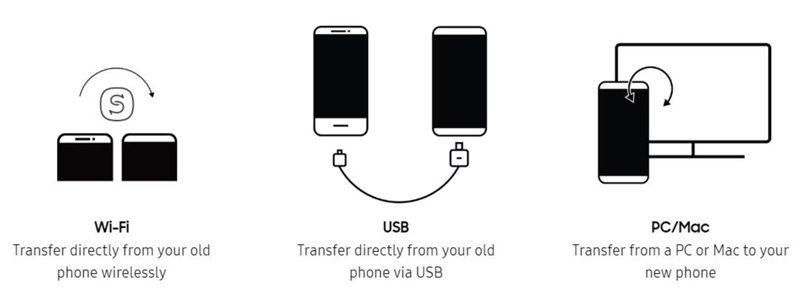
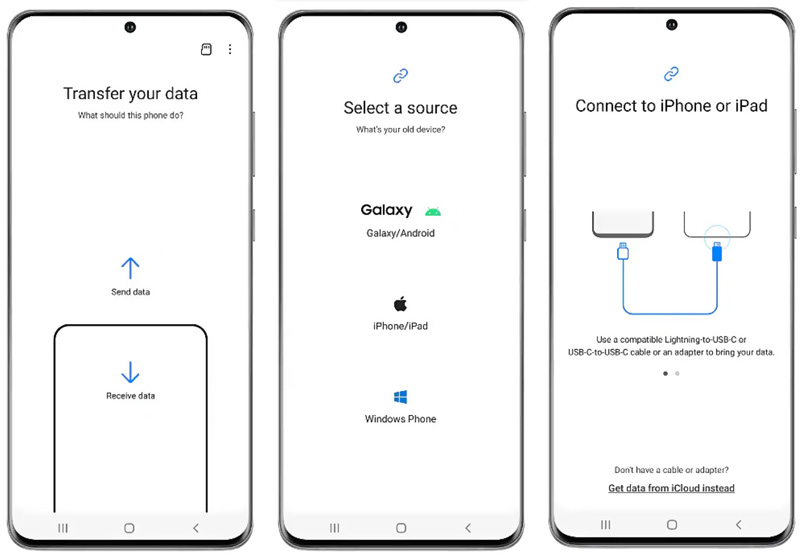
For the fastest and most reliable iPhone data transfer, Samsung recommends using a cable connection. Before the transition, you should disable two-step verification for your Apple ID.
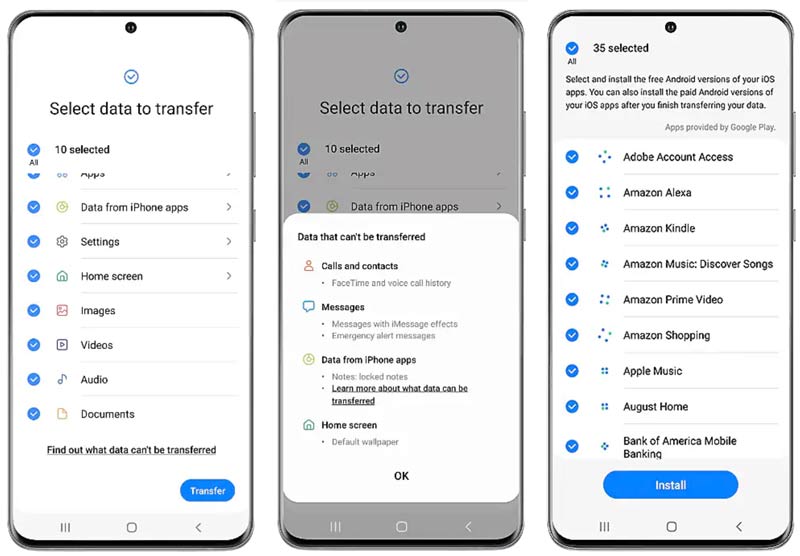
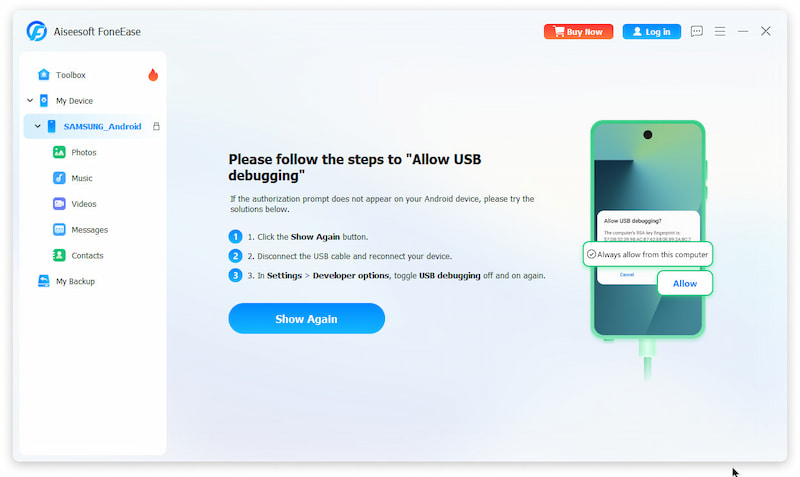
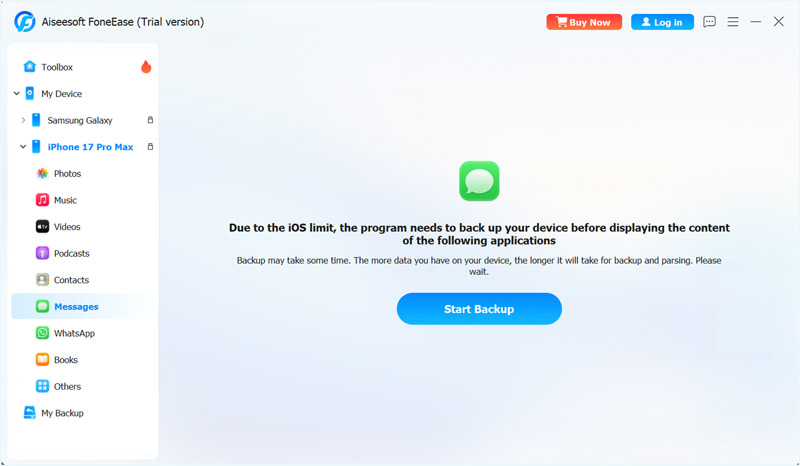
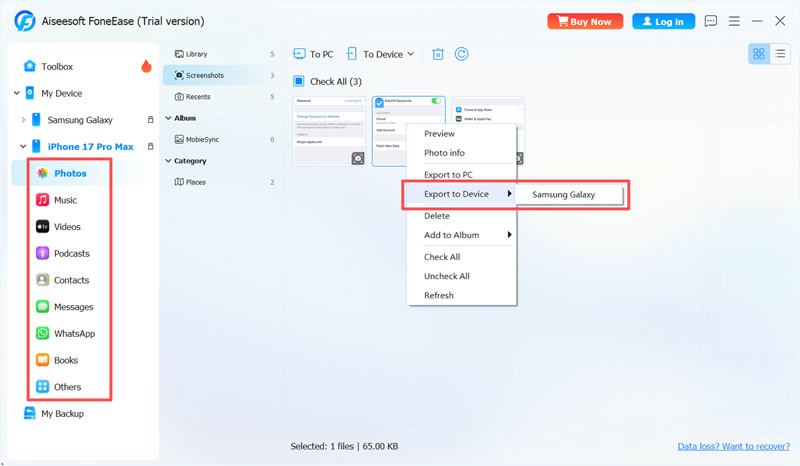
If you prefer a more comprehensive solution to manage and transfer your iOS files, turn to the reputable Aiseesoft FoneEase. This desktop software is mainly designed to transfer data between iOS and Android devices, as well as between phones and computers. It is particularly useful for users who want to selectively transfer specific data types.
 100% Secure. No Ads.
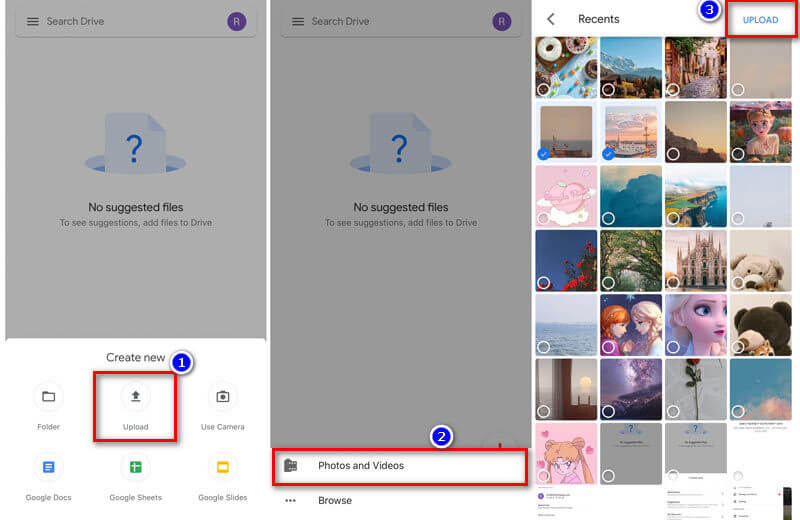
If you prefer a cloud-sync method to wirelessly transfer your iPhone data to the new Galaxy phone, Google Drive offers a convenient alternative. It works well for transferring common file types, such as photos, videos, contacts, documents, and more. One big advantage is that Google Drive offers up to 15GB of storage for free. That may be enough for some users.
Question 1. What should I do before switching from iPhone to Samsung?
Before switching from an iPhone to a Samsung phone, you’d better back up your iPhone. Ensure all important data is copied to one or more locations. If you need to transfer iPhone data to the new Galaxy phone, update both devices and charge them. On your iPhone, you should turn off iMessage and FaceTime.
Question 2. Which method is the best for transferring from an iPhone to a Samsung?
For most users, Smart Switch (via cable) is the best option. It is free, official, and supports the most commonly used data types.
Question 3. Will I lose my data if I switch from iPhone to Android?
No. All three methods above only copy your iOS data. They don’t delete anything from your iPhone. Your iPhone will retain all its data after the transfer.
This post shares three methods to transfer from iPhone to Samsung. You can use the right transfer depending on your specific needs. Generally, you should start with the official Smart Switch app. However, if you prefer a cloud-based solution for transferring media files and only need to copy them, Google Drive is a great option. For those who need selective transfers, turn to the capable FoneEase.
 6 Best iPhone to Android Transfer Tools in 2026 (Fast & Safe)
Want to transfer data from iPhone to Android with no data loss? Read our review of the 6 top tools and compare features, speed, and ease of use to achieve fast iPhone to Android transfer.
 5 Easy Ways to Send/Transfer Videos from iPhone to Android
Looking for the best way to transfer videos from iPhone to Android? In this guide, you'll learn 5 proven methods, including direct wireless transfer and transferring videos through a Windows PC or Mac, so you can move your videos quickly and safely.
 How to Transfer Passwords from iPhone to Android (2026 Guide)
Switching from iOS to Android? Learn the exact steps to export your iCloud passwords to a CSV file and import them to your new Android device using a Mac or PC.
 Leave your comment and join our discussion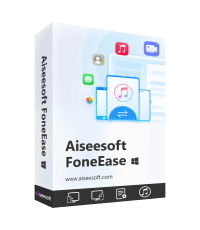
Aiseesoft FoneEase is a data transfer and management tool that lets you seamlessly move, back up, and manage various data between iOS, Android, and computers without resetting your phone or relying on iTunes.
100% Secure. No Ads.

*Required field
*Please enter a valid email

