Contents
Upgrading to a new Android phone should be something that excites you, not one that causes unnecessary stress. One of the biggest worries most people have, though, is whether or not they will lose their important text conversations. If your messages include important information from family or friends, work-related conversations, or verification messages that you might need at a later date, then this can be very problematic. Fortunately, it's now a lot easier to move your messages than it has ever been before. So, to help you, we are going to tell you how to transfer messages from Android to Android using several tried and trusted methods.
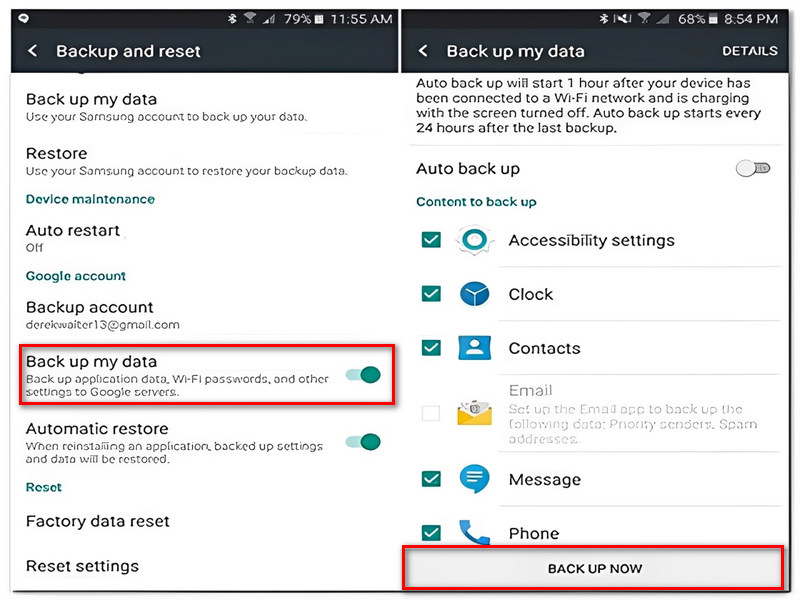
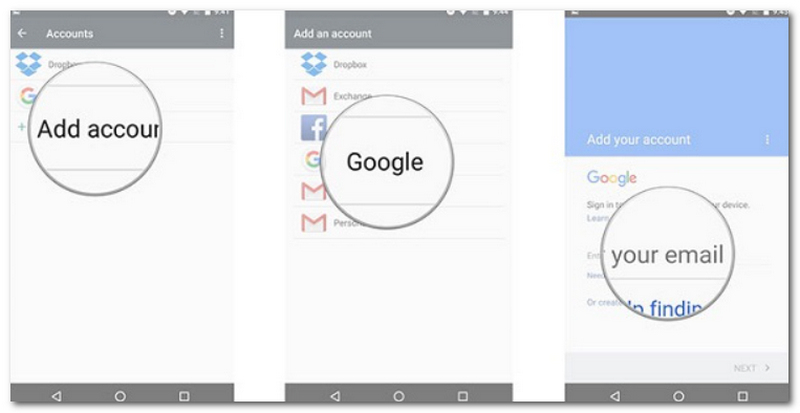
Android Backup is an Android feature with which you can back up your SMS to your Google account, encompassing call history, apps, and other data. It makes the process of transferring SMS from Android to Android really simple, mainly during the new phone configuration.
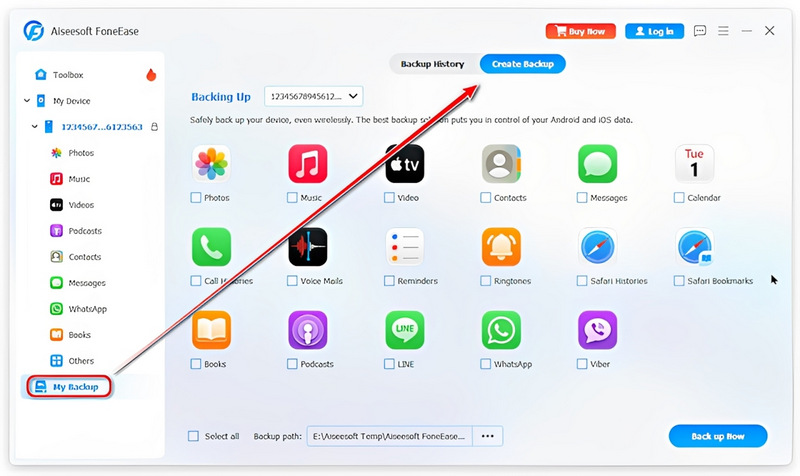
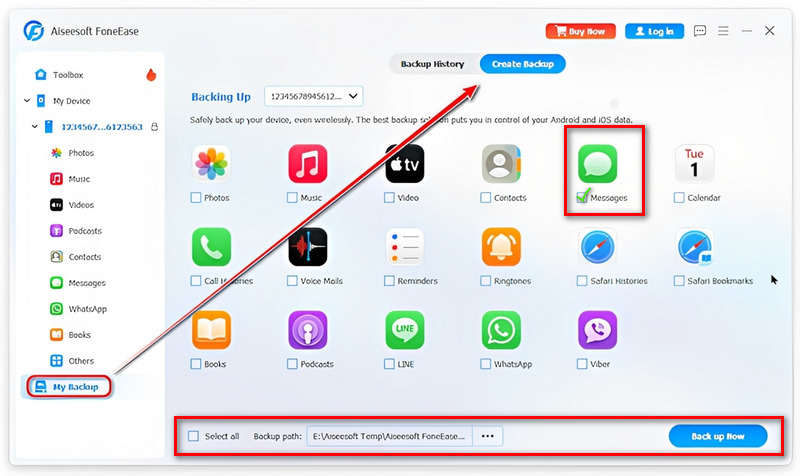
Aiseesoft FoneEase is an Android data management product specialized in backing up and restoring data, even text messages, through an easy-to-use computer software. This is mainly suitable for people who want to get more control over their backup procedure and to send their texts through a computer rather than cloud-based storage.
Downloads
 100% Secure. No Ads.
Steps to Transfer Messages with Aiseesoft FoneEase
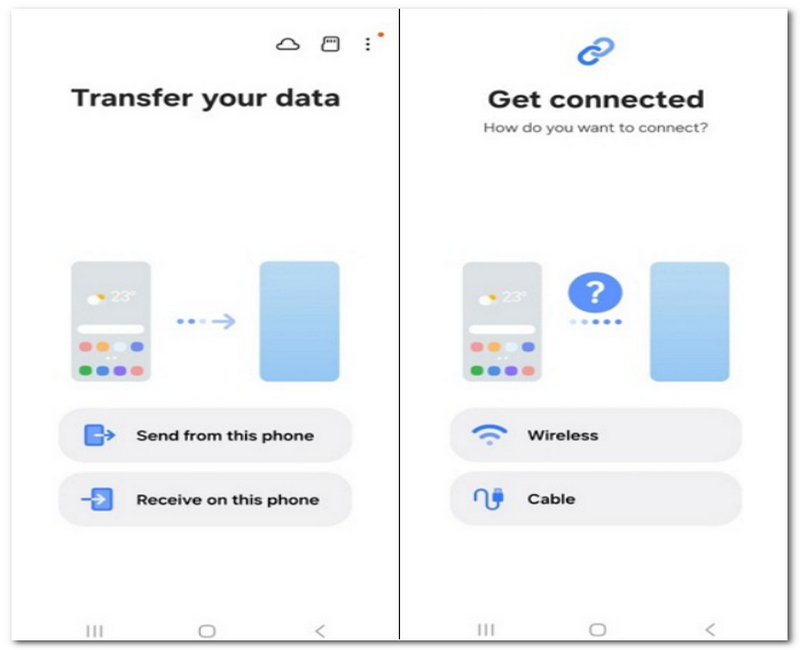
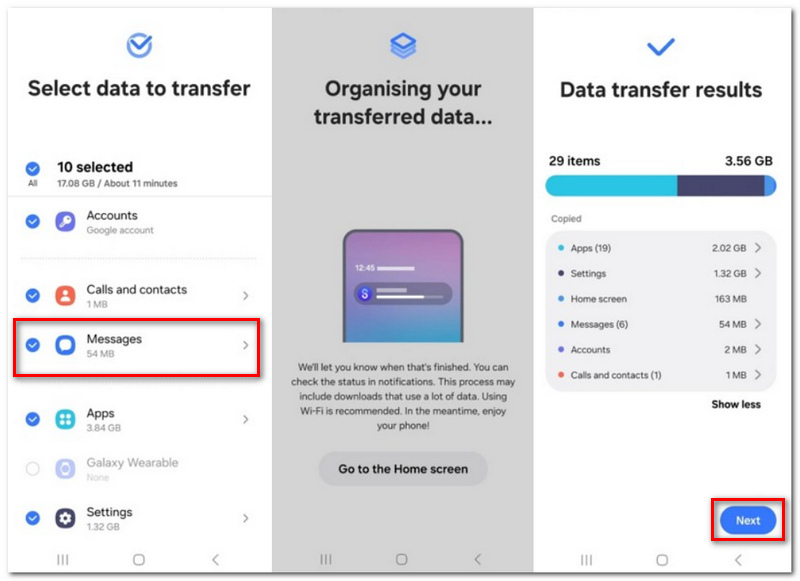
The main data migration tool for Samsung phones, called Samsung Smart Switch, helps users to transfer their data from one phone to another easily. It allows the transfer of messages, contacts, photos, apps, and all other kinds of essential data. It is one of the simplest solutions where your new phone is a Samsung Galaxy model.
To choose the best way for you, it really depends on the device you're using and how you want to move your messages. Some are best for switching to a new phone, others for having an easier time managing your backups. This table compares each method:
| Method | Transfer Speed | Computer Required | Internet Required | Best For | SMS & MMS Support | Ease of Use |
| Google Backup | ⭐⭐⭐⭐ Fast | No | Yes | Setting up a new Android phone with the same Google account | Yes | ⭐⭐⭐⭐⭐ |
| Aiseesoft FoneEase | ⭐⭐⭐⭐⭐ Very Fast | Yes | No | Local backups and restoring messages with more control | Yes | ⭐⭐⭐⭐ |
| Samsung Smart Switch | ⭐⭐⭐⭐⭐ Very Fast | Optional | No | Transferring data to a Samsung Galaxy phone | Yes | ⭐⭐⭐⭐⭐ |
What if I get a new text message while transferring?
New messages arriving during the transfer might not be included. For the best results, do the transfer and don't use either phone.
Is it possible for two Android phones' messages to get combined into one phone?
That's quite a question on the method of transfer. Some software will combine the message databases, while others will simply overwrite the target message database.
My messages are blocked numbers. Will they still be blocked after message transfer?
Usually not. The block list is a separate storage from SMS, so it might be necessary to either transfer it or configure it again.
Conclusion
It isn't difficult to master the skill of transferring SMS from Android to Android. Once you have checked the methods suggested here, you will be in a clear position of which solution suits your gadget and circumstances best. No matter if you are inclined towards a native method or a third-party transfer utility, you will be able to carry over your text messages without any problem, thereby preserving your valuable conversations even if you change your Android phone.
 10 Best Text Messaging Apps for Android & iPhone 2026
Discover the best text messaging apps for Android and iPhone, including secure, RCS-enabled, and encrypted apps. Compare features, pros, and cons.
 How to Retrieve Deleted Text Messages on Android (4 Ways)
Accidentally deleted an important text? Learn how to easily retrieve deleted text messages on Android using the Recycle Bin, Google Drive, or without a backup.
 Top 6 Message Lock App to Protect Your Text Messages on Android
How to add a message lock on my Android/iPhone? This article introduces 6 great message lock apps to help you protect privacy.
 Leave your comment and join our discussion
Aiseesoft FoneEase is a data transfer and management tool that lets you seamlessly move, back up, and manage various data between iOS, Android, and computers without resetting your phone or relying on iTunes.
100% Secure. No Ads.

*Required field
*Please enter a valid email

