
Aiseesoft Screen Recorder
 100% Secure. No Ads.
100% Secure. No Ads.
Are you searching for a way to screen record AirPlay streams?
You may want to save a lecture streamed from an iPhone, record a live performance from a music app, or document a work presentation cast from an iPad. However, does Apple allow direct AirPlay recording? How do you capture AirPlay content? This guide shares a reliable method record AirPlay streams without sacrificing the original quality.
Apple’s AirPlay technology is designed to better transfer photos, videos, and audio. It can cast content from Apple devices to smart TVs, speakers, and other compatible devices. AirPlay is specially designed for seamless playback, not for recording.
Due to the built-in Digital Rights Management (DRM) protection, you are not allowed to record these AirPlay streaming contents or DRM-protected apps. It is a legal barrier designed to prevent unauthorized duplication and distribution of copyrighted content, such as movies and music.
As you can learn from above, Apple does not provide a direct method for recording AirPlay streams. What if you still have the desire to record them?
Considering that the official direct capture is blocked, you can turn to some effective workarounds. Generally, you have two leading solutions for recording AirPlay. You can capture the content while mirroring or record the source device’s screen.
You can stream videos from an iPhone, iPad, Mac, or Apple TV with ease. During streaming, use a reliable recorder like Aiseesoft Screen Recorder to record AirPlay content at the source quality. The software is compatible with all commonly used macOS versions.
100% Secure. No Ads.
100% Secure. No Ads.
How to record AirPlay Streams on Mac with the Aiseesoft Screen Recorder
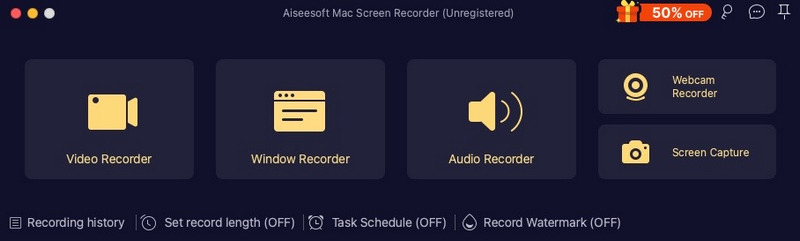
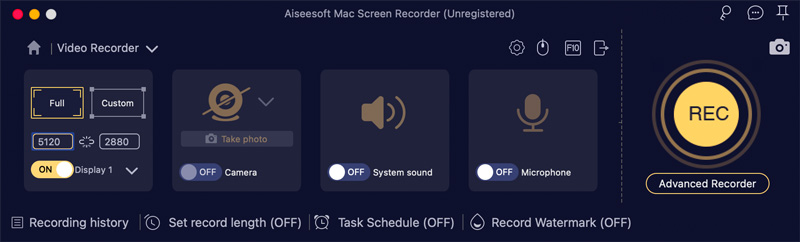
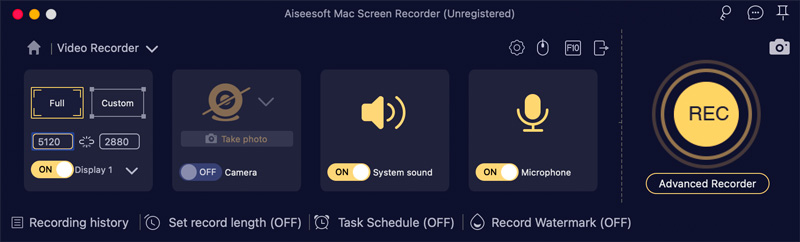
In addition to the method above, you can also record AirPlay content directly on the source device. Start with the built-in screen recording tool on your iPhone/iPad to capture everything on your screen. Note that this method does not allow you to capture Mac internal audio.
While recording an AirPlay stream, you may encounter several common issues. This section discusses several common ones and provides related solutions.
Problem 1: No Audio Captured
Ensure you grant the recorder application permissions to access your Mac’s audio.
Go to “System Settings” > “Privacy & Security” > “Screen Recording” to verify that your recording app is enabled. Moreover, you should ensure the “System Sound” option in Aiseesoft Screen Recorder is selected.
Problem 2: Recording Lags or Gets Blurry
Before you AirPlay from an iPhone or iPad to your Mac, you should close all the unnecessary apps. This helps free up RAM and CPU cycles. If you don’t need 4K, you can step down to 1080p for a smoother recording.
Problem 3: AirPlay Disconnects Mid-Recording
If you plan to AirPlay a long content like a movie or TV show, you’d better restart the source device to clear temporary glitches. What’s more, you should customize related settings to keep both devices awake.
Question 1. Question 1. What is an AirPlay receiver used for?
An AirPlay receiver is often a software or device that accepts a wireless stream from an Apple device like an iPhone, iPad, or Mac. It is used to cast an iPhone or iPad screen to a larger screen like a PC, Mac, or TV. Also, it can cast audio from an Apple device to better speakers.
Question 2. What is the best AirPlay recorder for Mac?
When you select the “best” AirPlay recorder, you should choose one that best suits your specific goal. For instance, the ideal choice may depend on whether you need a dedicated screen recorder or prefer advanced features. You can start with the built-in Screenshot Toolbar to record AirPlay streams on a Mac. If you need to capture system audio, turn to the introduced Aiseesoft Screen Recorder.
Question 3. Is AirPlay better than Bluetooth?
AirPlay is generally superior to Bluetooth for video and audio streaming on various factors, including the quality, range, stability, connection, setup, and multi-device control. However, AirPlay is often Apple-centric.
Bluetooth is better for universal compatibility. It works well across all devices and platforms, such as Windows, Android, and iOS. Most headphones, speakers, TVs, and cars support it. Some modern speakers like Sonos and Bose support both.
Conclusion
Most users have an increasing need to preserve what appears on their screens, whether on phones or computers. During the AirPlay mirroring, you may want to record the stream. However, due to Apple’s DRM protections, you can’t directly capture it. In that case, you can rely on the recommended Aiseesoft AirPlay recorder to capture the streaming content with high quality.
100% Secure. No Ads.
100% Secure. No Ads.
 AirPlay Mirroring - How to Mirror iPhone to TV
What is AirPlay Mirroring? Why AirPlay Mirroring not working? How to mirror iPhone or iPad screen to Apple TV? Find answers here.
 Can You AirPlay Without WiFi on Apple TV - Factual Answer About It
Can you AirPlay without WiFi? It may seem impossible to do so because AirPlay uses an internet connection, but we have found a solution to make it work.
 Zoom Airplay - Why It Doesn't Work & Solutions to Mirror Zoom Meeting
Aiplaying Zoom is possible, and you can follow the tutorial we added here. Is Zoom Airplay not working? We include ways how to solve it as well.
 Leave your comment and join our discussion
Aiseesoft Screen Recorder is the best screen recording software to capture any activity like online videos, webcam calls, game on Windows/Mac.
100% Secure. No Ads.
100% Secure. No Ads.

*Required field
*Please enter a valid email

