
Video Converter Ultimate
 100% Secure. No Ads.
100% Secure. No Ads.
CapCut is a powerful video editing software that has rich AI functions to help creators reach their goals fast with little effort. For those who want to export their videos with better quality, CapCut Video Upscaler is maybe the most important AI feature. So today we are going to introduce to you the functions, pros, and cons, a brief guide for how to get 4K video using CapCut, and an alternative software to CapCut Video Upscaler. Hope this can be helpful for you.
CapCut is a known name in the world of online video and audio editing. It offers multiple helpful tools for creators to handle various edits on their browser. Among these, the dedicated CapCut Video Upscaler is an excellent choice for increasing resolution and improving quality.
This web-based upscaler also has a desktop version. So, when it comes to “CapCut Video Upscaler”, it can refer to two different tools: its online tool (Free AI Video Upscaler) and the AI enhancement features within the desktop software.
AI Video Upscaling.
The core feature of CapCut’s free AI video upscaler. It adopts advanced deep learning to “guess” and then fill in missing pixels. CapCut can upscale a 720p or 1080p video up to 4K without losing quality. Moreover, the AI will sharpen edges and restore textures that were lost intelligently.
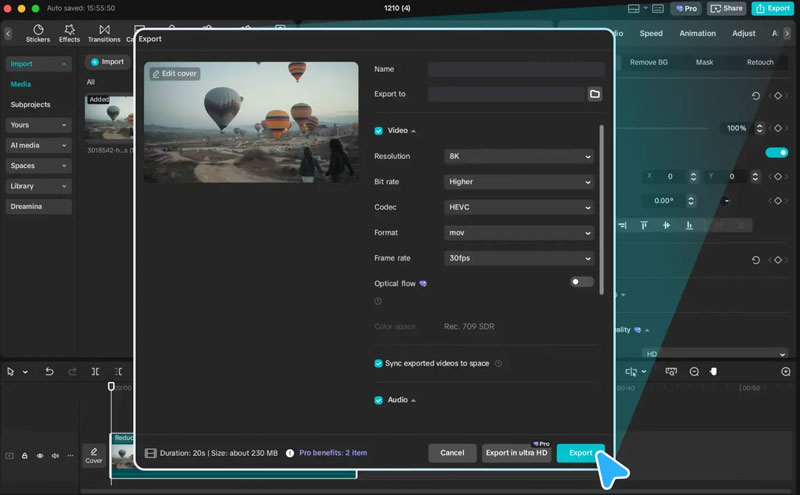
Video Denoising and Deblurring.
Besides upscaling, CapCut can analyze your footage and identify digital noise like random pixels and then smooth them out to create a cleaner look. Its algorithms can perform deblurring and add suitable details to enhance your video quality. By upscaling, the video can become clearer and more suitable for playing on screens that have higher resolution.
Frame Interpolation.
When exporting the upscaled video, CapCut can create new frames between existing ones through its frame interpolation feature. This is often used for making motion look fluid. For instance, it allows upscaling a 24fps video to a smooth 60fps or higher.
To clearly clarify the differences between the two versions, here is a direct comparison:
| Feature | Free AI Video Upscaler (Online) | CapCut Desktop Version |
| Max Output Resolution | 4K | 8K export available |
| Core Enhancement | AI Upscaling | AI Upscaling + Manual color tools, sharpen, denoise |
| Cost | Free | Free to use Advanced AI features may require Pro |
| Processing Speed | Relatively slower Dependent on the internet |
Faster for large files Uses local GPU to process |
| Best For | Quick, small improvements to short clips | Full editing projects with comprehensive quality control |
While CapCut is a powerful tool, its video upscaling capabilities, especially for the online upscaler, have specific boundaries. It is not ideal for professional-grade restoration.
CapCut is mainly designed and optimized for social media like TikTok. Its video upscaler may generate over-smoothed textures. This can be the most significant drawback of CapCut. When you use it to upscale a lower-resolution video to 2K or 4K, some find details may turn into a blurry, painterly smudge. Sometimes, the actual detail won’t be sharpened.
Like other AI-driven upscaling tools, mainly these online ones, can struggle with complex visuals. In some cases, CapCut will add unsuitable or “fake” details to the source and deliver an unnatural look. What’s more, this video upscaler may produce inconsistent results. The AI is optimized for videos with similar quality.
The upscaling process of the CapCut online video upscaler can be quite slow, especially for large, high-definition videos.
Pros
Cons
As mentioned, the AI video upscaling is a part of exporting or enhancement. It seems that CapCut does not intend to stress the difference between the two.
In CapCut, the upscaling is not a separate feature, but a combined result of exporting options and quality enhancement. By using CapCut to enhance videos, we find that the feature that really tells CapCut Video Enhancer apart from other video enhancers in the market is not its enhancement quality or user experience, but the rich and convenient editing functions that have previously won CapCut its place in the field of video editing software/apps.
CapCut operates on a freemium model. The basic video editor and many common features are free to use. However, advanced AI tools, like some enhancement features, are part of the Pro subscription.
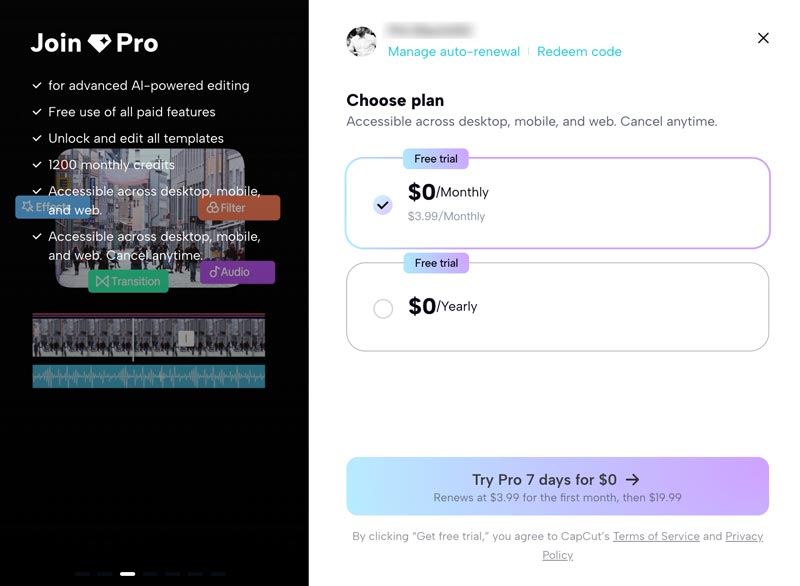
CapCut allows you to start a free trial of the Pro version for 7 days. After that, you can upgrade via an Intro price ($3.99/month) and then a Standard price ($19.99/month).
As listed in the cons in the previous section, you cannot attain a 4K video online using CapCut Video Upscaler, but you can get a 4K-quality video on CapCut, the desktop version. So to make full use of this guide, you need to download and install CapCut onto your computer first.
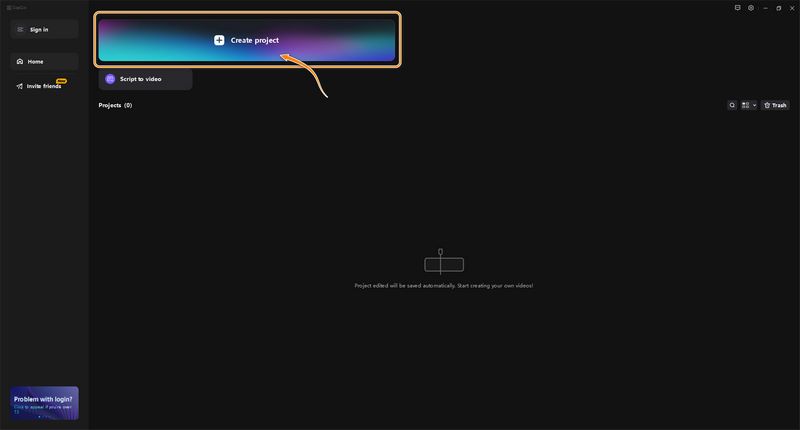
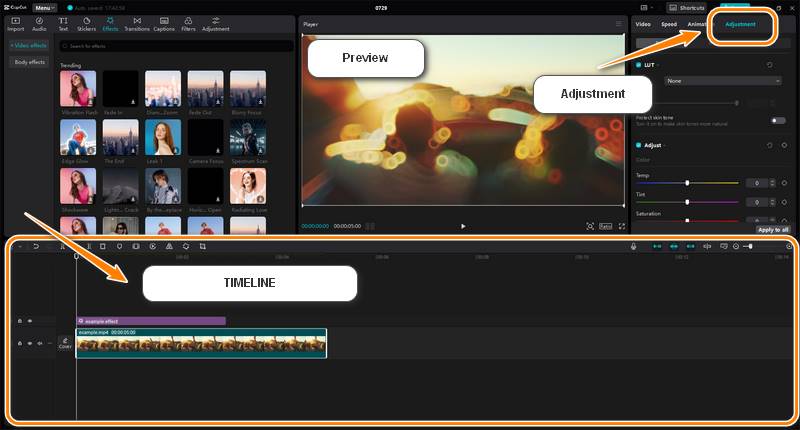
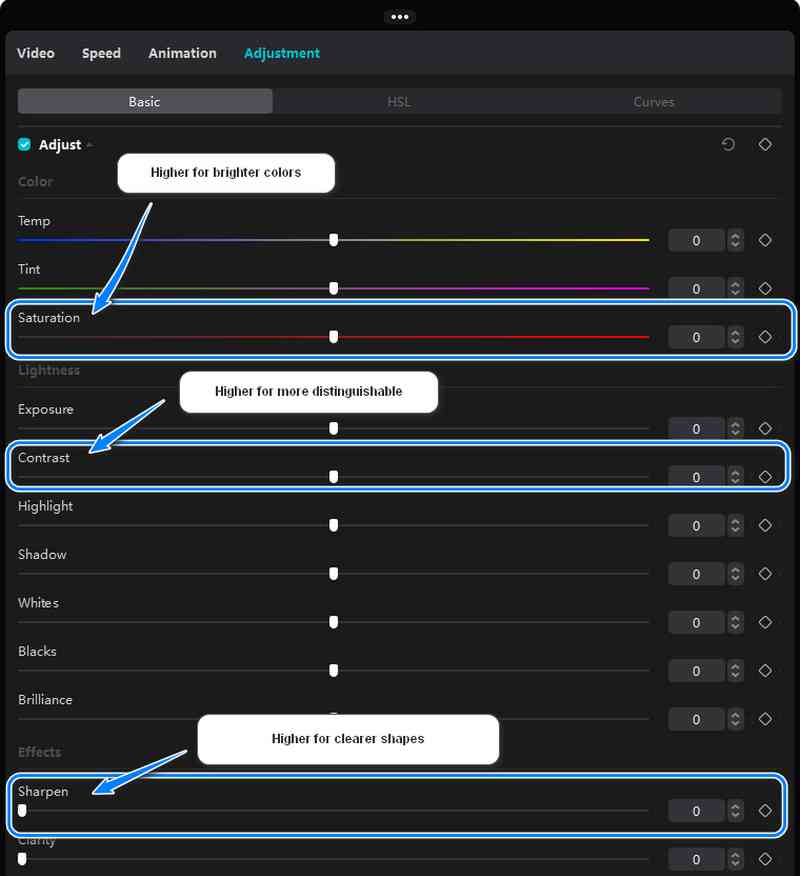
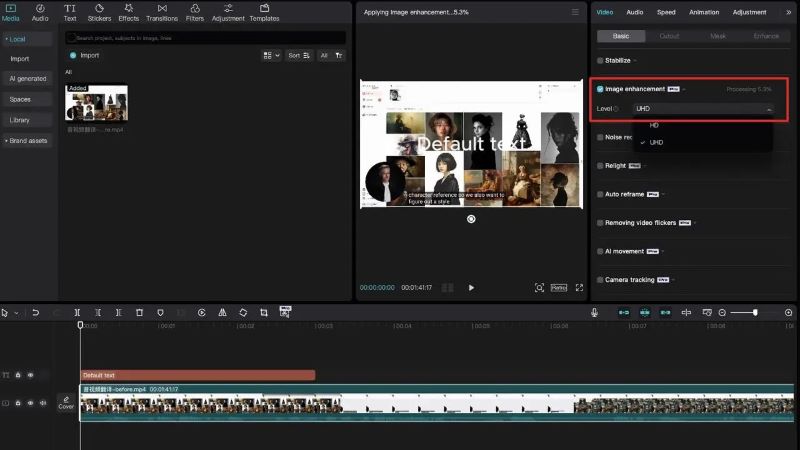
Another choice is to try the image enhancement function, which you can find in Basics after selecting a video. But this option only exists in the Pro version, and exporting the AI-processed video will charge fees.
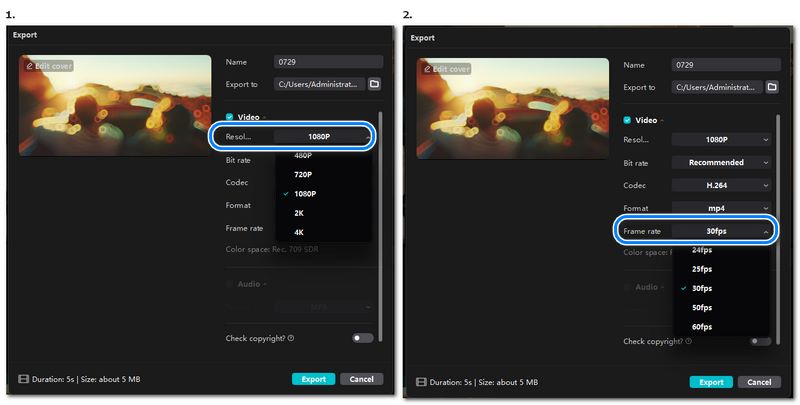
CapCut offers many commonly used functions to edit and enhance videos. However, even though it is excellent for editing, some users find the upscaling results lacking.
A common issue or complaint is that CapCut may sometimes leave a “smudging” sensation. The original fine details, like skin texture or complex patterns, are smoothed over. As mentioned, it often results in an unnatural, overly-processed look.
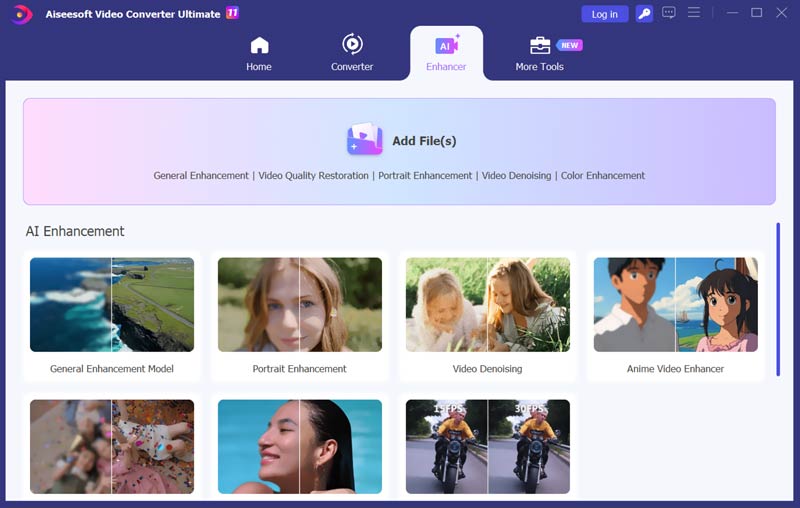
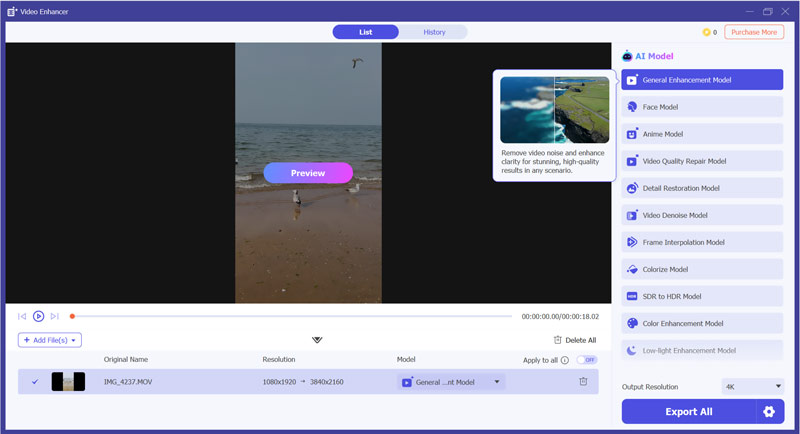
If you find the video exported from CapCut does not fit your needs, and you prefer an alternative for professional-grade results, turn to the reliable Aiseesoft Video Converter Ultimate. This CapCut alternative uses a deeper, more sophisticated AI model for enhancement. Compared to CapCut, it often produces cleaner, more natural-looking upscales.
100% Secure. No Ads.
100% Secure. No Ads.
ls CapCut's online video upscaler broken?
If you find CapCut’s online video upscaler fails to generate the upscaled version of your video, you can switch to try adjust and export it in the CapCut desktop version. Or just use Aiseesoft Filmai for a guaranteed successful experience.
Does CapCut support 4K videos?
Yes, CapCut supports the export of 4K videos, but only for the desktop version. CapCut online video enhancer only has a 2K enhancement option.
How do I export from CapCut for best quality?
For the app, when exporting your video, choose 1080p, 60 fps, and the recommended bitrate. For the desktop version, choose a higher bitrate and use codecs that have less quality compression loss like H.264 or H.265.
Why is the 4K video I exported with CapCut still blurry?
There could be different reasons why your exported video from CapCut is blurry. Generally, the problem is due to the source file. If the video is too low-quality or heavily compressed, the final upscaled video will remain blurry, even though it is upscaled to a 4K resolution. CapCut’s basic upscaling may struggle to create new, fine details. You can try using a more advanced AI upscaler like Aiseesoft Video Converter Ultimate for true detail enhancement.
Is the CapCut image quality enhancement feature free?
Basic color adjustments and sharpening features in CapCut are free. Basic color adjustments and sharpening tools in the desktop version are free. However, advanced AI enhancement features are locked behind the Pro subscription.
Conclusion
Video enhancement was beyond people’s imagination ten years ago but with the progress of computer science and AI, it is now a service that everyone can benefit from. CapCut as a young and ambitious video-editing software company has the facility to take a slice of the cake, but for customers, it is the user experience and enhancing effect that is important. In today’s article, we’ve reviewed the CapCut Video Upscaler and introduced the steps to gain 4K videos from the CapCut desktop version, and at last provided an alternative for CapCut for a more specialized video enhancement experience: VidHex. Hope this article can be helpful to you.
 How to Change Aspect Ratio and Crop Video on CapCut
How do you change the aspect ratio in CapCut PC? Can I crop a video on CapCut on my Android phone? Learn to crop videos and change aspect ratio using CapCut.
 5 Top 4K AI Video Upscaler: Features, Pros, Cons, and More
There are 5 most frequently used 4K AI Video Upscalers. Does it fit everyone? We have everything you want to know about that. Let's check it out!
 How to Enhance Video Quality with 4 Different Solutions
How does Nvidia Video Super Resolution enhance streaming videos? How can I enhance video quality using AI? Read the complete guide to improving video quality.
 Leave your comment and join our discussion
Video Converter Ultimate is excellent video converter, editor and enhancer to convert, enhance and edit videos and music in 1000 formats and more.
100% Secure. No Ads.
100% Secure. No Ads.

*Required field
*Please enter a valid email

