
Video Converter Ultimate
 100% Secure. No Ads.
100% Secure. No Ads.
If you often work with Stable Diffusion or AnimateDiff to generate videos, you may know the struggle: The outputs are at a low resolution, like 480p or 720p. This makes them a blurry mess on social media or 4K displays. The truth is, in the current video creation world, 4K delivery is the standard. To deal with the low-resolution footage, related upscaling solutions are brought to increase resolution, refine details, and achieve professional quality.
ComfyUI is a famous node-based workflow that allows you to upscale videos with various open-source models. This article explains the prerequisites of ComfyUI, the best upscaling models, and the easiest alternative in case you prefer to skip the node-based complexity.

Before we delve into the specific ComfyUI video upscale workflow, ensure your ComfyUI environment is properly equipped. ComfyUI is not a dedicated tool that comes with direct upscaling functions. You need to collect all the necessary tools first.
1. Install ComfyUI manager. You should install custom nodes directly from the interface. Also, you can choose to search for them on GitHub.
2. For video upscaling, you can turn to ControlNet or AnimateDiff. They have specific ControlNet models for you to upscale videos.
3. Apart from them, you need video-handling nodes like ComfyUI-VideoHelperSuite (VHS). These nodes are used to load, combine, and export video files within ComfyUI.
4. Based on the upscaling model, you also need specific nodes for further enhancements, such as the RIFE for Frame Interpolation.
There are many ways to upscale a video in the ComfyUI workflow. This section gives a step-by-step guide to structuring the workflow.
You should select the right model based on your source material and goal.
For the best possible quality and maximum accuracy, you can use SeedVR2. It can significantly improve clarity while preserving the original structure.
For AI-generated videos or low-detail sources, Topaz Astra (Starlight) Creative is an excellent choice for handling various AI artifacts.
If you want to quickly upscale a video, FlashVSR is one of the fastest options.
Besides models, there are some key nodes you should know, including Topaz Video Enhance, SeedVR2 Video Upscaler, and RIFE VFI.
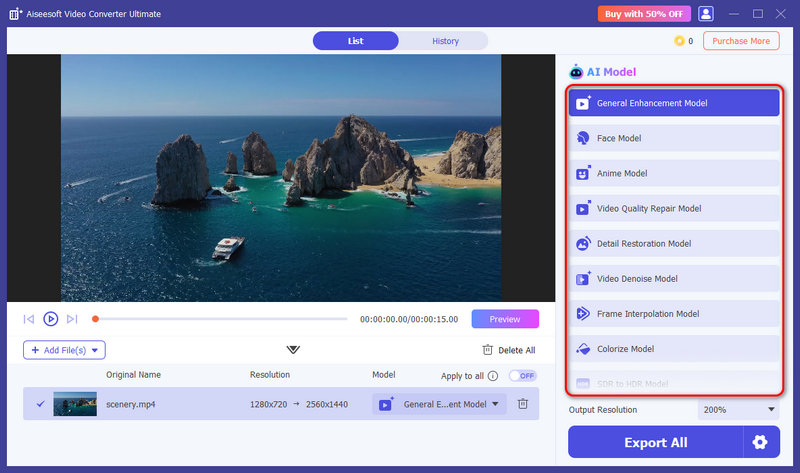
ComfyUI is powerful, but it requires a steep learning curve. The video upscaling workflow is not suitable for most casual users. It demands a willingness to troubleshoot broken nodes and learn related skills. If you only want to upscale videos, ComfyUI will take you too much unnecessary time. The easiest alternative to ComfyUI is dedicated video upscaler software like Aiseesoft Video Converter Ultimate.
100% Secure. No Ads.
100% Secure. No Ads.
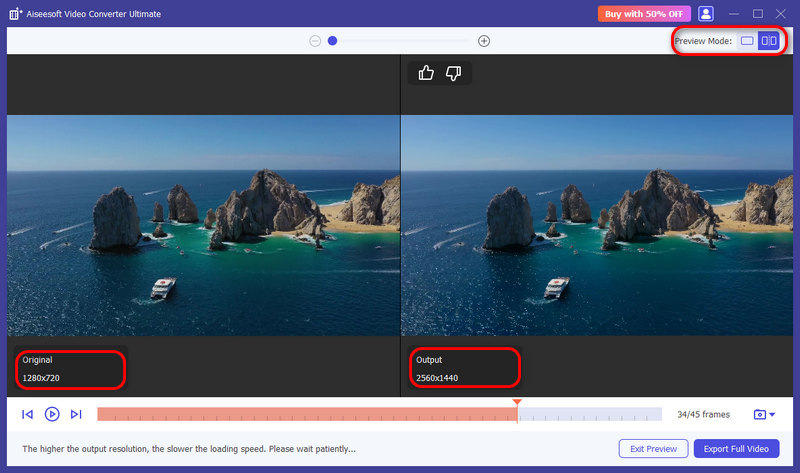
Unlike the complex ComfyUI, Aiseesoft offers a streamlined solution for upscaling and other enhancements. It is mainly designed for users who want a one-click way to get professional results. Its AI Enhancer uses advanced technology to increase resolution to 1080p, 4K, 5K, or even 8K with enhanced quality. The AI will automatically improve clarity, reduce noise, sharpen edges, correct colors, and do other suitable optimizations.

Question 1. Is there a dedicated ComfyUI video upscaler?
No. There is no single ComfyUI video upscaler. As mentioned above, this node-based workflow is designed to handle various open-source image/video processing models. ComfyUI can upscale by breaking a video into individual images (frames), upscaling them one by one, and then reassembling them into a new video file.
Question 2. Where to put the upscale model in ComfyUI?
To make your upscale models work in ComfyUI, you need to place them in a specific subfolder under your directory. The primary folder is “ComfyUI/models/upscale_models/”. You can go to your main ComfyUI installation folder to locate it. When you get there, put your upscaler files.
Question 3. Can 720p be upscaled to 4K?
Yes, you can absolutely upscale 720p to 4K. For most casual users, you can turn to a dedicated AI video upscaler like Aiseesoft Video Converter Ultimate to perform the upscaling. The AI is trained on millions of files to ensure high-quality outputs. If you often deal with various models and are familiar with ComfyUI, you can rely on the workflow to upscale the source video to 1080p first with a model like 4x-UltraSharp, and then use ControlNet Tile to get 4K.
Conclusion
This article guides you to know the node-based workflow of ComfyUI video upscale. If you need granular control over every step and want to use all types of open-source models, you can choose ComfyUI. Otherwise, turn to the recommended Aiseesoft AI upscaler for quick fixes or enhancements.
 Stable Diffusion AI Review to Know the Text-to-Image Model
Is Stable Diffusion AI text-to-image model free? Is Stable Diffusion better than Midjourney? How to use Stable Diffusion? Check the Stable Diffusion review.
 How to Upscale Video in CapCut: Tips, Fixes & Alternatives
Learn how to upscale video in CapCut to enhance quality, fix blurriness, and explore the best AI alternative for stunning high-resolution results.
 A Full NightCafe AI Review to Know the Free AI Art Generator
Is the NightCafe AI Art Generator completely free? How do you use NightCafe Creator to generate art? Check the NightCafe AI review to learn related information.
 Leave your comment and join our discussion
Video Converter Ultimate is excellent video converter, editor and enhancer to convert, enhance and edit videos and music in 1000 formats and more.
100% Secure. No Ads.
100% Secure. No Ads.

*Required field
*Please enter a valid email

