Video Converter Ultimate
 100% Secure. No Ads.
100% Secure. No Ads.
You may have encountered a situation where there's a video, recording, or music file, but you only need the MP3. Perhaps you want to extract sound from a video, make the file easier to distribute, or just want to remove excess video content. That is where an online converter can be useful, mainly if you're reluctant to install a new program on your PC.
Another service that you might encounter is known as FreeConvert MP3 Converter. Before you dive into using the program and uploading files, though, you should understand what the tool brings, how user-friendly it is, what limits, if any, the free version imposes, and if there is a more suitable program for your specific requirements. We will review FreeConvert in more depth in the next paragraphs.
How We Test and Review
Our test for FreeConvert focuses on the common use of a free online conversion tool. Because of this, we evaluate the tool based on conversion speed, quality of results, supported formats, user-friendliness, free features, and overall experience. In addition, we examine the key functionalities and compare them to similar online tools.
FreeConvert MP3 Converter vs. Aiseesoft Free Online Audio Converter
| Feature | FreeConvert MP3 Converter | Aiseesoft Free Online Audio Converter |
| Platform | Online | Online |
| MP3 Conversion | Yes | Yes |
| Video to MP3 | Yes | Yes |
| Supported Input Formats | Wide range of audio and video formats | Popular audio and video formats |
| Output Formats | MP3 and other audio formats | MP3, AAC, WMA, WAV, AIFF, FLAC, M4A, and more |
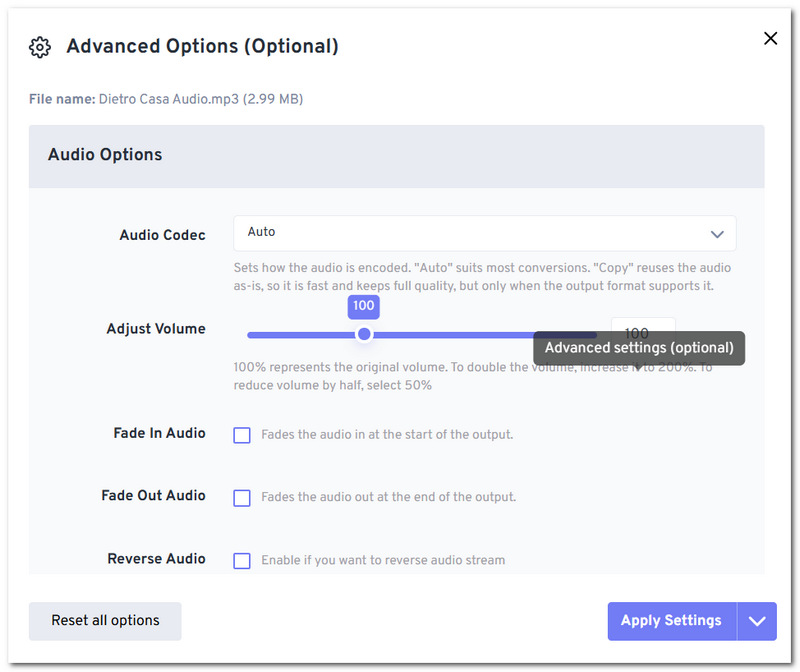
| Audio Settings | Codec, bitrate, sample rate, volume, fade, and more | Quality, sample rate, bitrate, and audio channel |
| Audio Trimming | Yes | Yes |
| File Size Limit | Up to 1 GB for free users | Up to 50 MB without logging in |
| No Software Installation | Yes | Yes |
| Ease of Use | Easy | Very easy |
| Best For | Users who want more conversion controls | Users who want a simpler conversion process |
Quick takeaway: If you require advanced options or bigger uploads, FreeConvert MP3 Converter offers greater flexibility, whereas Aiseesoft Free Online Audio Converter is a better fit for fast, simple audio conversion.
While FreeConvert presents a very simple approach to MP3 conversion, it does provide some additional features for users seeking more than just a simple format switch. These are:
Notice that the FreeConvert MP3 to MP4 is a migration type different from the main MP3 to video conversion. If your original input file is an MP3 and you'd like to generate a video file, you'd better use the FreeConvert MP3 to MP4 conversion utility, not the standard MP3 converter.
Using FreeConvert is relatively simple, even for a first-time user who's never tried an online converter. Upload your file, customize the settings if you want, begin the conversion process, and download the MP3 once the conversion is complete.
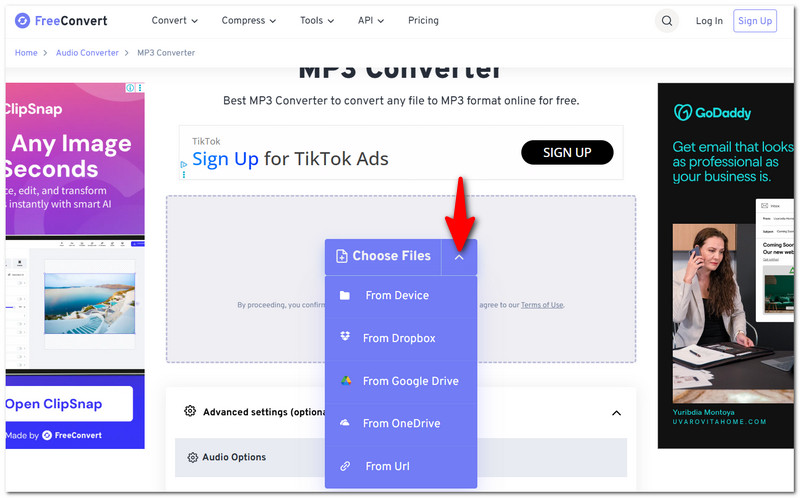
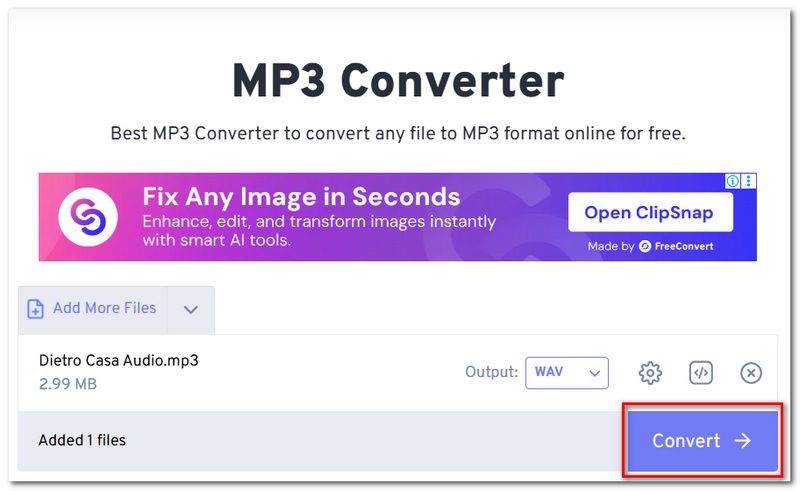
If your only reason for converting a video is to get the audio, FreeConvert also has the familiar Video to MP3 option.
FreeConvert MP3 Converter can be used without having to subscribe to a paid plan. Free users can currently convert up to 20 minutes per day, with a limit of 5 minutes per individual file. The MP3 Converter also currently supports files up to 1 GB for free.
For casual MP3 conversions, the free option will suffice. For those who do more frequent conversions for larger files or more minutes a month, there is a paid selection that increases the file size limit and the number of minutes.
FreeConvert.com is normally a fairly safe service for converting audio files. It clearly notes that it encrypts the connection and claims that the uploaded files are then removed after a certain period. Still, even so, it is wise never to upload very private recordings to an online audio converter.
Want an MP3 converter - FreeConvert.com? Use the site if it is the official one. And freeconvert.com is safe, but usual care should be taken with private files.
If you find FreeConvert MP3 Converter too complicated, this can be an alternative. Aiseesoft Free Online Audio Converter is an online tool. There is no need to download or install any software. It is able to convert audio formats or pull audio straight from video files. If you want a desktop version, Aiseesoft Video Converter Ultimate can be a good option with many AI features supported.
Downloads
Aiseesoft Video Converter Ultimate
100% Secure. No Ads.
100% Secure. No Ads.
How to Use Aiseesoft Free Online Audio Converter
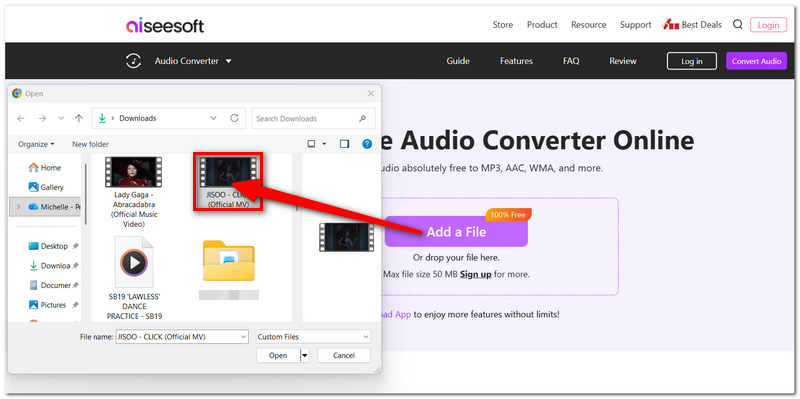
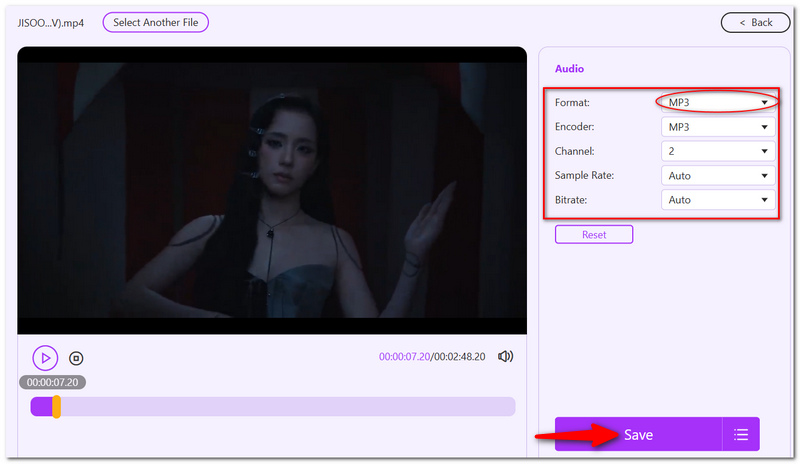
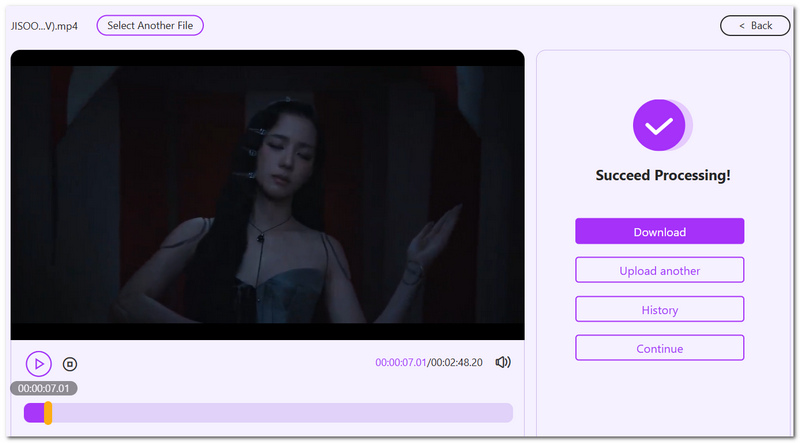
The current free version supports files less than 50 MB and a maximum of 2 files per 24 hours for users who are not logged in.
How can I convert the MP3 back to audio?
Yes. If you desire the audio to play back in reverse, FreeConvert offers a Reverse Audio feature under the advanced settings.
What sample rate should I choose when encoding audio into MP3?
44.1 kHz is a suitable option for most circumstances, but 48 kHz may be appropriate when working with video audio. Both are available with FreeConvert's advanced options.
How do conversion minutes work if my conversion cannot be made?
FreeConvert states that 'failed conversions will not be deducted from the paid conversion minutes for your account, as the minutes spent on an unsuccessful conversion are automatically reimbursed.'
Conclusion
FreeConvert is a good solution if you want to convert MP3s fast and without installing a program. It brings enough options for the average user, but free limits could be significant if you need to convert every day or larger files than the free offer allows. If you're looking for an MP3 converter, FreeConvert.com is a good choice, but Aiseesoft Free Online Audio Converter is another option for a more basic conversion process.
 5 Best Portable MP3 Players in 2026 (Cheap & Hi-Fi Starting at $45)
Looking for the best portable MP3 players and Hi-Fi DAPs in 2026? Compare budget, sports, mid-range, and high-end music players.
 MP3 VS MP4: How about Their Audio Quality and File Size?
MP3 is generally audio-only file while MP4 is a multimedia facilitator. This article will tell you the differences, so that you can use them properly.
 How to Edit MP3 Files with Original Sound Quality (Online/Desktop)
Want to edit MP3 tags, customize the MP3 audio length and more? Read this article and find a suitable MP3 editor.
 Leave your comment and join our discussion
Video Converter Ultimate is excellent video converter, editor and enhancer to convert, enhance and edit videos and music in 1000 formats and more.
100% Secure. No Ads.
100% Secure. No Ads.

*Required field
*Please enter a valid email

