
Aiseesoft Screen Recorder
 100% Secure. No Ads.
100% Secure. No Ads.
It is a common need to share what is happening on your screen, whether you are a content creator, gamer, educator, or casual user. This is where the helpful screencasting tool comes in. However, what exactly is a screencast, and how do you screencast on your iPhone, iPad, or Mac effectively?
This article will guide you to know everything about screencast, explore its unique value, and introduce you to top-tier screencast software like Aiseesoft Screen Recorder.
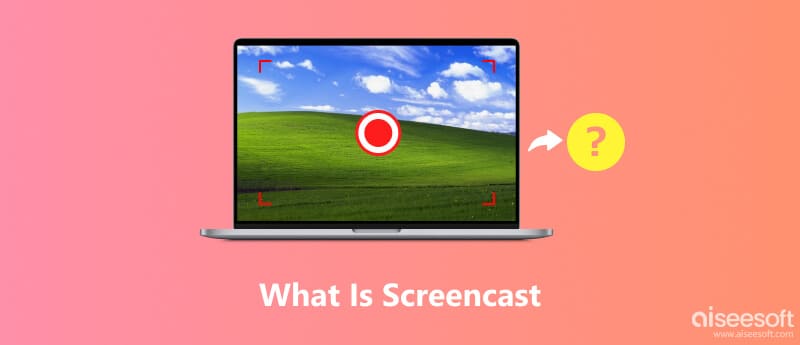
First, let’s figure out what exactly a screencast is. At its core, it is a video recording of your computer screen content. A screencast is often accompanied by audio narration, usually your voice, for explaining a concept or troubleshooting an issue.
Is a screencast the same as a simple screen recording?
Screencast vs. Screen Recording
You should know that all screencasts are screen recordings. However, not all screen recordings are screencasts. The main difference between them is audio.
A basic screen recording is often a capture of screen activity, with no sound. It is about the image content. On the contrary, a screencast elevates this by adding narrative elements to explain better, persuade, or teach. Screencasts use voiceovers, annotations, or webcam feeds to communicate with viewers.
Screencast vs. Livestream
A livestream is a real-time broadcast of your screen to a live audience. Livestreams on different platforms like YouTube and Twitch allow immediate interaction via chat.
The key difference between screencast and livestream is time. A livestream is real-time, while a screencast is typically pre-recorded.
A screencast often includes more than just mere motion capture. As mentioned above, it is used to convey and deliver information more effectively. It is accompanied by audio narration and other elements for maximum understanding.
The uses of screencast are vast. This section explores several main parts.
Whether you want to screencast on a Mac or Windows PC, you have built-in tools to capture the entire screen or a selected region, depending on the content. However, as mentioned, a screencast is beyond a simple screen recording. You also need to add voiceover, webcam, edits, and more to it. So, choosing the right screencast tool is essential.
For both Windows and Mac users, Aiseesoft Screen Recorder stands out as a great choice. It is capable of high-quality capture and offers necessary editing and annotation features. The screencast software is designed for users who want high-quality results with no steep learning curve.
100% Secure. No Ads.
100% Secure. No Ads.
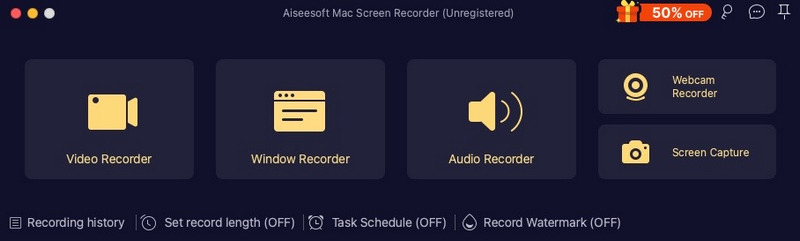
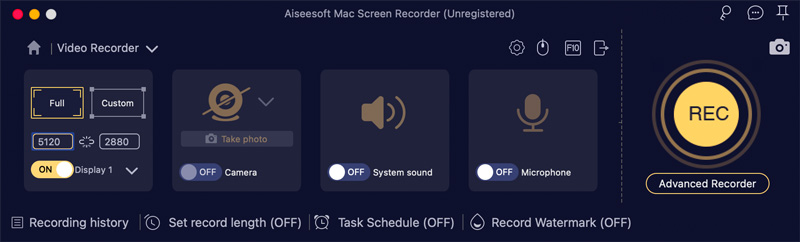
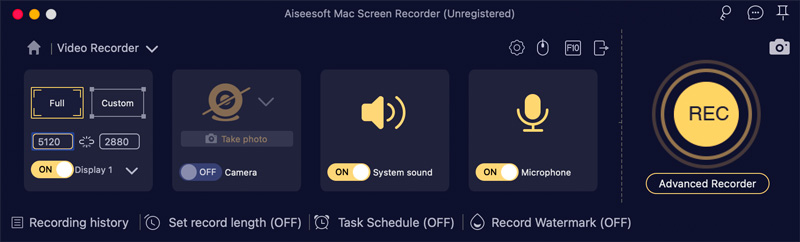
When finished, a preview window will open automatically. You can trim the screencast to remove unwanted parts, then export it.
Question 1. Question 1. How do I set up screencast on my Mac?
You can easily set up and make a screencast on your Mac. You can start with the built-in Screenshot Toolbar or QuickTime Player. They can help you record the entire screen or a selected area for screencasting. Moreover, you can capture sound from your Mac’s microphone. For more advanced features, you will need a dedicated tool like Aiseesoft Screen Recorder, Screencast-o-matic, or OBS Studio.
Question 2. Is there a default password for Screencast?
No, there is no universal default password for screencast software. Generally, you will not be required to enter a password to proceed with the screencast. However, if you see the prompt, enter the password for the specific software you are using. In some cases, for institutional software provided by a company, organization, or school, you need to enter a passcode to identify yourself or unlock a restricted feature.
Question 3. How do you screencast on Windows 11?
Windows 11 offers built-in solutions for screencasting. For quick tasks, you can use its Xbox Game Bar. This way is ideal for recording gameplay or an active app window. For professional-quality results, you can turn to the Aiseesoft screencast software introduced here.
Conclusion
This guide gives you a quick introduction to screencast. You can learn what a screencast is and the core difference between a screencast and a simple screen recording. Moreover, a reliable screencast tool is recommended. When you need to screencast to display or solve problems, share information, or better connect with your audience, try Aiseesoft Screen Recorder to create compelling video content.
100% Secure. No Ads.
100% Secure. No Ads.
 OBS Studio vs NVIDIA ShadowPlay: Features & Performance
If you are hesitating to choose OBS or ShadowPlay for your live streaming and screen recordings, you can read this review and make the right decision.
 Screencast-o-matic Alternative - Screencast Onine Video Freely
Want to record online videos with Screencast-o-matic? You have other good screen recorders to choose. Read this article to know more about Screencast-o-matic.
 Top 5 Split Screen Video Editors for PC and Mac Computers
Feel boring about the regular videos? Here are top 5 best split screen video editors to help you create unique effects with your own videos and photos.
 Leave your comment and join our discussion
Aiseesoft Screen Recorder is the best screen recording software to capture any activity like online videos, webcam calls, game on Windows/Mac.
100% Secure. No Ads.
100% Secure. No Ads.

*Required field
*Please enter a valid email

