
Aiseesoft Anock Android Unlocker
 100% Secure. No Ads.
100% Secure. No Ads.
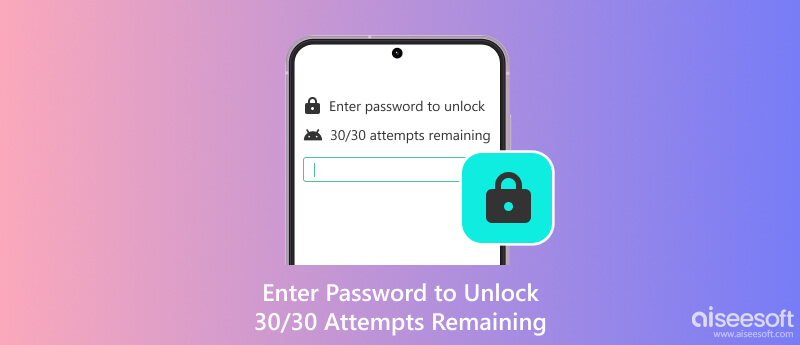
Did you encounter the prompt “Enter Password to Unlock 30/30 Attempts Remaining” on your Android phone? Maybe you accidentally trigger the security startup or someone else repeatedly enters the wrong password on your phone. Whether the reason is, this warning can be worrying and anxious.
However, do not be afraid. This text does not mean that the phone will be scrapped soon, it is just a protection mechanism of Android. Please calm down first and follow the fixes below to operate step by step. We offer 6 solutions to deal with Enter Password to Unlock 30/30 Attempts Remaining and tips to help you avoid the same issue.
Note:
If your phone appears Enter Password to Unlock 30/30 Attempts Remaining, don’t input continuously and quickly, and do not restart when there is no power!
If the Enter Password to Unlock 30/30 Attempts Remaining information shows on your Android screen, your phone is locked out temporarily. This message has two meanings: you have to input the correct password to unlock your phone, and you only have 30 times to enter passwords. If you run out of 30 attempts and still don’t unlock your Android phone, it will be locked out permanently.
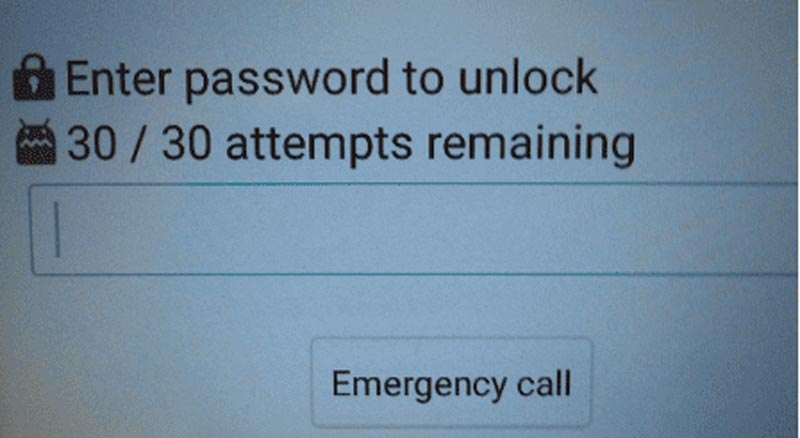
Enter Password to Unlock 30/30 Attempts Remaining is a security feature to protect your smartphone from unauthorized access. This mainly happens because of too many failed password inputs. For users of old Android devices like LG smartphones, they may meet Enter Password to Unlock and 30/30 Attempts Remaining errors. But for most recent iPhone and Android smartphones, entering the wrong password 5 times will lock devices for 30 seconds. If you keep failing to lock the device, the lock time will become longer until you are locked out permanently.
1. Forgotten Password
The most common cause - you've simply forgotten your lock screen password, PIN, or pattern.
2. Secure Startup (Full-Disk Encryption)
If you have recently restarted your phone or updated software, your Android device asks for your main PIN/Password to decrypt your information before it boots. However, your fingerprint will not work at this time.
3. Accidental Multiple Entries
Children or pocket touches may have entered wrong passwords repeatedly.
4. Brute-Force Protection
This limit is a security firewall. In case your device detects some quick and incorrect attempts to enter your PIN, this limit kicks in.
5. System Glitches or MDM Policies
• System Errors: A flawed "Credential Storage" section after a failed update can cause the phone to stop recognizing the correct password.
• Work Phones: If you're using a company-managed device (MDM), they may have implemented a policy that enforces a 30-attempt limit, after which the device will erase itself for data protection purposes.
No matter what reasons are, here are some common solutions for the Enter Password to Unlock 30/30 Attempts Remaining message.
If you exhaust all 30 password attempts:
Your device may become temporarily locked for 30 seconds to several hours.
In some cases, the device will require Google account verification.
Extreme cases may result in data loss if factory reset is required.
Important: Your data is NOT immediately deleted - you still have recovery options.
| Situations | Suitable Fixes | Success Rate | Ease of Use |
| If you remember the right password or note down somewhere | Wait for the Timeout and enter the right password | Low | Easy |
| If your Android device is 9 or below version & has linked to Google account | Recover Password via Google Account | High | Easy |
| If you want to quickly bypass the screen lock | Third-party tool | High | Easy (note: this way will clear all data.) |
| If you enable Find My Device & remember the Google Account | Reset Password via Google Find My Device Restore Factory Settings |
High | A little complex (note: this way will clear all data.) |
| If you can find the purchase information | Turn to the Official Store for Help | High | Easy |
We know how frustrating it is when you can’t unlock your Android with too many unlock attempts. But anxiety and anger can’t help, so just stay calm and try to find a solution to unlock your phone. By the way, most Android smartphones and iPhones lock temporarily after 5 wrong passwords are entered. The locked time becomes longer when you keep inputting the incorrect password, first 30 seconds, then 1 minute, 5 minutes and longer.
During the lockout time, we suggest you don’t do any further operation and touching, otherwise there may be some extra errors. When the locking time is out, enter the right password if you can remember or find it again.
Some former types of Android phones: Android 9 or below. have an option of, forgetting the password and resetting it if you can’t remember the right password. You can try to reset before you consume all available attempts. You may be asked to answer some security questions you have set before or enter your Google account.
Note: There won’t appear such prompt even if you try the wrong passcode on newer Android devices.
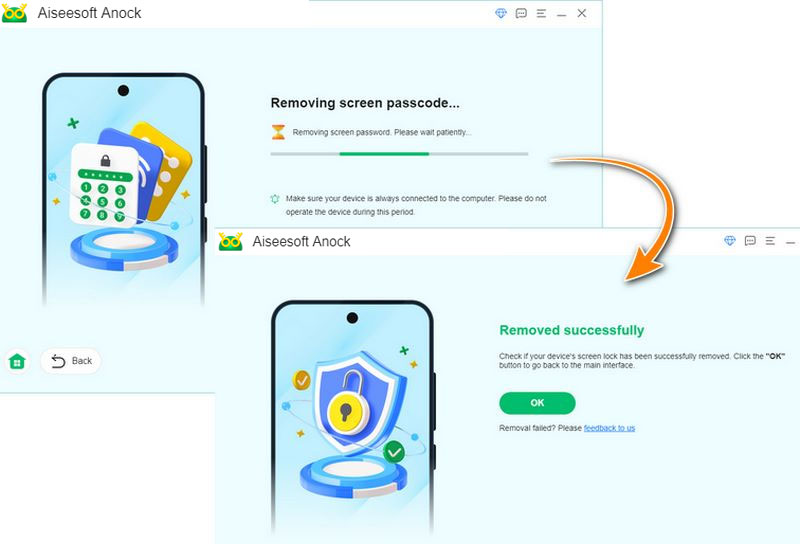
Are the above solutions helpful? If not, we recommend a professional third-party tool – Aiseesoft Anock Android Unlocker. It is one of the best ways to unlock your Android phone’s PIN, pattern, password, fingerprint and face recognition. What’s more, it can work with various phones with different brands, including Samsung, HTC, LG, Huawei, and more.
100% Secure. No Ads.
100% Secure. No Ads.
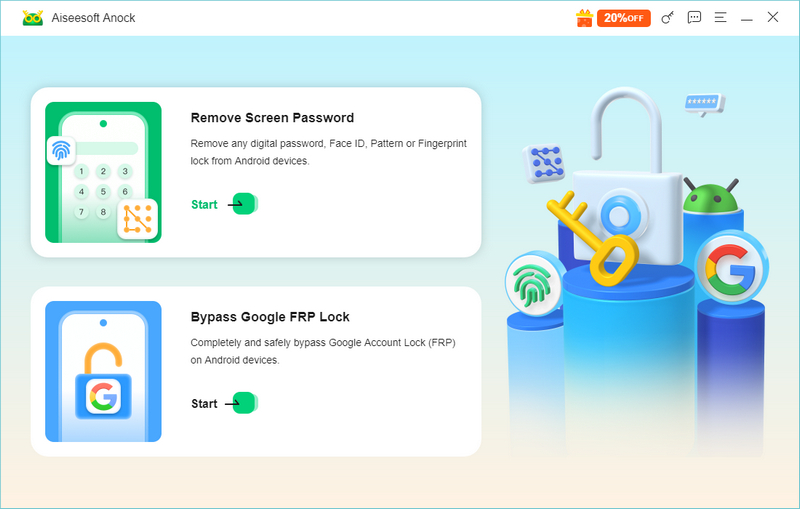
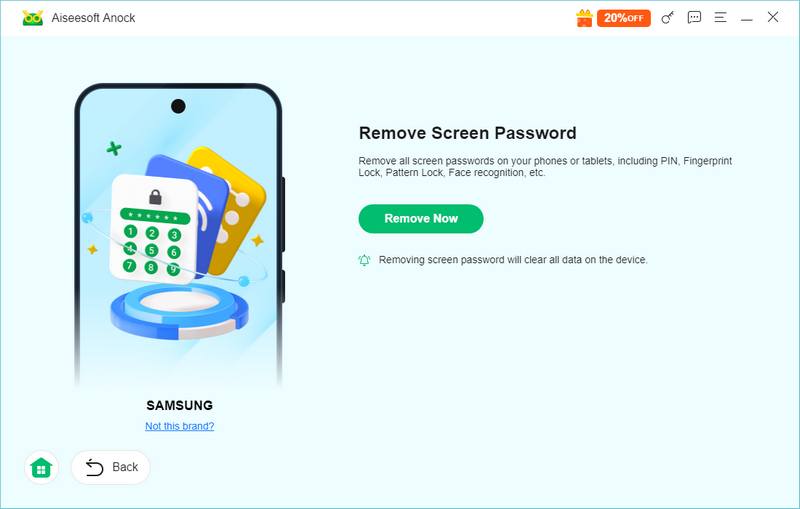
Note: This will clear all the data on your phone. Plus, if the phone has a high version of Android security patch enabled, there is no software on the market that can unlock it without losing data.
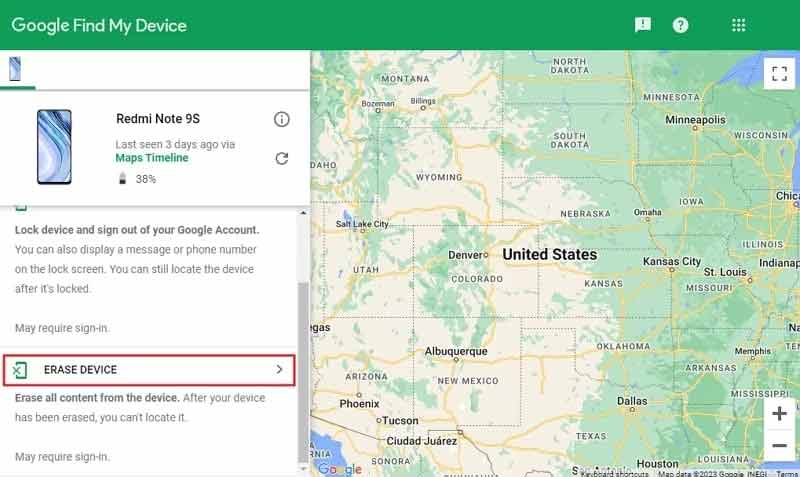
Android users locate and reset their devices with Google just as iOS users use iCloud. If you have linked your Android to your Google Account, then you can use Google Finder My Device, the former Android Device Manager, to reset your Android password.
How to reset a device password
If none of the above methods are helpful for you, you may need customer support. Most phone manufacturers will set up distributors and offer professional guidance and customer support. You can prepare the purchase documents and turn to your local store for help. However, this may be impossible for some users who meet Enter Password to Unlock 30/30 Attempts Remaining information because their old smart phone brand may have closed.
If none of the methods above can help, you can factory reset your device. But this should be your last choice because it is not commonly used for ordinary users and all your data will be completely removed after the factory reset. Here are some simple steps.
Opening the recovery mode varies according to the brand and version of your phone. Usually, you can just press and hold the Volume Down and Power buttons to enter the recovery mode.
• For most Android phones: Power + Volume Up
• For older Samsung and LG phones: Power + Volume Down
In recovery mode, you can press the Volume Up and Down button to move to “Wipe data/factory reset” and press the Power button to confirm. Then, follow indications to click “Factory Reset” > “Yes” > “Wipe cache partition” > “Reboot system now”.
After the factory resetting finished, you need to verify your Google account (if you enable the FRP) or verify the password (which you may have forgot when you use up the chance Enter Password to Unlock 30/30 Attempts Remaining).
1. Disable Secure Startup
This feature will be enabled by default on Android 9 and below devices. To disable secure startup, click Settings > General > Lock Screen & security > Encryption & Credentials > Secure Startup > No in order.
2. Use a Password Manager
Store your lock screen PIN or complex passwords in a secure and professional manager.
3. Sync with a Cloud Service
Ensure photos and contacts are backed up to Google Photos/Drive or a brand-specific cloud (like Xiaomi Cloud or Huawei Cloud).
How many times can you try pattern unlock on Samsung or other Android?
1st ~ 5th attempts: Can be entered consecutively. If all are incorrect, the phone will be locked for 30 seconds.
6th ~ 15th attempts: Each incorrect attempt will extend the lockout time (e.g., 1 minute, 5 minutes, 30 minutes, etc.).
After 15th or 20th attempt: The system will typically completely disable graphical input and require verification using a backup PIN, numeric password, or Google/Samsung account.
What happens if you enter the wrong PIN many times on an Android phone?
If you have entered the wrong PIN too many times, your Android phone will be locked out for a period of time. Some old Android phones, like LG G3, will display "Enter a Password to Unlock 30/30 Attempts Remaining." If you continue to enter incorrect passwords, your phone will be reset or locked out permanently.
Will using unlocking software void my warranty?
Screen unlock usually won't void the warranty, but other operations such as "rooting" or "bootloader unlock" might. Consult your manufacturer.
What if the software doesn't work for my device?
Respected software companies such as Aiseesoft provide 30-day money-back guarantees. Contact their support for a refund if you are not satisfied with their software.
Can I unlock without a computer?
Most professional tools require a computer. For phone-only solutions, try Google's Find My Device app on another Android device.
Conclusion
Android phones have security features that will lock themselves after too many wrong attempts of unlocking. This is just aimed at protecting your device and privacy. You may see different formats of warning and Enter a Password to Unlock 30/30 Attempts Remaining is just one kind. To avoid this problem, just try to use a memorable passcode or try to take a note. If this has already happened, you can go to Aiseesoft Anock Android Unlocker for help. With just three simple clicks, it can 100% remove your pattern password, number, fingerprint and face ID.
 Android MDM Solutions: Streamline Device Management with More Tools
Android MDM solution proves that it is important to understand that security level, managing, and creating a work-related data profile are needed.
 Unlock Convenience: How to Access Android on PC [No Rooting Required]
How to access Android on PC? Whenever you want to access the Android on a PC, you can do multiple ways to connect it. This article completed the ways of doing it.
 Best Password Managers to Manage Passwords on Your Android
Does Android come with a password manager? What is the best password manager for Android? This post gives a full review of 3 best Android password managers.
 Leave your comment and join our discussion
Compatible with all Android OS versions, this unlocker provides a secure and easy way to remove screen lock of any kind and bypass FRP quickly.
100% Secure. No Ads.
100% Secure. No Ads.

*Required field
*Please enter a valid email

