
Video Converter Ultimate
 100% Secure. No Ads.
100% Secure. No Ads.
It really is annoying when you are all set to smooth a video, and the screen abruptly throws up a FlowFrames frame extraction failed message. I understand it completely! You make sure everything is correct twice, and FlowFrames just keeps on freezing at the frame extraction stage, thus leaving you in the dark and clueless about what you should do next. This article is for people like you and me, who got stuck with this error message and don't know what the problem is or how we can get rid of it without wasting time and guessing. So basically, you are going to find out what is at the root of the problem and also get some smart and easy solutions which you can implement immediately and for sure work. Whether the issue is your GPU, video format, or FlowFrames itself, this article is designed to help you resolve the error and resume processing your videos smoothly.
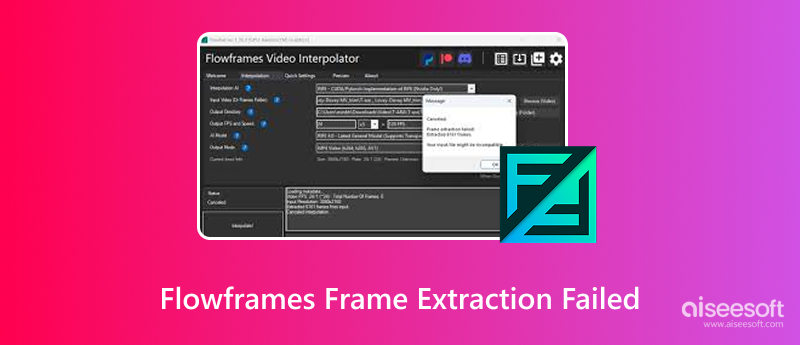
When you encounter a frame extraction error in FlowFrames, it most likely means that the program is not able to properly open your video or to separate it into frames. If the frame extraction does not go successfully, FlowFrames will not be able to do the interpolation of the frames, so the whole process will get aborted terribly early. Not always does this error indicate one issue only. In most cases, it is a combination of system, file, or software problems that leads to this situation.
The frame extraction failed FlowFrames message indicates that FlowFrames failed during the first stage of processing. At this step, the program relies on video decoding and GPU resources to extract frames. If something blocks that process, the error appears.
Unsupported video format
Some clips use codecs or containers that FlowFrames only partially supports, which in turn doesn't allow proper frame extraction. So you need to convert your video to a supported video format such as MP4 before using FlowFrames.
Outdated or incompatible GPU drivers
FlowFrames are highly dependent on GPU acceleration. One of the factors that may lead to decoding problems is old or faulty drivers.
Corrupted or incomplete video files
FlowFrames might not be able to properly read the video file's frames if it is corrupted or only partially downloaded. You need to repair the video first.
Insufficient system resources
If your system does not have enough VRAM or RAM, or if there are intensive background activities running, it can lead to extraction problems.
FlowFrames installation issues
Incomplete installation and corrupted files are two common reasons why you face this issue. Moreover, the folder you have chosen may be missing necessary files, or you might have installed it incorrectly.
Once you figure out the cause of the error, generally, fixing it is no big deal. Here, I’ll guide you through practical solutions to the leading causes of the problem—ranging from issues with the software and drivers to limitations of the video format. There is no need for you to use all the methods together. Usually, a single fix is sufficient to enable FlowFrames again.
If the error is due to missing or corrupted program files, reinstalling FlowFrames is often the quickest and easiest fix.
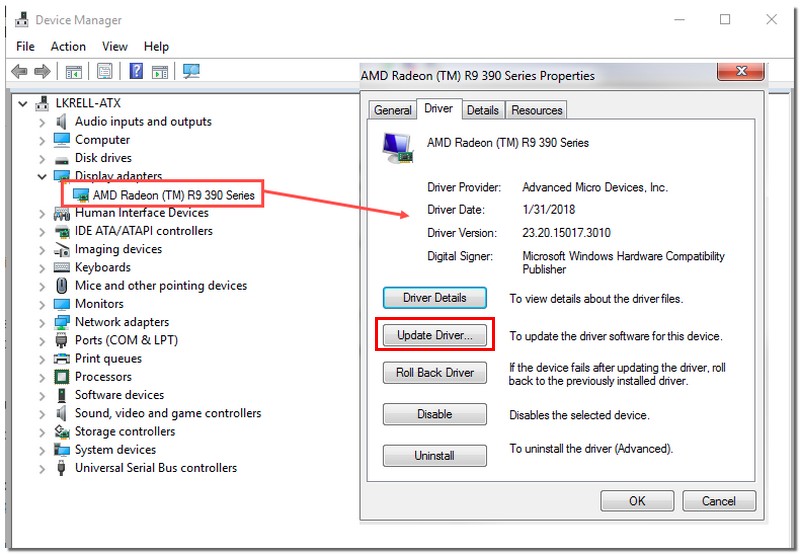
FlowFrames is very GPU-dependent for decoding and extracting frames. An outdated or unstable driver can result in failed frame extraction.
Intel GPU
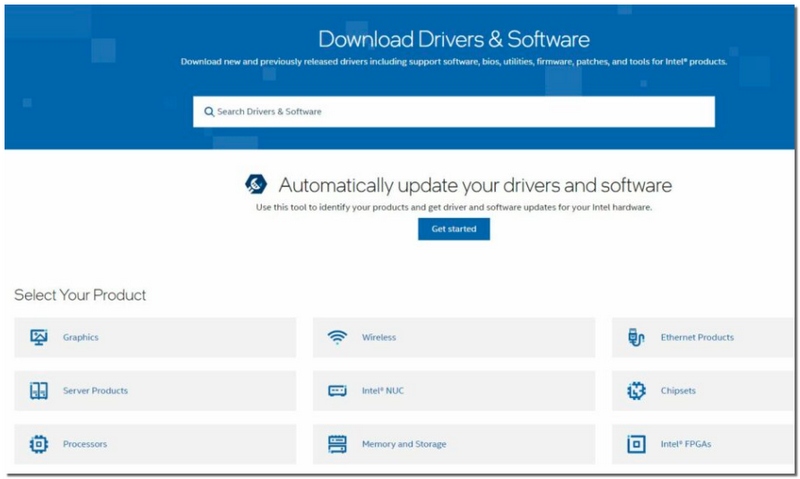
NVIDIA GPUs

AMD GPU
Sometimes, FlowFrames is unable to extract frames due to the video being in an unsupported format or codec. Changing your video into a commonly supported format like MP4 (H.264) will normally fix the problem.
100% Secure. No Ads.
100% Secure. No Ads.
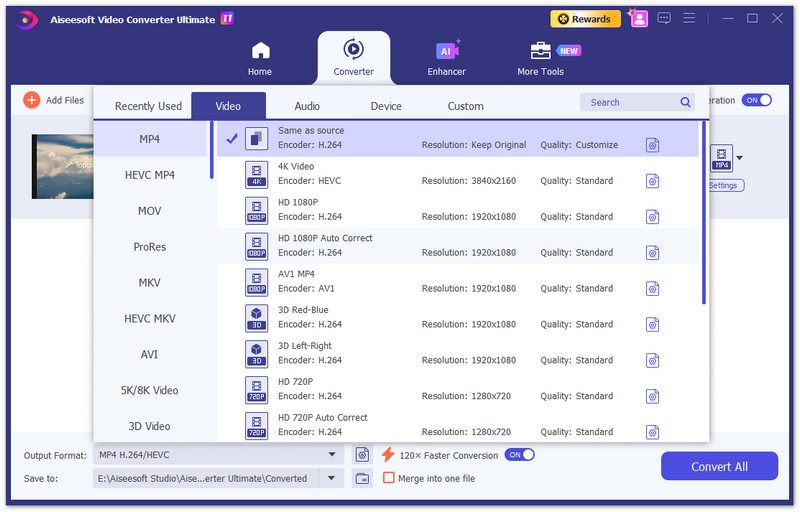
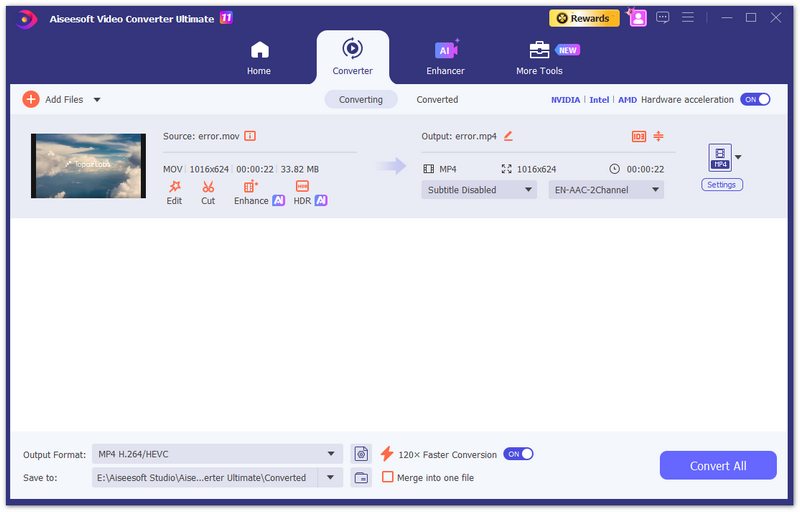
Sometimes, FlowFrames struggles with huge video files. Reducing the file size can make frame extraction smoother without changing the content.
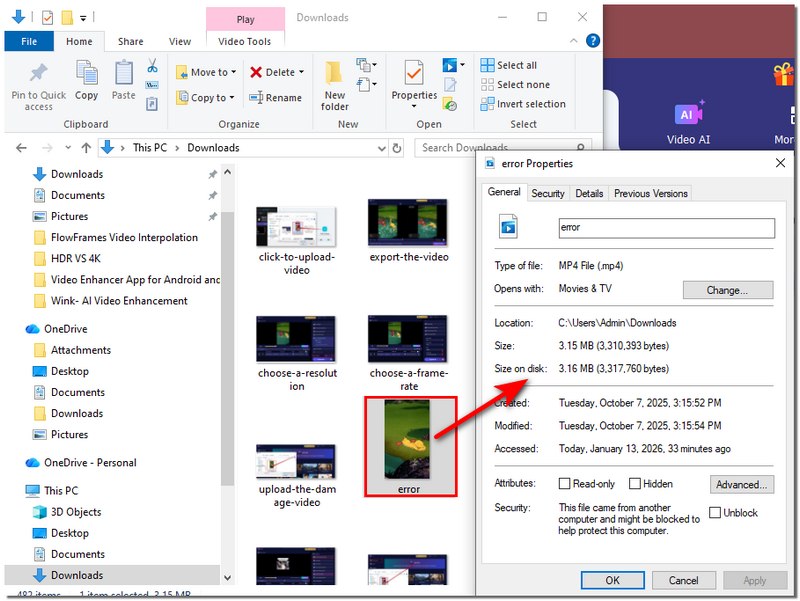
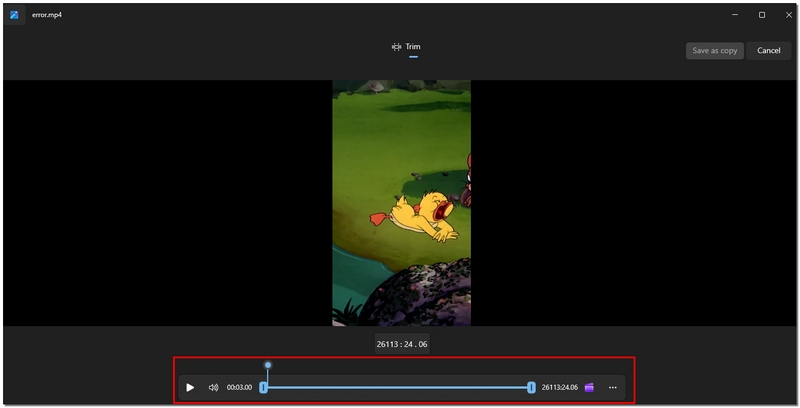
This simple method allows FlowFrames to deal with files more efficiently and, in most cases, it solves the problem of the error “frame extraction failed”.
If you face recurring errors with FlowFrames even after trying other fixes, you may want to look for a stable tool that can save you time. Besides AI-driven video enhancement and frame extraction, Aiseesoft Video Converter Ultimate is a dependable option you can count on to process your videos without facing extraction failures.

Downloads
100% Secure. No Ads.
100% Secure. No Ads.

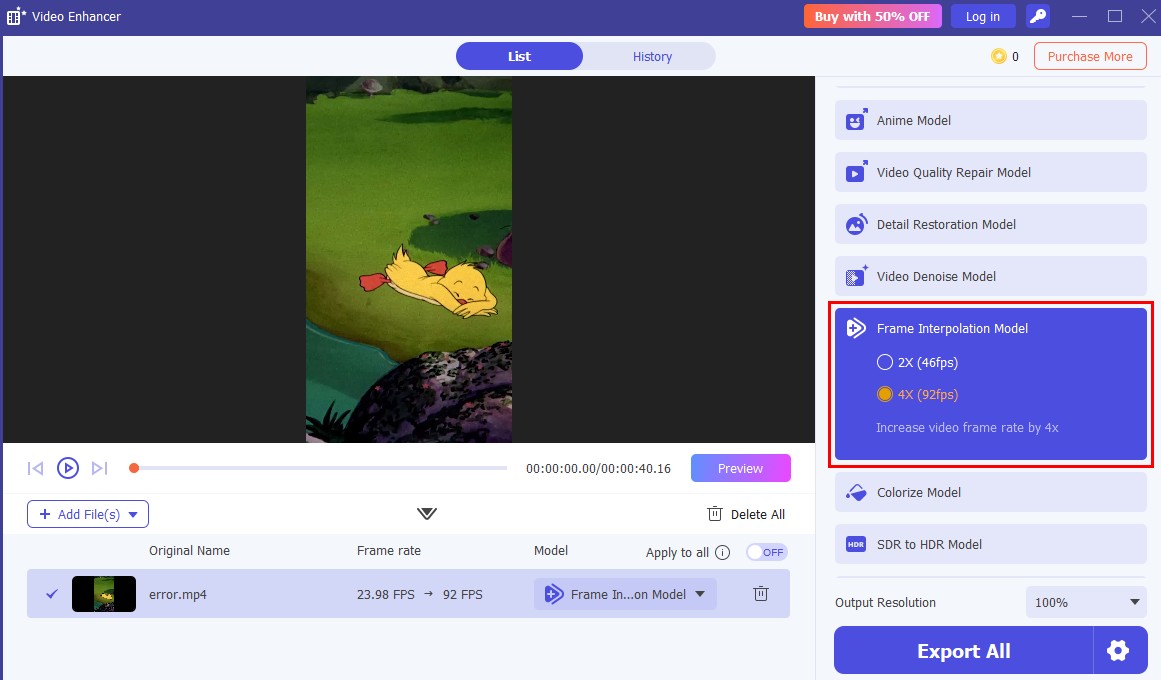
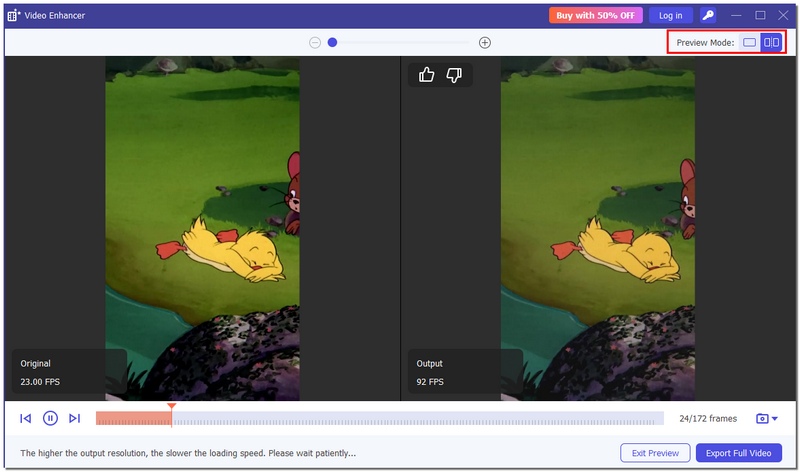
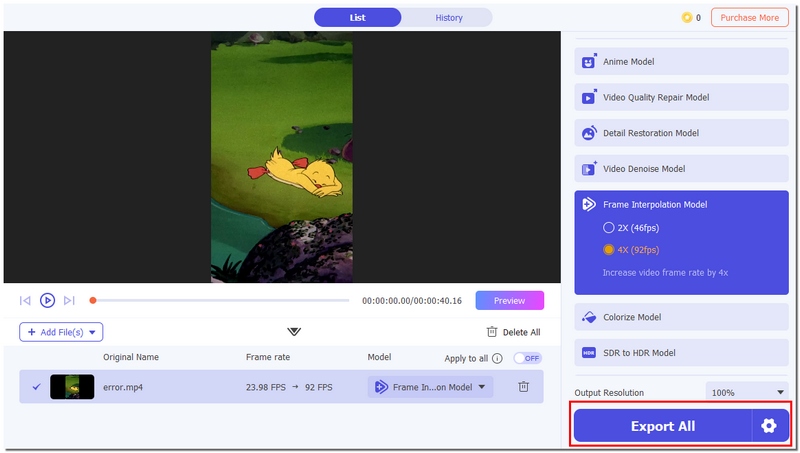
Typically, the easiest, most direct method to get around stubborn frames, extraction failures, and flowframe errors while still producing high-quality output is by using a tool such as this one.
Does FlowFrames work better with specific video frame rates?
Generally, FlowFrames works best with the most common frame rates of everyday videos, such as 24fps, 30fps, or 60fps. Knowing these common standards, the idea that you can trust it more makes sense, and also the concept that irregular or variable frame rates could cause the tool to malfunction is a way of providing you with the means for successful troubleshooting.
Can audio tracks cause FlowFrames frame extraction to fail?
Sometimes it is possible. For instance, if a video contains multiple audio layers or the audio track is corrupted, it may confuse the processing system. In such cases, the best course of action is to remove or re-encode the audio.
Is FlowFrames still usable without frame extraction?
Not really. Frame extraction is an essential step in the interpolation process. The chances are pretty slim that everything else would work without this step. Therefore, if you keep experiencing this problem, you may have to look for another AI video processing tool.
Conclusion
According to what I've observed, drivers, incompatible video formats, or extremely huge file sizes are more often the cause of frame extraction failures with flowframes than random errors. Most problems can be resolved by reinstalling FlowFrames, updating your GPU drivers, or changing the video to a compatible format. If the issue persists, using a more stable alternative tool is a more innovative way to save time and complete the task smoothly.
 Top 4 Frame by Frame Video Players for Smooth Playback
Can I move frame by frame in Windows Media Player? How do you play a video frame-by-frame in VLC? Check the 4 best frame by frame video player recommendations.
 How to Remove Duplicate Frames from Video with 4 Tools
Learn how to remove duplicate frames from video using Premiere Pro, FlowFrames, or FFmpeg, plus fix frame drops with AI for smoother playback.
 Best Video Frame Capture for Windows and Mac in 2025
In this article, you can learn how to record frames in a video step-by-step. Both Windows and Mac users can run this video frame capture software to solve the problem.
 Leave your comment and join our discussion
Video Converter Ultimate is excellent video converter, editor and enhancer to convert, enhance and edit videos and music in 1000 formats and more.
100% Secure. No Ads.
100% Secure. No Ads.

*Required field
*Please enter a valid email

