Video repair is a crucial process that restores and resolves issues in damaged or corrupted video files. It involves various techniques to analyze the video file's structure and identify its errors or inconsistencies. Luckily, now there are multiple powerful tools that can efficiently repair video files by recovering missing or corrupted data, reconstructing file headers, correcting encoding errors, and addressing synchronization issues between digital components.
However, it's important to note that the effectiveness of video repair ultimately depends on the software you choose. Some software options offer automated features that require minimal user intervention, while others provide advanced manual repair options for more precise control. This article has picked a list of the best tools for repairing damaged or corrupted videos. By exploring these tools individually, you will gain insights into their capabilities and learn how to use them effectively for video repair.
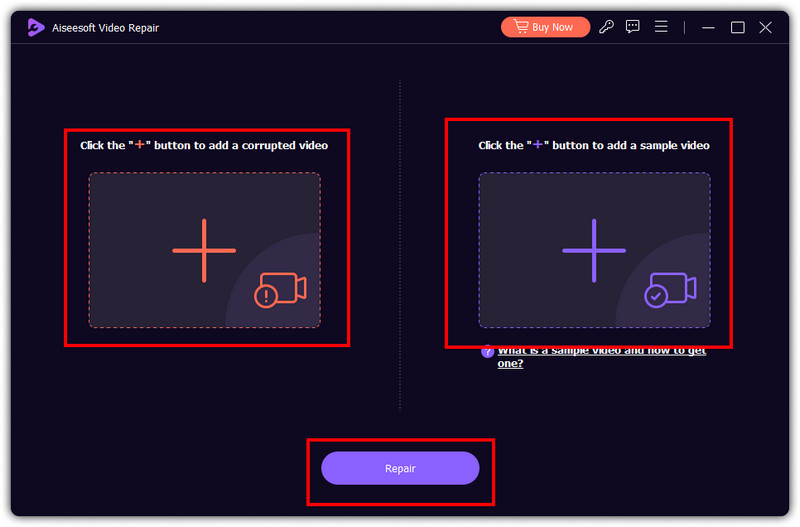
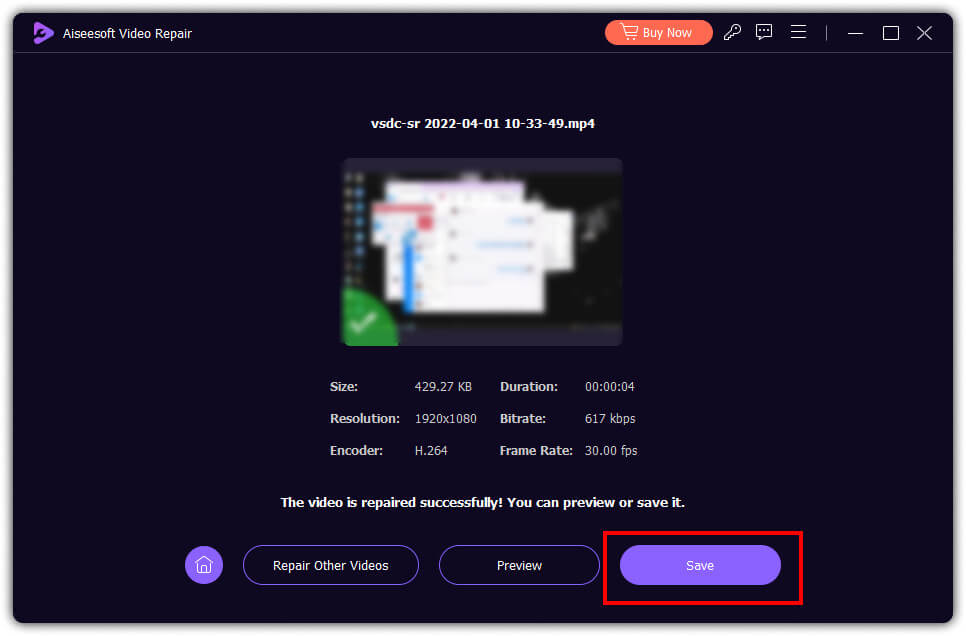
Aiseesoft Video Repair is a widely recognized tool for repairing video files quickly and effectively. The app features an advanced repairing algorithm only available on premium-class applications like this. The app proves it can fix any video format if you upload a sample video it can reference. Imagine having this tool at your disposal, and you would not need to become an expert in fixing your issue on video. If you are wondering how to use it, the steps provided here will teach you how to use it.
 100% Secure. No Ads.
100% Secure. No Ads.
PROS
CONS
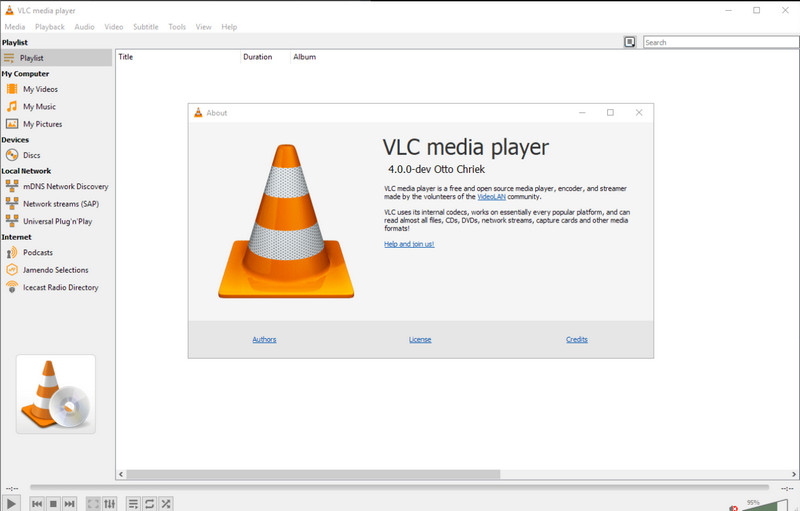
VLC Media Player can help you fix video errors immediately. This video player has a built-in feature wherein you can upload a broken video, and the player will process i, and you can also use VLC to edit videos. But the repairing feature offers only basic, which means fully damaged video can not be fixed here. If you want to try using this to fix your broken video, follow the steps we provided below.
PROS
CONS
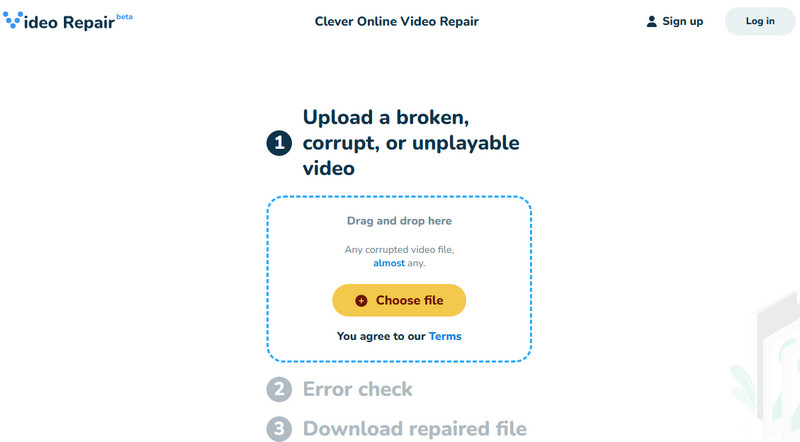
Clever Online Video Repair is an online video repair tool. It can fix video files that won't play or are damaged due to recording interruptions, device malfunctions, file corruption, and other issues. It supports repairing videos in MP4, MOV, 3GP, and M4V, using H.264 or H.265 encoding.
However, it has a limited size, which is up to approximately 5 GB. And it may fail to repair the videos with the complex issues.
Tips: For a higher success rate of repair, the sample video had better be of the same device, resolution, frame rate, and encoding format as the damaged video.
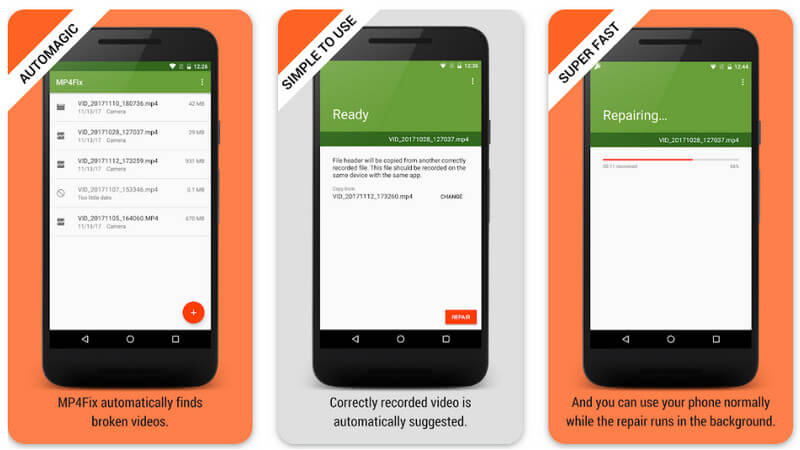
MP4Fix Video Repair Tool can repair damaged video files on any Android device. With it, analyzing the video file structure and repairing power on every damaged or corrupted MP4 file is not at par with other apps. However, the app can not fix videos downloaded online, limiting its fixing prowess. Also, it can only fix damaged MP4 and phone camera recordings. To know how this app works, follow the steps below.
PROS
CONS
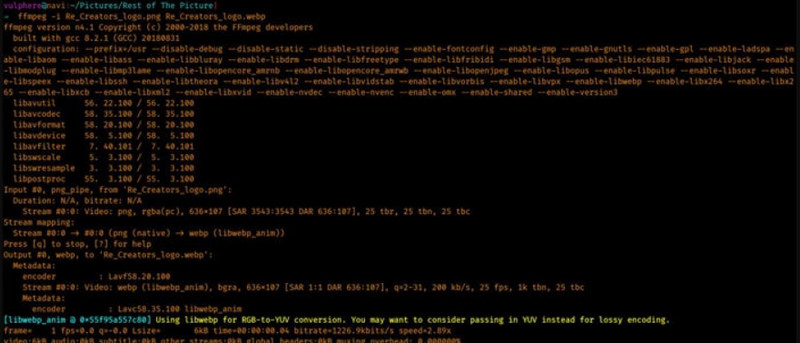
FFmpeg is a free multimedia framework to fix corrupt video files. It uses a command-line tool that provides a variety of libraries and programs for processing multimedia data, such as upscaling video resolution to HD/4k. Since it has covered most of the needed features, the app has become widely used and is highly versatile for media production, video transcoding, streaming services, editing, and more. To know how to use this app, copy the codes we included below and the steps accordingly.
PROS
CONS
Click here to learn how to repair videos that won't play on iPhone.
Whenever you need to fix a broken video file, you can depend on all of the tools we included here. To have a deeper insight into each tool, we have included a comparison chart to see the difference and similarities of each app.
| Features | Aiseesoft Video Repair | VLC | MP4 Fix Video Repair Tool | FFmpeg | Clever Online Video Repair |
| Platform Supported | Windows & Mac | Windows, Mac, Linux, iOS, and Android | Android | Windows, Mac, Linux, iOS, and Android | Online |
| User Interface | Userfriendly with the best graphical interface | Userfriendly with a graphical interface | Command-line interface | Userfriendly with a graphical interface | Clear and user-friendly |
| Repair Capabilities | Fixes any type of video format quickly using an advanced algorithm | Limited repair features, only playback | Repairing corrupted MP4 files on Android | Wide range of video processing capabilities, including repair | Limited when fixing corrupted videos for complex reasons |
| Supported Input/Output Format | Supports all of the popular video formats and codecs | Supports a wide range of video formats and codecs | Focuses specifically on MP4 files only | Supports a wide range of video formats and codecs | Supports MP4, MOV, 3GP, M4V, and H.264/H.265 codecs |
| Easy to Use | Easy | Average | Average | Difficult | Easy |
| Previewing Supported | Yes | No | No | No | No |
How do I uncorrupt a video on my phone?
To do it, you will need specialized software that can help you fix corrupted videos on your phone, like the MP4Fix Video Repair Tool on Android. The app can help you fix corrupted MP4 files and retrieve all possible data that can be restored.
Is there an app to fix broken videos?
Yes, there are apps that you can use to fix broken videos however, there are limitations in their capabilities because every other repairing software can not fix fully damaged videos. An advanced algorithm-supported app gives you a bigger chance of repairing any type of broken video.
Can I do video repairing even without experience?
Yes, you can easily repair a video using Aiseesoft Video Repair. The app is easy to use, and even beginners can get the hang of using it.
Conclusion
Now, you have ideas on how to repair broken videos with the methods we have introduced here. Follow the steps to learn how to, but if you do not know what to use, then start using first Aiseesoft Video Repair to have instant success on the first attempt.
 [Solved] How to Repair Corrupted MP4 Files
If some MP4 files are corrupted, you need to repair MP4 file. What is the best program for repairing MP4 file? Aiseesoft MP4 Video Converter can analyze and repair MP4 file.
 Video Repair Software: An Unbiased Review on 6 Solutions to Fix Videos
Video repair software is much needed since videos are beyond repair with the usual tool. We have reviewed the software you can choose today.
 How to Enhance Video Quality with the Best Video Converter Ultimate
How do you enhance video quality and upscale a low resolution video to a higher one? This article will tell you how to enhance video quality with ultimate video enhancer.
 Leave your comment and join our discussion
Repair your broken or corruped video files in seconds with the best quality.
100% Secure. No Ads.
100% Secure. No Ads.

*Required field
*Please enter a valid email

