
Best AI Video Converter Ultimate
 100% Secure. No Ads.
100% Secure. No Ads.
Why is my YouTube video blurry? The first step is to figure out the exact problem. This article will divide the problem into two main issues: the issue with play and the issue with upload. For watchers, the main reason for a blurry video is the connection speed, auto-quality setting, or user resolution selection. For producers, it is more about video codecs, handling times, or bitrate problems. We will discuss the steps for both. Besides, we will give some cool tricks to upscale your videos prior to uploading, so your content will be of high quality and polished. At the end, you will be well-equipped to troubleshoot, fix, or avoid blurry videos on YouTube, resulting in sharp and good-quality playback.

If you’re watching a video and it looks pixelated or unclear, basically a YouTube video fuzzy situation, there are a few simple fixes you can try to get sharper playback.
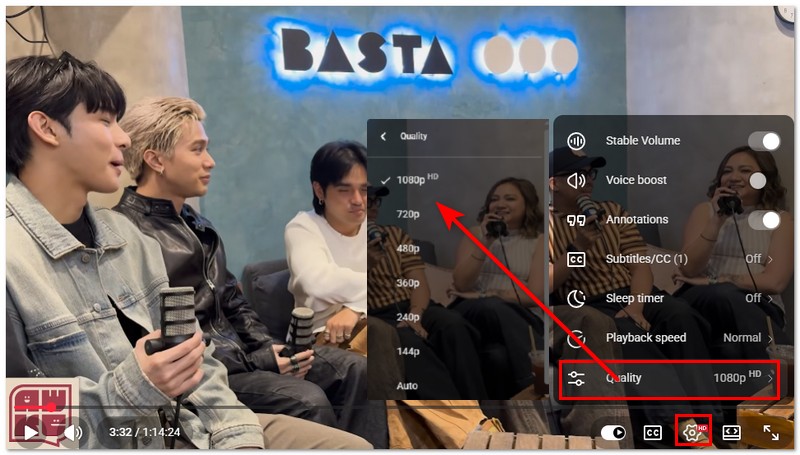
YouTube often defaults to auto quality, which adjusts based on your internet connection. While convenient, this can sometimes result in a fuzzy video, especially on slower connections.
To fix this:
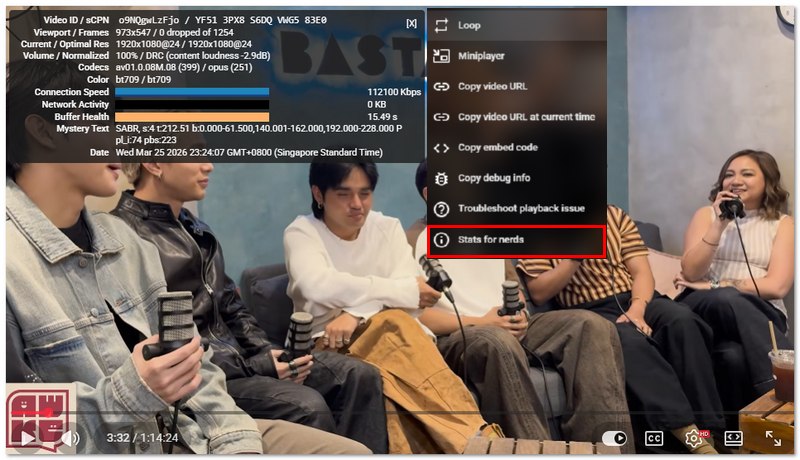
YouTube has a handy feature called “Stats for Nerds” that lets you check if your connection or buffering is causing a fuzzy problem with a YouTube video.
You may make a blurry YouTube video smooth and clear by altering quality settings and looking at connection statistics.
Why is my 4K video blurry on YouTube? Usually, it boils down to a few technical aspects. You can avoid frustration and enhance the quality of your videos by being aware of these.
YouTube employs various codecs for video compression and delivery. VP9 provides superior quality for higher resolutions, such as 4K. However, it is not necessarily used right away. The platform generally selects AVC1 by default for quicker compatibility. Consequently, this might cause your video to appear pixelated upon initial upload.
Uploading a 4K video to YouTube does not mean it will be ready for streaming in full resolution right away. YouTube processes videos of very high resolution step by step, beginning with the lower ones. So if your 4K video is not very clear at first, it is the usual thing. After the processing is finished, the full resolution can be seen.
Exporting or uploading videos at a low bitrate could be a cause of your videos blurring. Your video clarity and detail can be significantly affected by a low bitrate, even if your video is 4K. In order to keep sharpness, you should always follow the export settings recommended by YouTube.
If you want to avoid blurry uploads on YouTube, one of the best things I’ve tried is upscaling videos to 4K before uploading. This not only improves clarity but also increases the chance that YouTube assigns a better codec like VP9. A reliable tool for this is Aiseesoft Video Converter Ultimate. It is a powerful video tool that helps enhance and upscale videos with just a few clicks. You may manually increase quality, sharpen details, and optimize your video before releasing, rather than submitting low-resolution content and waiting for YouTube to fix it.

Downloads
100% Secure. No Ads.
100% Secure. No Ads.
Steps to Upscale Video to 4K
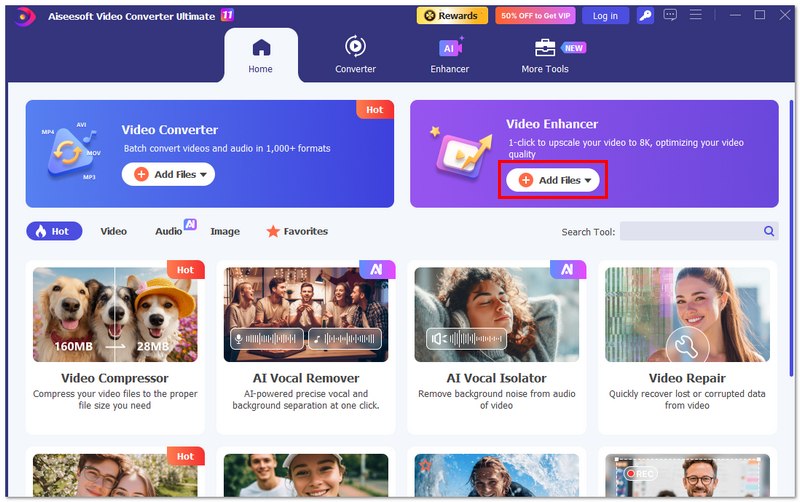
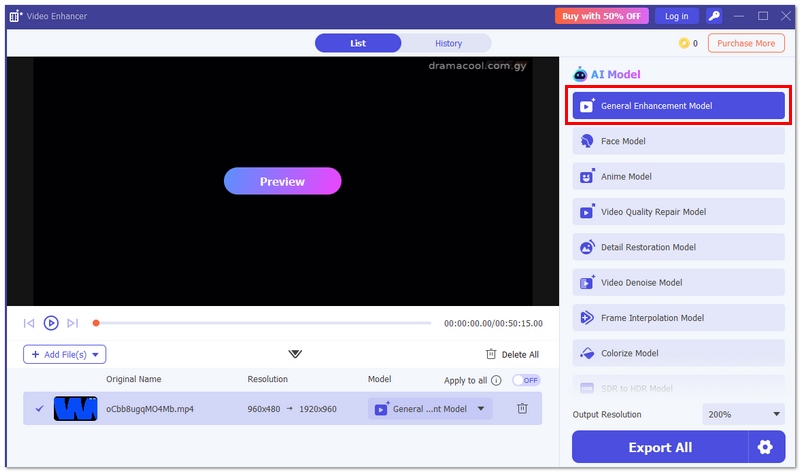
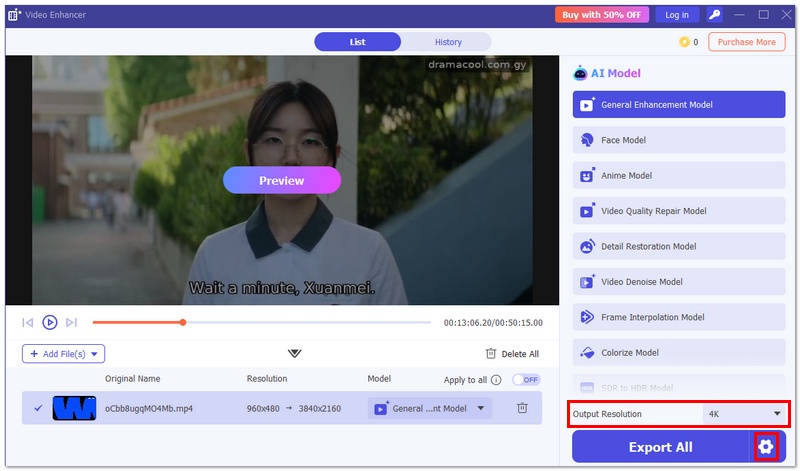
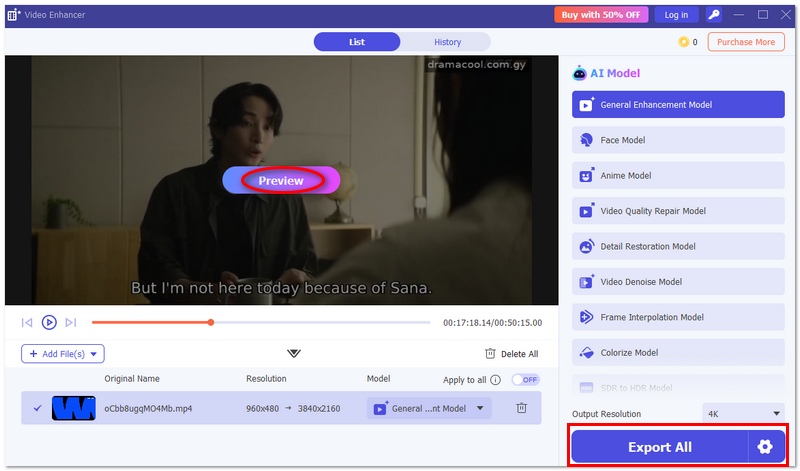
By upscaling your video before uploading, you give your content a better chance to look sharp and professional on YouTube—reducing the chances of it appearing blurry after upload.
Why does my YouTube video look blurry at the start but improve later?
The main reason behind this is that YouTube starts playing the video by default in a lower resolution to minimize buffering. When your internet connection improves, it changes the video resolution automatically to a higher one.
Does YouTube compress videos after uploading?
Indeed, YouTube compresses all videos to be uploaded in order to make streaming more efficient. If the original video is already of low quality or bitrate, this compression might make the image less sharp.
Does screen size affect video sharpness on YouTube?
Definitely, a video can look very crisp on a small screen, but when viewed on a large display, it might seem blurry if the resolution of the content is not high enough.
Can background apps affect YouTube video quality?
Indeed, background-running programs can reduce the speed of your device or internet, which lowers the quality of YouTube's playback.
Conclusion
After all, figuring out a YouTube video fuzzy problem is basically about knowing if it is a viewing or an uploading problem. If it is a viewing problem, people can fix the blurry play by setting the quality to the best, and by using a better connection. However, if it is an uploading problem, it is very important for video makers to not only understand the codecs, but also to give consideration to both the processing time and the bitrate in order to be able to maintain the video clarity. After you find out the right problems to solve and do the videos' preparation before uploading, it will be a great chance to have a smooth and clear YouTube experience at all times.
 video-is-not-playing-on-youtube
Why is YouTube video loading but not playing? Why are YouTube videos not playing on my iPhone? Know the reasons why YouTube won’t play and get tips to fix it.
 Effective Ways to Fix Black Screen on YouTube in 2025 [Newest]
Black screens on YouTube. Has many reasons why it happens, which is why we want to share this information with you. Learn more by reading this article.
 Full Review on What is OBS Screen Recorder & Best Alternatives
Unlock OBS Screen Recorder's full potential with our step-by-step review and usage guide. Start recording effortlessly and efficiently today for professional content creation.
 Leave your comment and join our discussion
Video Converter Ultimate is excellent video converter, editor and enhancer to convert, enhance and edit videos and music in 1000 formats and more.
100% Secure. No Ads.
100% Secure. No Ads.

*Required field
*Please enter a valid email

