
Best for: Users who already use cloud storage, need to manage files from multiple devices, or prefer a cable‑free solution.
You can handily transfer various files from your Mac to an iPhone through Apple’s built‑in tools. However, when it comes to a Windows PC, you may find it complex and notice that iOS is still pretty restrictive.
On Android, you can directly drag and drop whatever data you want to transfer; you cannot do that between a PC and an iPhone. This free data transfer from PC to iPhone guide shares four different methods for you to better handle your files. You can compare them and pick the option that best suits your file types and personal preferences.
This section breaks down four reliable free methods, comparing their key features, transfer speed, wireless support, and file type limitations.
Cloud storage is the most straightforward way to store photos, videos, documents, and small batches of files. iCloud Drive comes built into every iPhone, and Google Drive is free to install. Both help you transfer files from PC to your iPhone.
Best for: Users who already use cloud storage, need to manage files from multiple devices, or prefer a cable‑free solution.
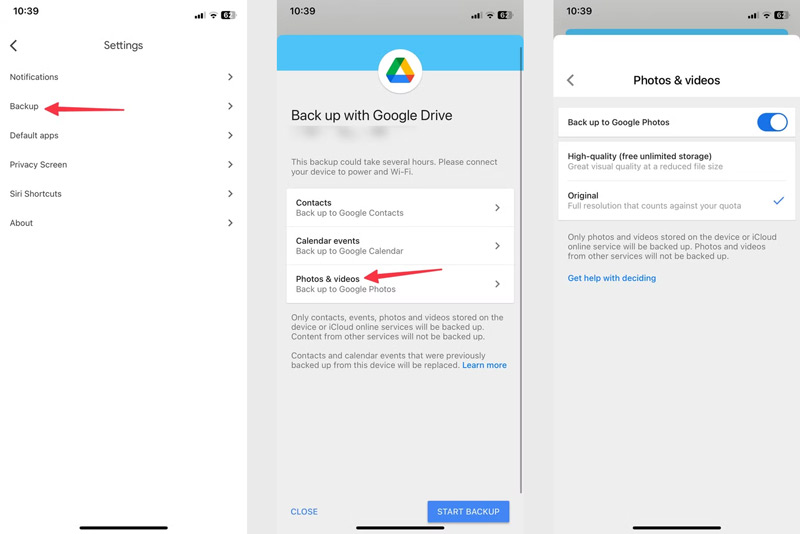
If you use Google Drive (15GB) as the free data transfer from PC to iPhone, you can install it on your iPhone and desktop, sign in with the same account, upload the necessary data from your PC to the cloud, then access and download files on your iOS device.
To sync your PC data to an iPhone via iCloud (5GB free), install iCloud for Windows from the Microsoft Store. Open iCloud for Windows, sign in, and check the box next to iCloud Drive.
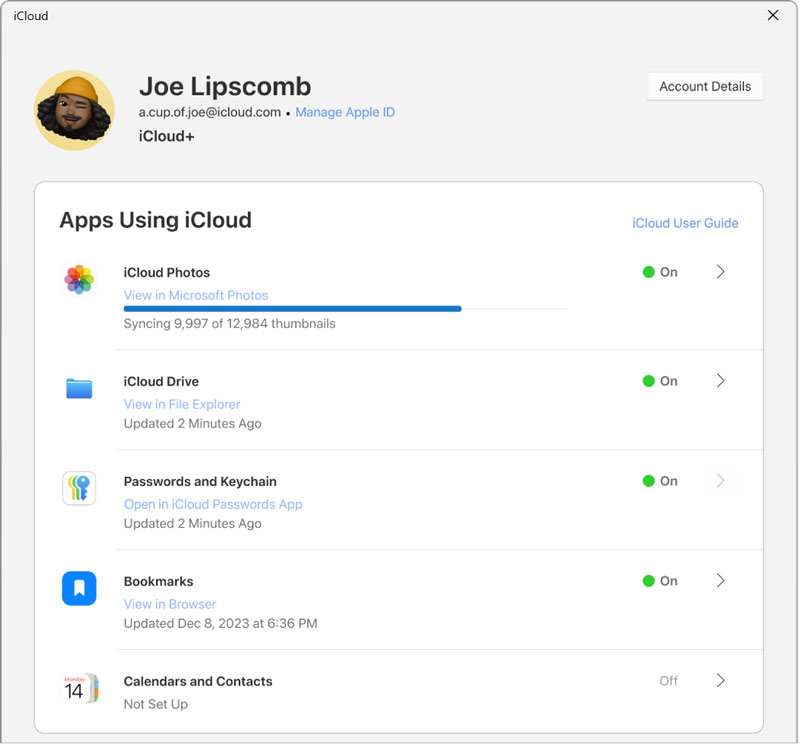
Drag your files into the folder. They sync to your iPhone’s Files app within seconds to a few minutes. On your iPhone, open the Files app, tap Browse, and select iCloud Drive. Your files are there.
AirDroid is a powerful tool that lets you transfer files wirelessly between your PC and iPhone. It supports all frequently used file formats. In addition, AirDroid doesn’t compress your files during transfer.
Best for: Users who want quick, wireless transfers without cloud uploads, especially for large files on the same Wi‑Fi network.
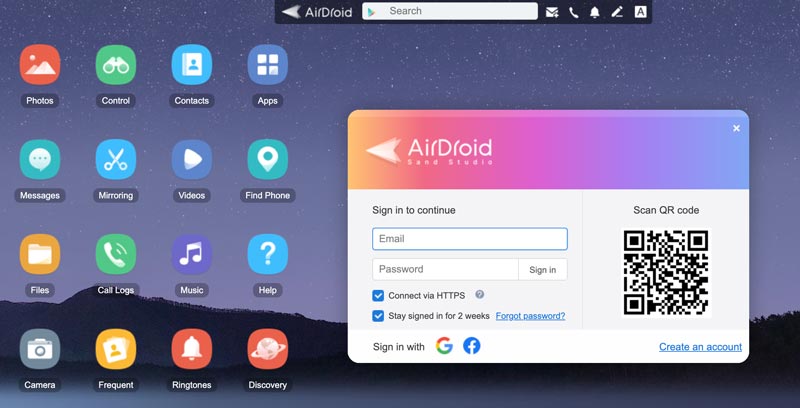
Note that the free tier of AirDroid limits individual file transfers to 100MB. You are also not allowed to transfer folders. If you need to transfer folders or large files directly, you must upgrade to the paid plan.
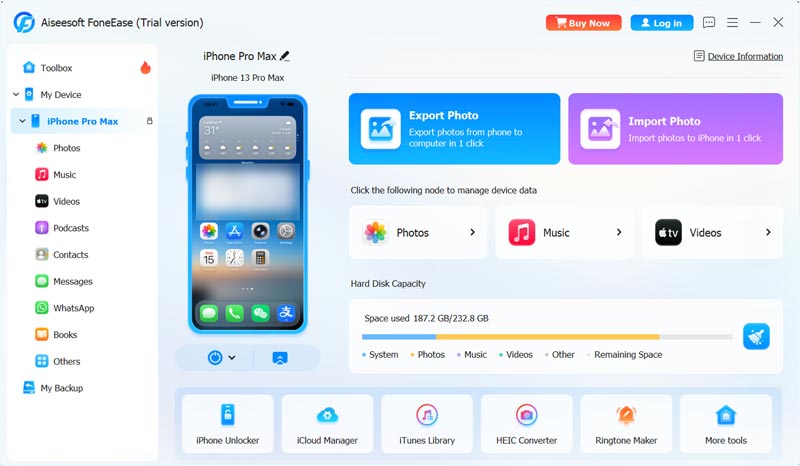
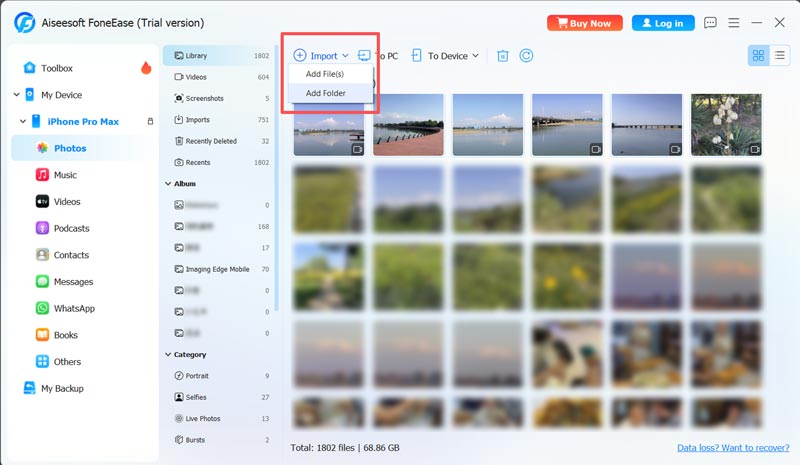
Aiseesoft FoneEase is a powerful desktop application designed for iPhone data management. Its free tier offers the necessary functions for direct USB transfers. It bypasses iTunes entirely and lets you transfer photos, videos, music, contacts, messages, and more between devices. Compared to other fee data transfers, FoneEase delivers a faster transition speed. The speed advantage of a physical cable is immediately noticeable.
Best for: Users who need a fast, stable USB transfer for all file types and prefer a dedicated tool over iTunes.
 100% Secure. No Ads.
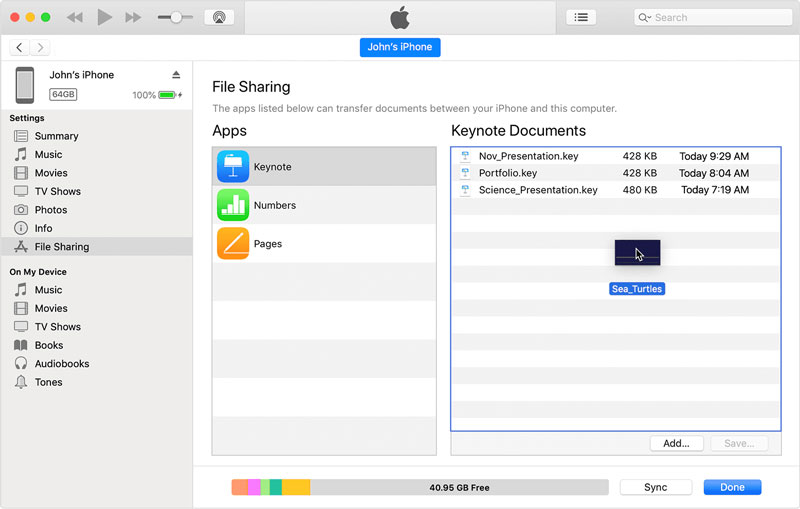
iTunes (or the newer Apple Devices app on Windows 10/11) remains the official method for free data transfer from PC to iPhone.
iTunes File Sharing lets you copy files between your PC and your iPhone. Apple Devices is the modern replacement for iTunes on Windows 11/10. It offers the same file‑sharing function with a cleaner interface.
Best for: Users who need to transfer documents to specific apps and prefer to use Apple’s official tools.
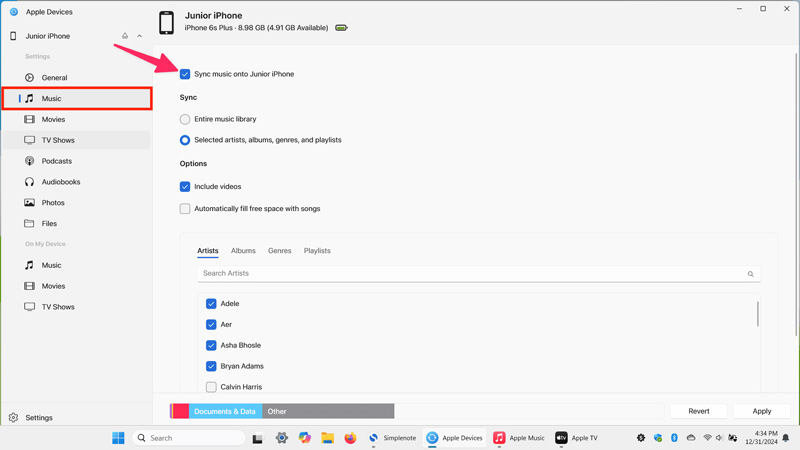
If you want to use the Apple Devices app for free data transfer, download it from the Microsoft Store first. Open Apple Devices and connect your iPhone. When the device appears in the sidebar, click Music and check Sync Music to choose your music folder. Click Apply to sync. You can use similar steps to transfer movies, photos, and other files to your iPhone.
Can I copy music from my PC to my iPhone for free without iTunes?
Yes. You can use Aiseesoft FoneEase, AirDroid, or Google Drive to transfer music files from your PC to an iPhone. However, the iPhone’s Music app may not recognize files transferred this way unless you import them through iTunes. Otherwise, you can use a third‑party player like VLC for iOS to play the songs you transferred.
Is AirDroid wireless transfer completely free to use?
AirDroid wireless transfer is not completely free. If you transfer files while both devices are connected to the same WiFi, AirDroid is free to use. However, compared to the paid version, the free version has some feature limits. Remote transfers have a 30MB/file limit and a 200MB monthly data cap for free accounts. What’s more, you cannot transfer entire folders.
Do I need an internet connection for these methods?
If you use a cloud service to transfer your data from a computer to your iPhone, you need a stable internet connection. However, if you use USB methods, such as FoneEase, iTunes, or AirDroid, you don’t need an internet connection.
Conclusion
This post shares four free data transfer from PC to iPhone tools. You can start with the recommended FoneEase to transfer all types of files between your Windows PC and iOS device. It offers speed that cloud services cannot match. If you are moving a music collection, the Apple Devices app is an ideal option for seamless playback in the Music app.
 5 Easy Ways to Transfer Files from Windows/Mac to iPad Quickly
Want to enjoy videos or PDF on your iPad for convenience? You come to the right place. This article lists 5 ways to transfer files to iPad easily. Please read it.
 Top 5 Wi-Fi File Transfer Apps for Android
How do you transfer files via Wi-Fi? Just check the 5 best Wi-Fi file transfer apps for Android to achieve the goal with easy process.
 Google Photos Vs Google Drive: Which One Should You Choose?
Confused between Google Photos Vs Google Drive? Discover their differences in storage, file types, and backup features. Learn which is best for your needs!
 Leave your comment and join our discussion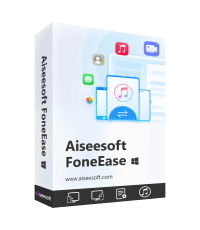
Aiseesoft FoneEase is a data transfer and management tool that lets you seamlessly move, back up, and manage various data between iOS, Android, and computers without resetting your phone or relying on iTunes.
100% Secure. No Ads.

*Required field
*Please enter a valid email
