Video Converter Ultimate
 100% Secure. No Ads.
100% Secure. No Ads.
You already have a video you want to put on Instagram. Everything seems good on your computer or on your phone, but once you upload it to the website, it is not framed as you wanted. The image is cropped, or the quality is not what you were expecting. This is a typical result when the video is not formatted correctly to fit Instagram.
Still, there are some modifications you might want to do before uploading, based on where you want to share the video, like a Feed post, Reel, or Story. We'll explore an easy method to convert MP4 for Instagram here, with the necessary settings and tools to make your video ready-to-upload.
It can be helpful to have an idea of where you will be uploading your MP4 before converting it. Instagram has different aspect ratios for posting to Feed, Reels, and Stories.
Aiseesoft Video Converter Ultimate makes it easier by providing output profiles optimized for your device or platform, so you don't have to configure all the settings yourself. The tool also offers options to edit your video and get it ready for export.
Downloads
Aiseesoft Video Converter Ultimate
100% Secure. No Ads.
100% Secure. No Ads.
How to Convert MP4 for Instagram Using Aiseesoft Video Converter Ultimate
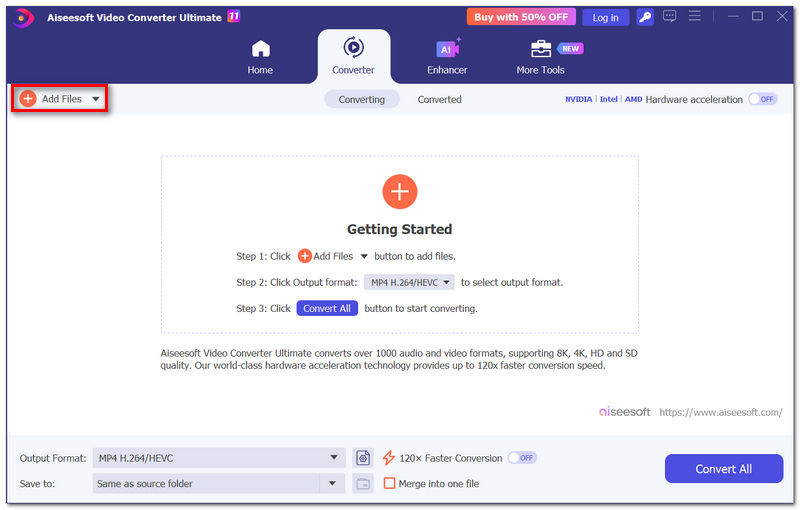
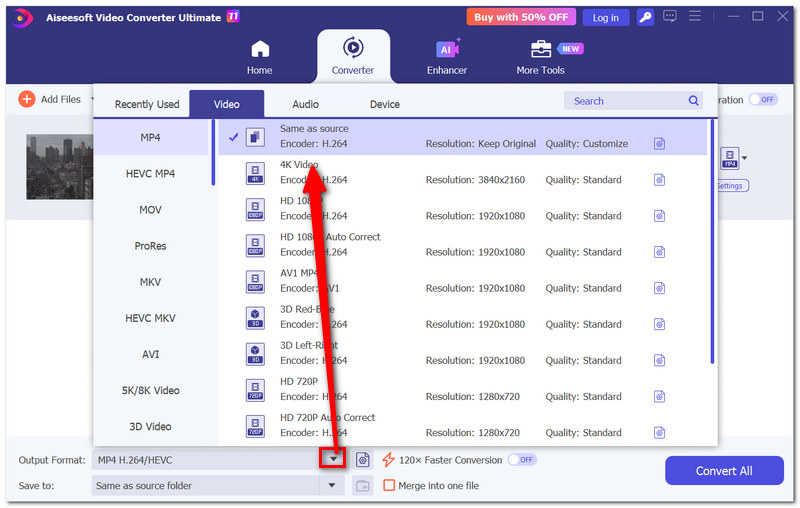
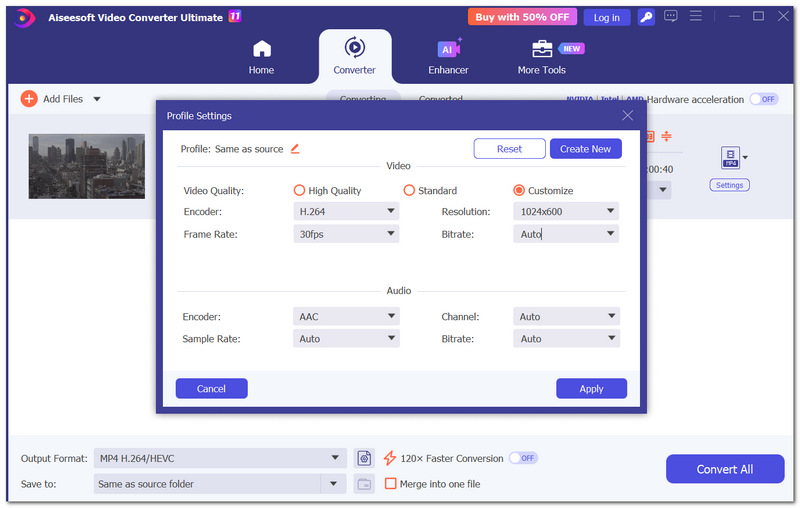
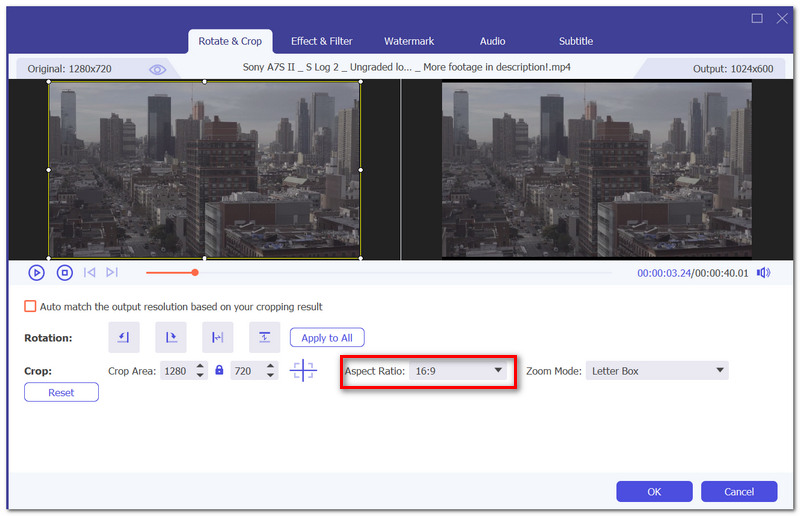
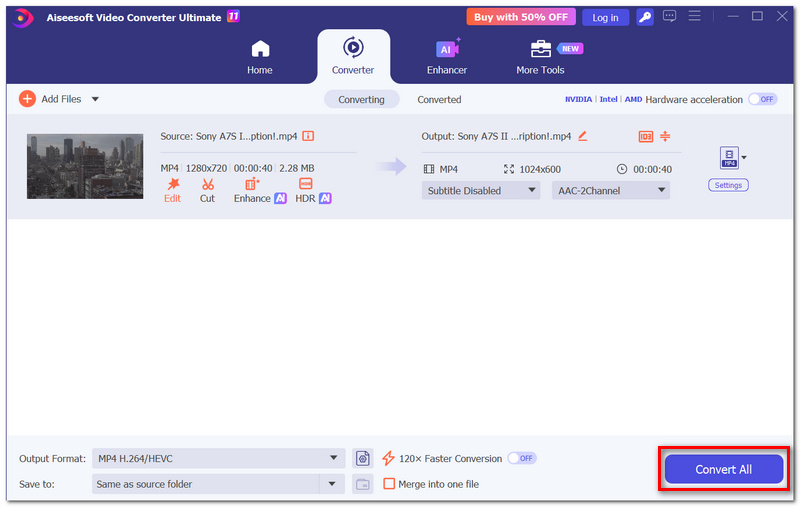
So, Aiseesoft would be a handy MP4 converter for Instagram if you intend to make the video ready and regulate its output settings within a single application.
Kapwing is a simple way to resize your MP4 for Instagram right in your computer's browser. The tool has preset options for various Instagram aspect ratios, so you can resize without doing the math yourself.
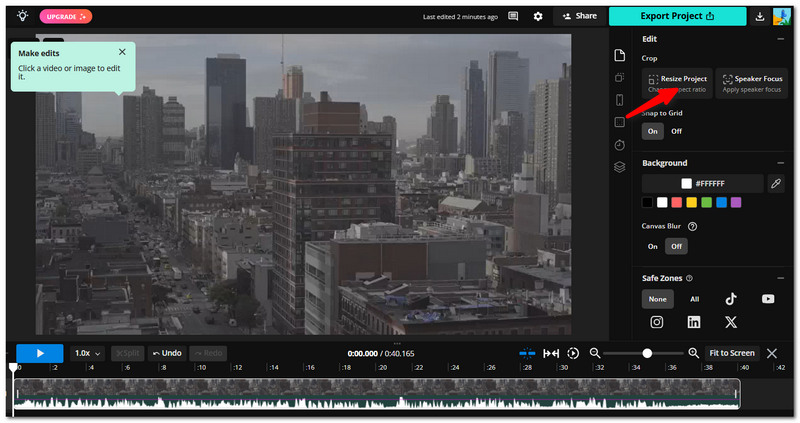
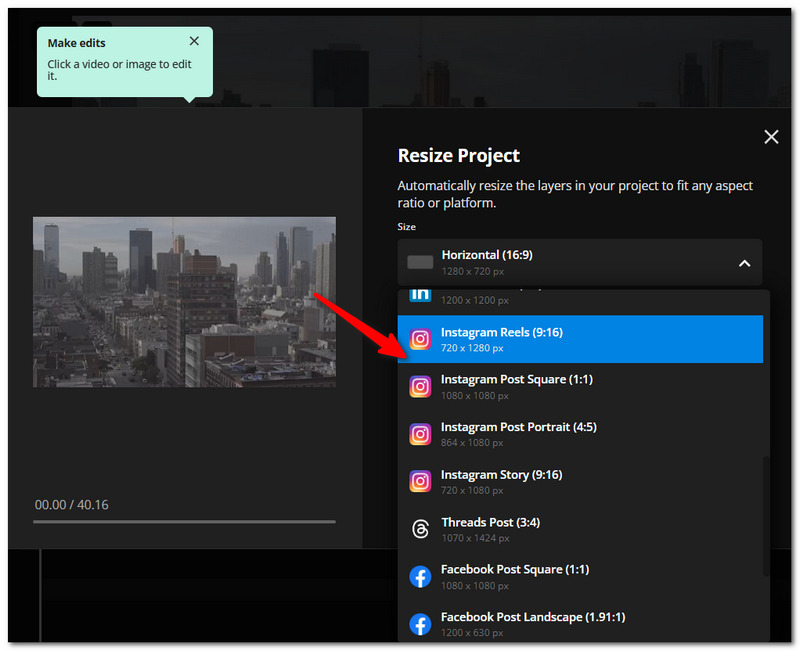
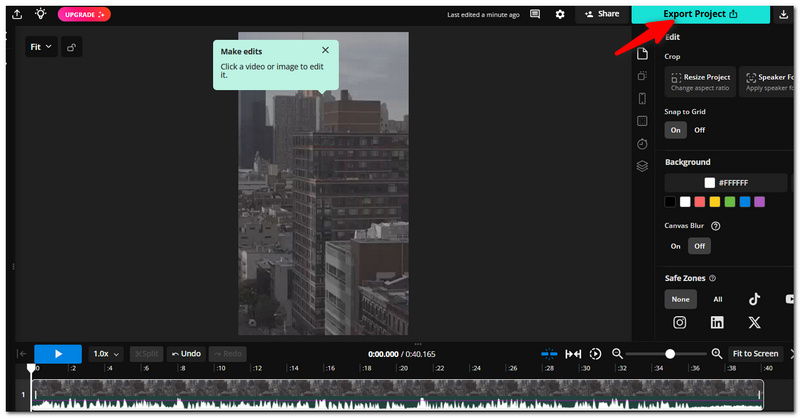
This also makes Kapwing more manageable as you convert MP4 for Instagram and quickly refine your framing or get a little editing done before leaving.
If you prefer to have more control over the final MP4 instead of a social media preset, then you can opt for HandBrake. It's a good option because you can select the MP4 format, H.264 encoder, change fps of MP4, and output resolution to optimize the video for Instagram.
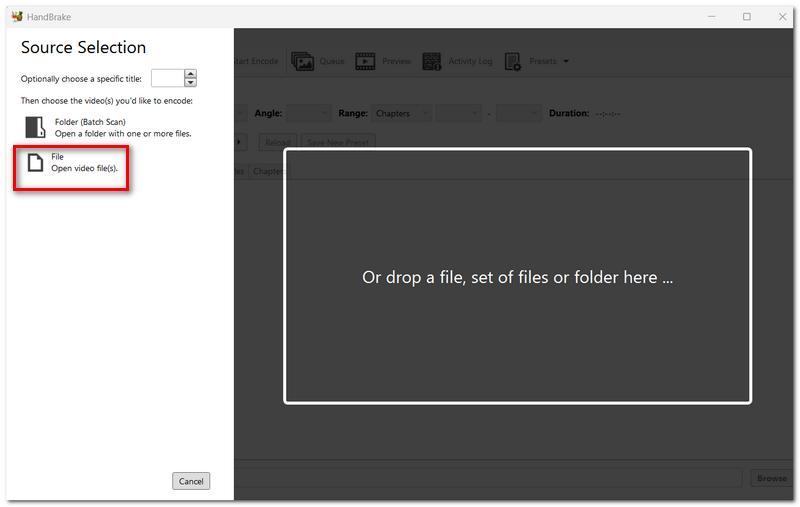
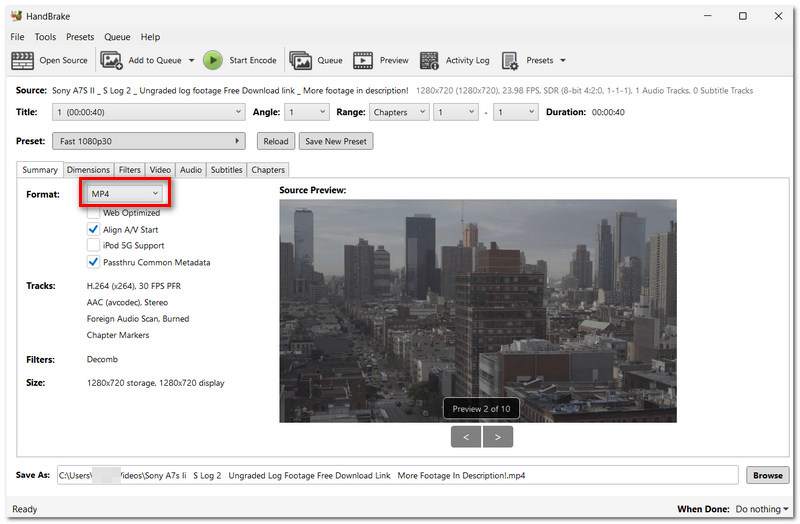
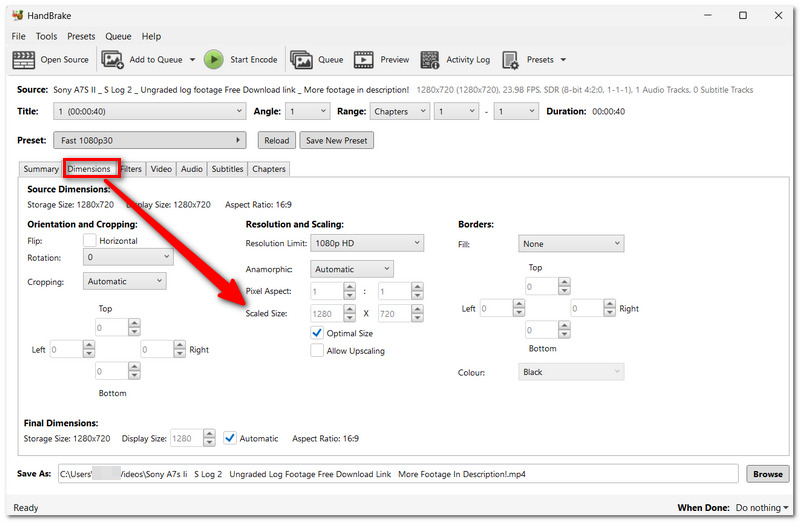
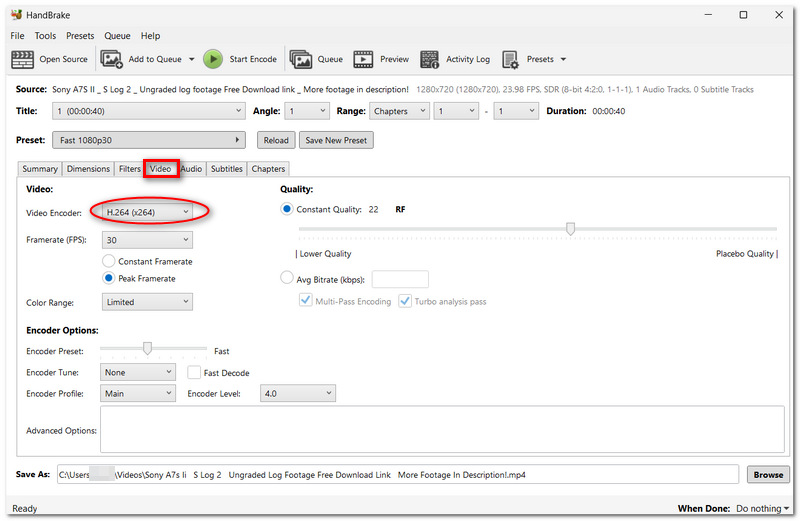
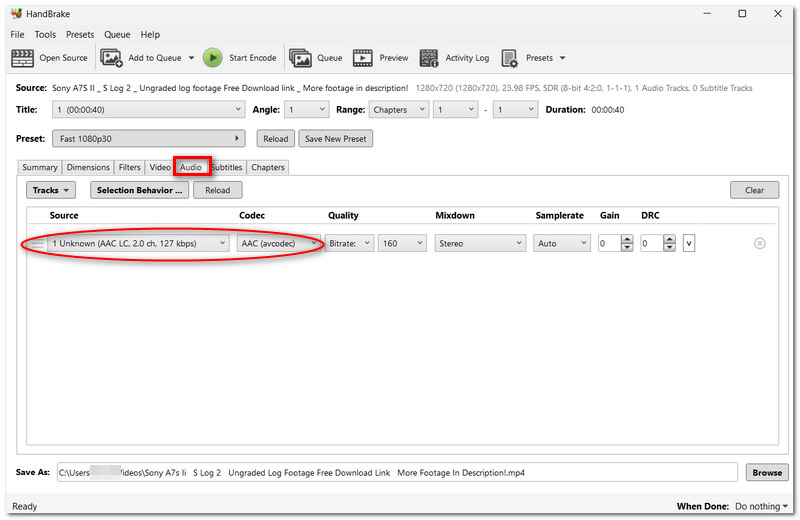
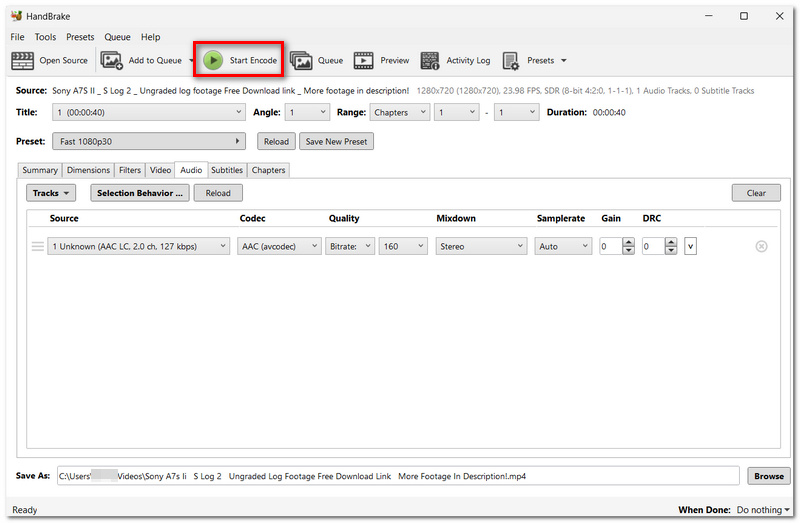
HandBrake is a solid choice when you want to convert a video for Instagram and prefer greater control over the encoding and output settings rather than relying on an automatic online converter.
Before posting your converted video to Instagram, simply take a brief glance at your final output. A few quick checks can help avoid Instagram cropping, quality, or playback problems.
When all is fine and your MP4 is good to go, you should be able to upload the video to Instagram.
Can converting an MP4 twice make the Instagram version look worse?
Yes. Every time a video is re-encoded with lossy compression, some visual information can be discarded. For example, converting an MP4 in one program, editing that result in another, and then exporting it again can introduce more compression than necessary.
Why does my vertical video have black bars once I converted it?
Black bars are typically present if the aspect ratio of the original video is different from the new project size and the editor adjusts to fit the whole video inside the final frame.
Why does the colour change after converting my video to MP4?
A color change might occur when the source and exported video are encoded with a different color space, with different transfer characteristics, or just a different encoding setting. This is mostly true for HDR footage.
Conclusion
By following the steps after selecting a proper format and export settings, converting videos for Instagram is simple! No matter whether you select your desktop program, online editor, or an MP4 converter for Instagram, always go for a video review just before sharing it on Instagram. This will prevent you from cropping, pixelation, or bad-quality issues.
 Check and Add 5 Great Widgets for Your Android Lock Screen
Which app has great Android widgets? What is the best Android weather widget? Does Android have lock screen widgets? Check and add various widgets for Android.
 How to Fix Instagram Videos Not Playing [5 Solutions]
My Instagram videos not playing, how to fix it? This post shows 5 effective ways to help you fix the Instagram videos not playing issue.
 Comparing Instagram Reels, Posts, Stories, Editing & More
How do Instagram Reels, Stories, and Post vary from one another? Which is more appropriate? Furthermore, some editing methods.
 Leave your comment and join our discussion
Video Converter Ultimate is excellent video converter, editor and enhancer to convert, enhance and edit videos and music in 1000 formats and more.
100% Secure. No Ads.
100% Secure. No Ads.

*Required field
*Please enter a valid email

