
Best For: Users looking for an easy solution to adjust the frame rate of one or more MP4 films at once.

Video Converter Ultimate
 100% Secure. No Ads.
100% Secure. No Ads.
Frame rate may be just a small item on the list of technical specifications, but it is in fact responsible for a great deal of the appearance of a video. I only got to know this after I compared two cuts of the same recording. One was so good that I felt it was really there, while the other one seemed jerky and not so natural. Such a difference depends on the FPS (frames per second), that specify how many still images are shown each second.
You can come across tons of reasons to want to change the FPS of MP4 files. In any case, by changing the FPS, you can optimize your video so that viewing and editing become more enjoyable. This tutorial will provide you with detailed instructions on how to raise or lower the frame rate of an MP4 video through various straightforward methods.
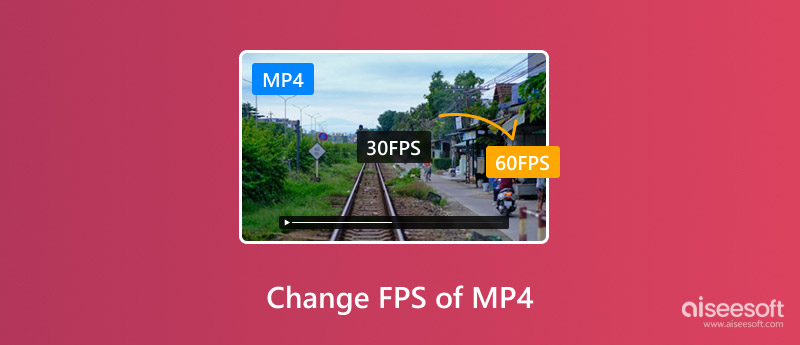
You can choose from many methods to change the frame rate of an MP4 video based on what kind of device you are using, what your skills are, and how much control you want to have. Some programs only require you to pick the new FPS value to get the job done, while others come with more features for fine motion, motion stabilization, and high-level editing. If you want to change the frame rate of MP4 files, these methods will help you to raise or lower the FPS fast and with minimal effort.
When it comes to adjusting the frame rate of multiple videos, Aiseesoft Video Converter Ultimate ranks among the easiest tools to use. It not only has a neat interface but also works quickly, and the export settings can be tailored, which is why it would fit both newbies and pro users. If you wish to have a dependable MP4 FPS changer, this program is capable of changing frame rates up or down in very few steps.
Best For: Users looking for an easy solution to adjust the frame rate of one or more MP4 films at once.
Downloads
100%
Secure. No Ads.
100%
Secure. No Ads.
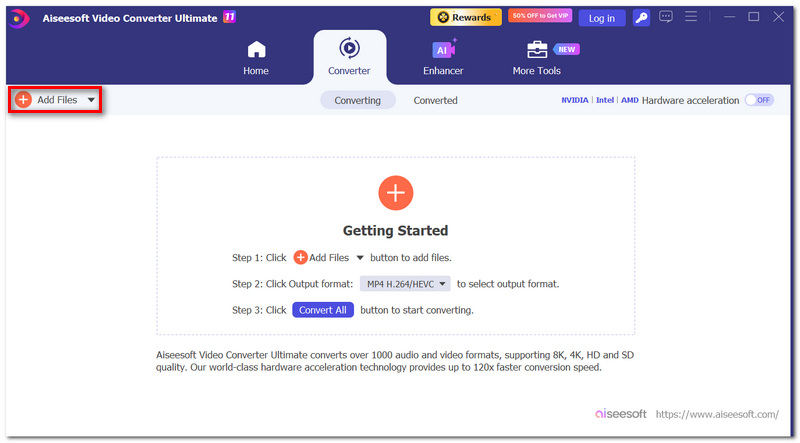
Steps to Change the FPS of MP4
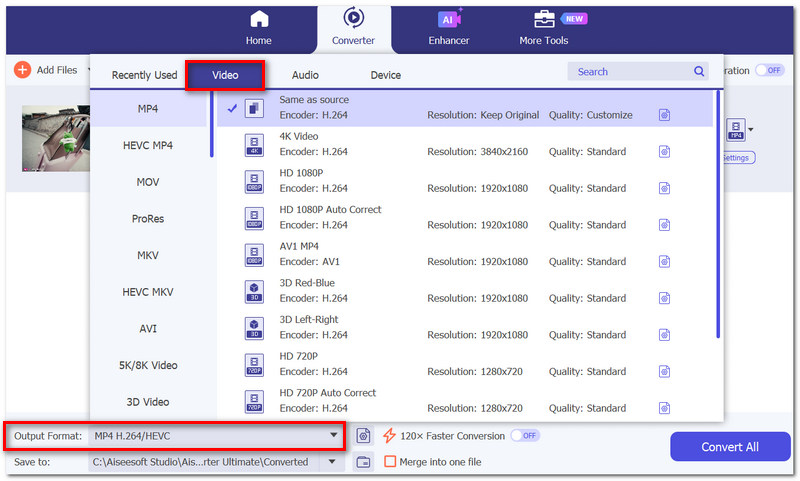
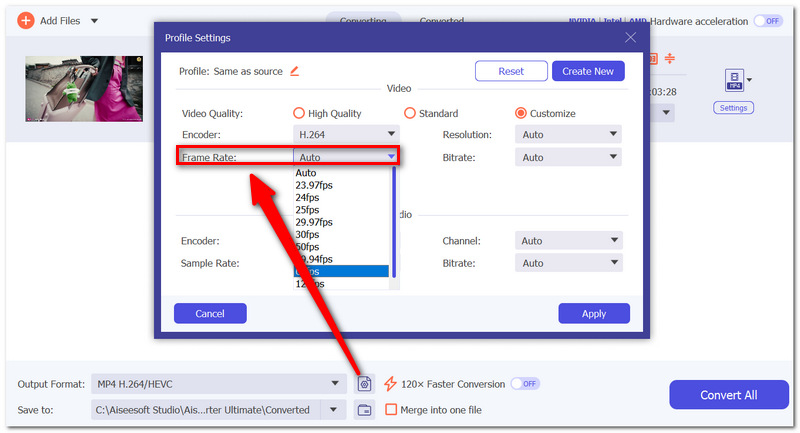
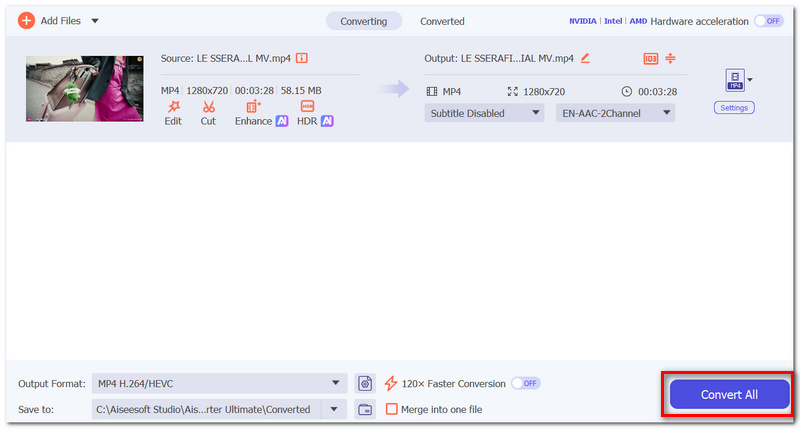
Optionally, change the video quality encoder resolution or bitrate before conversion.
HandBrake is a well-known free and open-source video transcoder that enables users to alter many video parameters, such as frame rate. It is totally free and offers a nice balance of flexibility and performance. If you simply want to change the frame rate of MP4 files without spending money on premium software, then HandBrake is probably one of the best and most trustworthy options.
Best For: Consumers looking for a free way to change the encoding settings and MP4 frame rates.
Steps to Change the FPS of an MP4 in HandBrake
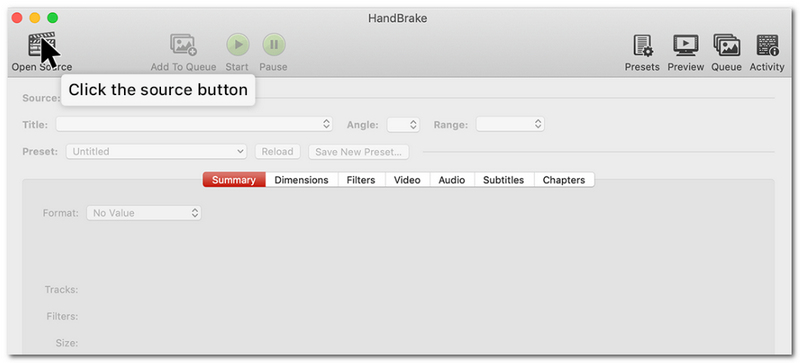
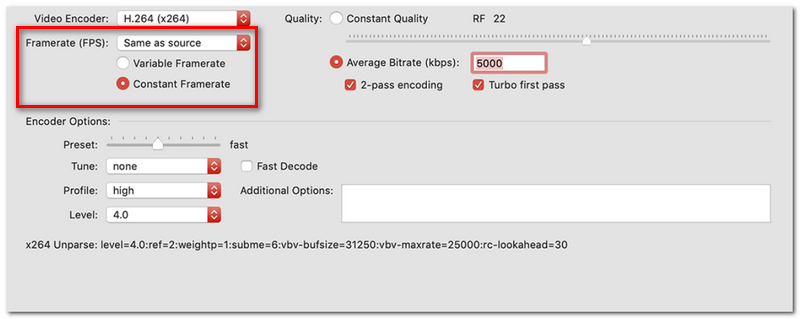
Choosing the folder and naming the video file is only an intermediate step before exporting.
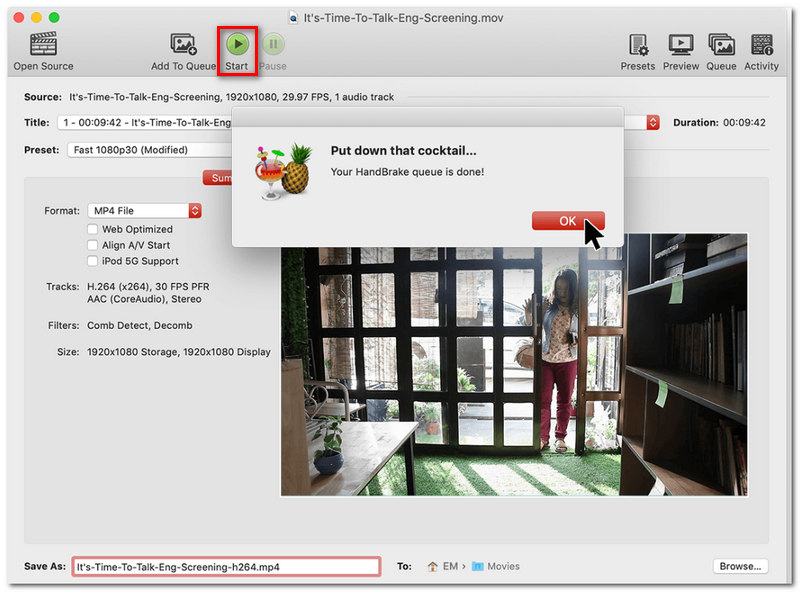
Adobe Premiere Pro is equipped with cutting-edge tools to change frame rates and control video playback. It not only converts files but also offers editors a way to meticulously decide how videos are interpreted, played, and exported. Should you require a professional MP4 frame rate changer, Premiere Pro is the one where you can smoothly change the FPS settings without losing control over your editing workflow.
Best For: Advanced frame rate and timeline controls are necessary for professional video editors and content producers.
Steps to Change the FPS of an MP4 in Adobe Premiere Pro
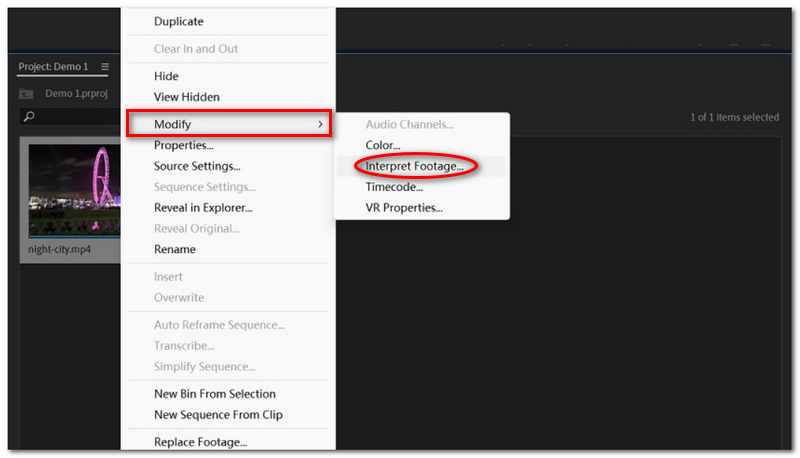
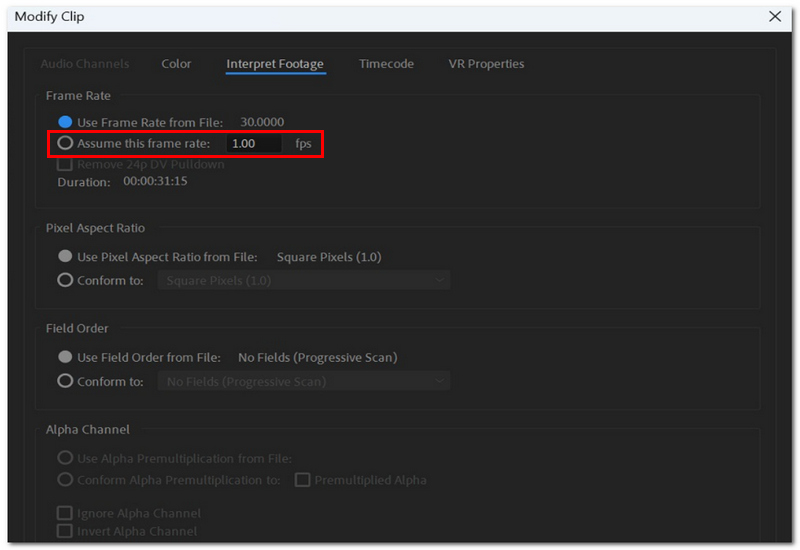
CapCut is an easy-to-use video editor for both smartphones and personal computers. It has a nice feature that allows you to easily change the frame rate while exporting your video, which is great for creators editing videos for social media. If you need to change the FPS of MP4 files with the least hassle of settings, CapCut is definitely one of the simplest ways to do it.
Best For: Social media makers, mobile users, and novices looking for an easy solution to change video frame rates.
Steps to Change the FPS of an MP4 in CapCut
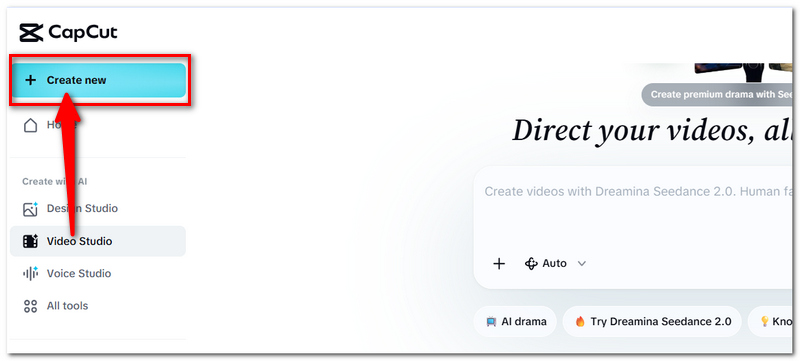
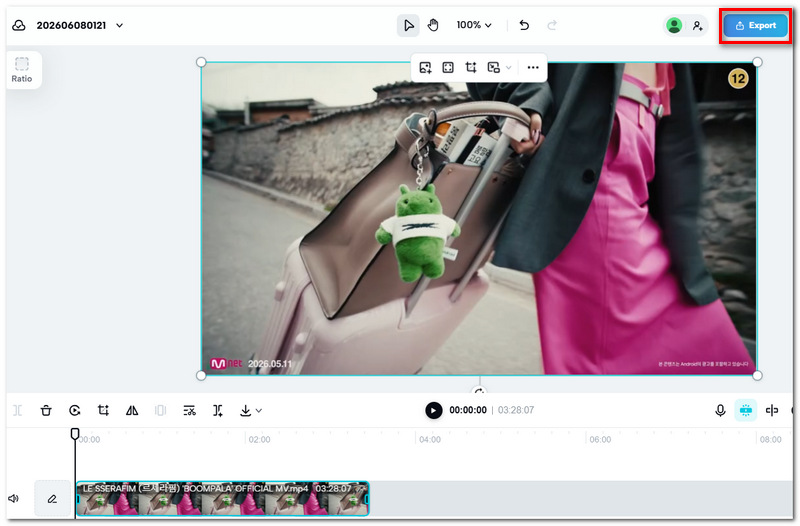
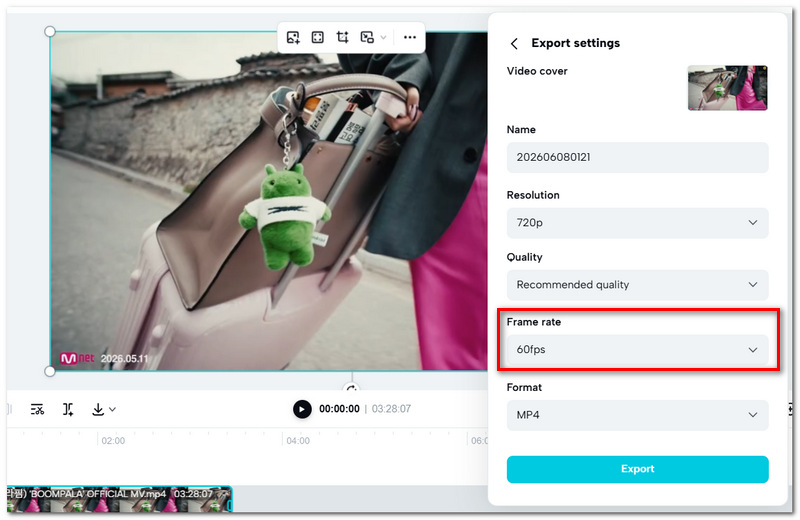
Changing the FPS of a video usually involves two main approaches: Optical Flow and Frame Sampling.
Frame Sampling is a straightforward method that changes the number of frames by either removing or duplicating them to fit the new frame rate. Say you are doing a 60FPS to 30FPS conversion - some frames will be removed. For an increase in FPS, repeating frames is one of the options available to the software. This approach is efficient but could make the motion look unnatural.
Versus Frame Sampling, Optical Flow is a method that can measure the motions between frames and make new frames in between. Rather than copying frames, it brings in additional motion data to give the movement a smoother and more realistic look. It is actually a great option when you want to enhance FPS or produce slow-motion scenes.
Which one do you go for?
Optical Flow is the right choice most of the time when you want great-looking visuals, whereas Frame Sampling is your friend if you want to get things done quickly and with less power from your PC.
Even though no additional video was added, why does my MP4 appear smoother after increasing the frame rate?
To provide smoother motion even in the absence of further collected frames, some programs use motion estimation or frame interpolation techniques.
Should I alter the FPS before or after the editing?
The truth is, it depends upon your editing process. Still, a large number of editors decide on and fix the intended frame rate before performing major changes on the timeline to make sure that there won't be any inconsistencies.
Could a frame rate change impact subtitle synchronization?
Of course! Subtitles sometimes have to be fine-tuned if there is a considerable change in video timing after a frame rate change.
Conclusion
Changing the FPS of an MP4 file can be a way to make the motion look smoother, create slow-motion effects, or adjust the video to different devices and platforms. In fact, both very easy MP4 FPS changers like Aiseesoft Video Converter Ultimate and professional ones like Adobe Premiere Pro can help you with this, but mainly it is about finding the frame rate that will be most suitable for your video and for the way people will be able to watch it.
 MOV VS. MP4: Which Video Format Should You Choose
Differentiate MOV VS. MP4 in terms of compression, file size, and quality. Also, check the best video converter to change file extensions professionally.
 Convert AVI/WMV to MP4 – How to Convert Video to MP4
Convert AVI/WMV to MP4 – Guide shows how to convert all common formats (AVI, MPEG, WMV, etc.) to MP4 format with MP4 Video Converter fast. Free download this MP4 converting software to convert other videos to MP4.
 10 Best MP4 Players for Windows 11/10/7 PC, Mac, and Online
Does Windows 10/11 come with an MP4 player? What is the best MP4 player for a Mac? Check the review of the ten best MP4 players for Mac, Windows PC, and online.
 Leave your comment and join our discussion
Video Converter Ultimate supports MP4 frame rate adjustment, batch conversion and AI video enhancement for Windows/Mac.
100% Secure. No Ads.
100% Secure. No Ads.

*Required field
*Please enter a valid email
