Best Video Enhancer: Upscale Video to 4K/8K
 100% Secure. No Ads.
100% Secure. No Ads.
Premiere Pro is a professional video editing tool developed by Adobe. It is equipped with all the necessary functions you may need to edit and create videos. The powerful software is widely used by editors, YouTubers, content creators, and filmmakers worldwide. This guide explains how to enhance video quality in Premiere Pro.
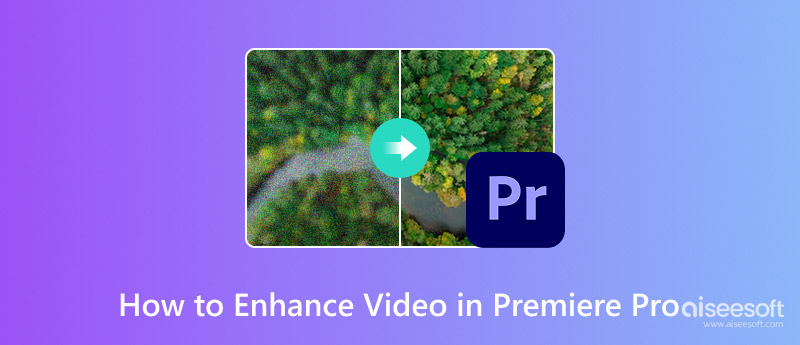
You can easily improve overall quality by fixing common video issues such as low resolution, blurriness, digital noise, and color. The first part will walk you through these basic corrections, such as sharpening, upscaling, and color correction.
Premiere Pro has built-in tools for quickly enhancing blurry or soft-looking footage. You can apply its sharpening effects to enhance edge detail and improve quality.
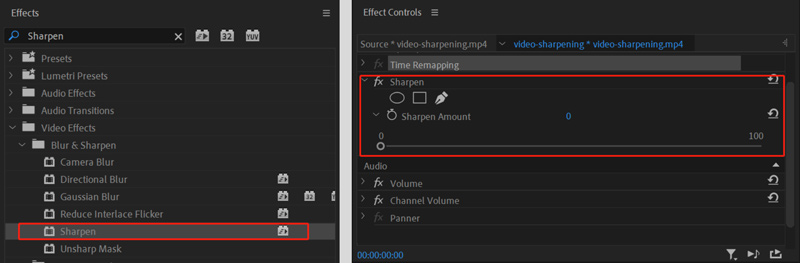
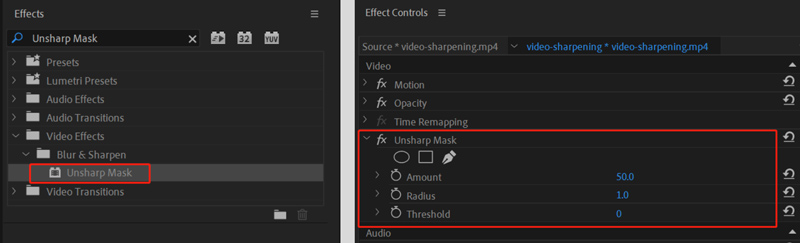
You can sharpen your video to make it look clearer. For more precise control, you can apply the “Unsharp Mask” effect. It offers three parameters to better control the intensity of the sharpening and enhance the quality.
Premiere Pro doesn’t have a single dedicated “Denoise” function for you to handle grainy or noisy footage. To achieve similar results for noise reduction, you can rely on the Median effect. Similarly, you can find the effect from Video Effects. When you locate Median, apply it to your clip.
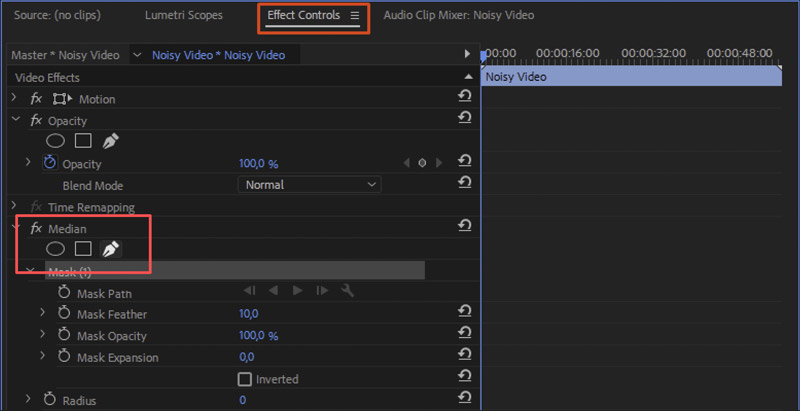
Note that Premiere Pro includes a DeNoise feature to reduce background noise in your audio track. You can locate it under Audio Effects > Noise Reduction/Restoration.
Color correction can help you fix issues and achieve a natural look. Go to Lumetri Color to access related options. The panel is your central hub for all color work.
Start in the Basic Correction tab to fix white balance, saturation, exposure, and other color issues. You can also use Curves for advanced adjustments. For instance, the “RGB Curves” lets you customize and control contrast and brightness precisely.

Once you have mastered these basics, you can start advanced techniques to further streamline your workflow and enhance your video. Create an Adjustment Layer and place it over the clips on your timeline. After that, apply various effects to this layer. That can help create a consistent look and make global adjustments effortless.
While Premiere Pro is mighty, it is not primarily designed for video enchantment. Dedicated AI enhancers can often produce superior results with less effort, especially for tasks like resolution upscaling, color correction, and details restoration. What’s more, while selecting a video enhancer, you should also be concerned about the cost. Premiere Pro is quite expensive, US$22.99/month. It is not an ideal choice for most general users.
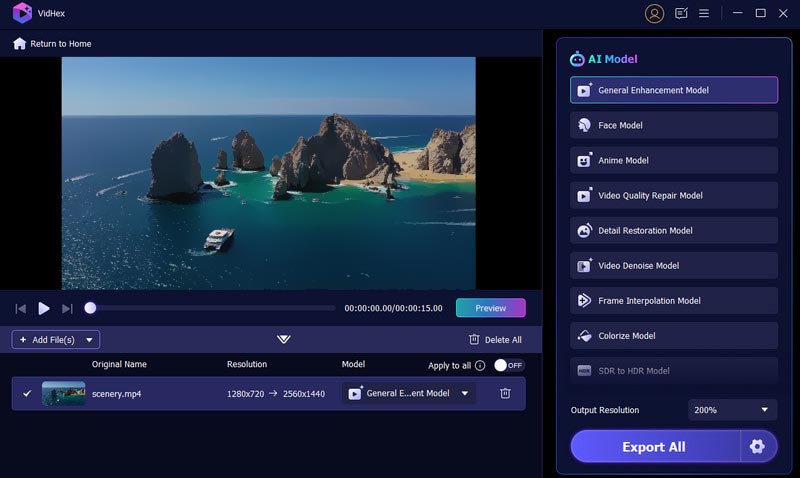
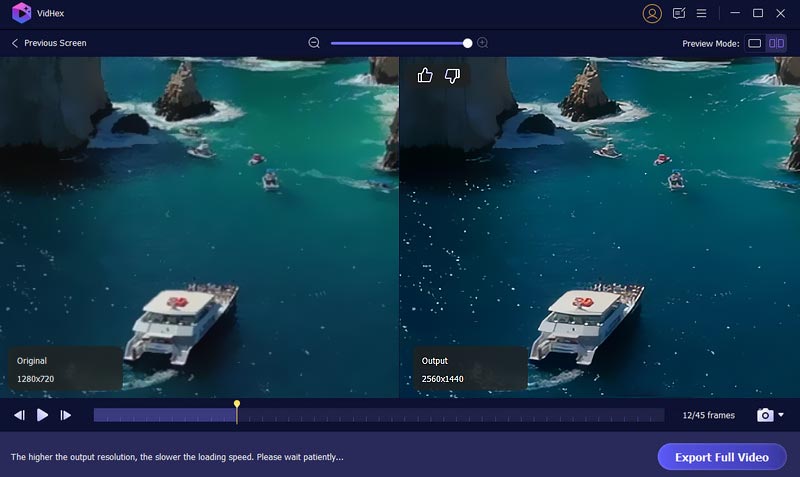
If you need a Premiere Pro alternative to enhance videos, start with the reputable Aiseesoft VidHex. The software is renowned for its exceptional video upscaling and denoising capabilities. Moreover, it provides multiple AI models trained for different enhancement tasks, including frame rate interpolation, deinterlacing, color correction, and video denoise.
100% Secure. No Ads.
100% Secure. No Ads.

Question 1. How to make a blurry video clearer in Premiere Pro?
Adobe Premiere Pro offers several effective methods to help you make a pixelated or blurry video look clearer. First, you can apply the built-in Sharpen effect to your footage for a quick fix. Moreover, use more advanced tools like Unsharp Mask and the Lumetri Color to increase the clarity of your blurry video. Additionally, several third-party plugins can be used with Premiere Pro to sharpen videos.
Question 2. How do you convert a low-quality video to a higher quality?
When you need to enhance the quality of videos, you should use an AI-powered enhancer. It’s crucial to understand that traditional editors cannot create information that didn’t exist before. In that case, they won’t generate real improved quality. You can use modern AI technology (like VidHex) to intelligently analyze the source footage and reconstruct what that missing detail might look like. The final enhancement results can be dramatically better.
Question 3. What is the best free video enhancer?
You should select the “best” tool based on your specific enhancement needs. For instance, you should decide whether you want to sharpen blurry footage, upscale the resolution, correct colors, or perform other enhancements. What’s more, you need to select a suitable video enhancer depending on whether you are working on a computer or a phone. Several excellent free video enhancers include CapCut, Remini, Picwand AI Video Enhancer, YouCut Video Editor, and Video2X.
Conclusion
Premiere Pro offers various functions to transform raw footage into polished, higher-quality content. You can learn to enhance video quality in Premiere Pro from this page. If you don’t have Adobe software, you can go directly to the recommended alternative for AI video enhancement. It can better handle the most demanding tasks.
 Learn How to Stabilize Your Video in Adobe Premiere Pro
Can you stabilize a video in Premiere Pro? Does Premiere Elements offer good stabilization? Check the detailed guide on how to stabilize videos in Premiere.
 What Should We Do to Change Image Size in Premiere Pro
Read our guide if you want to know how to change image size in Premiere Pro. We will provide you with the most detailed guide and another tool for newbies.
 Premiere Pro Transition: Explore Effects, How to Import & Alternatives
Dive into a world where Premiere Pro transitions are indispensable for video production, making the transition even smoother as alternatives to it.
 Leave your comment and join our discussion
VidHex is an AI-powered video enhancer that upscales, denoises, colorizes stabilizes, and improves video quality in 1 click.
100% Secure. No Ads.
100% Secure. No Ads.

*Required field
*Please enter a valid email

