
Aiseesoft Video Converter Ultimate
 100% Secure. No Ads.
100% Secure. No Ads.
Contents
If you are comfortable with command-line tools or want full control of the audio extraction from video, you can use FFmpeg to extract audio. It is an open-source, cross-platform tool designed to handle all types of multimedia files and processing tasks. FFmpeg can help you extract audio to MP3 or another desired format with ease. There are a lot of specific commands and explanations in the world of media processing, such as encoding, decoding, transcoding, and more. This guide shares the exact commands you need to extract audio from video using FFmpeg.
As mentioned, there are many exact commands you need to extract audio from video. However, before the specific command recommendation, we would like to talk about how to download and install FFmpeg first. Unlike traditional applications, FFmpeg is a set of libraries and binaries that run in your command line. This section tells how to get FFmpeg installed on your system.
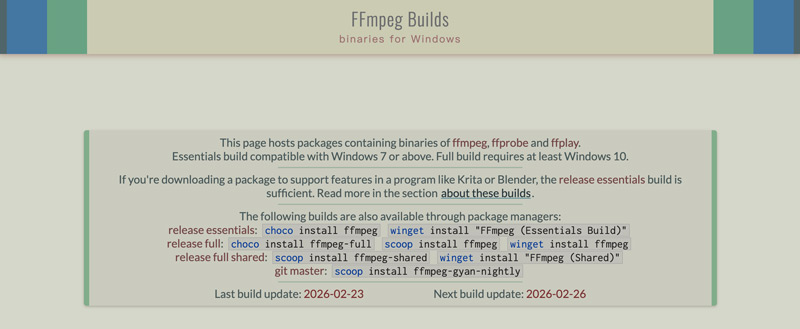
Open Terminal on your Mac and run “brew install ffmpeg”. This will install FFmpeg using Homebrew.
After installation, you can verify it is working by running ffmpeg -version in your terminal or command prompt.
If you want to quickly isolate the audio as it exists inside the video container, you should copy the audio stream. The process does not decode and re-encode the audio. Instead, it simply moves audio from the video container, with no quality loss whatsoever.
Command Line Example:
ffmpeg -i input.mp4 -vn -acodec copy output.aac
-i input.mp4: The source video file.
-vn: Short for “Video None.” Tells FFmpeg to discard the video stream entirely.
-acodec copy: Tells FFmpeg to copy the source audio stream without re-encoding. Ensures no conversion and no quality loss.
output.aac: The name of your extracted audio file. Tells FFmpeg what container format to use.
In some cases, you don’t want the original AAC or Opus codec. You prefer to extract audio from a video to MP3 for compatibility with older devices or a specific platform/software. Considering that MP3 is a lossy format, you can use the LAME MP3 encoder (libmp3lame) to set a high bitrate. That helps get the highest quality MP3.
Command Line Example:
ffmpeg -i input.mp4 -vn -ab 320k output.mp3
-ab 320k: Tells FFmpeg to set the audio bitrate to 320 kbps.
When you extract audio from a large video, such as a film, lecture, or meeting, you often don’t need the whole audio track. You want to get a specific segment, the necessary or important part, of audio.
FFmpeg lets you easily trim audio using time stamps: -ss (start time) and -to (end time) or -t (duration) parameters.
Command Line Example:
ffmpeg -ss 00:01:00 -to 00:02:30 -i input.mp4 -vn output.mp3
-ss 00:01:00: Starts the audio extraction at the 1-minute mark.
-to 00:02:30: Stops the audio extraction at the 2-minute and 30-second mark.
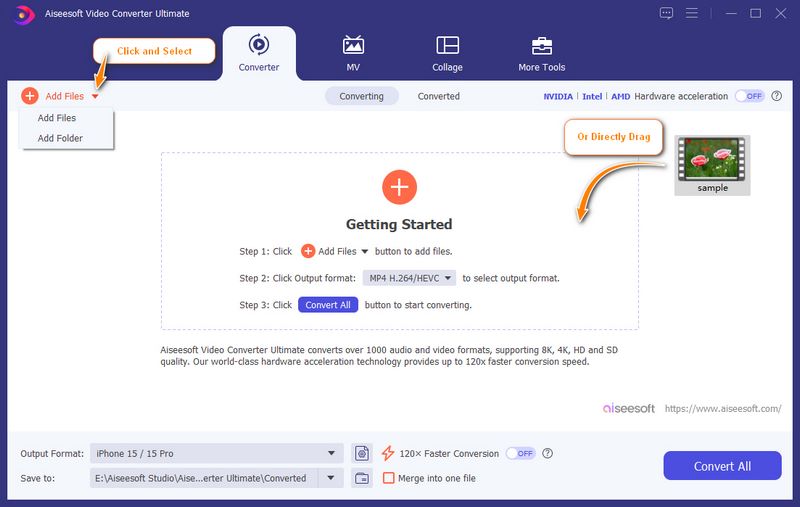
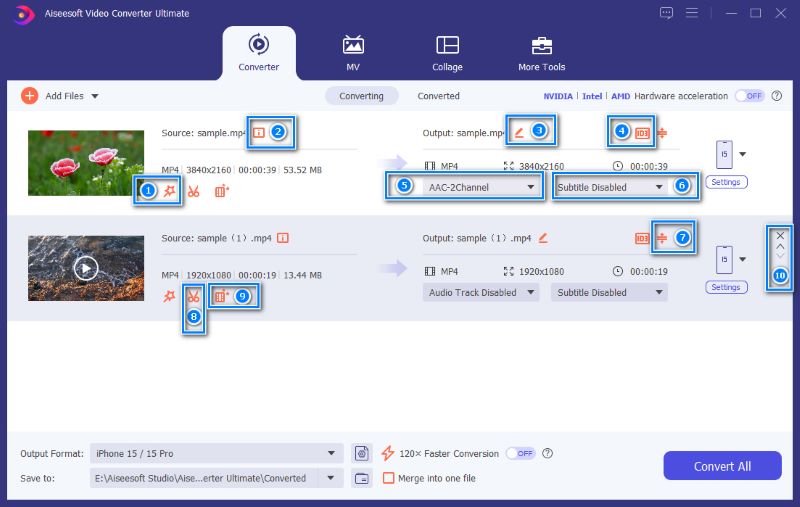
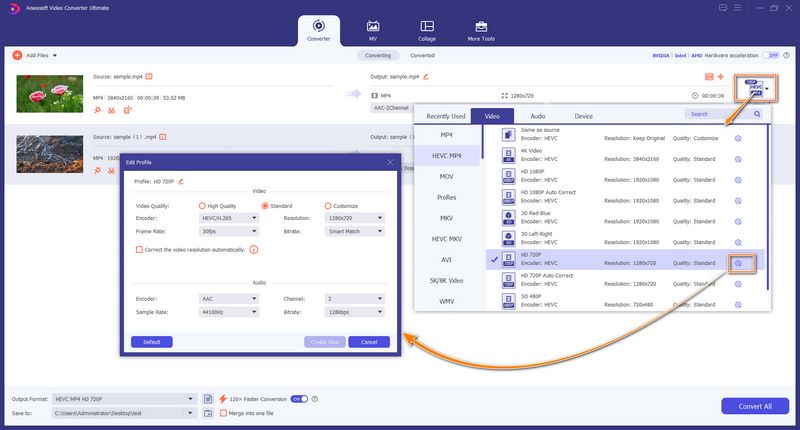
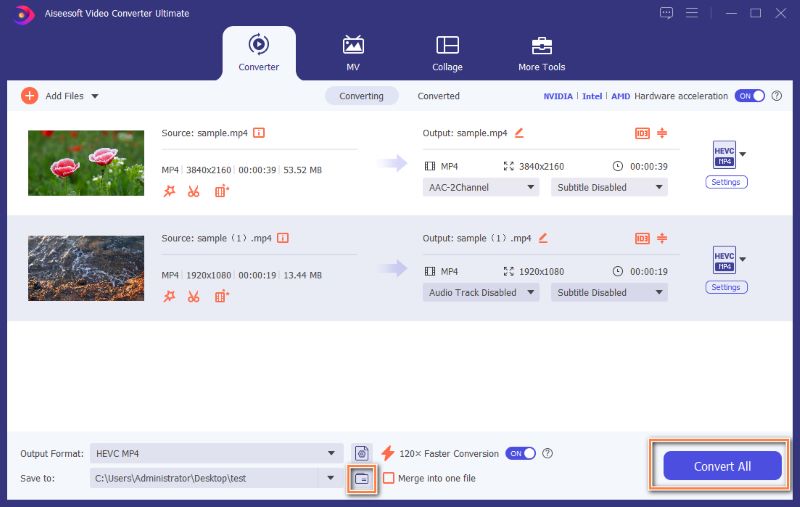
FFmpeg is an indispensable tool for professionals and developers. However, this powerful command-line utility is not ideal for most casual users. If you prefer a graphical interface and are unsatisfied with commands, Aiseesoft Video Converter Ultimate is an excellent alternative for audio extraction and other conversion/editing/enhancement needs.
100%
Secure. No Ads.
100%
Secure. No Ads.
Question 1. Is FFmpeg the best way to extract audio?
For most general users, FFmpeg is not the best way for audio extraction. However, if you are comfortable with command-line interfaces, its fast-processing speed, precision, and power are unmatched.
Question 2. Can FFmpeg convert videos with multiple audio tracks?
Yes, FFmpeg can handle multi-track files like MKV. When you use FFmpeg to extract audio from a multi-track video, it will typically convert one video stream and one audio stream, the first ones by default. To override this, you use the -map flag to tell FFmpeg specific stream(s) you want to output.
Question 3. Is the FFmpeg extract audio way completely free?
Yes, the FFmpeg audio extraction way is 100% free. This command-line tool is open source, with no hidden subscriptions. It is developed and maintained by a global community of volunteers.
Conclusion
This guide shares several helpful commands for you to extract audio from video using FFmpeg. These commands can easily handle most audio extraction needs. Again, if you are comfortable with this command-line tool, you can use the exact commands to get audio with ease.
 How to Convert MP4 to Audio Using 2025 Desktop/Online Tool
Some soundtracks you hear online are only taken from certain videos. You can also extract audio from MP4 using these powerful desktop and online solutions.
 7 Ways to Add Audio to Videos and Elevate Them with Sound
How do you merge audio and video? Can I overlay an audio on my video online without a watermark? This post shares seven simple methods to add audio to videos.
 How to Use FFMPEG Deinterlace: Filters, Commands, and AI Tools
Fix interlaced videos easily with FFMPEG Deinterlace. Discover the top filters, commands, and AI alternatives for seamless, clear playback.
 Leave your comment and join our discussion
Video Converter Ultimate is excellent video converter, editor and enhancer to convert, enhance and edit videos and music in 1000 formats and more.
100% Secure. No Ads.
100% Secure. No Ads.

*Required field
*Please enter a valid email

